

Before the tools do anything
You do not need to connect a provider. With none connected, tools run on DMLY’s shared AI, metered against your monthly AI replies allowance. If your plan allows your own AI, a connected provider overrides that. Only on those plans does the node show the Provider list (connected providers only) and, with none connected, the message: No AI provider is connected. Connect OpenAI, Claude, Gemini or DeepSeek under Integrations to configure this node. Exactly four providers are selectable: OpenAI, Claude (Anthropic), Google Gemini and DeepSeek. See OpenAI.
- Reading your own documents isn’t available on every provider. Claude and DeepSeek can’t search documents. The AI Knowledge selector is still offered on the tab, but a step that replies on one of those two searches nothing whatever you select. Use OpenAI or Gemini if the agent needs to read your material.
- Knowledge is off by default. A new AI Reply node arrives with AI Knowledge set to No knowledge, so it answers from its prompt alone until you choose what it may search.
CRM contact tools
Under CRM contact tools: The assistant can only do what is ticked here. Anything else your prompt asks for, it will describe rather than do. With nothing ticked, a warning says the assistant can only talk. Everything here acts on the contact in the conversation, so it needs no ids and can’t touch anyone else.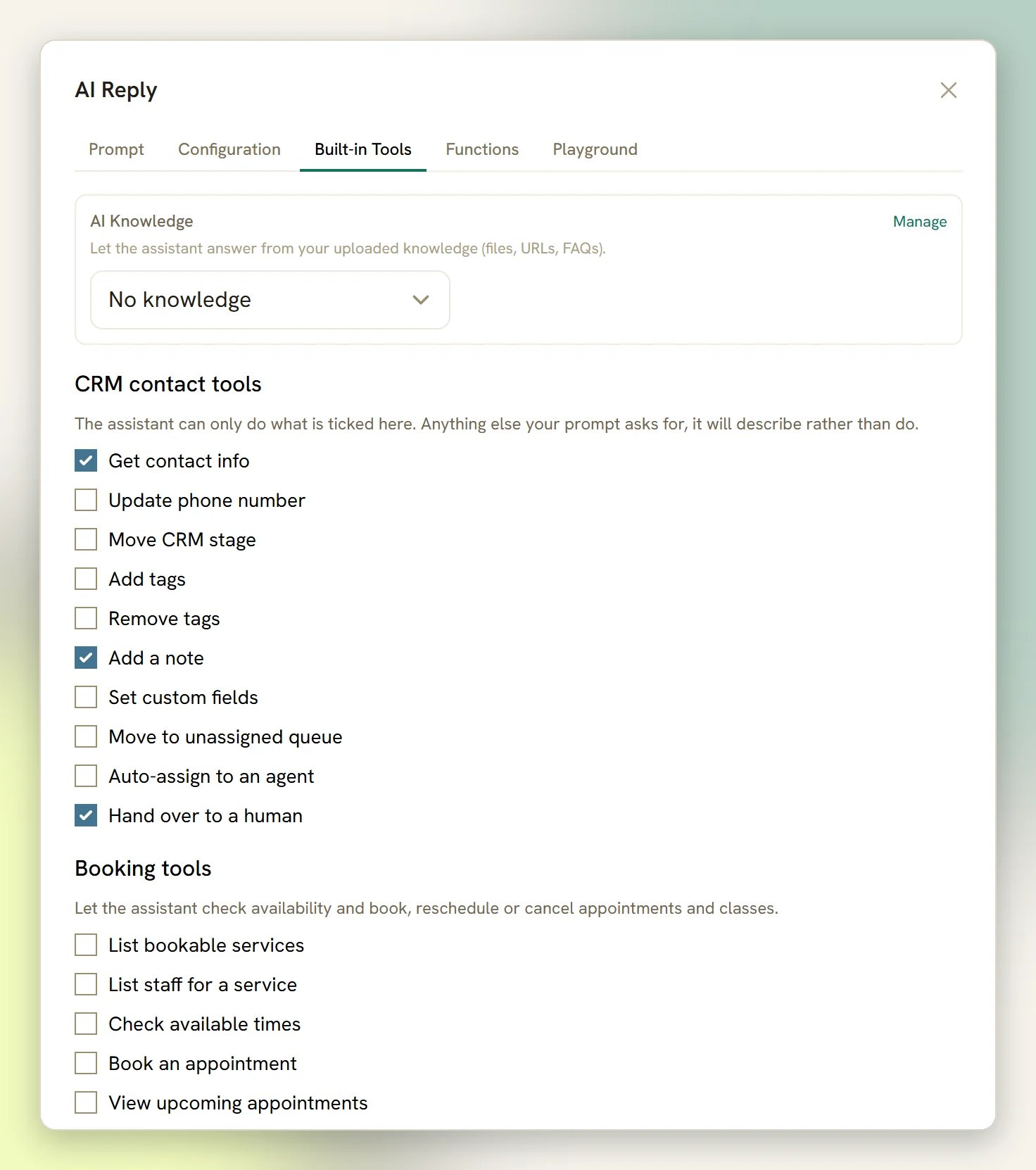
Worked example
A clinic’s AI Customer Service agent answers a question about laser pricing. With Get contact info it opens by name and knows this contact is already a client. With Add tags it dropspricing-enquiry on them. With Add a note it records what they asked. When they ask something clinical, Hand over to a human pauses the bot and Auto-assign to an agent puts it in front of the next practitioner. Nobody re-reads the thread; the tags and the note are already there.
Booking tools
Under Booking tools: Let the assistant check availability and book, reschedule or cancel appointments and classes. These act on your real Appointments data, so your Services, staff and classes have to exist first.CRM and booking tools share one checkbox list, so a booking agent can tag and note as it goes.
Services that are paid for up front
On a Service set to take payment before the booking, Book an appointment holds the slot for 15 minutes and DMLY — not the agent — sends the payment itself, as a Pay button showing the amount. The agent is told the amount so it can say what’s owed, but it never writes the link or the figure: it is given neither. The booking confirms on its own when the payment lands, and the hold is released if it doesn’t. That matters if you change a price mid-conversation. The agent re-reads the price every time it checks availability, so a new price is quoted from the next set of times onward, and the button always charges what the Service says right now.Worked example
A salon’s booking agent has List bookable services, Check available times, Book an appointment and Hand over to a human switched on. A contact asks for a cut and colour on Saturday. The agent reads the Services, reads the genuinely open Saturday slots, offers two, books the one they pick, and hands over when they ask about a refund. Without Check available times the same agent invents plausible times and you get a double booking.Commerce tools
These let the AI sell your Products and build a real order. They only work once AI ordering is turned on; see Take orders with AI. Tick them on the Built-in Tools tab under Commerce tools.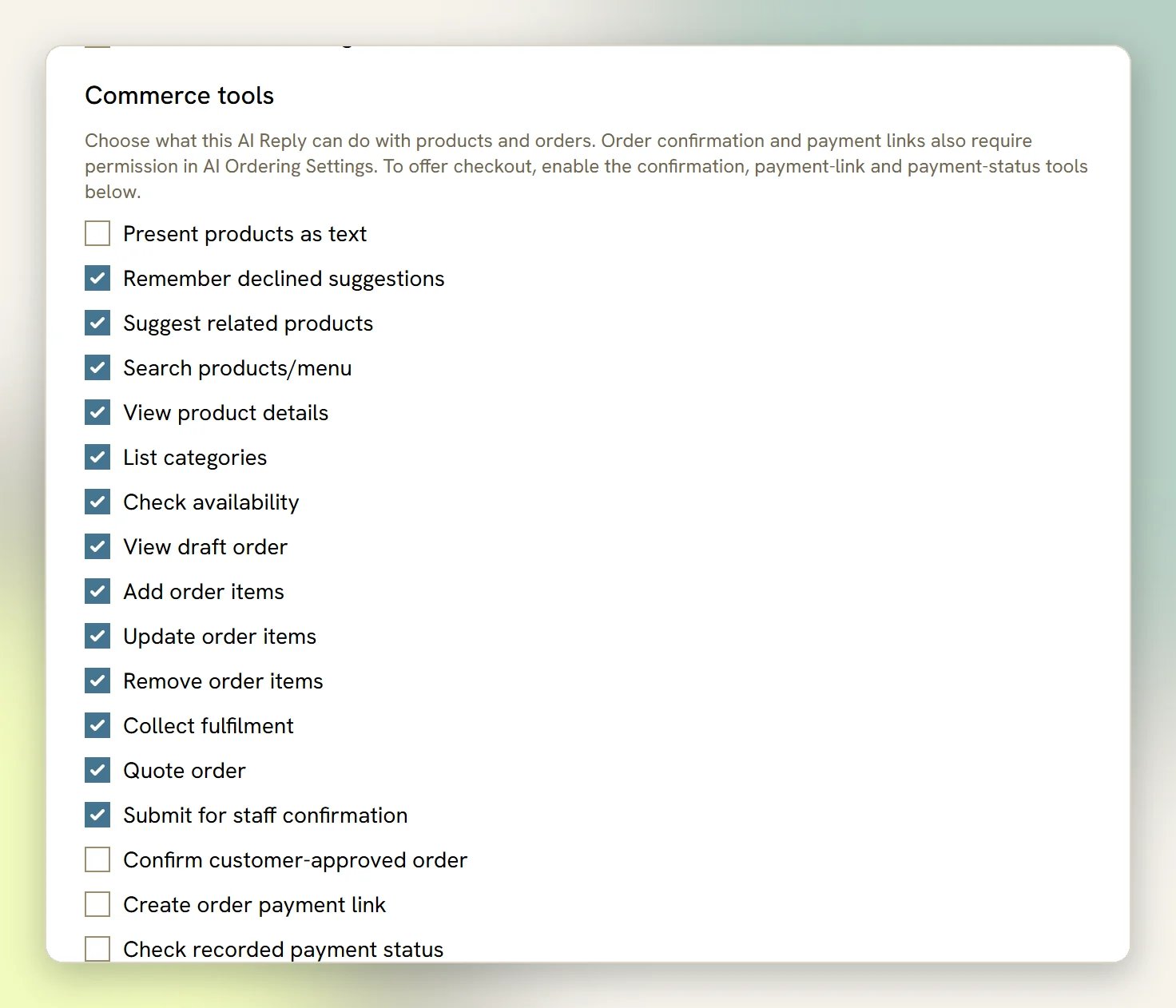
The last three also need permission in AI Ordering Settings, so ticking them alone does
nothing.
Under Rich responses, Show product cards, Show product carousels and Show collection
cards let the AI show products as cards where the channel supports it. Presentation mode
can force Always use text only for this step.
Options the customer taps
When the agent asks a customer to pick from a few known options — a service, a day, a time, yes or no — it shows them as options the customer taps instead of typing. There is no checkbox for this: it is on for every AI Reply node, because it only changes how a reply looks, never what the agent can do. What the customer sees depends on the channel:
A tap reaches the agent exactly as if the customer had typed the option, and typing still works everywhere, so someone who ignores the buttons is never stuck. The agent offers at most ten options at once; for more, it narrows the choice first — morning or afternoon, then the time.
AI Knowledge
The AI Knowledge block lets the agent answer from your own material (a price list, a policy, a treatment FAQ) instead of guessing: Let the assistant answer from your uploaded knowledge (files, URLs, FAQs). A Manage link next to it opens Settings → AI Knowledge, where the material lives. You build collections of sources there (files, web pages, FAQs, pasted text), then choose on the node what this agent may search:- Uploads are PDF, TXT and MD only, up to 20 MB. There’s no CSV, DOCX or XLSX. A web page, an FAQ or pasted text needs no file at all.
- There’s no training step. A source is searchable on the next reply once its status reads
ready. - With nothing in the workspace yet, the node warns you and points you at Settings → AI Knowledge. If you leave the selector on No knowledge, there’s no warning at all; the agent just silently never searches.
- There is no Max results control on the node: how many snippets a reply retrieves is handled for you.
- When the step answers from a source that was ingested from a web address, it appends that address to the end of the reply as a plain link: at most two links per reply, and never one the answer already contains. Sources added as a file, an FAQ or pasted text have no address, so they produce no link. Because knowledge search never shows in the Tool calls trace, that appended link is often the only visible sign the agent read one of your documents.
Web search
Web search: Let the model search the web to ground its answer. Available on OpenAI, Claude and Gemini; not on DeepSeek. It’s off by default, and for most SMB agents it should stay off: your prices, hours and policies are not on the open web, and a searching agent is slower. Switch it on for a genuinely outward-facing question (a travel agent checking a destination’s public entry rules, say).Custom functions
The Functions tab is for when a tool you need doesn’t exist. You define an HTTP call the AI can make: a name, a description (What does this function do? (helps the AI decide when to call it)), a method, a URL, headers and a Parameters (JSON Schema) body. The AI sends JSON arguments to your URL and uses the response in its reply. This is the one developer-shaped part of the AI node. A worked case: your stock lives in a warehouse system DMLY doesn’t know about, so you expose acheck_stock endpoint and the agent can tell a contact whether the item is in.
Test before you publish
The Playground tab appears only on plans that allow your own AI provider; on DMLY’s shared AI the node shows only Prompt, Built-in Tools and Functions. The Playground runs your configuration against a test message: Test this configuration without sending a real message. Tool calls run against demo data on localhost. You get the Reply plus a Tool calls trace showing which tools the agent reached for. Nothing is sent to a contact and nothing is written to a contact record. Use it to check the agent picks the right tool. If you ask Can you check what’s on my file? and the trace shows nogetContactInfo call, your prompt isn’t telling it to look anything up.
The trace lists CRM tools, booking tools, custom functions, and offer_choices when the agent showed the customer options to tap. Knowledge search and web search run inside the provider, so they never appear in it; an agent answering correctly from your collections still shows an empty Tool calls trace.
What’s switched on by default
A new AI Reply node arrives with five tools already ticked: Get contact info, Add a note, Add tags, Hand over to a human and Move to unassigned queue (a sensible support agent). It also arrives with a full Customer Service prompt written for you, addressed from{{business_name}} (your workspace name) to {{first_name}}.
The six AI templates in the template library each preload a different set:
AI Customer Service bot
Get contact info, Add a note, Add tags, Hand over to a human, Move to unassigned queue.
AI Lead Qualification bot
Adds Update phone number, Set custom fields, Remove tags and Move CRM stage; drops Move to unassigned queue. See Lead qualification.
AI Appointment Booking bot
Get contact info, Add a note, plus the full appointment set: list, staff, availability, book, view, reschedule, cancel, and Hand over to a human.
AI Class Booking bot
Get contact info, Add a note, plus list, book, view and cancel for classes, and Hand over to a human.
AI Food Ordering and AI Shopping assistants
Get contact info, Add a note, Hand over to a human, every commerce tool except Present products as text, Confirm customer-approved order, Create order payment link and Check recorded payment status, and all three card tools. See Take orders with AI.
Limits worth knowing
The agent stops using tools part-way through a reply
The agent stops using tools part-way through a reply
Each AI reply makes at most eight tool-calling rounds. Past that the model is asked once more with tool calling switched off, so it always produces a reply. Separately, a mid-flow AI step (one whose exit leads to a real downstream node) that is reached more than three times in one run is skipped with a note in the Inbox: AI step skipped — per-conversation AI limit reached. A conversational AI stops replying after 40 turns and the flow moves on.
The AI isn't using a tool you switched on
The AI isn't using a tool you switched on
Tell it to, in the prompt. Ticking a box makes a tool available; the prompt is what makes the agent reach for it. Where your plan has the Playground, check its Tool calls trace to see what it actually did.
Nothing happens and the flow just continues
Nothing happens and the flow just continues
The AI node never stalls a flow. If the model errors or comes back empty, it sends your Fallback message (on error / empty reply). If the step is skipped instead (no provider connected, AI replies turned off for the workspace, this month’s allowance of AI replies used up, or the per-conversation cap reached) it only leaves a note. Either way it continues out its one exit. Check the Inbox conversation for a note starting with a sparkle, and see Logs.
AI replies
Set up the AI Reply node itself: prompt, provider and model.
Knowledge base
Build the collections the agent searches.
Flow builder
Where the AI Reply node lives.
Common mistakes
The traps that stop an automation publishing.