

A stage is not a lifecycle stage. Two of the default stages happen to be called
Lead and Customer, but they have nothing to do with the Leads / Clients
lifecycle on the contacts list. Nothing syncs the two. Moving a contact into the
Customer stage does not make them a client, and converting a contact to a client does
not move them along your pipeline. See Contacts overview for the
lifecycle side.
Set up your stages
Stages are configured on the pipeline itself, not in Settings.1
Open the pipeline
Go to Contacts and switch to Pipeline View. Each stage is a column.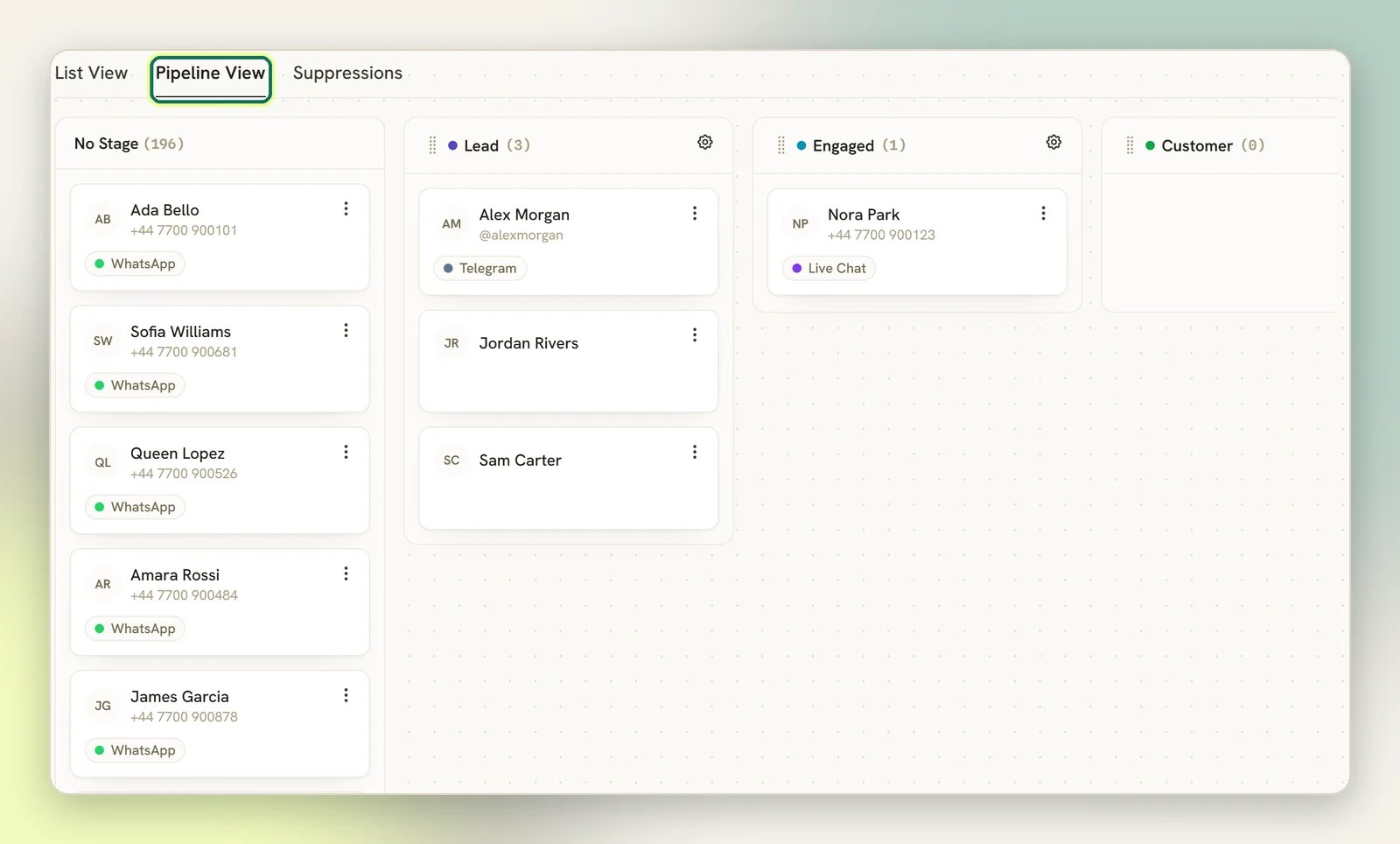
2
Add the stages you use
Select Add stage, give it a Stage name, and pick a colour. Add as many as your
process needs: a clinic might use Enquiry → Consultation booked → Treating, a salon
New → Booked → Regular.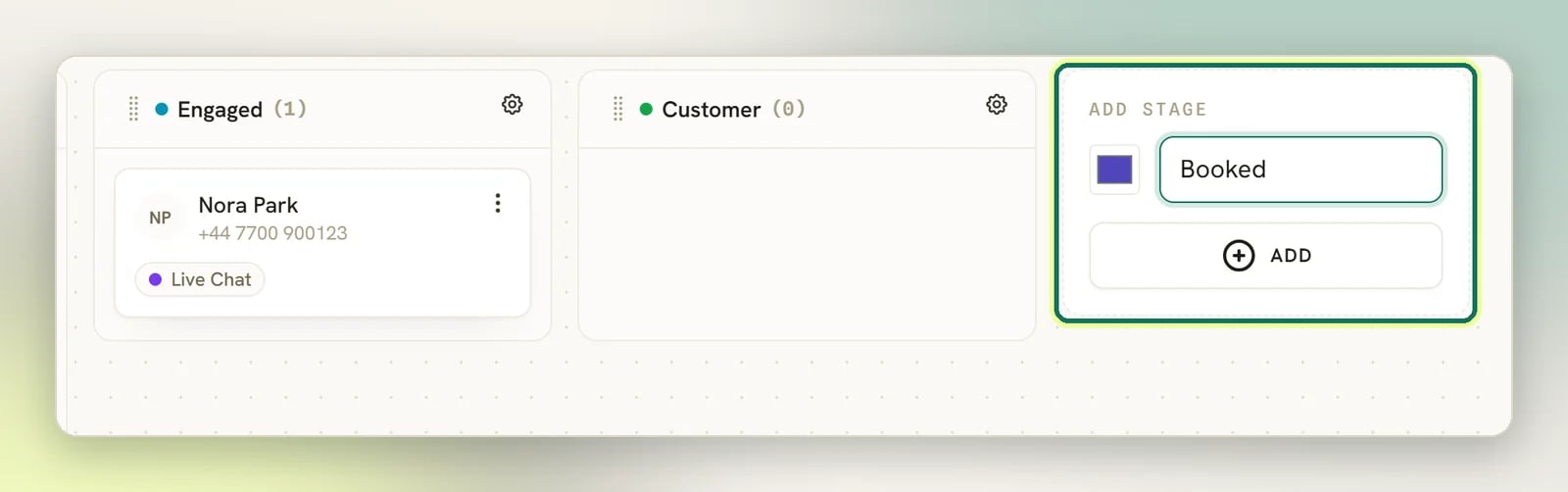
3
Rename, recolour and reorder
Edit any stage in place to change its name or colour, and reorder the columns so they
read left to right in the order your work actually happens.
4
Remove what you don't use
Delete stage removes the column. The contacts in it are not deleted; they move to
No Stage, which is where every contact starts until you place them.
Move contacts through the pipeline
There are several ways a contact gets a stage.Drag on the pipeline
On Pipeline View, drag a contact card from one column to another. This is the fast
way to work a list.
From the contact
Open a contact and use Pipeline stage to pick a stage. Useful when you’re already
reading the conversation history.
When you add or edit a contact
The new contact and edit contact form has a Stage select, reachable from List
View and from a pipeline card’s edit action.
On CSV import
The importer’s
stage column matches an existing stage by name. See
Import contacts from CSV.From an automation
The Update Contact Stage flow node moves a contact when they reach that step, and an
AI node can be given the Move CRM stage tool. See Automations.
Over the API
PUT /api/v1/contacts/{contact}/stage sets it programmatically, and behaves exactly
like a change made in the app.Only some of my contacts appear on the pipeline
Only some of my contacts appear on the pipeline
The pipeline board shows at most 300 contacts and has no pages. If your workspace has more
than that, the 300 slots go to the most recently active contacts rather than the most
recently added: a contact ranks by when you last heard from or messaged them, falling back to
their creation date only when there has been no activity at all. That is deliberate, so a
long-running deal is not pushed off the board by a batch of never-contacted imports. Nothing is
lost; the missing contacts are still on List View, where you can filter by Stage and
page through everything. Use the pipeline as a working board, not as a full contact list.
How stages are used elsewhere
Stages are a filter, and that is their real value.- Segments. A segment can require a Contact stage. A segment is a saved filter, not a fixed list, so it is re-evaluated every time it runs: move a contact into a stage today and they are in that segment’s next broadcast without you touching the audience. See Tags and segments and Broadcast audiences.
- The contacts list. Filter by Stage on List View, including No stage, to find everyone you haven’t placed yet.
- Automations. The Pipeline stage changed trigger starts a flow when a contact moves to a different stage: on the contact page, on the pipeline board, through the API, in an Update Contact Stage step or through the AI Move CRM stage tool. Bulk actions and CSV imports do not start it, and neither does a move to the stage the contact is already in.
- Webhooks. Every stage move sends a
contact.stage_changedevent carrying both the new stage and the previous one, so an external system can react to it. That covers dragging on the pipeline, the Pipeline stage picker, the contact form, the stage API endpoint, astagefield sent to the general contact update endpoint, the Update Contact Stage flow node, the AI Move CRM stage tool and bulk Set stage. The contact form and the general update endpoint also sendcontact.updated. A move to the stage the contact is already in, deleting a stage, a merge and a CSV import send nothing. See Webhooks.
Related
Tags and segments
Turn a stage into a reusable broadcast audience.
Contacts overview
How the lifecycle axis differs from your pipeline.
Import contacts from CSV
Bring contacts in with a stage already set.
Automations
Flows, triggers and what they can act on.