

Which channels support broadcasts
Broadcasts work on WhatsApp, Facebook, Instagram, SMS and Telegram. They are not available on Live Chat or TikTok. Live Chat is a widget on your website, so there is nobody to push a message to, and TikTok has no outbound messaging. If one of those two is your active channel, the Broadcasts item in the sidebar is greyed out. Clicking it shows a notice with a Switch profile button: Broadcasts aren’t available on Live Chat or TikTok. Switch to WhatsApp, Facebook, Instagram, SMS or Telegram.A broadcast always sends on your active channel, the one selected in the channel switcher when you create it. There is no channel picker inside the wizard, and the channel is fixed once the broadcast is saved. To send the same campaign on a second channel, switch channels and create it again.
Broadcast, sequence, or automation?
All three send messages. The difference is what starts them. If the timing comes from your calendar, it’s a broadcast. If the timing comes from the contact, it’s a sequence or an automation.
So a gym announcing that the studio is closed on Monday sends a broadcast. A gym welcoming each new member over their first fortnight uses a sequence. A gym that answers everyone who messages the word JOIN uses an automation.
The WhatsApp template reality
On WhatsApp you cannot type a broadcast message. Meta only allows business-initiated messages that use a template it has approved in advance, so the wizard shows a template picker instead of a composer, and it only lists templates whose status is approved. Templates take time to get approved, so create and submit them before the day you need them. If a template has variables, you fill in one value per variable. Each of those values can itself be personalized: pass{{first_name}} or a custom field and it resolves per recipient at send time.
Approval is re-checked at the moment of sending. If Meta revokes the template between scheduling and sending, those messages fail rather than going out as plain text. See Message templates and WhatsApp rules and limits.
The other channels behave differently:
- Facebook and Instagram: you type a plain message; there are no templates. A standard broadcast only delivers to people who messaged you in the last 24 hours, or who opted in to a notification. Contacts outside that window are skipped.
- Facebook only, paid: a Marketing Messages broadcast reaches contacts who subscribed to your Page’s marketing messages, outside the 24-hour window. Meta charges your own ad account for each delivered message. See Marketing Messages.
- SMS and Telegram: you type a plain message, and there is no messaging window. Anyone in the audience can be reached.
Opt-outs
A contact who has opted out never receives a broadcast; every channel blocks them at the point of sending, whatever your audience says.Your plan’s message allowance
Your plan includes a number of broadcast / template messages per billing period. When you save, approve or test a broadcast, DMLY refuses only if the allowance is already used up: You’ve used all N broadcast/template messages included in your plan this billing period. They reset when your plan renews — or upgrade for more. (N is your plan’s allowance.) It does not check the size of your audience first. A broadcast bigger than what you have left is accepted and sends until the allowance runs out. The remaining recipients then fail with the plan-limit reason. What counts against it (only messages that actually went out; a refused send, such as an opted-out contact or a closed window, uses nothing):- Every recipient sent to, on every channel.
- Paid Marketing Messages too. Each one that goes out uses your allowance, and Meta separately bills your own ad account for each one it delivers, in that account’s currency. Someone skipped because they were messaged in the last 12 hours uses neither. See What it costs.
- Any template you send from elsewhere in DMLY.
Approval
Any broadcast can be held with Require team approval before sending. It then sits at Pending approval and is never picked up for sending until someone with approval rights approves it. Team members without those rights cannot turn the hold off, so their broadcasts are always submitted for approval. If one of them edits a broadcast, it goes back to Pending approval and any earlier sign-off is voided. An approver editing their own approved broadcast keeps the approval; it sends as edited unless they re-tick the box.Stopping a broadcast
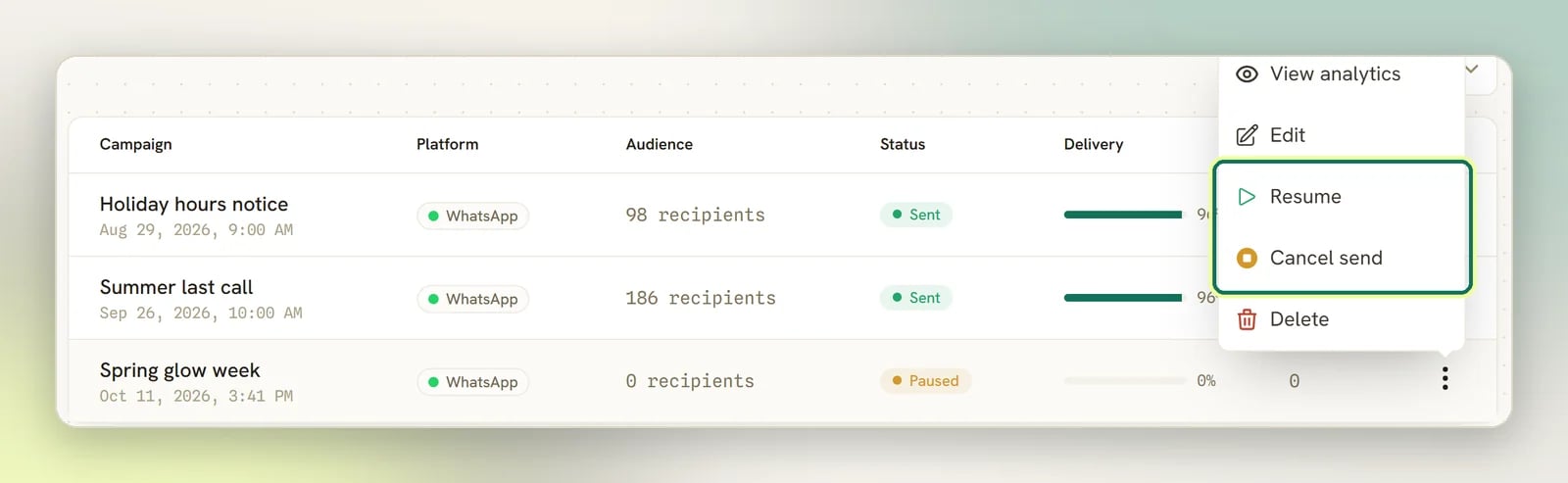
A broadcast isn’t a one-way door. Open Broadcasts and use the menu on its row (the same menu as View analytics). Which controls appear depends on the broadcast’s status:
Pause, Resume and Cancel send need the Send / schedule broadcasts permission; Delete needs Delete broadcasts. See Scheduling for the detail, including what happens to a paused broadcast whose send time passes.
Finding a broadcast by status
The Broadcasts list carries a Status filter above the table. It starts on All statuses and offers every status a broadcast can hold: Draft, Scheduled, Sending, Sent, Paused, Cancelled and Failed.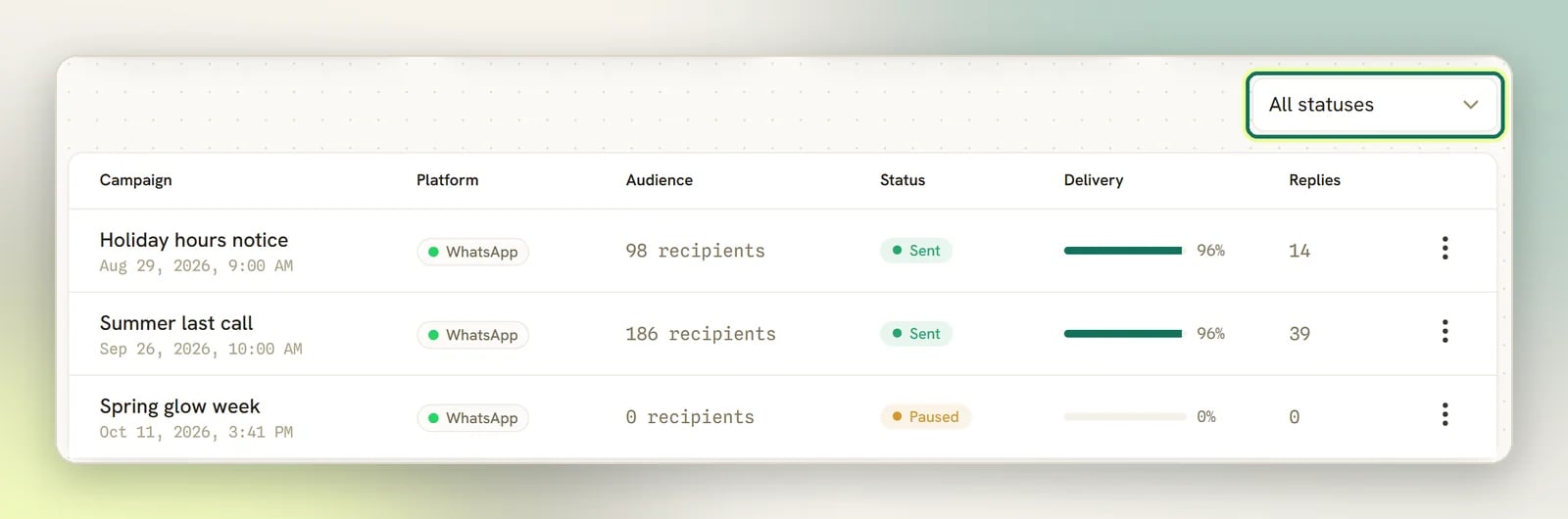
What a broadcast can’t do
- You can’t un-send it. Stopping a broadcast only stops the recipients still waiting. Messages already sent stay sent, so editing and approval are still the cheap fixes: they act before anything leaves.
- Delivered fills in on WhatsApp and SMS. Opened fills in on WhatsApp only: SMS has no read receipt. Facebook, Instagram and Telegram never report back, so both figures stay at zero for them. A paid Marketing Messages broadcast shows Meta’s campaign totals in a separate Paid campaign panel instead. See Analytics.
Next steps
Create a campaign
Walk the wizard: audience, message, schedule, review.
Audiences
Segments, reachability, and re-messaging a past broadcast.
Message templates
Create and submit the WhatsApp templates a broadcast needs.
WhatsApp rules and limits
What Meta lets you send, to whom, and how often.
Marketing Messages
Pay Meta to reach Facebook subscribers outside the 24-hour window.