

Quick automations have no Publish. Publishing only exists in the flow builder. A quick
automation is live as soon as you turn its On/off switch on in the Automation list;
there is no draft to review and no version history. The rest of this page is about flows.
See Flow builder.
Draft and published
A flow keeps versions. The builder always edits the draft. The published version is a separate, frozen copy; it is the one the runtime actually reads.
The builder autosaves your draft in the background: the label next to the buttons reads
All changes saved, Saving… or Unsaved changes. If it says Autosave failed — use
Save draft, use Save draft before you leave the page.
Editing a published flow is safe. The moment you publish, DMLY opens a fresh draft from
the same steps, so the canvas stays editable. Your edits sit in that new draft while customers
keep getting the published version, until you publish again.
Conversations already in progress finish on the version they started on. Publishing a change
does not move someone mid-conversation onto the new steps; they see it next time they start
the flow.
Publish it
1
Clear the amber warnings
A ⚠ badge with a count in the toolbar means some steps need attention. Select it to
jump to the first one; the step’s panel lists them under Needs attention. The badge
itself never blocks Publish, but many of the issues it lists are the same ones the
server refuses to publish on. Clear them, or expect the red bar.
2
Publish
Select Publish. The draft is saved first, then checked. If anything fails, a red bar
appears under the toolbar with the reason and nothing is published.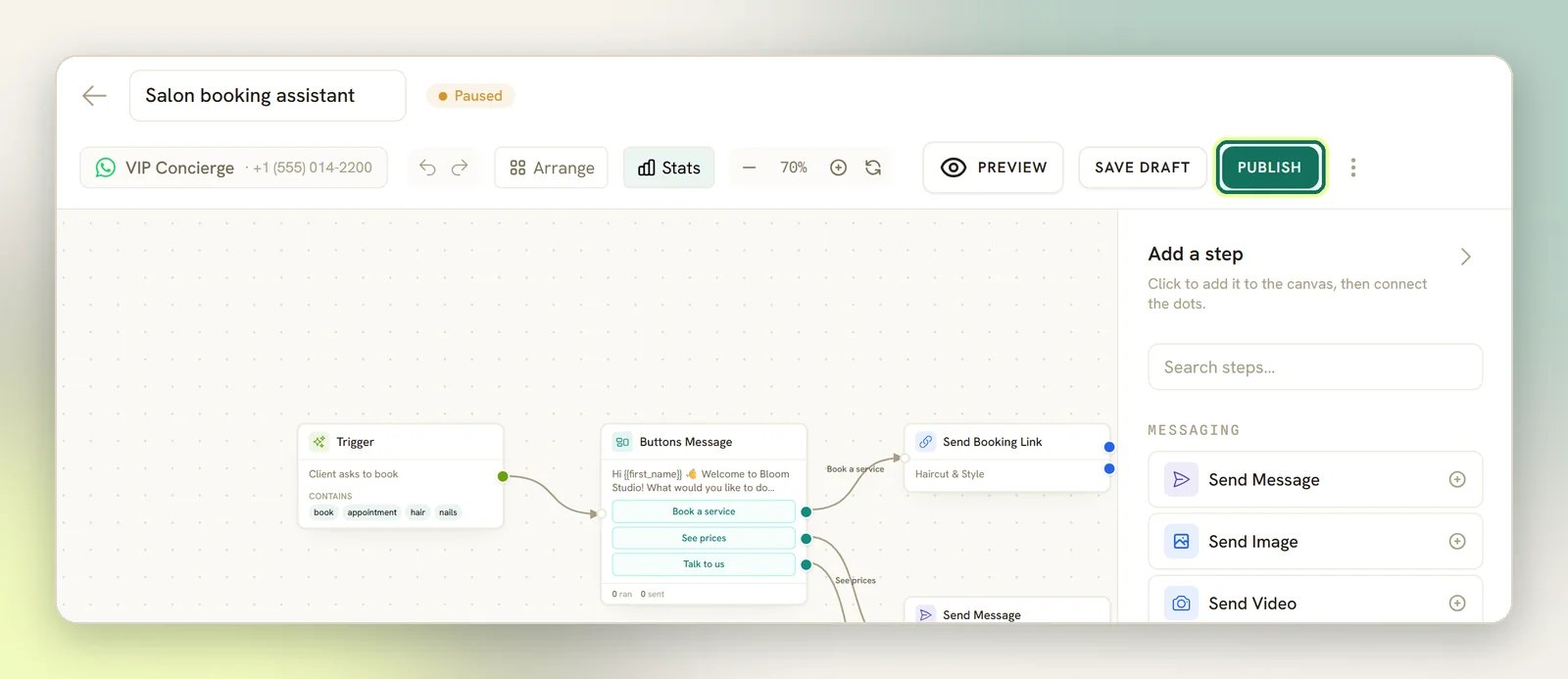
3
Confirm it went live
The status badge beside the flow name changes to Active, and the Stats button
appears in the toolbar; per-step counts only exist once a version is published.
What blocks publishing
These checks run, in this order. Each one stops the publish and tells you why.A step your plan does not include
A step your plan does not include
One step is gated this way: the Google review-request step.
This automation uses a Google review-request step, which your plan does not include. Upgrade your plan to use it, or remove the step. Remove the step or change plan. See Plans.An AI step never blocks a publish. The AI agent is on every plan. What does depend on your
plan is your monthly allowance of AI replies, and whether you can connect your own AI provider
key. See AI replies.The flow does not hold together
The flow does not hold together
Structure comes next. The flow needs exactly one trigger, at least one step after it, and
every branch wired up:
The flow needs a trigger node.The flow can only have one trigger node.Add at least one action after the trigger.- A Condition must connect both its TRUE and FALSE outputs.
- A Randomizer needs between two and five branches, and their weights must total 100%.
- Find Order must connect both FOUND and NOT FOUND.
- A Buttons Message needs one to three buttons, and no button title can exceed 20 characters.
- A List Message needs one to ten rows.
- Every reply button and quick reply on a message must be connected to a next step:
Button "<text>" is not connected to a next step.orQuick reply "<text>" is not connected to a next step.
A "Start Another Flow" step has no flow selected.A "Send Product" step has no product selected.A "Send Template" step has no template selected.A "CTA URL" step has no link.
A pinned post ID is wrong (comment triggers)
A pinned post ID is wrong (comment triggers)
A comment trigger scoped to specific posts is checked next. Each pinned ID must have the right
shape, and on Facebook it must belong to this channel’s Page. Publishing does not ask Facebook
whether the post still exists. A bad ID stops the publish with
Can't pin post ID <id>.
followed by the reason.Another active automation already claims the keyword
Another active automation already claims the keyword
Two automations on the same channel with the same trigger for something a customer sends,
such as a message or a comment, do not both reply.
Only one of them ever answers, so the other silently never does. Publishing refuses:
- Two catch-alls:
“<other flow>” is already active on this channel and also replies to every message. Only one automation answers a message, so the older of the two would answer every time and the other would never reply. Give one a specific keyword, or pause the other before publishing. - A shared keyword:
The keyword “<word>” is already used by the active automation “<other flow>” on this channel. Only one automation answers a message, so for that keyword one of the two would never reply: the more specific match wins, or the older automation if they match the same way. Remove the keyword from one automation before publishing.
You are at your plan's limit of active automations
You are at your plan's limit of active automations
Your plan caps how many automations can be Active per channel. Publishing activates this
one, so it counts. Pause an automation you no longer need, or change plan.A starter-pack automation is also checked for what it depends on at this point:
“<name>” needs <missing> before it can be switched on.The keyword check compares against automations that are Active at that moment. Turning a
paused automation back on with the On/off switch runs the same check, so it refuses if
another active automation now claims the same keyword or catch-all (the message ends
before turning this one on.).The amber warnings
The ⚠ badge never blocks Publish by itself, but it is not a separate world from the publish check either: the two overlap, and neither contains the other. Clearing the badge is not a promise the flow will publish, and a step with no badge can still fail a structural check. Two of the things it flags will also fail the publish check, so fix these first:Not connected — no incoming edge.means a step nothing leads to, so it never runs. Publishing fails withNode "<id>" is not connected to the flow.Output “<port>” connects to <n> steps — each output can connect to only one next step.: publishing fails withStep "<name>" has <n> connections from one output (<port>) — each output can connect to only one next step. Remove the extra connection(s).You cannot cause this by dragging: a new line from an output that already has one replaces the old line. You would normally only see it on an older flow.
WhatsApp text messages can't carry buttons — use the Buttons Message step.Instagram does not support call/webview buttons.A workspace notification already fires on this event — clients may receive a duplicate. Review Notification settings.appears on triggers like a booking confirmation or a payment receipt, where DMLY may already be messaging the contact.Store-triggered contacts are usually outside the 24h window — start with a WhatsApp Template (or a Checkout Link with a template fallback).See WhatsApp rules and limits.
Turn automations on and off
Every row in the Automation list has an On/off switch. It flips between Active and Paused, and it is the only control you need day to day.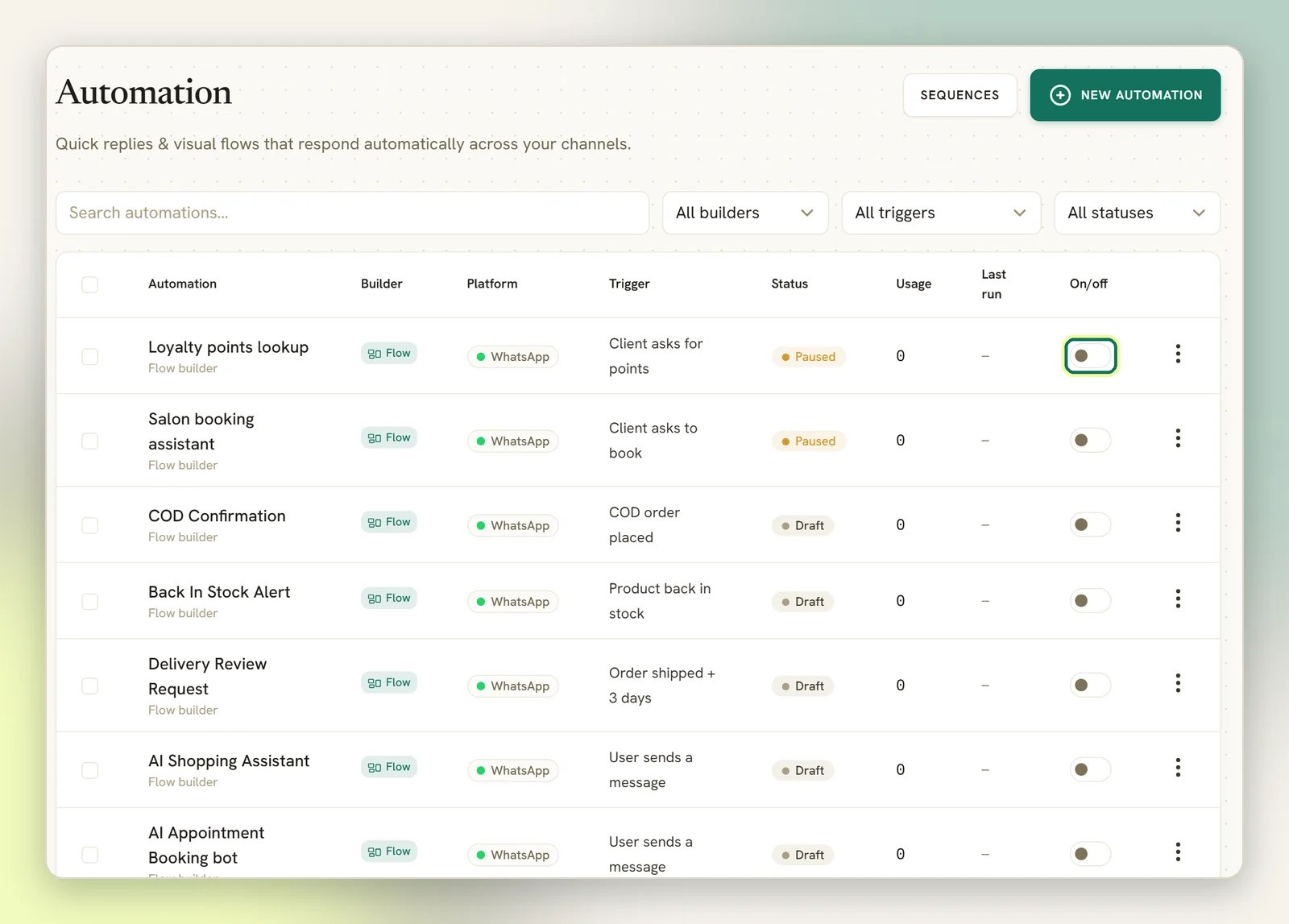
- Pausing never touches the published version. The flow stops starting new conversations; turn it back on and the same version runs again. Nothing is lost.
- Turning on re-checks your plan’s cap on active automations per channel, a starter pack’s
prerequisites, and the same keyword and catch-all conflict check that publishing runs. It also
refuses a flow that was never published:
This flow isn't published, so turning it on wouldn't make it reply. Open the builder and publish it first.If any check fails, the switch springs back and the page tells you why. - A quick automation that has never run is Draft; the switch is how it goes Active.
Pausing an automation is not the same as pausing the bot for one person. To stop the bot in a
single conversation, pause it on that contact from the Inbox.
Managing the list
The Automation list shows Builder, Platform, Trigger, Status, Usage and Last run for every automation on the selected channel, ten to a page. Four controls narrow it: Search automations… by name, plus All builders, All triggers and All statuses. Each row’s ⋮ menu has Open builder (or Edit for a quick automation), Preview, Analytics, and Delete if your role allows it. Preview opens Try this bot, a link that starts a real conversation with this automation, so you can test it the way a customer reaches it. On WhatsApp, Facebook, Instagram and Telegram that link is a chat deep link (wa.me, m.me, ig.me, t.me); on Live Chat it is a hosted page with nothing on it but your widget. The modal also shows a QR code for opening it on your phone, Open and Copy link, and a What starts it footer naming the trigger and the first keyword to send. On WhatsApp the link pre-types that keyword for you. Anything you send there is a real conversation and lands in your Inbox. SMS, TikTok and Google Business have no link that opens a chat, so there you get neither a link nor a QR code, onlyMessage the connected account directly to test this automation.
Preview also tells you when the bot would answer nothing. Switched off, the modal reads
This automation is <status>, so it will not reply. Turn it on to test for real. Switched on
but never published, it reads This automation is on, but its flow is not published — so it will not reply. Open the builder and publish it. The On/off switch refuses to turn on an
unpublished flow, so you should rarely see that second message.The All statuses filter offers Draft, Active and Paused. DMLY never marks an
automation as failed. A run can fail without the automation failing; that shows
up in Analytics, not here.
I published it and nothing happens
I published it and nothing happens
Check, in this order: the automation is Active, not Paused or Draft; the flow has
a published version (the Stats button in the builder only appears when it does); and the
trigger matches what customers actually send. Then read
Automation not triggering and
Logs.
My edits are not reaching customers
My edits are not reaching customers
You are almost certainly editing the draft of an already-published flow. Save draft and
autosave both write to the draft only. Select Publish to make the edits live.
Flow builder
Build the flow itself: steps, branching and the canvas.
Triggers
Choose what starts a flow, and set its keywords and match mode.
Templates
Start from a ready-made flow instead of a blank canvas.
Common mistakes
What goes wrong most often, and how to avoid it.