

Bot Setup isn’t available for this channel means exactly that. The page only exists for
WhatsApp, Facebook, Instagram, Telegram and Live Chat. Select one of those from the channel
selector. If you select SMS or another channel, the page tells you the channel has no
channel-specific bot setup. You also need access to integrations to see the sidebar item at
all; ask a workspace admin if it isn’t there. See Team members.
Bot setup and Automation are different jobs
They work together, and it helps to know which way round.Automation
The flows themselves: the conversations you build step by step in the flow builder, and
the keywords and triggers that start them.
Bot setup
The channel’s front door. What a first-time contact sees before any flow runs: the
welcome, the ice breakers and the menu.
There is no master on/off switch for the bot. Each feature has its own toggle: welcome,
default reply, persistent menu. To stop the bot for one person mid-conversation, pause it on
that contact from the Inbox, not here.
What you configure, by channel
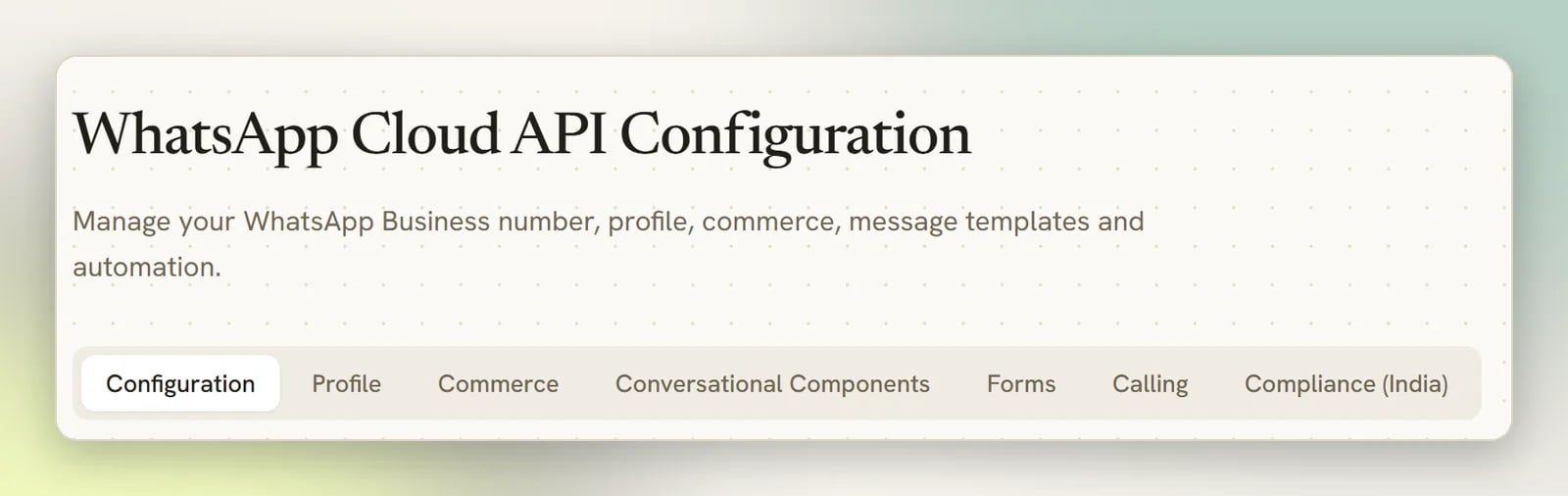
WhatsApp does not use the welcome / default reply / persistent menu model the other channels
share. Everything of that kind lives on Conversational Components instead: the welcome
toggle, the ice breakers and the commands.
Message templates are not here. They have their own place in the sidebar. See
Message templates.
Facebook and Instagram
Both share one screen with four sections and a Live preview that shows how a first-time visitor sees the bot.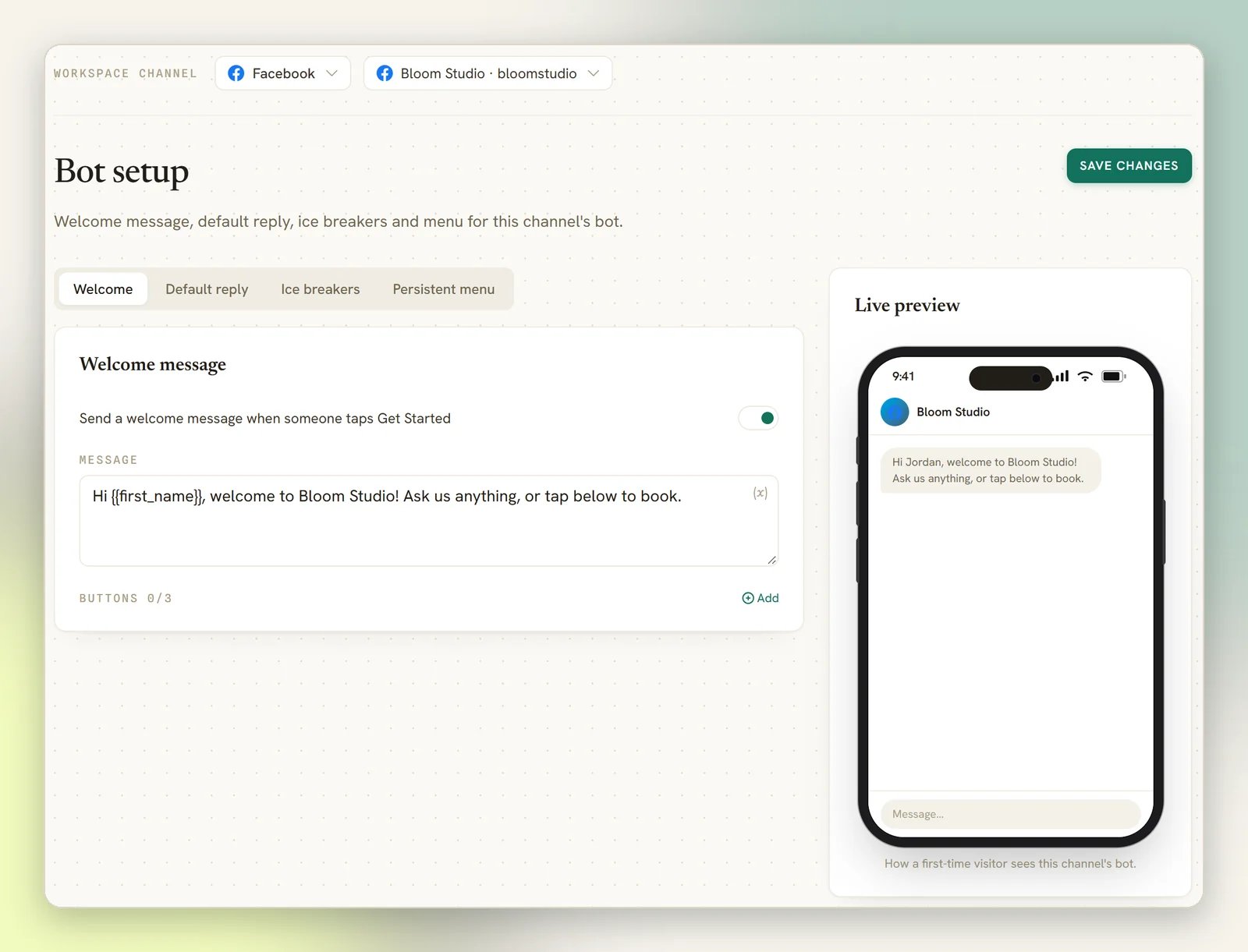
- Welcome: the message a first-time contact opens with, and a toggle to turn it on.
- Ice breakers: up to four suggested questions shown to first-time visitors. Each sends a Text reply or starts a flow. On Instagram they appear on mobile only.
- Persistent menu: Show a persistent menu in the conversation, with submenus if you need them.
The fourth section, Default reply, works on Facebook, Instagram and Telegram alike: when a
contact’s message matches no flow and no keyword, DMLY sends the reply you set here. Choose
Once per 24 hours per contact or Every time. Any inbound message counts (a typed
message, or a photo, video, file, story reply or shared post), and it never fires for someone
who has opted out or paused the bot.
Telegram
Telegram uses the same four sections with Telegram wording:- Welcome: Send a welcome message when someone taps Start (/start).
- Default reply: Reply automatically when no keyword or flow matches. Write the message and choose Every time or Once per 24 hours per contact. This works the same on Facebook and Instagram.
- Ice breakers: suggested questions shown as quick-reply buttons under the welcome message. Tapping one sends its reply or starts a flow.
- Persistent menu: each item becomes a
/commandin the bot’s ☰ menu next to the message box. Saving syncs the command list to Telegram.
Live Chat
Selecting a Live Chat widget turns Bot setup into the widget customizer, Live Chat widget, with a live preview beside the settings. The panels:- Widget, Design and Brand: the look, the Agent name, and the Greeting. Design → Version is worth a moment: Classic opens straight into the conversation, Home shows a landing screen with your channels first.
- Layout: where the widget sits and how it presents.
- Channels: deep links so visitors can move the conversation to WhatsApp, Messenger, Instagram or Telegram. Lead with WhatsApp here; it is where most people would rather talk.
- Behavior: Online, Status text, Launcher text, Offline message, Show typing indicator, up to six Quick replies, and the pre-chat gates: Require email before chat, Require name before chat, Require phone before chat and Require consent before chat. For what each one does, see Style the widget.
- Install: the one-line snippet to paste before
</body>on every page you want the widget. Use Copy snippet. - Danger zone: Retire widget, then Erase data once it’s retired.
Creating a Live Chat widget
This is the part that catches people out. Every other channel is connected from Integrations. A Live Chat widget is created here, in Bot setup, because there is no external account to connect; you are making the channel, not linking one.1
Select Live Chat
Open the channel selector and pick Live Chat. With no widget yet, it takes you straight
to Bot setup’s New Live Chat widget screen.
2
Name it
On New Live Chat widget, enter a Widget name, something like
Website Chat. The
name appears in your channel selector and the Inbox, so name it for where it lives if you
might run more than one.3
Create it
Select Create widget. You land on the customizer with everything above available.
4
Install it
Set the widget up, then open Install, use Copy snippet, and paste it before
</body> on every page you want the widget on.No channels yet
If your workspace has no channels at all, Contacts, Broadcasts, Automation, Meetings and Growth show Connect a channel first instead of the page, with a Set up a channel button. That button brings you here, which is the right destination if you want a Live Chat widget, and the starting point for everything else via Channels. For WhatsApp, start at Connect WhatsApp.Where custom fields and tags went
They are no longer in Bot setup. They belong to the whole workspace rather than one channel, so they live in Workspace Settings now. See Tags and segments.I saved, but nothing changed on Facebook, Instagram or Telegram
I saved, but nothing changed on Facebook, Instagram or Telegram
Only some of it is pushed out when you save. Facebook gets the welcome, ice breakers and
menu; Instagram gets the ice breakers and menu; Telegram gets the menu, as its command list.
If that push fails, the page tells you at the moment you save rather than failing quietly;
the message points you at the logs. Open Logs and look for the sync
entry. Everything else is sent by DMLY as messages arrive, so it never appears in the channel’s
own settings at all: welcome messages and default replies (on Facebook, Instagram and Telegram
alike) plus Telegram’s ice breakers.
The Bot Setup item is greyed out
The Bot Setup item is greyed out
The active channel isn’t one Bot setup supports. Switch to WhatsApp, Facebook, Instagram,
Telegram or Live Chat in the channel selector and it opens.