

The active channel does not scope the Inbox
The Inbox always spans every channel you have connected (unless your access is limited to certain profiles; see Who can see the Inbox). It has no channel picker of its own, and it ignores the one you set elsewhere. If your sidebar shows WhatsApp selected, the Inbox still lists your Instagram DMs and your Live Chat threads alongside your WhatsApp chats. This is the one that catches people out, because most of DMLY works the other way. Bot Setup, Broadcasts and Growth Tools all act on the one channel you have selected, and switching profiles changes what they show you. The Inbox doesn’t.So the sidebar and the Inbox can disagree: the sidebar reflects a selected channel while the Inbox list shows everything. Nothing is broken. If you want the Inbox narrowed to one channel, use the Inbox’s own filters (below), not the profile switcher.
How you work in it
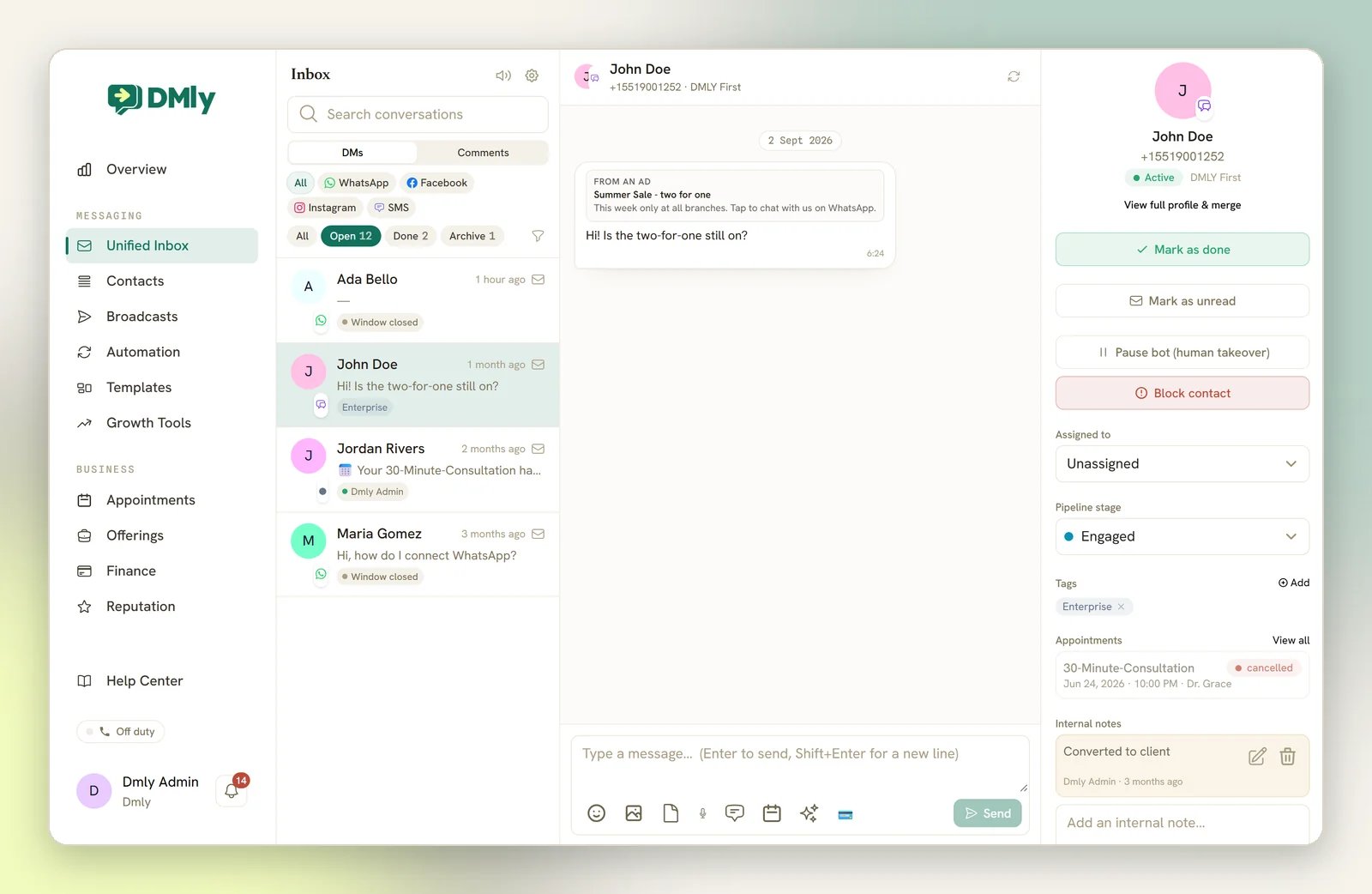
Three panes, left to right:- The conversation list. Pick a conversation here to open it.
- The thread. Read and reply in the middle.
- The details panel. Everything about the person: Assigned to, Pipeline stage, Tags, Internal notes, upcoming appointments, and View full profile & merge if you need the whole client record.
Folders
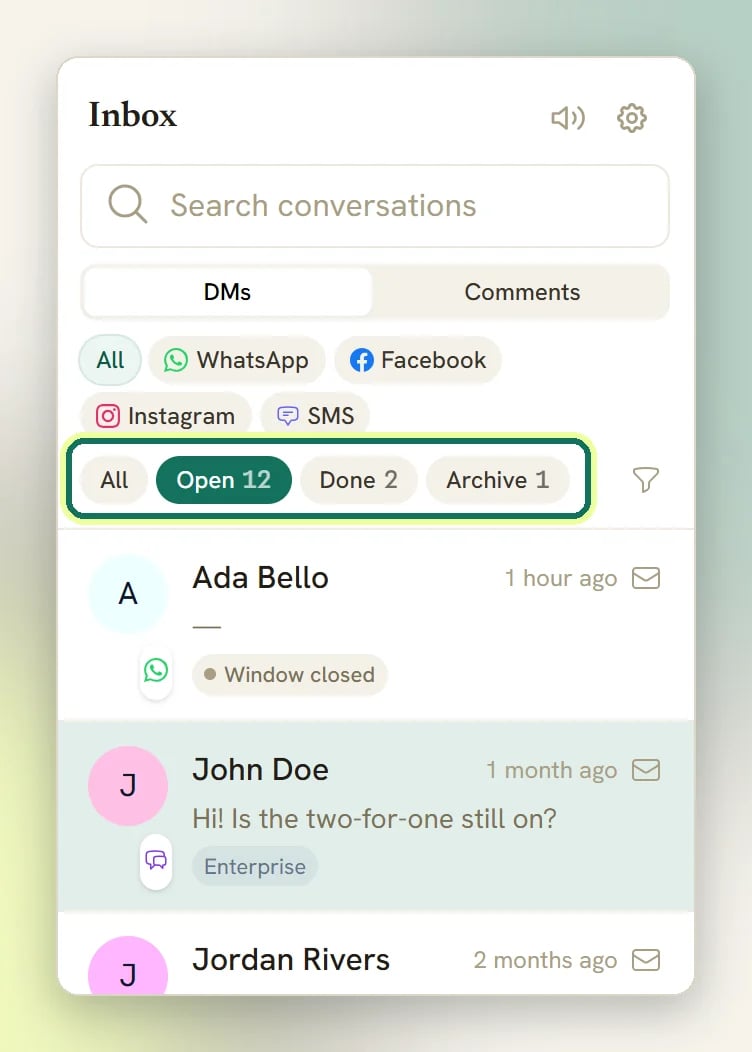
An archived conversation only shows under Archive; All won’t surface it.
Two things worth knowing on day one:
- Nothing closes itself on a timer. There is no auto-close after a quiet period. A conversation becomes Done one of two ways: someone selects Mark as done in the details panel, or an automation you built closes it (the Close conversation step in a flow, or an AI assistant you connected over MCP).
- A reply from the contact reopens it. A done conversation that gets a new inbound message flips back to Open and un-archives itself, so you can’t miss a follow-up. That is the default. An admin can restrict reopening to a time window, or turn it off, in Conversation settings.
Narrowing the list
The list loads the 100 most recent conversations first, then 100 more each time you scroll near the bottom. You can reach older conversations by scrolling or by search. Search conversations at the top of the list is still the fastest tool you have. Alongside search:- DMs / Comments: a toggle directly under the search box that picks which kind of thread the list shows. It starts on DMs and there is no All, so it is the one control you have to switch rather than clear. See one contact, two threads.
- Channel pills across the top of the list: WhatsApp, Facebook, Instagram and SMS, plus All. Telegram, Live Chat, TikTok and Google Business Profile reviews are all in the list; they just don’t have a pill.
- All channels: a picker in the extra filters that narrows to one specific connected profile, including the channels with no pill. Use this if you run two WhatsApp numbers and only want one of them.
- Anyone / Unassigned: filter by who owns the conversation.
- Unread only: what it says.
Tags
The details panel’s Tags section is how you colour-code what a conversation is about: VIP, Complaint, Wholesale. To apply one, open the conversation and select Add under Tags in the details panel, then pick from the list. Applied tags sit there as coloured pills; remove one with its ×. Until you add any, the section reads No tags yet. One thing to understand: a tag here is a contact tag, the same object on the same record, not a second inbox-only set. Tagging a conversation tags the person, not just this thread, and a tag added anywhere else shows up here. Three practical points:- The Add list only offers tags that already exist. There’s no way to create one from the details panel. Set them up (name and colour) with Manage tags on the Contacts page first.
- Filter the list by tag. Open the extra filters (the funnel by the folder pills) and pick one from the All tags picker to narrow the conversation list to that tag. The active tag shows as a chip you can clear with its ×. A conversation row also shows up to two of its tag pills.
- The same tags work outside the Inbox. They build segments for broadcasts, they answer the Has tag condition in a flow, and the Tag Action step applies or removes them automatically.
One contact, two threads
A contact is one CRM record, but it can have up to two separate conversation threads: DMs and Comments. Someone who both messages your Facebook page and comments on a post has a row on each tab: one conversation under DMs, one under Comments. A public comment and a private DM are answered differently, so they stay apart. The list shows one kind at a time. The DMs / Comments toggle sits directly under Search conversations, above the channel pills, and it’s always visible. DMs is selected by default and there is no All, so the two kinds never appear in the same list. If you’re hunting a comment you replied to and can’t find it, switch to Comments. They stay separate throughout. Archiving or deleting one thread leaves the other untouched. A comment from someone DMLY doesn’t know on that channel yet only lands under Comments when one of your comment automations runs on it. Being a contact on another channel doesn’t count. Otherwise DMLY skips it and creates no contact, so answer that one on the platform itself. See Comment automation.The toggle only filters the list, not the thread you have open. Clicking a desktop notification jumps straight to the conversation the message arrived on, so you can end up reading a comment thread while the list still says DMs.
When a message came from an ad
If somebody taps a Click-to-WhatsApp ad and then messages you, the Inbox shows you which ad it was, on the message itself.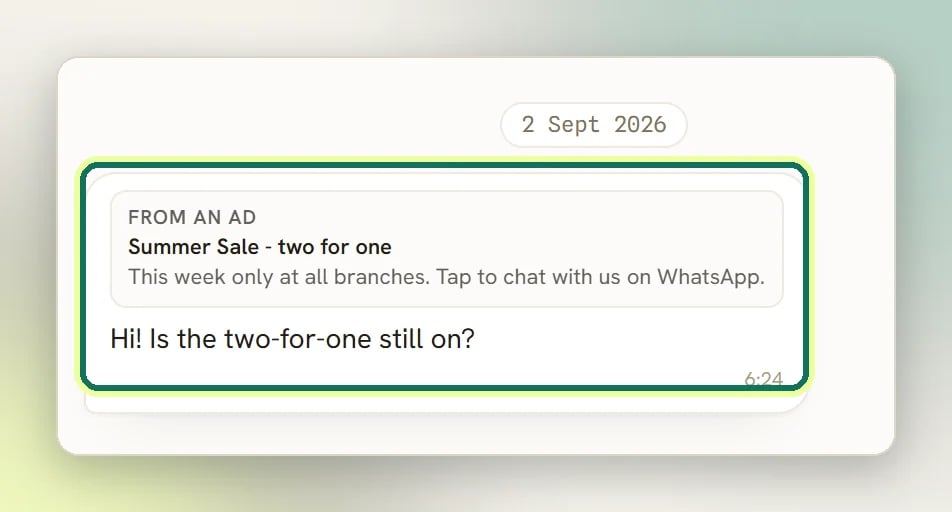
- a strip of the ad’s picture, when Meta sent one,
- the line From an ad, or From a post when they tapped an ordinary Facebook or Instagram post rather than a paid ad,
- the ad’s headline, on one line,
- and the first couple of lines of its body text.
Everything above is WhatsApp. The full card, with the headline, the copy and the picture, is
built from what Meta puts on a WhatsApp message, and only WhatsApp sends it.Facebook and Instagram messages get a stripped version of the same card. It shows up whenever
the person arrived through a referral of any kind: a
m.me or ig.me growth link, a Messenger code, or an ad carrying a
reference. All DMLY is given there is the reference itself, so the card is the From an ad
line and nothing else: no headline, no body text, no picture and no link.So read that line as “they arrived through a link or a code of yours”, not as proof they tapped
a paid ad. And don’t treat these threads as ad data: only WhatsApp reaches the
ads report.
WhatsApp ad: Summer Sale, and the first ad that brought them in keeps that credit even if they tap another one later. See arriving from a Click-to-WhatsApp ad.
Choosing where your reply goes
When a conversation spans more than one channel, a Reply on strip sits above the thread, with a pill per channel and its own unread count on each. Pick one, and your reply, the messaging-window countdown and the template picker all follow it. Two pills on the same platform are labelled with the customer’s address on it, so you can tell them apart. You usually don’t have to pick. DMLY preselects wherever the customer last wrote to you. It falls back to WhatsApp when nobody has written in yet, or when two channels tie. Arriving from a Message on WhatsApp button preselects WhatsApp instead. Your own pick sticks for that conversation. A contact you have a phone number for but no WhatsApp history with also gets a WhatsApp pill, so you can start there. It shows as template-required, because there is no open window yet. The WhatsApp identity is only created when the message actually sends. On that first WhatsApp message, if you have more than one WhatsApp number connected, a Send from picker appears above the thread. It starts on your Default WhatsApp number, and it narrows the template picker to that number’s templates. A WhatsApp conversation that is already running has no picker; it always replies on the number it is already on.The Reply on strip only appears when the contact has more than one distinct channel to answer on. Two of your own WhatsApp numbers reaching the same customer number count as one, because it is one conversation, and the reply goes out on the number that conversation is already running on.
What you can send
From the reply box:Text and emoji
Type and select Send. The everyday case.
Images, video and files
Attach image / video pulls from your media library; Attach file for documents.
Voice notes
Record a voice note records in the browser and sends it as audio.
WhatsApp templates
Send an approved template: WhatsApp only, and only templates Meta has approved.
Saved replies
Your stock answers, inserted into the draft in one click.
Booking and payment links
Insert booking link and Request a payment drop a link into the message.
WhatsApp forms
Send a form: the form icon in the toolbar sends a WhatsApp Flow straight into the chat.
- SMS is text only. The media, file and microphone buttons are hidden on SMS conversations.
- Templates are WhatsApp only, and the picker only lists templates Meta has approved. You fill in each placeholder before it sends. A template with an empty
{{1}}is rejected rather than sent with a gap showing. - Booking links and payment links send as ordinary text. They’re a link in a normal message, not a special card. Request a payment creates the payment link for you and sends it. The booking picker only appears if you have active meeting types with a public booking page.
- Forms are WhatsApp only, and they are not templates. The picker lists your draft and published forms. The form is the whole message, so you don’t type anything alongside it. The icon greys out once the 24-hour window closes. See WhatsApp Flows.
- Suggest a reply with AI appears whenever AI is enabled. No plan restricts it.
When a message won’t send
WhatsApp: the 24-hour window has closed
WhatsApp: the 24-hour window has closed
WhatsApp allows free-form replies only for 24 hours after the contact’s last message. Once it closes, DMLY blocks the send. This is Meta’s rule, enforced on our side too, so there’s no workaround in the reply box. To re-engage, send an approved template. See WhatsApp limits.
Messenger or Instagram: the 7-day window has closed
Messenger or Instagram: the 7-day window has closed
You can reply for 7 days after the contact’s last message. After that, you can only message again once they send something new. Replying to a public Comment is not subject to this; the window applies to DMs.
TikTok: the 48-hour window has closed
TikTok: the 48-hour window has closed
TikTok allows replies for 48 hours after the contact’s last message, and DMLY enforces it on the server for people as well as bots. There are no templates and no extended allowance for a human agent, so 48 hours is the whole of it. Once it closes, the contact has to message you again before you can reply. A contact you’ve never had a message from has no open window at all. The countdown chip in the conversation header names the window on hover. See TikTok.
The contact is blocked
The contact is blocked
Blocked contacts hide the reply box entirely and the block is enforced on the server, so nothing gets through. Use Unblock contact in the details panel to message again.
Working as a team
The Inbox assumes several people are in it at once, so a few things happen without you asking:- Replying assigns the conversation to you. By default a conversation follows whoever answered it last. So if a teammate replies to a chat assigned to you, it quietly becomes theirs. Worth knowing before you wonder where your queue went. An admin can change that rule, and can have new conversations shared out round-robin, in Conversation settings. See assigning chats.
- You can see when a teammate is typing. Above the reply box you’ll see
<name> is typing…on every channel, so two people don’t answer the same message. If the contact is typing, that takes precedence in the display. - Notes and @mentions are for the team. Internal notes in the details panel are never sent to the contact, and mentioning a teammate pings them. See notes and collaboration.
On call duty / Off duty in the sidebar has nothing to do with the Inbox. It controls whether you receive inbound WhatsApp calls, and only appears when a WhatsApp channel has calling switched on. Going off duty does not stop conversations being assigned to you.
Taking over from the bot
To step in while an automation is handling a conversation, just reply. By default a teammate’s reply is the takeover: it stops every automated reply on that conversation (flows, sequences, AI, auto-replies) and leaves you free to type normally. Pause bot (human takeover) in the details panel does the same thing deliberately, and Resume bot hands it back. Some things pause the bot for you too: an AI agent handing over to a human, a flow with a handover step, and blocking a contact all set it. If the contact was part-way through a flow when you took over, that run is parked rather than cancelled. It keeps its step, the answers already given, and the remainder of any wait. A banner in the details panel names it and offers Resume, Skip this step and End automation. Mark as done asks what should happen to the parked run before it closes the conversation. See notes and collaboration. An admin sets the rules behind all of this once, for the whole workspace, on the Conversation settings tab:- whether a reply takes over,
- when the bot may have the conversation back,
- who owns a chat after a reply,
- whether new chats are shared out round-robin,
- when a closed conversation reopens,
- and whether the AI may answer at all.
Unblocking a contact does not resume the bot. If you block someone and later unblock them, the conversation stays bot-paused until you select Resume bot yourself. End automation leaves the pause behind too.
New messages and sound
A chime plays for each new inbound message while the DMLY tab is open and in focus. It’s on by default and you can mute it from the Inbox. The setting is per browser, so muting on your laptop doesn’t mute your colleague’s. The Inbox updates live when real-time delivery is available, and falls back to refreshing every few seconds when it isn’t. Either way, new messages still arrive without you reloading the page. The chime now fires from both paths too, so a dropped real-time connection doesn’t leave you with a silent inbox. Switch away from the DMLY tab and there’s no chime to hear, so desktop notifications cover that gap. The first time you click or type anywhere in the Inbox, your browser asks permission to show them. Grant it, and a message from a contact that arrives while you’re on another tab pops a system notification naming the contact with a preview of the message. Select it to bring DMLY to the front and jump straight into that conversation. Decline, and background messages get no sound at all: nothing plays while the tab is hidden. The chime just resumes for whatever arrives next once the tab is focused again. The same mute setting silences both.Who can see the Inbox
The Inbox is permission-gated. A role without the Inbox module doesn’t see it in the sidebar at all. A teammate may also see a contact’s phone number and email masked rather than in full, so what they see may be less than what you see. A member can also be limited to specific profiles (channels). They then see only those profiles’ conversations in the Inbox. Owners and admins always see everything. No role limits the list to only the conversations assigned to you.Related
Assigning chats
Who owns a conversation, and how it changes hands.
Conversation status
Open, done, archive and delete.
Saved replies
Stop retyping the same answer.
Conversation settings
Takeover, ownership, reopening and the AI reply policy, set for the whole workspace.
Nothing arrives in the Inbox
When a channel is connected but silent.