

The step palette is not the same on every channel. The WhatsApp group only appears on a
WhatsApp channel, the Messenger (FB/IG) group only on a Facebook or Instagram channel, and an
SMS channel loses every media step. This is not a bug or a missing permission: a Telegram bot
cannot send a WhatsApp template, so the builder does not offer one. To use WhatsApp steps, build
the automation on your WhatsApp channel.
Start a flow
1
Create the automation
Select New automation, then Start from scratch or pick one from Templates.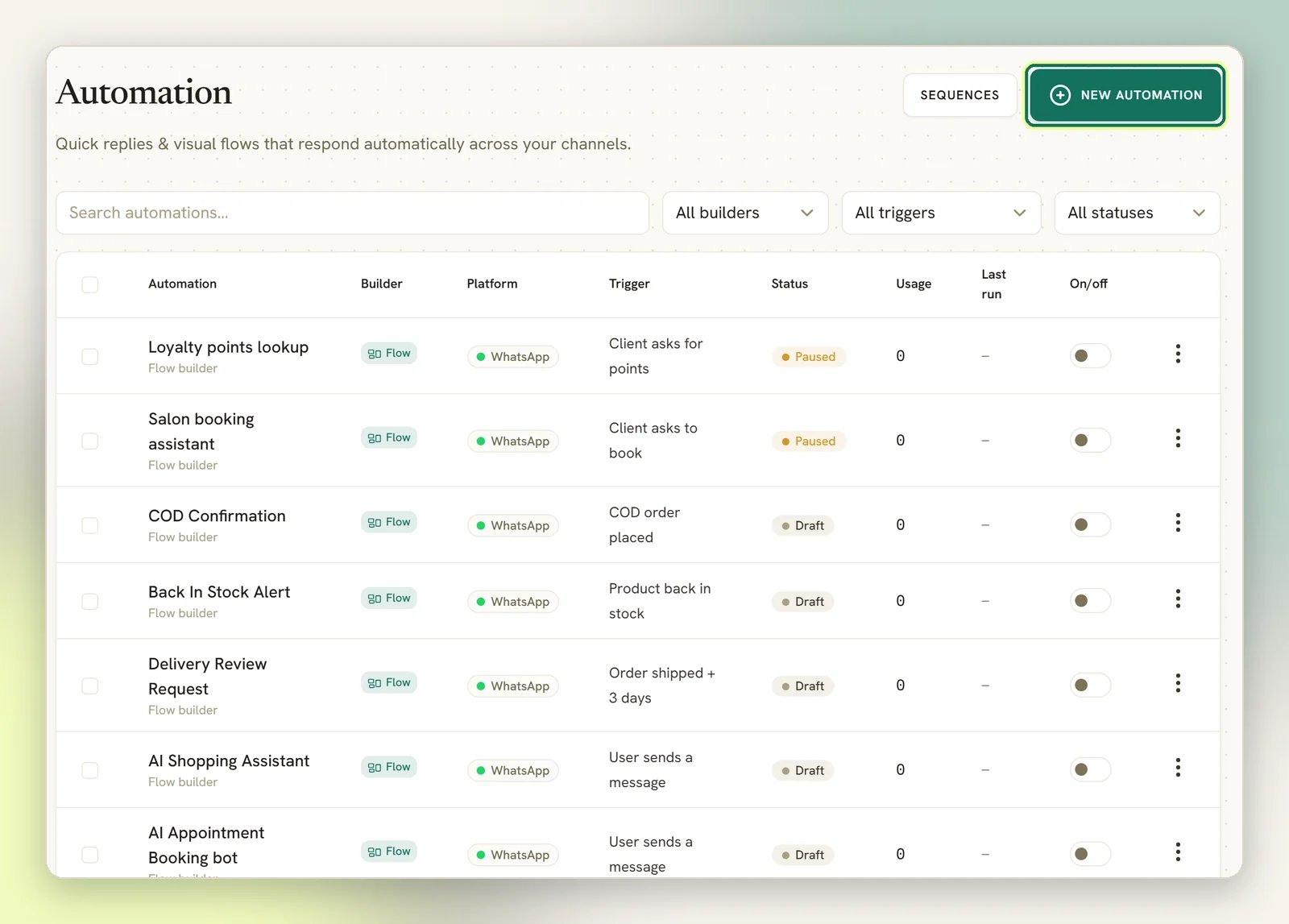
2
Choose the builder
Under How do you want to build it? pick Flow builder, a visual canvas with branching and
multiple steps. Quick automation is the other option: a single trigger and one reply, set up
in a form.
3
Check the trigger
Choosing Flow builder creates the automation straight away and opens the canvas with a
trigger already placed, set to your channel’s own event: WhatsApp message on a WhatsApp
channel, Telegram message on Telegram, Google review on a Google Business Profile. Open
it to change the event or add keywords. On SMS and TikTok the trigger opens as
Choose a trigger; pick the event before you publish, or the flow will never fire. See
Triggers.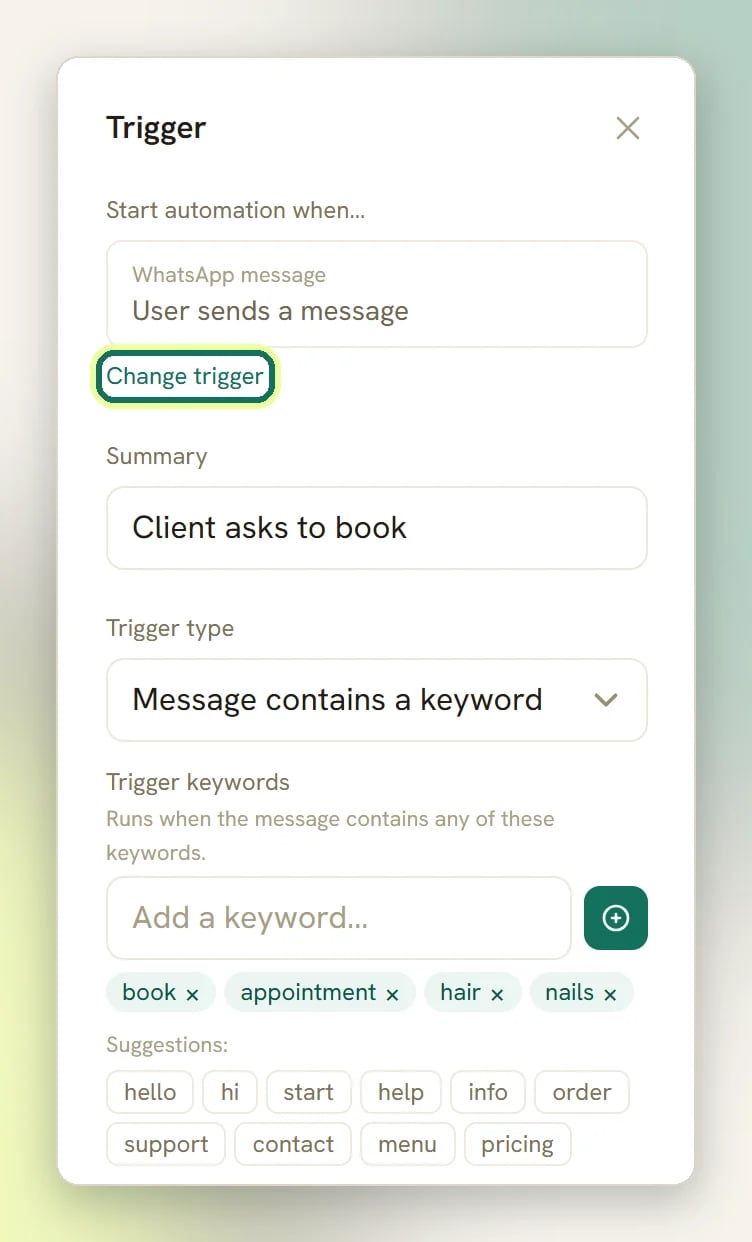
4
Add steps and connect them
Select a step in the palette on the right to drop it on the canvas, then drag from one step’s
output dot to the next step.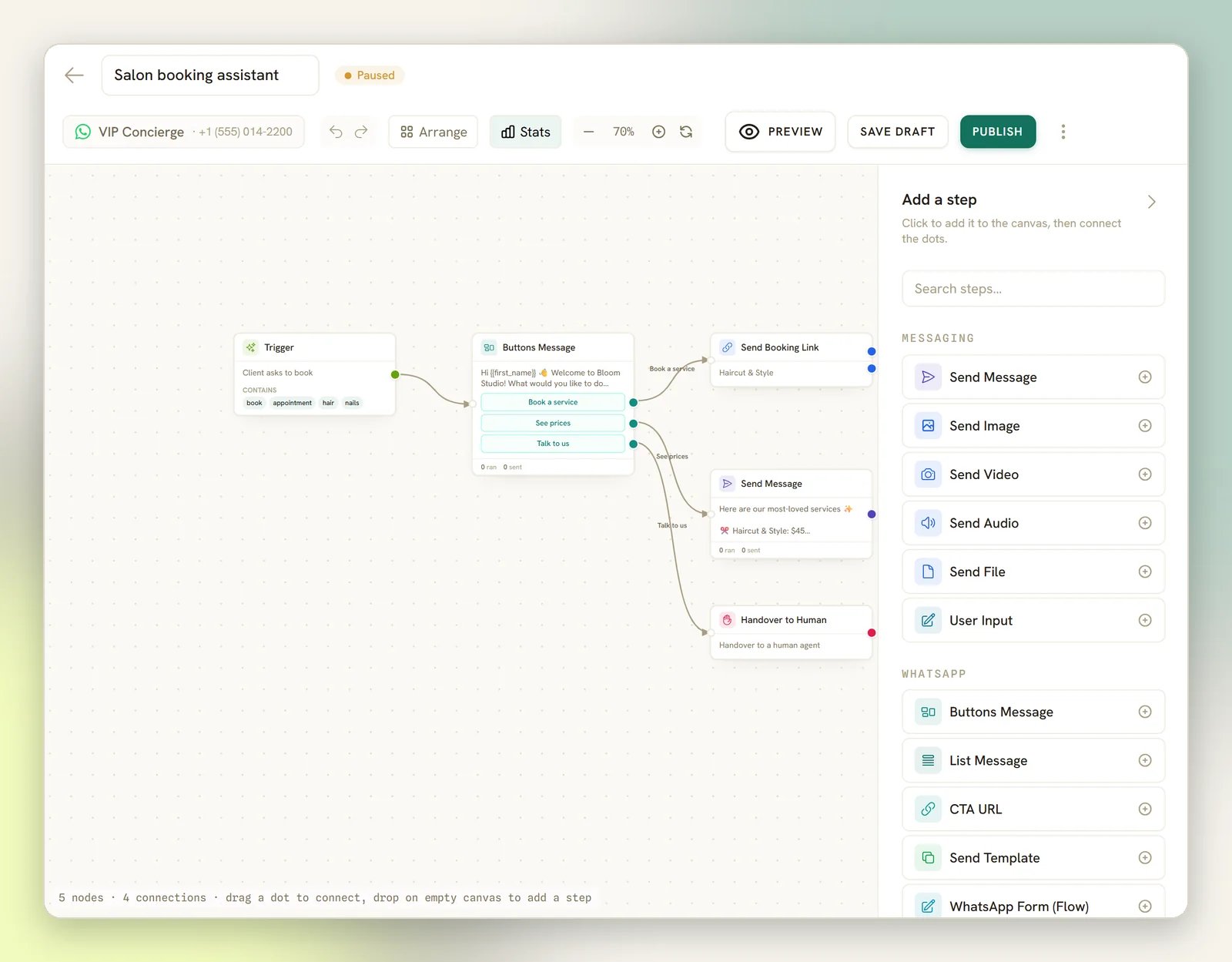
5
Publish
Save draft while you work. Publish makes it live and turns the automation Active.
How the canvas works
- One trigger, always. A flow has exactly one trigger node and it cannot be deleted or doubled.
- One line out of each output. An output connects to a single next step. Branching happens through a step’s separate outputs (a condition’s true and false, a randomizer’s branches), not by dragging two lines out of the same one.
- A dangling output ends that path. If nothing is connected after a step, the run finishes there. That is normal for most outputs: not every branch needs an end step. Reply buttons and quick replies are the exception: publish rejects any that is left unconnected.
- A note has no ports. A note, from the Other group, is a canvas-only annotation: nothing connects into it and nothing runs out of it. As the builder puts it, “Notes are visible only to your team — they never send and don’t affect the flow.”
- Amber badges are advice, not errors. They flag likely problems as you build: an unconnected step, buttons on a channel that cannot show them. The real check runs when you publish.
The step groups you always get
Messaging
Text, image, video, audio and file messages, plus a step that asks the contact something and
waits for their reply.
AI
Hand the conversation to an AI step that answers in your words. See
AI replies.
Logic
Condition, randomizer, Smart Delay, start another flow, Sequence and end. The
Sequence step enrols the contact in a Sequence, and appears on
WhatsApp, Facebook, Instagram, Telegram, SMS, Live Chat and TikTok.
Actions
Tag, assign, Handover to Human (which pauses the bot) and Resume bot replies,
Close conversation, Clear AI memory, Unsubscribe Contact and Resubscribe
Contact, Update Contact Stage to move the contact to a pipeline stage, Request
Google review, send an SMS, call a webhook, and connectors:
Send to Google Sheets, Get row from Google Sheets, Slack, Mailchimp and HubSpot.
Appointments
Book a meeting, send a booking or reschedule link, confirm, cancel, mark a no-show, assign
staff, and Add to Class.
Offerings
Send a service, product or plan from your catalogue, and check stock.
Finance
Create and send an invoice, send a payment link, record a payment, create an order or
subscription, apply a coupon, issue or deduct credits, and Pause Subscription or
Cancel Subscription.
Other
Notes you leave on the canvas for your team.
- Get row from Google Sheets reads a row back out of a spreadsheet, the other direction from
Send to Google Sheets. Pick the Spreadsheet and Tab, name the Search column (a
header, such as
Order), and put what to look for in Match this value: it takes variables, and starts as{{last_message}}, so by default it searches for whatever the contact just sent. Under Save row columns to variables, list the columns you want and the variable name each should fill (Statustoorder_status), then use those variables in later steps. It finds the first row whose search column matches, ignoring spaces and letter case, and has two outputs: FOUND and NOT FOUND. Connect both. A search that finds nothing and a spreadsheet DMLY cannot read both take NOT FOUND, so leaving it dangling ends the conversation without an answer, and unlike Find Order nothing stops you publishing it that way. The two cases look the same to the contact but not to you: a read that failed is written to Logs as an error. - Close conversation marks the conversation done, the same as selecting Mark as done on the conversation in the inbox. It fires the Conversation closed automation trigger, so a follow-up flow can chain off it, and does nothing if the conversation is already closed. It has no settings of its own, and is usually the last step in a flow.
- Clear AI memory resets what the AI Reply step remembers about the contact. Set What to clear to Everything, Conversation history only, or Tool memory only (useful before switching the assistant to a different prompt or persona partway through a flow). Everything and Conversation history only make the next AI Reply step start fresh, as if the earlier conversation never happened. Tool memory only is narrower: it clears what tools the AI has already called this run, but leaves the conversation history in place, so the next AI Reply step still sees the prior transcript.
Wait with Smart Delay
The Logic group’s waiting step is Smart Delay, and Wait mode gives it three quite different jobs.
The Wait until window is read on the contact’s own clock when DMLY knows their timezone. When
it doesn’t, the window falls back to the install’s default timezone (usually UTC), not your
workspace’s, even though the builder’s hint says Times use your workspace timezone.
The eight anchors
Until event turns a delay into a reminder that tracks the real date, rather than a guess at how long from now that date is. If the appointment moves, the wait moves with it: DMLY re-reads the object when the step runs, so a booking rescheduled after the flow started is still reminded at the right time.
The step never asks which appointment or invoice: it uses the one the flow is about. So the
appointment anchors need a flow that an appointment event started, and the invoice and
subscription anchors a flow started by the matching invoice or subscription
business event, or one where an earlier Create Invoice
or Create Subscription step made the thing itself.
SKIPPED
Set to Until event, Smart Delay grows a second output labelled SKIPPED. When the wait ends, DMLY re-reads the object before it lets the flow run on, and takes SKIPPED instead of the main output if waiting has become pointless:- the appointment reached a state it can’t come back from: cancelled, completed, marked a no-show, or a payment hold that failed or expired,
- the invoice was settled, voided, cancelled or refunded,
- the subscription was cancelled or expired.
Steps with an extra output
Several steps have an output for the case that didn’t go to plan. FAILED appears on most of the Appointments, Offerings and Finance steps (the thing it was told to act on was gone, or the action was refused), WAITLISTED on Add to Class, SKIPPED on an Until event Smart Delay, NOT ENOUGH on Deduct Credits, and NO SLOTS on Book Meeting. These are optional. Publish never asks you to connect one. If nothing is attached, the flow takes the step’s main output instead, so a flow built before the output existed behaves exactly as it always did. Attach one only when the unhappy path deserves its own message. Three of them are new enough to be worth naming:- Add to Class (Appointments) puts the contact in the next upcoming session of the class service you pick. Capacity, the waitlist and the confirmation all behave as they do for a client booking themselves, with one difference: the step books on your behalf, so Booking window ahead (hours) under Class Policy doesn’t apply and a flow can seat someone in a session starting sooner than a client could book it. A seat takes the main output. A full session whose waitlist is on takes WAITLISTED. FAILED covers the rest: no upcoming session at all, a full session with the waitlist switched off, and a contact who already holds a place in that session. Hold the seat for payment holds the seat as awaiting payment instead of confirming it, which also holds back the class confirmation and its reminders until the payment lands; send the payment link with a following step. The step needs a class-type service to exist: with none, it says “No classes yet. Create a class-type service under Offerings.” See Classes.
- Pause Subscription (Finance) pauses the subscription the flow is about. Only an active subscription can pause; any other state takes FAILED without changing anything.
- Cancel Subscription (Finance) cancels it. One that has already ended is left alone and the flow carries on down the main output.
The groups that depend on your channel
One of those is worth spelling out.
- Comment actions follow the trigger, not the channel. The group appears the moment you choose a comment trigger and disappears if you change it. WhatsApp, SMS, Telegram and Live Chat have no comments at all, so it never appears there.
On an SMS channel the Messaging group shrinks to a text message and the ask-and-wait step.
SMS sends one plain body string (no images, no buttons, no quick replies), so the builder only
offers what the gateway can deliver.
Message steps still have channel rules
The palette cannot catch everything, so the canvas warns you where a step is legal but the content is not:- WhatsApp: “WhatsApp text messages can’t carry buttons — use the Buttons Message step.”
- Instagram: “Instagram does not support call/webview buttons.”
Make a step look typed, not fired
The steps that put something in front of the contact carry a pair of settings at the bottom of their panel. Show typing indicator is a switch, off by default: “Displays “typing…” before this step is sent.” Turning it on reveals Typing delay (seconds), which starts at 1 and takes anything from 0 to 20. DMLY then raises the channel’s own typing bubble, waits, and sends. It’s the difference between a bot that answers three questions in the same instant and one that reads like somebody replying. A few details worth knowing before you sprinkle it everywhere:- A step with it on is marked on the canvas with a small keyboard glyph in its header, so you can see at a glance which steps pause.
- The pause is capped at 8 seconds, whatever you type in the box. Ask for 20 and you get 8.
- The bubble is a WhatsApp, Messenger, Instagram and Telegram feature. SMS, Live Chat and TikTok have nothing to show, so nothing appears; the delay still happens, so the step still lands later rather than instantly. On WhatsApp the bubble is raised by marking one of the contact’s own messages as read, so it needs a message from them to attach to: a contact who has never written to you sees no bubble, only the pause.
- The settings are per step, not per flow. Six message steps in a row means six switches.
- Not every step has them. They’re on Send Message, Send Image, Send Video, Send Audio, Send File, Ask Question, User Input, AI Reply, Template Card and Carousel, and on the WhatsApp Buttons Message, List Message, CTA URL, Request Location, WhatsApp Form (Flow), Catalog / Product, CSAT Survey and Call Permission steps. Send Template, Send Location and Request Phone Number don’t have them.
- The AI Reply step has a second, separate delay of its own, Typing delay before reply (seconds), on its Prompt tab. That one pauses after the model has answered and before the reply is sent, and it is capped at 5 seconds however large a number you type, so treat it as a 0-to-5 setting. The workspace-wide floor for it lives in Conversation settings; the larger of the two wins, then the 5-second cap applies. See AI replies.
Publishing and drafts
Editing a flow only ever changes its draft. The published version keeps running untouched until you select Publish, and publishing immediately opens a fresh draft, so the canvas is always editable and the runs already in progress finish on the version they started on. Publish runs these checks in order, and stops at the first failure:1. Plan
1. Plan
The flow uses a Request Google review step on a plan without Reputation & Reviews: “This
automation uses a Google review-request step, which your plan does not include. Upgrade your plan
to use it, or remove the step.” You cannot normally add that step on such a plan, so this is a
backstop for a flow that already contains one. An AI step never stops a publish; the AI step is on
every plan.
2. Structure
2. Structure
The flow needs a trigger, and at least one step after it. Every step other than the trigger and
notes must have something connected into it. Every reply button and every quick reply on a message
step must connect to a next step, or publish stops with
Button "Yes" is not connected to a next step. Each output can have only one line out of it. Every condition must have both its true and
false outputs connected, and a find-order step both its found and not-found outputs. A randomizer
needs between two and five branches whose weights add up to 100%. A buttons message needs one to
three buttons with titles of 20 characters or less; a list message needs one to ten rows.Some steps must also be filled in: a Start Another Flow step needs a flow picked, a Send
Product step a product, a Send Template step a template, and a CTA URL step a link.3. Pinned posts
3. Pinned posts
A comment trigger pinned to post ids that no comment can come from is refused.
4. Keyword conflict
4. Keyword conflict
Another Active automation on the same channel already answers the same event. If both reply to
every message, or both claim the same keyword, only one of them ever answers and which one is not
something you chose. Give one a specific keyword, or pause the other, then publish. See
when more than one automation matches.
5. Active bot limit and setup
5. Active bot limit and setup
Publishing activates the automation, so it counts against the limit on active bots per channel.
Pause one you are not using. A starter-pack bot that still needs something set up is also
refused, with a message saying what it needs before it can be switched on.
Checking it works
The per-node badges on the canvas show how many times each step ran and how many messages it sent, counted from real runs of the published version, so they stay empty until you publish. The automation’s analytics page adds runs, completions, failures and a completion rate. Nothing is estimated: delivery and clicks are not tracked per step, so they are not shown.Triggers
Which events can start a flow, and which are channel-specific.
Publish a bot
Drafts, versions and going live.
Templates
Start from a ready-made flow.
Common mistakes
Why a flow does not fire, or fires twice.