

Sequence or broadcast?
This is the choice people get wrong, and it costs a wasted campaign either way.Broadcast
One message, to many contacts, now. You pick the audience and you pick the moment.
Everyone gets it at the same time. Use it for news: a sale, a closure, a new opening.
Sequence
Several messages, to one contact, over days. The contact’s own subscription date starts
the clock. Use it to follow a person through a stage: a welcome, a nurture, a follow-up.
Sequence or flow?
A flow is a conversation. It reacts to what the contact does right now (they message you, they tap a button, they answer a question) and it runs in seconds. A sequence is a calendar. It doesn’t react to anything; it just sends step 2 a day after step 1 whether the contact replied or not. Use a flow for the conversation, and have that flow subscribe the contact to a sequence for the days that follow.What you’d use one for
- Welcome series after a first enquiry. Someone messages you for the first time. Day 0 thanks them and answers the obvious question, day 1 shows what you do, day 2 invites them to book. Every new enquiry gets the same run without you writing it again.
- Lead nurture. An enquiry that didn’t book stays warm for a few days (proof, prices, an offer) instead of going cold in the Inbox.
- Post-appointment follow-up. Day 1 checks how they got on, day 2 asks whether they’d recommend you, day 3 nudges them to rebook.
- Win-back. A contact who has gone quiet gets a short run: we’ve missed you, here’s what’s new, here’s a reason to come back.
What a step can send
A step is one message. You can’t attach an image, file or voice note to it. Beyond that, the step editor changes with the channel the sequence belongs to.On WhatsApp
A Send as picker sits above each message with three choices:- Standard send: Free-form message — delivers inside the 24-hour WhatsApp window.
- Utility template: Pre-approved utility template (order updates, reminders) — delivers outside the 24-hour window.
- Marketing message: Pre-approved marketing template — delivers outside the 24-hour window.
On Facebook and Instagram
Send as offers two choices:- Standard send: Inside the 24-hour messaging window.
- Human agent: Rides Meta’s live-agent allowance — up to 7 days after the contact’s last message. For agent-style follow-ups, not bulk marketing.
On Telegram, SMS, Live Chat and TikTok
There’s no Send as picker; there’s only one way to send, so the step is just your Message.Where sequences live
Go to Automation in the sidebar, then select Sequences. There is no sidebar entry of its own. You can also reach it from Manage sequences → inside a flow’s Sequence step. The list shows each sequence’s Sequence, Channel, Steps, Subscribers, Status and Updated. Subscribers is how many contacts are working through it right now; it goes down as people finish, not up. It is not a lifetime total.A sequence belongs to one channel: the one you had selected when you created it. The
Channel field is read-only and can never be reassigned: Sequences belong to the
selected profile. The list only shows sequences for the channel you currently have
selected, so if a sequence seems to have vanished, check the channel selector before you
rebuild it.
Build a sequence
1
Create it
Select the channel the sequence should belong to, then go to
Automation → Sequences → New sequence. Give it a Name. Only you and your team ever
see it, so name it after the job it does: 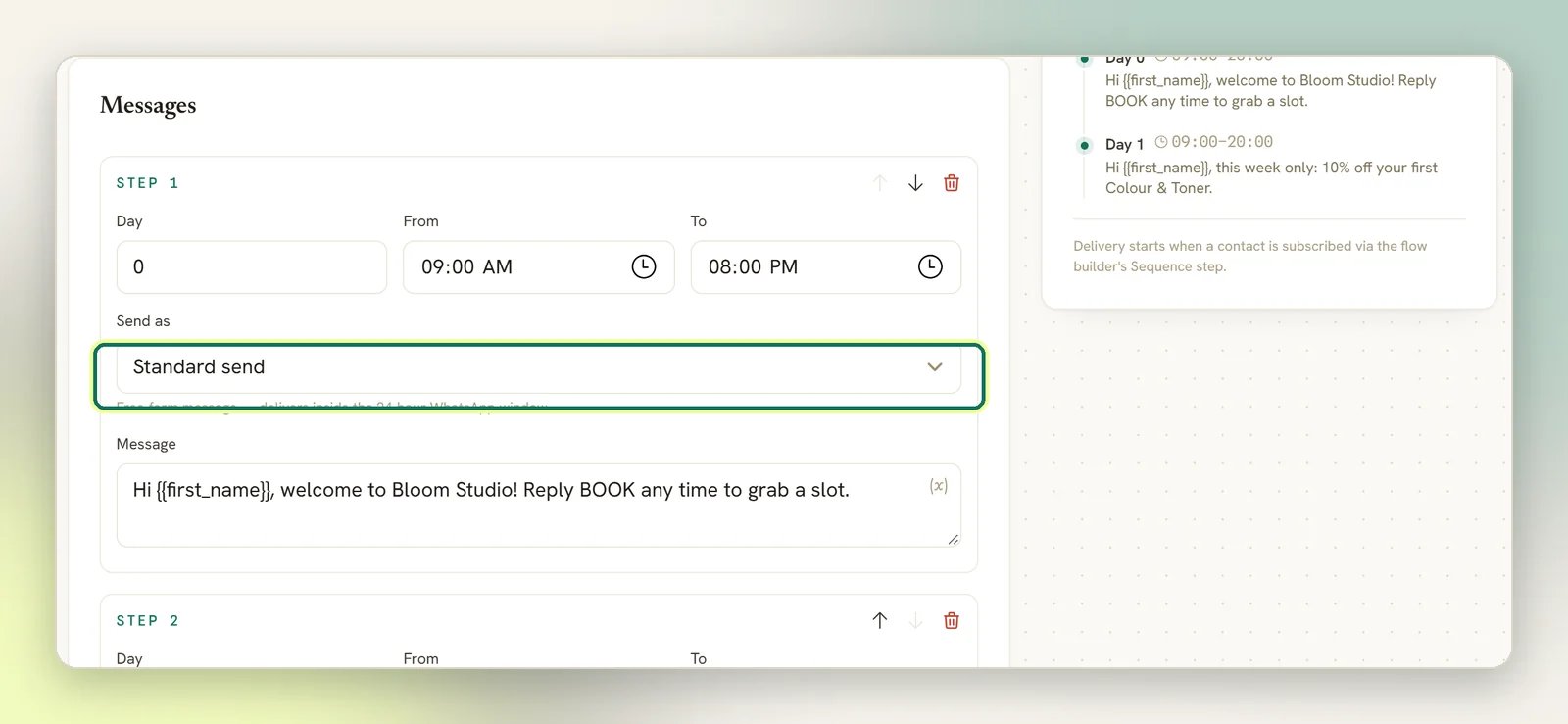
Welcome nurture, Post-visit follow-up.2
Set the Day for each step
Each step has a Day, a whole number of days from zero up. Day 0 means the step is due
as soon as the contact subscribes; day 3 means three days later.What sets the wait between two steps is the gap between their Day numbers, counted
from when the previous step really sent. So 0, 1, 3 means: on subscribing, one day later,
then two days after that. Keep the numbers climbing.
3
Set the hours
From and To set the times of day a step is allowed to go out: 09:00 to 20:00 by
default. A step that comes due before From waits for it; a step that comes due after
To moves to From the next day. It stops you messaging someone at 3am.These are wall-clock times on the contact’s own timezone, or your workspace’s timezone when
the contact has none. Enter them as local times; do not convert them to UTC.
4
Write the message
Write your Message, or pick a template. See what a step can send
for what your channel offers. You can drop contact details into free-form text:
{{first_name}} becomes the contact’s first name when it sends.5
Add the rest
Add step appends another one, a day after the last. You can move steps up and down and
remove them, and the Timeline panel shows the run in order as you build.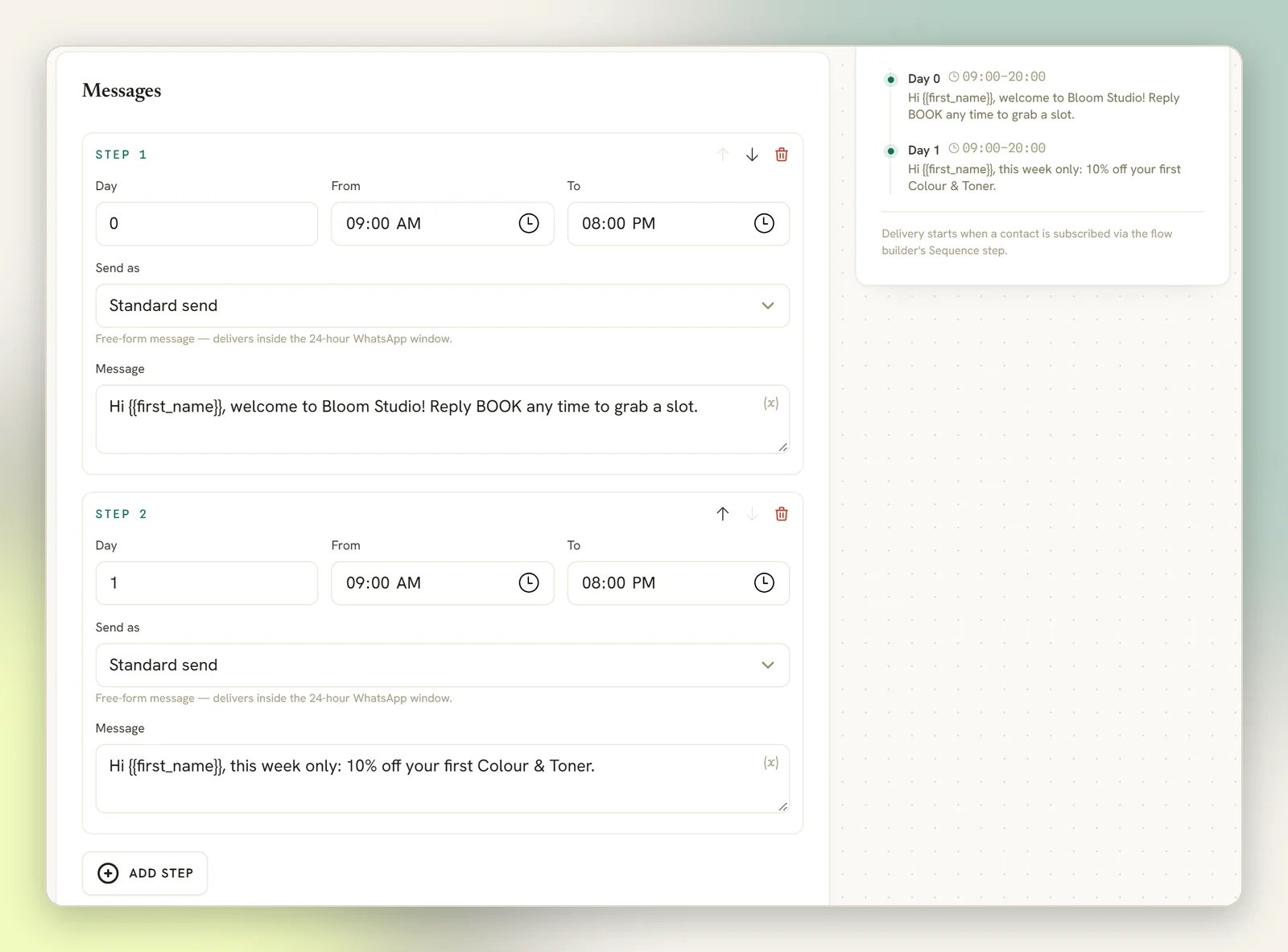
Step {number} is incomplete — add a message or pick a template.6
Save
Select Create sequence (or Save sequence when editing). Nothing sends yet; a
sequence sits idle until a flow subscribes someone to it, exactly as the page says:
Delivery starts when a contact is subscribed via the flow builder’s Sequence step.
How contacts join
There is exactly one way into a sequence: the Sequence step in the flow builder. There is no button on a contact, no bulk action, no import, and no way to subscribe someone by hand.1
Open the flow that should feed it
Go to Automation and open or create a flow on the same channel the sequence belongs to.
A flow only ever offers sequences from its own channel; if your sequence isn’t in the
list, it’s on a different one.
2
Add the Sequence step
In the flow builder, the Sequence step is in the Logic group. Drag it in and
connect it where the contact should join: after they reply to your greeting, after they
pick an option, after they’ve been tagged as a lead.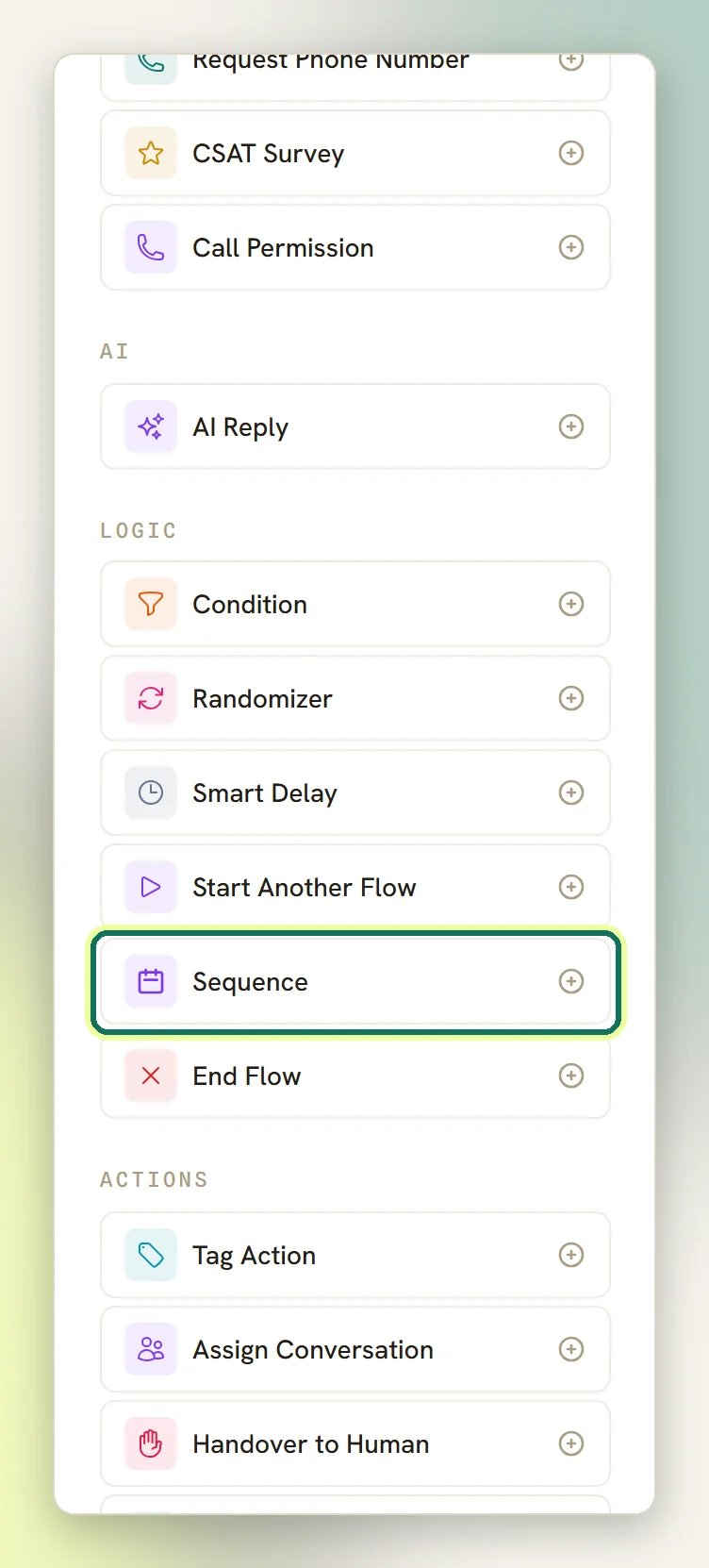
3
Point it at the sequence
Select the step and pick your sequence under Choose a sequence…. That’s the only thing
it configures. The panel says it plainly: Subscribes the contact to the selected drip
sequence.
4
Publish the flow
The step has one output and the conversation carries straight on through it; subscribing
doesn’t pause or end the chat. From then on the schedule runs in the background.
What arrives, and when
Most channels only let you message a contact for a while after they last messaged you. A sequence holds to that line, and on Meta channels it decides more about what arrives than your schedule does.
A step that comes due when the channel won’t carry it is held, not lost. DMLY retries it
about once an hour, up to 48 times, roughly two days. If the contact messages you in that
time the window reopens and the held step goes out, still in order. If they never do, that
contact’s run stops there and no further steps are sent. The clock restarts every time the
contact messages you.
On Telegram, SMS and Live Chat there’s no window at all: every step sends on the day you set
it, however long the contact has been quiet.
Pausing and resuming
Each row in the Sequences list has an Active / Paused switch in the Status column. Turn it off and Sequence paused — steps stop sending until you resume it. Pausing genuinely freezes delivery. Contacts already subscribed stop receiving steps immediately, and nothing is burned while you’re paused: nobody is dropped for a closed window, and nobody misses a step. Turn it back on and Sequence resumed: every contact picks up exactly where they left off, within a minute, in order.Pausing doesn’t stop new contacts joining. A paused sequence still appears in the
Sequence step’s picker, and a flow pointing at it keeps subscribing people; they just
queue up behind step 1 until you resume. To stop new contacts joining, remove or repoint the
Sequence step in the flow that feeds it, and publish.
How contacts leave
A contact stops receiving a sequence when any of these happen:- They finish it. The last step sends and the run completes.
- The window stays shut. On a windowed channel, no message from them for the roughly two days DMLY spends retrying a held step. See what arrives, and when.
- They opt out. A contact who replies with a stop keyword is added to your suppression
list, and no further sequence steps are sent to them. On every channel that means
stop,stopall,stop all,unsubscribe,cancel,quit,end,opt outoroptout. Telegram also accepts/stop. - They reply, if you’ve turned that on. Each sequence has a Stop when the contact replies switch, off by default. Turn it on and the contact’s run stops the moment they reply to anything while they’re subscribed, on any channel. No opt-out keyword or flow step is needed.
- A flow unsubscribes them. The Unsubscribe Contact step does the same thing deliberately, and stops every sequence run they are in straight away.
- The bot is paused on them, or they’re blocked. Handover to Human pauses the bot for that contact, which ends their sequence run at the next due step. Resume bot replies does not bring the run back; only the Sequence step can, and it starts them from the beginning.
A normal reply doesn’t take someone out of a sequence, unless that sequence’s own Stop when
the contact replies switch is on. See above. With the switch off, which is the default, a
contact who answers your day 1 message and books still gets day 2 and day 3 unless something
else above stops them. Build the exit into the flow when you want one. For example,
unsubscribe them once they’ve done the thing the sequence was asking for.
Troubleshooting
I built a sequence but nothing ever sends
I built a sequence but nothing ever sends
A sequence does nothing on its own. Check that a published flow, on the same channel, has a
Sequence step pointing at it, and that the sequence’s switch is on Active.
Later steps stop arriving for some contacts
Later steps stop arriving for some contacts
Almost always the window. On WhatsApp, Facebook, Instagram and TikTok a free-form step only
reaches a contact who has messaged you recently; when they haven’t, DMLY holds it and retries
for about two days, then stops that contact’s run. Contacts who keep replying get the whole
sequence; contacts who go quiet don’t.On WhatsApp, build the later steps from approved templates and they arrive regardless.
Elsewhere, shorten the run and give each step a reason to reply.
I can't pick a template on a step
I can't pick a template on a step
Templates are a WhatsApp thing. Facebook and Instagram have a Send as picker, but it
offers Standard send and Human agent, not templates. On Telegram, SMS, Live Chat and
TikTok there’s no picker at all: a step is free-form text.On a WhatsApp channel, set Send as to Utility template or Marketing message. If
the picker is empty, you have no approved template in that category yet; Manage templates
takes you to submit one. See message templates.
A step arrived outside its From–To hours
A step arrived outside its From–To hours
A step that had to be held and retried is rescheduled about an hour later without re-checking
From and To. The hours are applied when a step is first scheduled, so a step that
waited on a closed window can land outside its usual times. The hours are read on the contact’s clock, not UTC.
The Overview says Active sequences: 12 but I only have 3
The Overview says Active sequences: 12 but I only have 3
Active sequences on the Overview counts contacts currently working through a
sequence, not sequences. Twelve means twelve contacts mid-run.
I deleted a sequence a flow was using
I deleted a sequence a flow was using
Nothing breaks loudly, which is the problem. The flow keeps running and the Sequence step
just does nothing; that’s what Flows that subscribe to it will need a new target means on
the delete prompt. Open each flow that used it and point the step at a new sequence, or
remove the step.
Next
Flow builder
Where the Sequence step lives, and how a contact reaches it.
Triggers
What starts the flow that subscribes people in the first place.
Message templates
Get templates approved so WhatsApp steps arrive outside the 24-hour window.
Broadcasts
For the message that only makes sense today.