

AI Lead Qualification bot
“An AI agent greets visitors, qualifies inbound leads, captures their details, tags hot
leads, and hands strong prospects to a human.” Works on every channel. Needs a connected
AI provider.
Lead Qualification Flow
“Ask interest, budget and timeline, then route hot leads to sales and nurture the rest.”
Fixed questions, no AI, nothing to connect. Predictable, and it never waits on a provider.
Route A: the AI lead qualification bot
1
Connect an AI provider
Go to Integrations and connect one of the four providers the AI step supports:
OpenAI, Claude (Anthropic), Google Gemini or DeepSeek. That is the whole
list; nothing else can drive an AI Reply step.The AI agent itself is on every plan. What varies is whether you can connect your own
provider key. If the tile shows a Plan locked pill and reads System AI instead of
Connect, your plan doesn’t include connecting your own key: your bot runs on DMLY’s
built-in system AI instead, and each reply it sends counts against your plan’s monthly
AI replies allowance. Connecting your own key runs on your own provider account, and
those replies are not counted. See AI replies,
Plans and Connect OpenAI.
2
Install the template
Create a new automation on the channel you want the bot to run on. The templates picker
opens, already filtered to that channel’s platform; only templates that channel supports
are shown. The AI bot carries a Popular badge and sits in the default Recommended
section; look there, or search for it by name. Open the card and select Use this
template.Installing creates a Draft automation seeded with the template’s flow and drops you
straight onto the builder canvas. Nothing is live yet.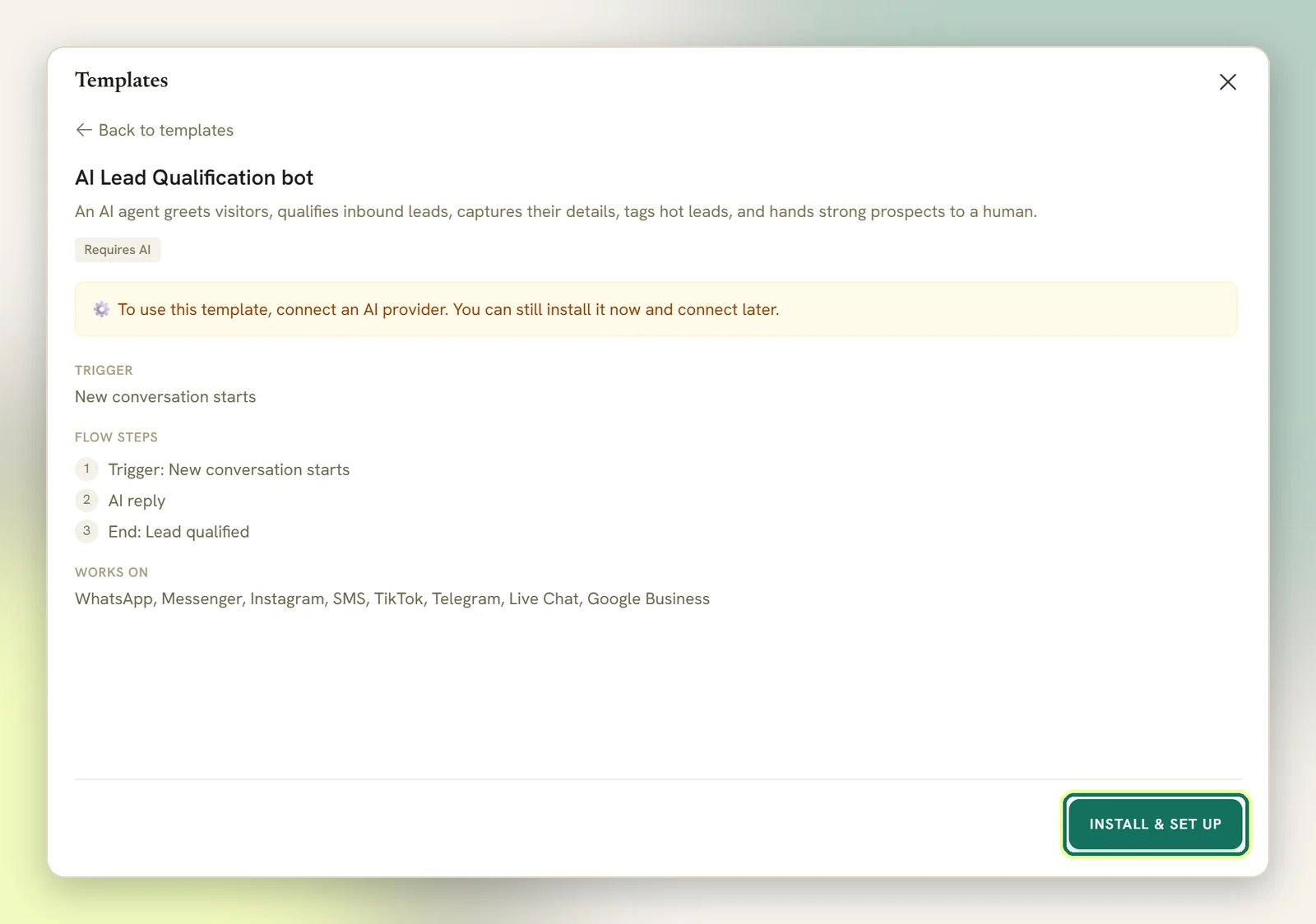
3
Read the flow
The AI template is deliberately small: a trigger, one AI Reply node, and an End node.
On the canvas the trigger reads User sends a message; installing rewrites the
template’s generic trigger to the real one for your channel. It fires on every inbound
message from a contact, not just their first; to change that, use the Only respond once
per contact toggle on the trigger. All the behaviour lives inside the one node; there
is no branching to wire up.
4
Write the prompt
Open the AI Reply node and go to the Prompt tab. System prompt / instructions
is where you tell the AI what qualifying means for your business: what to ask, what counts
as a hot lead, when to hand over.The prompt supports tokens:
{{business_name}} resolves to your workspace name, and
{{first_name}} to the contact’s first name. Be specific about your own qualifiers
(“ask which treatment they want, roughly when, and whether they’ve visited before”)
rather than leaving it generic.Also on this tab: Fallback message (on error / empty reply), which is what the contact
receives if the AI fails or returns nothing, and Typing delay before reply (seconds).5
Check the model settings
If your plan runs on DMLY’s system AI, skip this step and the Playground step: the node
shows only Prompt, Built-in Tools and Functions, and the model, max tokens and
history come from DMLY’s defaults.Otherwise, on Configuration, pick your Provider (only connected providers are
listed) and a Model. The model field is free text with suggestions; you can type any model id your
provider supports.Max tokens caps the length of a reply. Conversation history (messages) controls
how much of the thread the AI sees each turn; qualification is a conversation, so don’t
cut this down to a couple of messages.
6
Confirm the tools
Built-in Tools is what makes this a qualification bot rather than a chat toy. The
template arrives with eight already ticked under CRM contact tools:
Create the tags, stages and fields you name in the prompt first, so the AI has somewhere
to put the answers. See Tags and segments,
Pipeline stages and
Custom fields. The full tool surface, including booking tools,
is on AI agent tools.
7
Test it in the Playground
The Playground tab runs your configuration without sending a real message. Type a
Test message, select Run, and you get back the Reply plus a Tool calls
trace showing which tools the AI decided to use. Tool calls there run against demo data;
no contact is touched and nothing lands in the Inbox.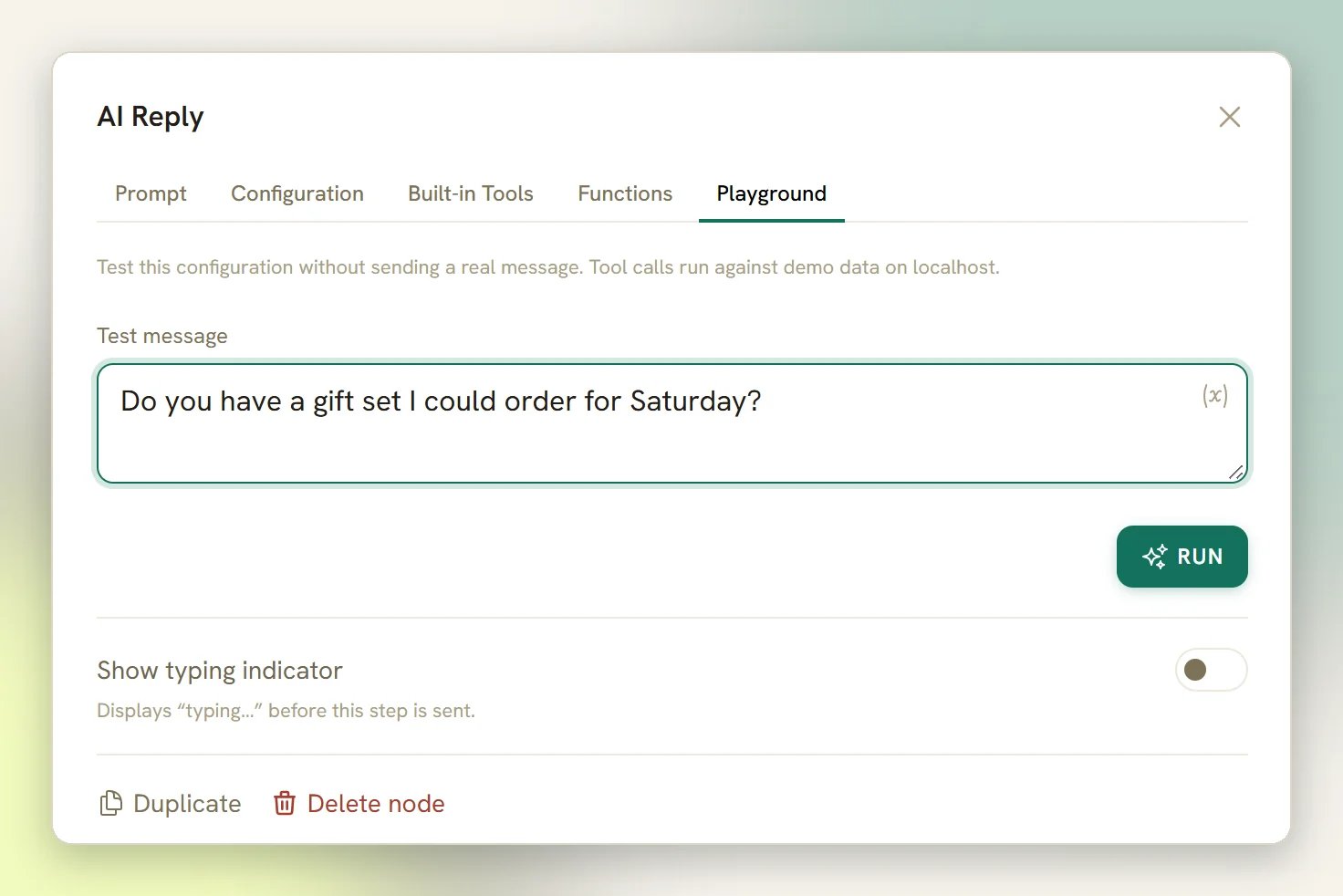
8
Publish
Publish from the builder. See Publishing bots.
How the AI bot behaves in a real conversation
It keeps chatting until it's done
It keeps chatting until it's done
Because the node’s output leads to an End node, the AI Reply step is conversational: it
replies, then waits for the contact’s next message and replies again. That’s what lets it
ask a follow-up question. A conversation caps at 40 turns, after which the step moves on.Put a node after the AI step and it stops being conversational; it replies once and
continues down the flow.
Handover really stops it
Handover really stops it
When the AI hands over to a human, the bot is paused for that contact and the AI step ends
rather than parking for another turn. It can’t talk over your team.
Failures don't stall the flow
Failures don't stall the flow
If the AI errors or returns an empty reply, the contact receives your Fallback message
(on error / empty reply) instead. The AI template ships with “Sorry
{{first_name}}, I
hit a snag just now. 🙏 Please send that again, or ask for a teammate and I’ll hand you
over.” unless you change it. The flow always
continues.If the node’s chosen provider isn’t connected but another one is, it quietly uses the other
one rather than failing.Route B: the fixed-question flow
Lead Qualification Flow asks the same three questions every time and branches on the answer. No AI provider, nothing to connect, no AI replies allowance to spend. The installed flow is eight nodes:- Three question steps, asking interest, budget and timeline and saving each answer into a custom field of that name.
- A condition that checks the timeline answer against a keyword list:
asap,urgent,this week,this month,now. - A HOT branch with an Assign Conversation step, and a NURTURE branch that sends a follow-up message.
That keyword list is the whole of the bot’s judgement; edit it to match how your customers
actually write. “Today”, “right away” and “before Friday” all fall into NURTURE until you
add them.
Other qualification templates
Worth a look before you build anything by hand:Welcome & qualify new chats
A WhatsApp quick automation, a welcome that qualifies in the same breath. No canvas.
Welcome & Qualify New Chats
The flow-builder one, near-identical in name. Uses interactive buttons, so it installs on
WhatsApp, Facebook and Instagram only.
Lead qualification flow
Instagram. “Ask a question, branch on the answer, and tag the lead.”
Ask for phone number when missing
WhatsApp. Bolt onto the end of a qualification bot when the contact reached you without a
number. See Request phone.
Before it goes live
Only one bot can answer every message on a channel
Only one bot can answer every message on a channel
Publishing is blocked if another active automation on the same channel already replies to
every message; both would answer. Give one a specific keyword, or pause the other. This is
the most common thing that stops a lead qualification bot from publishing, because
qualification bots are exactly the kind that answer everything.
Your plan never blocks publish because of the AI step
Your plan never blocks publish because of the AI step
The AI agent is on every plan, so Route A publishes on any plan. What your plan decides is
the size of your monthly AI replies allowance and whether you can connect your own provider
key. See AI replies.One step type does still block publish on a plan that excludes it: the Google review-request
step. If your flow uses one you’ll see “This automation uses a Google review-request step,
which your plan does not include. Upgrade your plan to use it, or remove the step.” Take the
step out, or upgrade, then publish again.
It published but never fires
It published but never fires
A bot that is paused for that contact, a flow with no published version, or “only respond
once per contact” having already fired will all silently do nothing. Start at
Automation not triggering.
Flow builder
The canvas, nodes and ports in full.
AI agent tools
Every tool the AI step can act with.
Templates
The whole template library and how the picker filters it.
Common mistakes
Unconnected branches, fan-out, orphan nodes.