

You only see templates your channel supports
The picker is scoped to the active channel’s platform. The library ships more than 100 templates, but a WhatsApp channel never shows the Instagram-only ones, and vice versa, so the list you see is a subset, and it changes when you switch channels. Around half the library is cross-platform and appears everywhere; the rest is specific to WhatsApp, Facebook, Instagram or SMS.Install a template
1
Create a new automation
Go to Automations and create one. The templates picker opens automatically. If you’d
rather not use a template, Start from scratch asks How do you want to build it?
and lets you pick Quick automation or Flow builder.
2
Find one
Templates are split into Recommended and the rest. You can filter by goal
(Capture leads, Support customers, Book appointments, Sell products,
Recover & grow revenue, Grow your followers, Engage your audience,
Drive traffic), by builder, under By builder (Quick automations or Flow
builder), or by trigger and industry, or just search by name.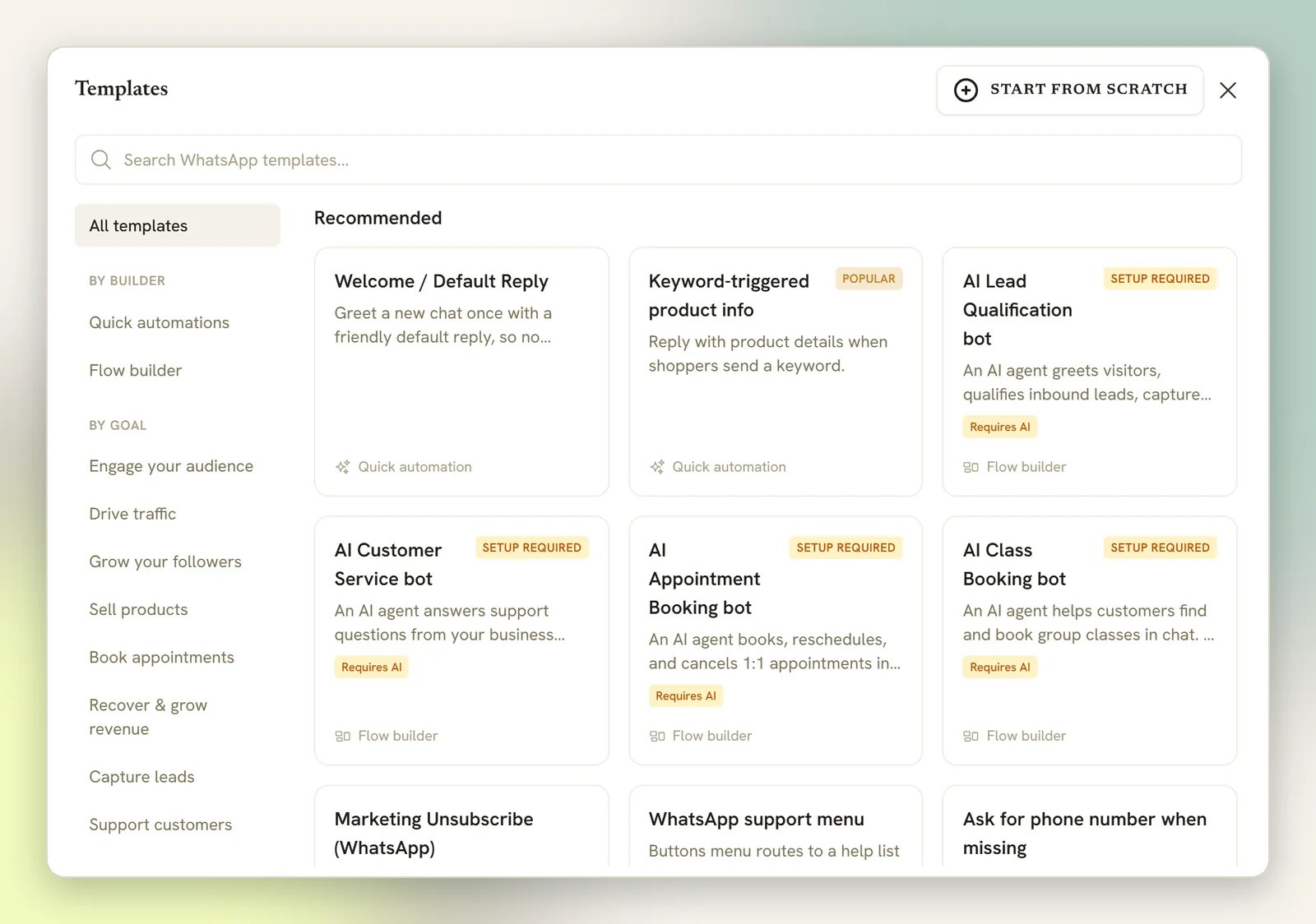
3
Preview it
Selecting a card opens a preview so you can see what the flow does before you commit.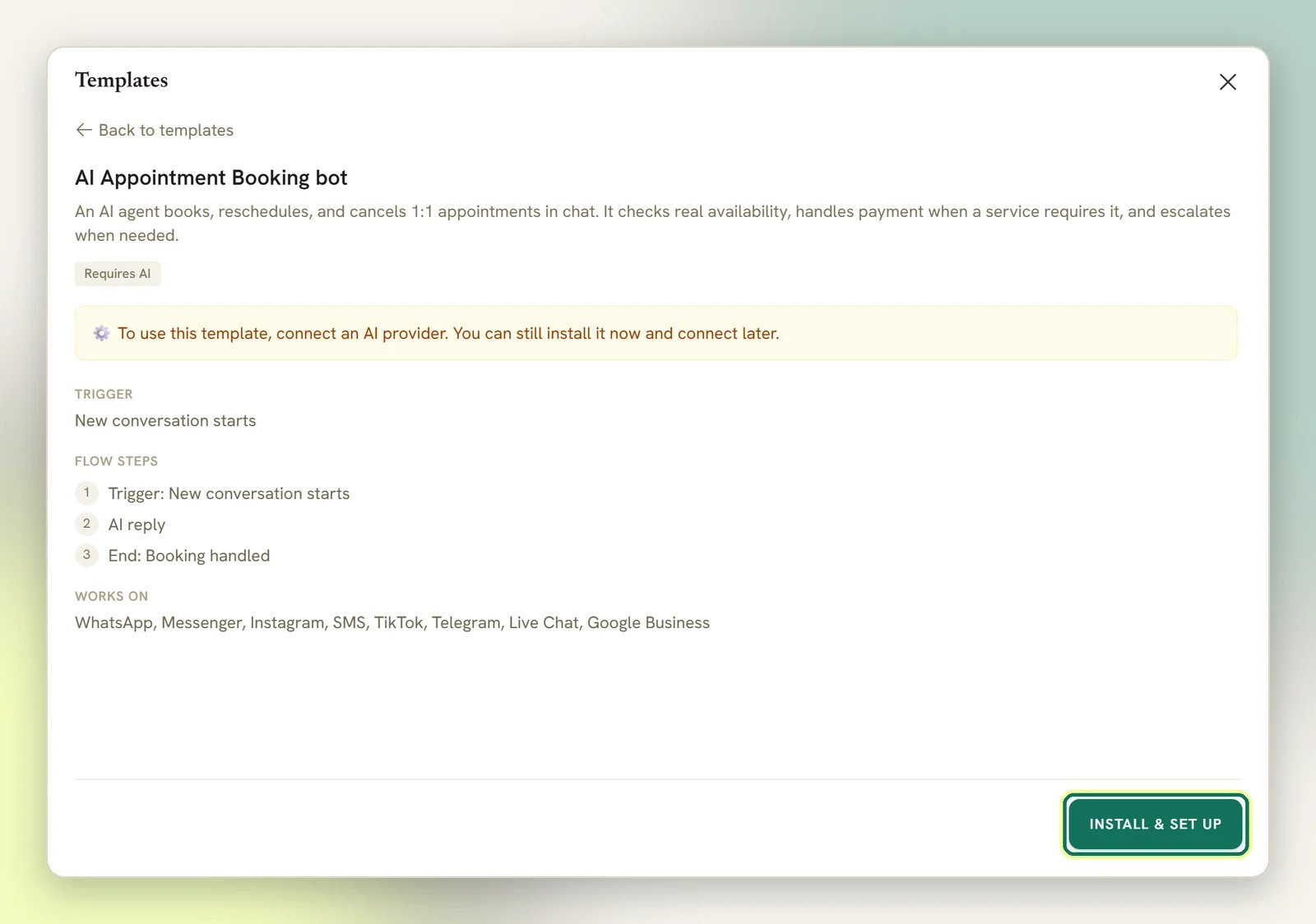
4
Install
What happens next depends on the template’s builder; the card footer says which one it
is. A Flow builder template creates a Draft automation seeded with the
template’s flow and drops you straight onto the builder canvas. A Quick automation
template opens a prefilled form instead; nothing is created until you save it.
5
Edit, then turn it on
On the canvas, change the wording, the tags, the branches; it’s an ordinary flow now.
In the quick form, adjust the trigger and the reply. Either way it starts as a
Draft, and nothing runs until you turn it on.
Installing sets the trigger to the real one for your channel. A template authored as a
generic “message received” becomes User sends a message on the channel you installed
it to, so the trigger step reads correctly from the start.
Badges on a template card
Some templates need something else in place before they can work. The card tells you which:- Setup required (amber): an integration isn’t connected yet. You can still install it, finish the setup, then publish.
- Unavailable: your channel can’t do what the template needs, so it can’t be installed.
To use this template, connect an AI provider. You can still install it now and connect later. The AI step does not wait for that: install the template and
it answers on DMLY’s shared AI. Read the amber badge as a note about your own key, not a
blocker. See AI templates below.
AI templates
Six templates are built around an AI Reply step. All six work on every channel, all six start on the channel’s message trigger, and each one arrives with a prompt and a set of tools already switched on:AI Customer Service bot
Answers questions, takes notes on the contact, tags them, and hands over to a human when
asked.
AI Lead Qualification bot
Qualifies inbound leads, captures their details and phone number, tags hot leads, moves
the CRM stage, and hands strong prospects to a human.
AI Appointment Booking bot
Lists services and staff, checks available times, and books, reschedules or cancels
appointments.
AI Class Booking bot
Lists upcoming classes, books a place, and shows or cancels existing bookings.
AI Food Ordering Assistant
Helps customers choose food and add-ons, builds the order, and collects pickup, delivery or
dine-in details. Needs AI ordering set up first.
AI Shopping Assistant
Helps customers find products, choose sizes and colours, and build an order. Needs AI
ordering set up first.
{{business_name}}, which resolves to your workspace name, but it knows nothing else about
what you sell.
The AI agent is on every plan, so a template with an AI step installs and publishes whatever
plan you are on. Two things do depend on your plan: your monthly allowance of AI replies, and
whether you can connect your own AI provider key. Without your own key the step runs on DMLY’s
shared AI and each reply counts against that allowance. On a plan that allows your own key,
connect it under Integrations and the step runs on that instead,
unmetered. See Plans.
Templates worth knowing about
Qualifying leads without AI
Qualifying leads without AI
Lead Qualification Flow asks interest, budget and timeline, saves each answer to a
custom field, then branches: urgent answers route to Sales, everyone else gets a
follow-up message. It’s deterministic: no AI provider needed. See
Lead qualification.
Getting a phone number you don't have
Getting a phone number you don't have
Ask for phone number when missing (WhatsApp) checks whether the contact has a phone
on file, asks for it only if they don’t, thanks them, and saves it to the contact. See
Request phone number.
What to do next
Flow builder
Edit the flow you just installed.
Triggers
Change what starts it.
Common mistakes
The errors that block publish.
Automation overview
How automations fit together.