

The two knowledge screens
DMLY has two places that show the same underlying collections, and it is worth knowing which one you are on.
Use Settings → AI Knowledge. The Vector stores tab is the older per-provider panel; it is
still there, and when your workspace replies on that provider’s key the two screens list the same
collections. Everything below describes the Settings screen unless it says otherwise; the provider
tab is covered in Vector stores on a provider panel at the
end.
Before you start
- The AI agent is on every plan. There is nothing to unlock before you open AI Knowledge.
- It works before you connect anything. Knowledge runs on whichever AI answers for your workspace: your own connected OpenAI or Google Gemini key if your plan allows one and you have connected it, otherwise DMLY’s built-in AI. A line at the top of the page names the account it is backed by, and confirms the knowledge is private to your workspace.
- Claude and DeepSeek cannot search documents. If an AI Reply step replies on one of those, it gets no knowledge whatever you have built. Use OpenAI or Gemini for a step that needs to read your material.
- Teammates need the right permission. Viewing the page needs access to the Setup & Integrations module. Creating or deleting a collection, adding, importing or removing a source and running the test box all need Manage bot setup. See Roles and permissions.
Build a collection
1
Open AI Knowledge
Go to Settings → AI Knowledge.
2
Create a collection
In the New collection panel, type a Collection name that says what’s in it (Prices,
Policies, Support) and select Add collection. You pick collections by name later on the
AI Reply step, so one collection per subject beats one collection for everything.
3
Add your material
Select Add source on the collection and pick a Source type. Four kinds are offered, and
they are covered in the next section.
4
Point an AI Reply step at it
Open the AI Reply step in your automation, go to the Built-in Tools tab, and set the
AI Knowledge selector to something other than No knowledge. This is the step people
miss: a new step ships with No knowledge selected and never searches anything. See
Point an automation at it below.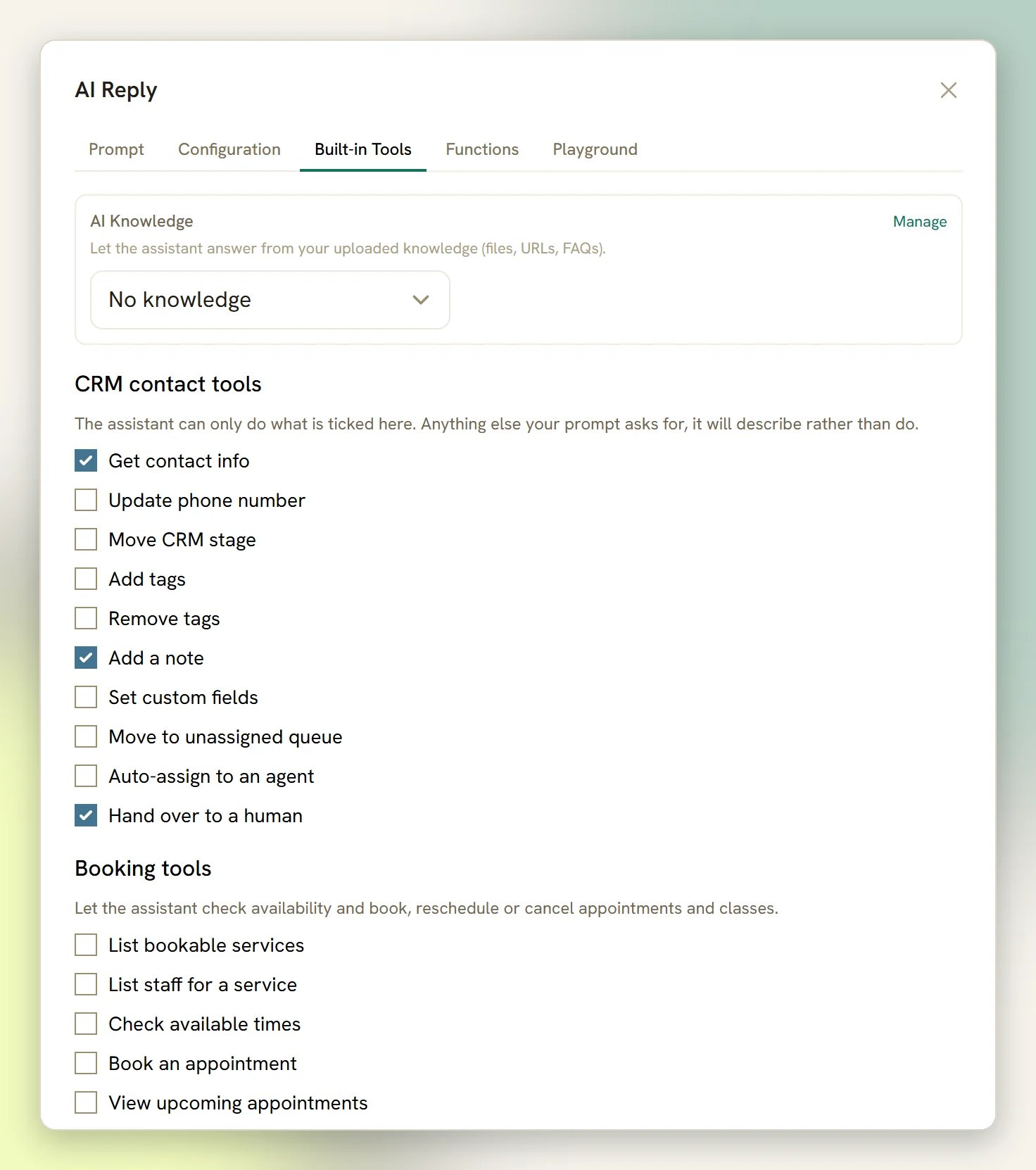
5
Test it
Use the Test knowledge panel at the bottom of the page and ask a question your material
answers. Nothing is sent to a contact and nothing lands in the Inbox.
The four source types
Add source offers exactly four kinds, listed under Source type:
The list shows each row’s type as File, URL, FAQ or Text, with the page address
underneath for anything ingested from the web.
There is no in-place editing in the sources list. To change an FAQ or a pasted note, select
Remove on the row and add it again.
Import a whole site at once
Adding a documentation site one page at a time is a job people abandon halfway, which leaves the assistant confidently half-informed. Import pages on a collection does it in bulk.1
Choose how you'll supply the pages
Source offers Sitemap (imports the pages it lists) or Paste a list of page
addresses.
2
Give the sitemap, or the list
For a sitemap, put the address in Sitemap address: Most documentation sites publish one at
/sitemap.xml. Sitemap-index files are followed one level. For a list, paste the addresses into
Page addresses: One per line. Pages already in this collection are skipped.
3
Select Import and wait
Each page is fetched and indexed during the request, so a large import is not instant. Up to
100 pages per import.
4
Run it again for a bigger site
When more pages are outstanding, the confirmation says how many are left and that running
Import again continues from where it stopped. Re-run it with the same address until nothing
is left.
A sitemap is read up to the first 2,000 addresses it lists, which is the ceiling on what an import
can ever consider from one sitemap. Only public web addresses are fetched.
Find a source in a big collection
Each collection’s header shows how many sources it holds and how many automations use it, and the list itself is paged:- 20 sources per page, newest first, with Previous and Next and a page count.
- A Search sources by name or address… box appears once a collection holds more than 20 sources. It searches the whole collection, not just the rows on screen, and matches both the source name and its web address.
- Remove on a row deletes that source from the collection and from the AI account behind it.
Indexing status
Adding a source hands it to the AI account, which indexes it in the background, so a new row starts atprocessing and settles by itself:
processing: still indexing. Nothing to press.ready: searchable.error: indexing failed, and the reason is shown on the row.
There is no training step and no “publish” step. Once a source reads
ready it is searchable on
the next reply.Test what it will find
The Test knowledge panel appears once you have at least one collection: Ask a question to check what the assistant would retrieve.- Leave the scope on All collections, or pick one collection to test it alone.
- Type the question and select Test.
- You get the answer, plus Retrieved snippets naming the source each snippet came from.
Point an automation at it
Building a collection doesn’t make an assistant use it. On the AI Reply step’s Built-in Tools tab, the AI Knowledge block (with a Manage link back to this page) reads Let the assistant answer from your uploaded knowledge (files, URLs, FAQs). and offers four choices:
All workspace knowledge is the right answer for most support assistants: a collection added next
month is searched without editing the flow. Pick Selected collections when a sales bot and a
support bot should read different material.
Each collection’s line on the Settings page counts the automations that reference it, so you can spot
a collection nothing reads from. Only published automations count, so a collection wired only
into a draft still reads zero.
What makes the answers good
The assistant searches your collections and writes an answer from what it finds. So the quality of the answer is mostly the quality of what you put in. This helps:- Write for the question, not for the page. A document that reads like an FAQ (a heading that is the question, a short answer under it) is far easier to search than a brochure. If contacts ask “do you take walk-ins?”, have a line that says exactly that. The FAQ (question & answer) source type exists for precisely this.
- Keep one subject per collection. Prices and Policies as two collections lets you point a sales bot at one and a support bot at the other.
- Say the specifics. Prices, opening hours, addresses, service names, how long something takes. These are what people actually ask for, and they are exactly what the assistant can’t invent.
- Keep one current version. Adding a new price list adds to the collection; it doesn’t overwrite the old one. Two versions in one collection means the assistant can find and quote either.
- A scanned or image-only PDF. If you can’t select the text with your cursor, neither can the search. Nothing errors; the source just contributes nothing.
- Marketing copy. Pages of tone with no facts give the assistant nothing to answer with.
- Contradictions. Two documents with different prices produce confidently wrong answers, and they’re the hardest kind to notice.
- Importing everything. A whole site imported wholesale, blog posts and press releases included, buries the price list among things nobody asked about. Import the pages that answer questions.
When it doesn’t answer from your material
The AI ignores your knowledge completely
The AI ignores your knowledge completely
Four causes, in the order worth checking. The step’s AI Knowledge selector is still on No
knowledge, which is where a new step starts. Or the step replies on Claude or DeepSeek,
which can’t search documents at all; switch it to OpenAI or Gemini. Or the collection is empty, or
everything in it is still
processing. Or the collections were built on a different AI account
from the one now answering (see the warning above).It answers, but with old prices
It answers, but with old prices
The old file is still in the collection. Adding a new one adds to the collection, it doesn’t
replace what was there, so both versions are searchable. Remove the old row, or create a fresh
collection with only the new file and tick that one on the step instead.
It found nothing in a PDF that clearly says it
It found nothing in a PDF that clearly says it
Open the PDF and try to select the text. If you can’t, it’s a scan (an image of words, with no
words in it). Re-export it from the original document, or retype the key facts as a Pasted
text source.
An import brought in fewer pages than the site has
An import brought in fewer pages than the site has
One import adds at most 100 pages. The confirmation says how many are still outstanding: run
Import again with the same address and it carries on from where it stopped. If a sitemap
returned nothing at all, check the address, or paste the page addresses instead.
The Tool calls trace looks empty
The Tool calls trace looks empty
That’s expected, not a fault. Knowledge search runs inside the AI provider rather than in DMLY, so
it never shows in the trace. An assistant answering perfectly from your collections still shows an
empty trace.
The page says it needs a knowledge-capable AI
The page says it needs a knowledge-capable AI
AI Knowledge needs a knowledge-capable AI (OpenAI or Gemini). Connect your own OpenAI or
Google Gemini key under Integrations, and the page comes back with that account behind it.
See Connect OpenAI.
The AI step didn't reply at all
The AI step didn't reply at all
Your plan is never the reason: the AI agent is on every plan. When a step is skipped it leaves a
note in the conversation starting with a sparkle, and that note names the cause. The ones you are
likely to meet:
- ✨ AI step skipped — AI replies are turned off for this workspace. The workspace kill switch Let the AI reply is off. Turn it back on under Conversation settings.
- ✨ AI step skipped — no AI provider is connected. Neither your own key nor DMLY’s built-in AI is available to answer.
- ✨ AI reply limit reached for this month — it resets at the start of next month. You have used your plan’s monthly AI reply allowance on DMLY’s built-in AI. The note goes on to point you at connecting your own key (replies on your own key are never counted) or at a bigger plan. See Plans.
- ✨ AI reply withheld — a teammate took over the conversation. Someone paused the bot while the model was still writing, so the answer was held back rather than sent over them.
- ✨ AI step skipped — per-conversation AI limit reached. A safety cap on how many times AI can answer inside a single run of a flow. Other conversations are unaffected.
Vector stores on a provider panel
The older per-provider panel is still available, and it is the only knowledge screen scoped to a single connected key. Go to Integrations, open OpenAI or Google Gemini, and select the Vector stores tab. It appears only for providers with native file search, and only once the provider is connected: until then it reads Connect the provider first to manage vector stores.- Create a vector store takes a Store name and creates a collection on that provider’s account: Group documents the AI can search at reply time. Add a store, then upload PDFs / text files or ingest a web URL.
- Each store lists its files with an indexing dot, and offers + Upload file and an address box with Add URL. The note under the list reads PDF, TXT or MD up to 20 MB. URLs are fetched server-side and indexed.
- Refresh status re-checks indexing at the provider. Indexing… and Indexing failed show per file, with the reason under a failure.
- There is no way to remove a single file here: Delete applies to the whole store. Remove an individual source from Settings → AI Knowledge instead.
Reply with AI
Write the prompt the assistant answers with.
AI tools and functions
Choose what a step searches, and what else it may do.
Connect OpenAI
Add your own key for un-metered replies and your own knowledge account.
Plans
Your monthly AI reply allowance, and whether you can connect your own key.