

Connecting your own key is a plan feature. If your plan doesn’t allow it, the tiles still appear
but you can’t open them. Your chatbot keeps working on DMLY’s shared AI instead, metered by
your plan’s AI Replies allowance. See Plan gating below and
Plans.
Connect your key
1
Create an API key at OpenAI
In your OpenAI account, go to Settings → API keys and create a key. It starts with
sk-. Copy it; OpenAI shows the full key only once.2
Open the OpenAI tile
In DMLY, go to Integrations and select the AI tab, then select OpenAI. The
panel’s Setup guide points you to platform.openai.com if you still need a key.
3
Paste the key and connect
Paste the key into API key and connect. The tile then reads Connected, and the
knowledge base controls appear on the panel.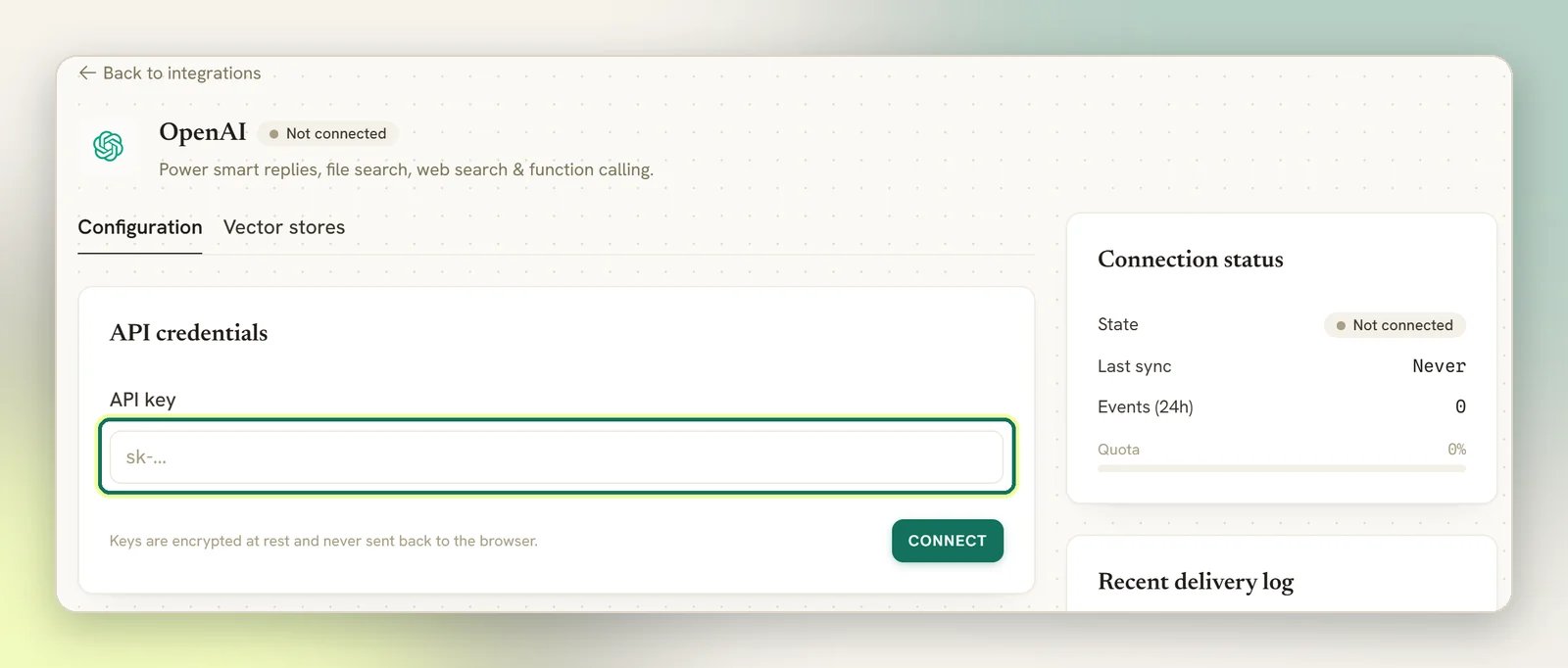
4
Use it in a flow
Open a flow and add the AI Reply step; it already answers on the shared AI. Pick OpenAI
as its Provider to use your own key and model instead. See
AI replies.
What it powers
AI replies
The AI step writes the reply instead of you scripting it, using your prompt and the
conversation so far.
File search
The AI searches documents you’ve uploaded (your price list, policies, FAQs) and answers
from them.
Web search
The AI can look something up on the web while writing a reply.
Tools
The AI can tag a contact, book an appointment and use the other actions you allow it.
Your knowledge base
Build the knowledge base at Settings → AI Knowledge: collections of sources (files, web pages, FAQs, pasted text) the AI can search while it writes a reply. Once your OpenAI key is connected and your plan allows your own keys, that is the account the collections live on. The OpenAI panel also has its own Vector stores tab, which manages the same collections scoped to this one key, with files and web addresses only: upload a PDF, TXT or MD up to 20 MB, or paste a web address and DMLY fetches the page and indexes it for you. Adding documents doesn’t make the AI use them. On the flow’s AI step you set AI Knowledge to All workspace knowledge (or pick collections) on the Built-in Tools tab. Left on No knowledge, the AI answers from its own general knowledge and your prompt only. Full detail in Knowledge base.You don’t need your own key for a knowledge base. Settings → AI Knowledge works on DMLY’s
shared AI too. What your own key changes is whose account the collections sit on, and that a
collection built on one account isn’t listed or searched once the workspace replies on another.
Only OpenAI and Google Gemini can search your material. Claude and DeepSeek can’t read documents
at all, so a step replying on either of those searches nothing. If a knowledge base matters to you,
those two are not an option.
Try it before it goes live
The AI step’s Playground tab in the flow builder lets you send a test message and see the reply the AI would produce, along with which tools it decided to call. Nothing there reaches a real contact: no message is sent, nothing lands in the Inbox, and contact actions are simulated rather than actually applied. It’s the safe place to check a prompt before you publish the flow.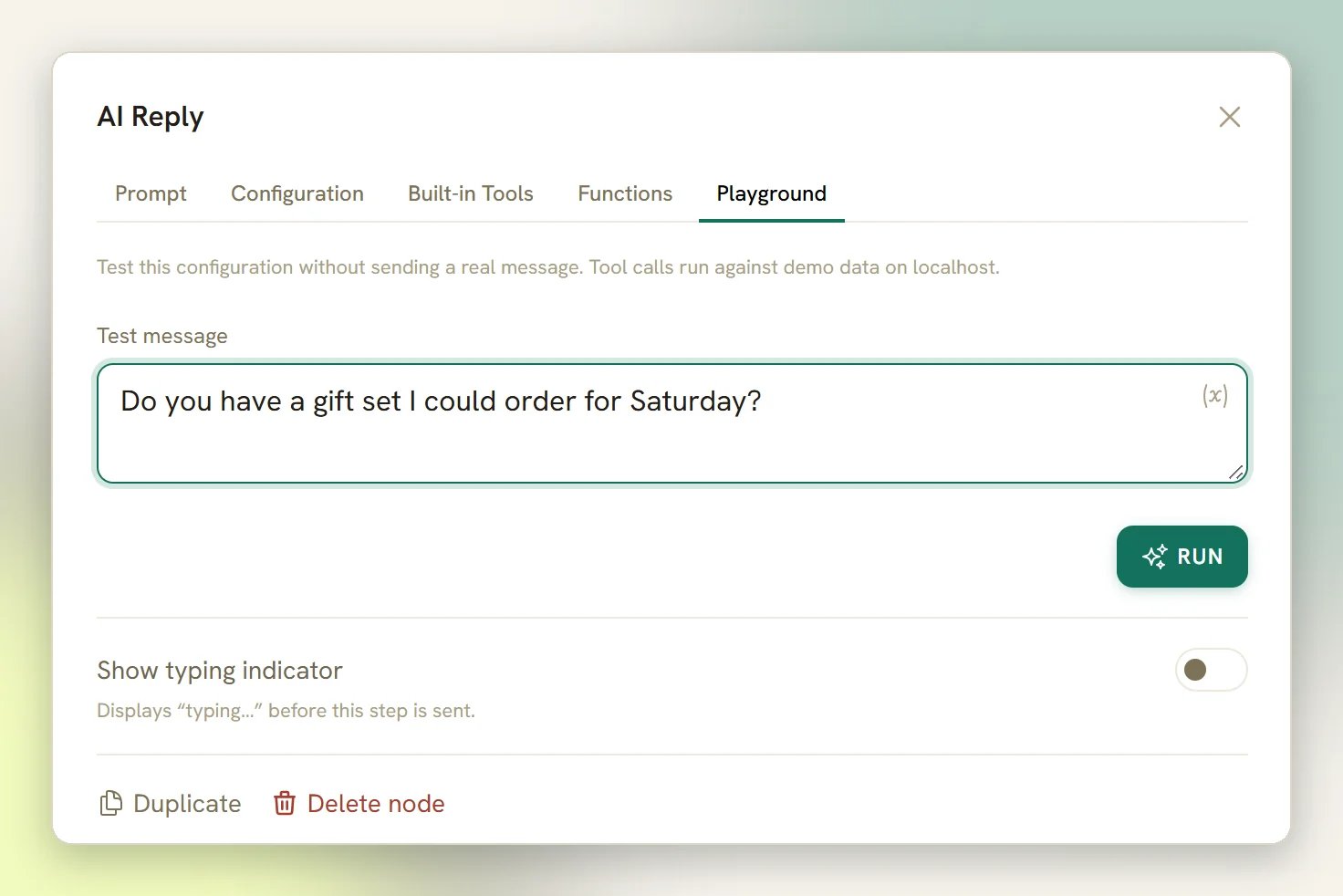
The Playground tab appears whenever your plan allows connecting your own AI provider key; it’s
hidden only for steps forced onto DMLY’s shared AI. You’ll see the tab even before you’ve
connected a provider: an orange No AI provider is connected banner appears on the step, and
running a test message shows Connect this provider in Integrations first until you add a key.
Choosing a provider
All four AI providers connect the same way: an API key on their tile in the AI tab. They differ in what the AI can then do:Plan gating
AI itself is available on every plan; the shared AI always answers. What a plan can restrict is connecting your own provider key, which is what everything below is about.What you see when your plan doesn't allow your own key
What you see when your plan doesn't allow your own key
The four AI tiles (OpenAI, Claude, Google Gemini and DeepSeek) stay visible
on the Integrations page so you can see what’s there, but they don’t open. Each tile shows
a Plan locked badge instead of its status badge, and the action reads System AI instead
of Connect. Selecting the tile shows: “This plan uses the built-in system AI. Upgrade to
connect your own AI provider keys.”Your chatbot isn’t affected; it runs on DMLY’s shared AI instead, metered by your plan’s AI
Replies allowance. See AI replies for what that looks like in the flow
builder, and Plans for whether your plan allows your own keys.
You had your own key connected and it stopped working
You had your own key connected and it stopped working
The gate is enforced on the server, not just on the tile. If a workspace moves to a plan that
doesn’t allow your own keys, an OpenAI key that’s already connected stays stored but is no
longer usable: connecting or re-saving a key, the vector stores and the Playground are all
blocked. The AI Reply step doesn’t stop, though: it falls back to DMLY’s shared AI
automatically, so your contacts keep getting replies. Move back to a plan that allows your own
keys and the same key works again; you don’t need to reconnect.Settings → AI Knowledge keeps working throughout, but it follows the account that answers: it
moves to DMLY’s shared AI, so collections you built on your own key aren’t listed or searched until
the plan allows your key again. See Knowledge base.