

An automation belongs to one Channel. Not to the workspace. A bot you build on your WhatsApp number does not answer your Instagram DMs. To cover both, build it twice, once per Channel. The one exception is triggers that aren’t about messaging at all, like a birthday or a paid invoice; those are covered below.The steps you can add depend on the channel. A WhatsApp flow gets buttons, lists and templates. An SMS flow gets text and nothing else. Carousel cards belong to Facebook and Instagram.“Keyword bot” and “flow bot” are not two different things. Keywords are just settings on the trigger. Every automation can have them; most don’t need them.
One automation, two builders
New automation opens Templates. Pick a template and it decides the builder for you. Choose Start from scratch and you’re asked the question directly: How do you want to build it?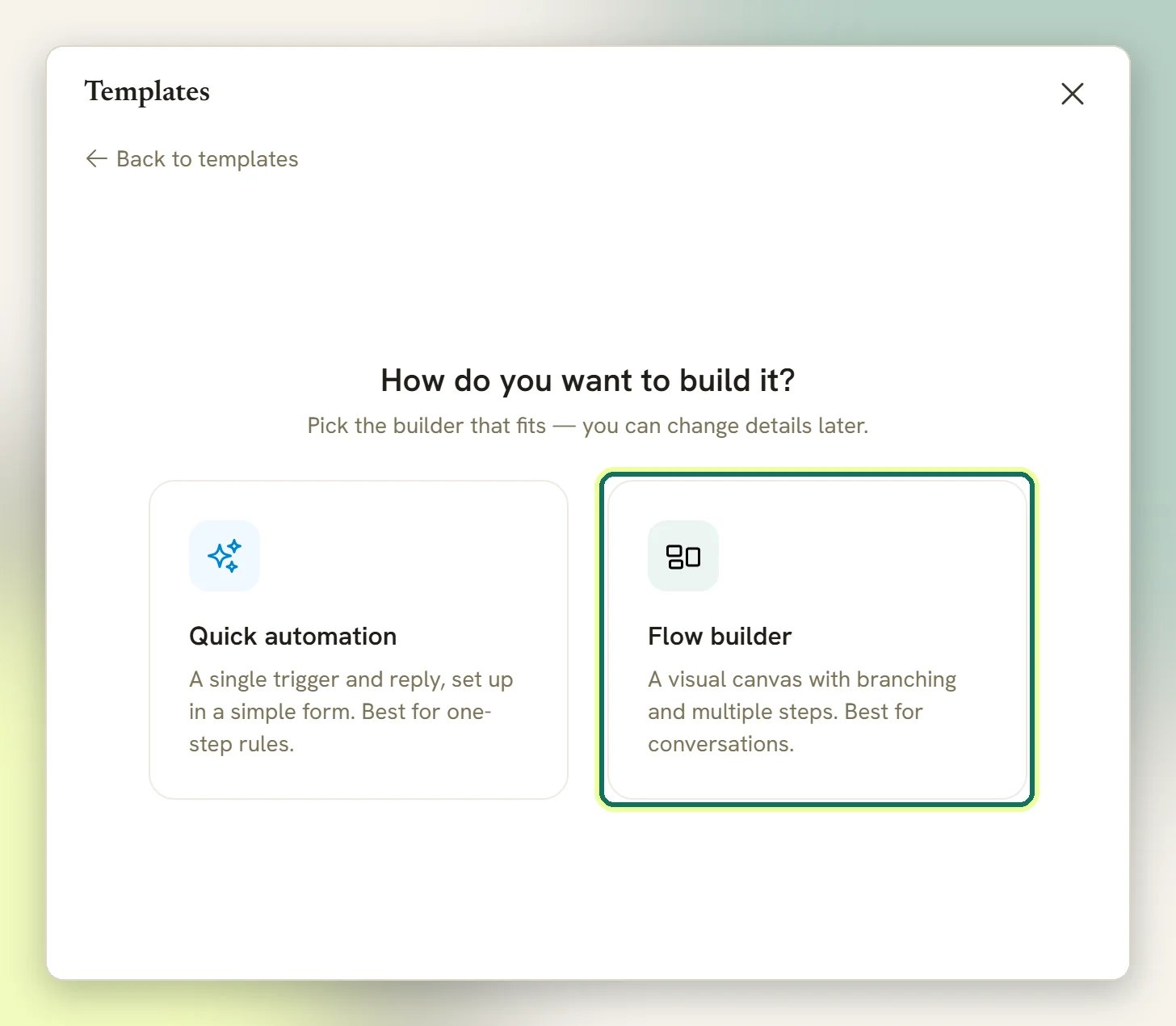
hours, reply with our opening times.” Reach for the flow builder the moment you need a question, a condition, a wait, or a second reply that depends on the first.
Both builders can start from Start from scratch or from a ready-made Templates entry. See templates for what’s in the library, and the flow builder for how the canvas works.
What starts an automation
Every automation has exactly one trigger, and it decides everything else: which steps you’re offered, and even whether the automation needs a channel at all. There are two kinds. Channel triggers fire on activity on one connected channel. What’s on offer follows what that channel can actually do, which varies a lot:
Notice the imbalance. Instagram and Facebook can react to comments; WhatsApp, SMS and Telegram have no comments to react to, so nothing there will let you build one. WhatsApp is the only channel that can trigger on a phone call.
Everything-else triggers don’t belong to a channel. They are offered no matter which channel you’re building on: Contact converted to client, Lifecycle stage changed, Conversation closed, Birthday / key date, Scheduled date, plus the whole commercial set (orders, invoices, payments, subscriptions, appointments, classes, credits, coupons and stock).
These are the majority of what’s available, and they’re the ones people forget exist. An overdue invoice chase is an automation. So is a birthday message.
Three of them do the work most operators actually want:
- Scheduled date: A date/time you set arrives (one-off or recurring), sent to an audience.
- Birthday / key date: A contact’s birthday or a key date arrives.
- Conversation closed: A conversation is marked done / resolved. This is how you send a satisfaction ask after your team finishes a chat.
Keywords are part of the trigger
There is no separate keyword bot. On a message trigger you have two choices:- Leave the keyword list empty. The automation then answers every message on that channel.
- Add keywords, and pick how they match: any message, an exact match, starts with, or contains.
“<other automation>” is already active on this channel and also replies to every message. Only one automation answers a message, so the older of the two would answer every time and the other would never reply. Give one a specific keyword, or pause the other before publishing.The same check catches a shared keyword. Overlapping triggers on different events never collide.
Steps change with the channel
The flow builder’s step palette is built from what your channel can deliver, so the same flow built twice on two channels is not offered the same tools. These groups are always there: Messaging, AI, Logic, Actions, Appointments, Offerings, Finance and Other. On top of them:- WhatsApp adds a whole WhatsApp group: buttons, lists, link buttons, approved templates, WhatsApp Flows, catalogue, location, phone-number requests, satisfaction ratings and call permission. See WhatsApp Flows and request phone.
- Messenger (FB/IG) adds the Facebook and Instagram-only steps: template and carousel cards, the marketing opt-in step and the product catalogue.
- SMS takes things away. The Messaging group shrinks to a plain message and a question (no image, video, audio or file) because an SMS gateway sends one string of text and nothing more.
- Comment actions (reply, like, hide, delete) appear only once you’ve picked a comment trigger. Choose a different trigger and they disappear again.
- Store (Shopify / WooCommerce) appears only when a store is connected, since those steps call the store and do nothing without one.
Draft, publish, live
Quick automations have no publish step, but they aren’t live the moment you save either. A new one is created as a Draft, and a draft never runs. Turn it on with the on/off switch next to it in the automations list. Flows do have a publish step. The canvas always edits a draft; the live version keeps running untouched. Save draft stores your work in progress. Publish makes it real: it checks the flow, then activates the automation and switches the running version to what you just published. Any conversation already mid-flow finishes on the version it started on. Publish refuses when:- you’ve used a Request Google review step and your plan doesn’t include Reputation & Reviews (see plans);
- the flow isn’t buildable: no trigger, more than one trigger, no step after the trigger, a condition with a dead branch, an unconnected step, or a step left empty (a Start Another Flow with no flow, a Send Product with no product, a Send Template with no template, a CTA URL with no link);
- a comment trigger is pinned to post ids no comment can come from;
- it would collide with another active automation’s keywords on that channel;
- you’ve hit the cap on active bots for that channel. Publishing counts as activating;
- it’s a starter-pack bot that still needs something set up before it can be switched on.
The status filter offers only Draft, Active and Paused. There is no Failed status for an automation. An individual run can fail (you’ll get a bell notification and see it in the automation’s analytics), but the automation itself stays Active.
What stops a running flow
Worth knowing before you wonder where a contact went:- A customer texts
stop(orunsubscribe,cancel,quitand similar). This cancels every running flow for that contact across every automation, stops their sequences, and tags them Unsubscribe.startopts them back in. - They go quiet. A flow waiting on a reply gives up after 24 hours. A reply after that starts a new conversation rather than picking up the old one.
- A contact can only be in one activation of the same automation at a time. Triggering it again while it’s still running does nothing.
- Pausing the bot on a conversation freezes flows rather than failing them; they carry on when you unpause.
Flow, sequence or broadcast?
They overlap enough to be confusing. The question is what starts it and who it goes to.
The edge case: a Scheduled date flow sends to an audience on a date you choose, which looks a lot like a scheduled broadcast. Use a broadcast for one-off sends to a segment. Use a scheduled flow when it recurs, or when each contact should go down a different path afterwards.
Where to go next
Build a flow
The canvas, the steps, and how a flow actually runs.
Triggers
Everything that can start an automation, and what it gives you.
Templates
Ready-made automations to install and edit.
Bot setup
Per-channel bot behaviour and defaults.
Common mistakes
The traps that make a bot look broken.
Nothing is triggering
Work through why an automation isn’t firing.