

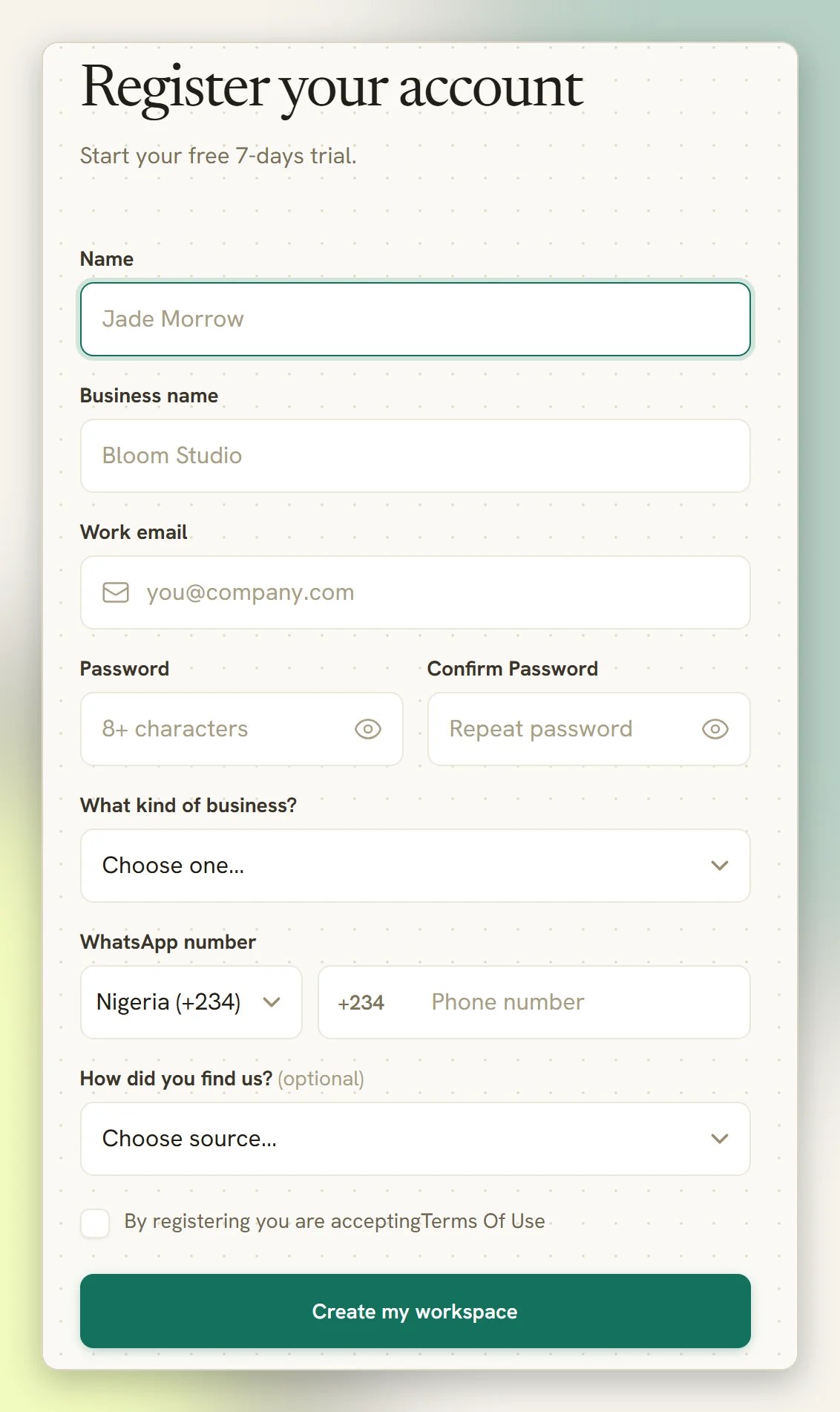
What the signup form asks for
1
Your name and business name
Name is you, the person who logs in. Business name is your business.
2
What kind of business?
Pick the option closest to your business: Salon, spa or barbershop, Clinic or wellness, Retail or e-commerce, Restaurant or cafe, Real estate, Agency or consultancy, Education or coaching, or Something else. It is required.Your answer decides which steps the Get started checklist lists on your Overview dashboard once you sign in. You can change it later from that same checklist with Change business type. See Set up your workspace.
3
Email and password
Fill in Work email, Password and Confirm Password. The email must not already be in use.
4
WhatsApp number
Pick your country dialling code and enter your WhatsApp number. DMLY guesses the country from your browser; change it if the guess is wrong.
5
How did you find us? (optional)
Pick an option from the dropdown, or leave it on Choose source….
6
Accept the terms and register
Tick the Terms Of Use checkbox, then select Create my workspace.
Why the business name matters
Business name is required, and it becomes your workspace name exactly as you type it. There is no separate business record underneath: the workspace name is the business name. It is also what your customers see, so type it the way you want it to appear, capitalisation and all.You can change it later at Settings → Business Details → Business Name. See Business details.
You were invited to an existing workspace
You were invited to an existing workspace
If someone on your team invited you by email and you sign up with that same address, you join their workspace instead of creating one. The Business name and What kind of business? fields do not appear for you, the email field reads Enter email address, and the button reads Register. After registering, you are taken to the invitation to accept it. See Team members.
Verify your email
DMLY emails you a verification link when you register. Select it before you start setting anything up. Until you do, every dashboard page bounces you to a Verify Email Address notice with a Resend verification email button.If an agency signed you up on their own branded platform, your account is verified for you: you land straight in the dashboard with no notice, and there is nothing to verify.
What you have right now
Signing up creates your user account and your workspace, with you as its Owner and Admin. That is all it creates:- No channels. No WhatsApp number, no Facebook Page, no Telegram bot. Sections that depend on a channel show a Connect a channel first panel until you connect one.
- No contacts, no templates, no automations.
Next
Set up your workspace
The order to do things in: connect WhatsApp, fill in your business details, invite your team.
Find your way around
What each item in the sidebar does.