

What the step does
Add Request Phone Number to a flow and it sends the contact a request to share their number. It has a single output, RECEIVED, which the flow continues out of on the contact’s next reply, whether or not that reply actually contains a number. The number is saved to the contact’s phone field only when the reply reads as a phone number: 7 to 15 digits, optionally starting with+. Anything else continues out RECEIVED with no
phone saved, so a stray reply never overwrites a good number with junk. Once a number is saved
the contact behaves like any other phone-based contact: you can message them, and they can be
matched to future conversations. Whatever you put after this step should cope with a contact
who still has no phone.
How it asks
DMLY picks one of three routes depending on the conversation:1
Inside the 24-hour window
The contact gets a native WhatsApp prompt they can answer with one tap to share their
number. This is the best experience and needs no template.
2
Outside the 24-hour window
WhatsApp doesn’t allow freeform prompts outside the window, so DMLY falls back to the
approved
dmly_request_phone template. See WhatsApp rules and limits
for what the window is.3
The contact just types it
The message doubles as an “or reply with your number” prompt, so a contact who types their
number instead of tapping is still captured.
Outside the window, if
dmly_request_phone isn’t approved by Meta, the step does not
stall the flow; it continues straight out RECEIVED without asking, and without a number.
Inside the window no template is involved, so approval doesn’t matter there. Check your
template status before publishing: see Message templates.Only ask when you need to
Asking a contact who already gave you their number is a bad look. Put a Has a phone number is No condition in front of the step so it only fires when one is genuinely missing.Build it yourself
1
Open the flow builder
Create or open an automation on a WhatsApp channel. See Flow builder.
2
Add a condition first
Branch on whether a phone number exists, so the ask is skipped for contacts you can already
reach. Both branches need their own connection; an unconnected branch blocks publishing.
3
Add Request Phone Number
Drop the step on the “no phone” branch.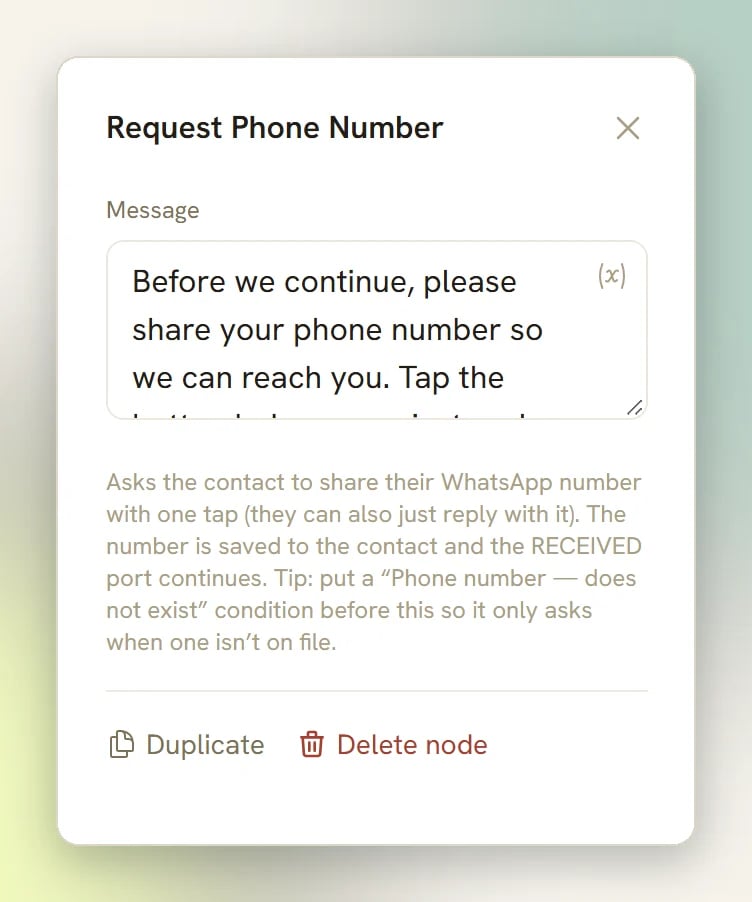
4
Continue from RECEIVED
Connect the RECEIVED output to whatever comes next: a thank-you message, a booking
step, or the end of the flow.
Related
Flow builder
How steps, outputs and connections fit together.
Common mistakes
Unconnected branches and other reasons a flow won’t publish.
WhatsApp rules and limits
The 24-hour window and when a template is required.
Contacts
How a contact’s phone number is used once it’s on file.