

Billing is admin-only. If your base role is Member or Viewer, you cannot open Workspace Settings at all. Ask an admin or the workspace owner. See Roles and permissions.
Find your plan
1
Open Workspace Settings
Open Workspace Settings, then select Billing.
2
Read your current plan
Current Subscription Plan shows the plan you are on, its status, and, if it is ending, the date it runs to.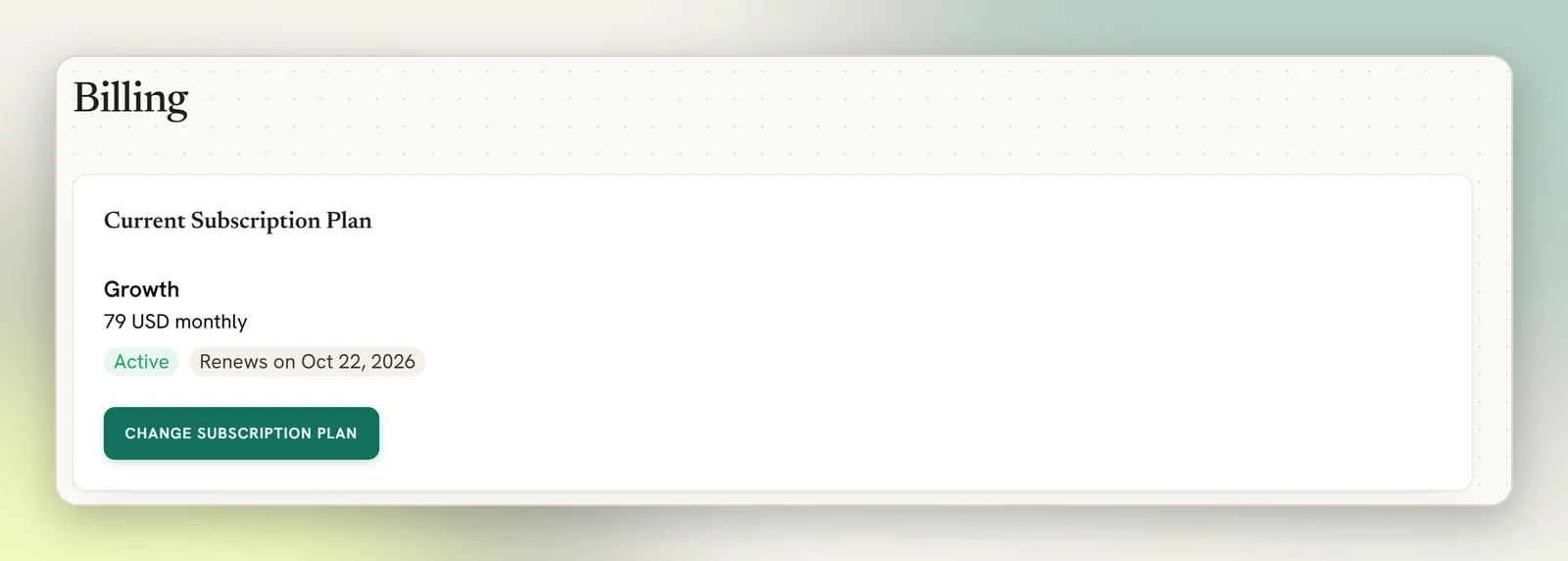
3
See what a plan includes
Select Change subscription plan. Pick any plan on the left and the panel on the right, titled with the plan’s name, lists what that plan includes. It updates as you select a different plan, so this is where you compare what different plans include before committing to anything. For how much of your own plan you have used, see Check your usage below.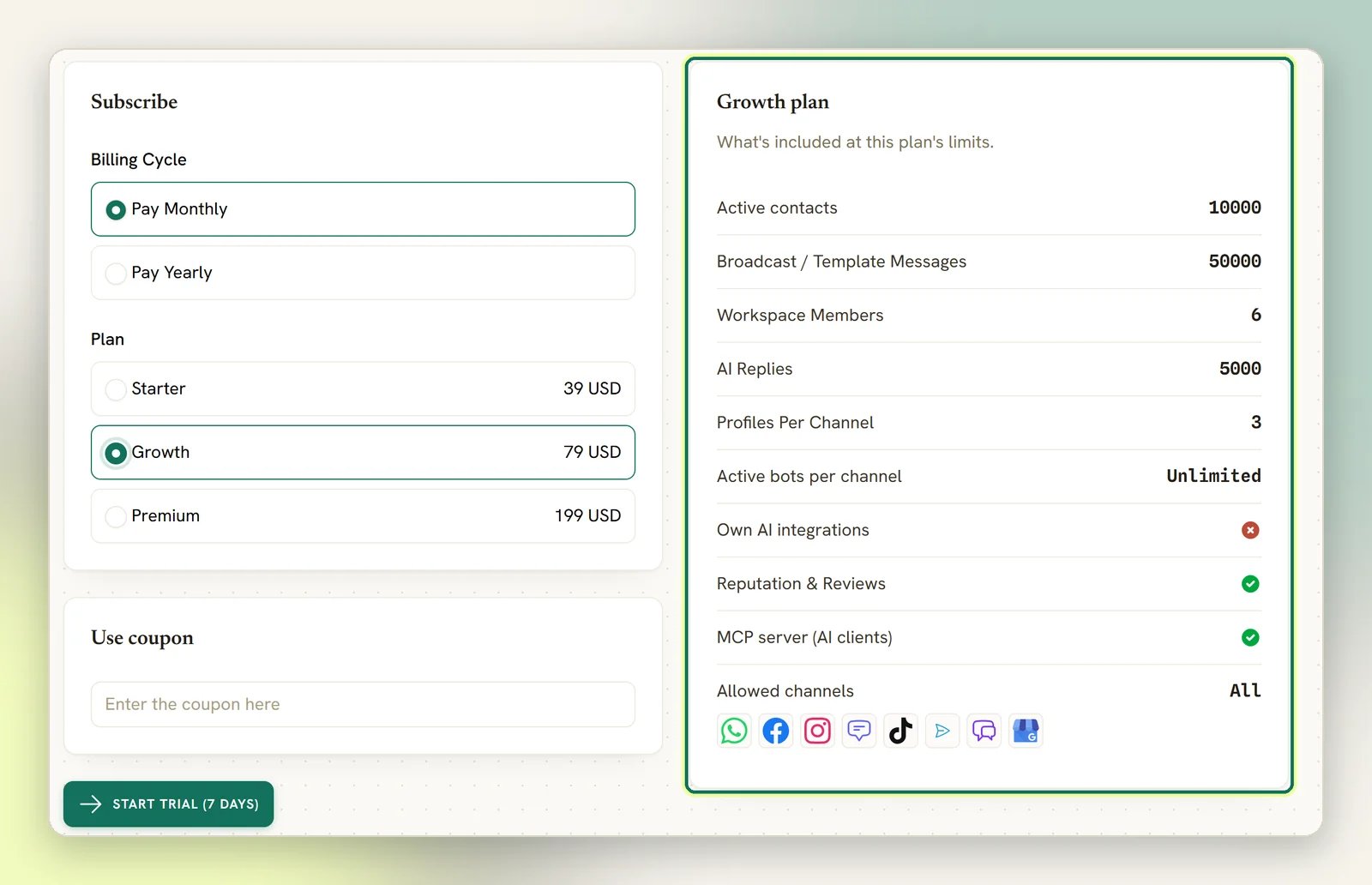
Check your usage
The same Billing page carries a Usage panel, straight under Current Subscription Plan: “What you’ve used this billing period against your plan.” It tracks three of your allowances, each as your figure against your limit, with a bar underneath.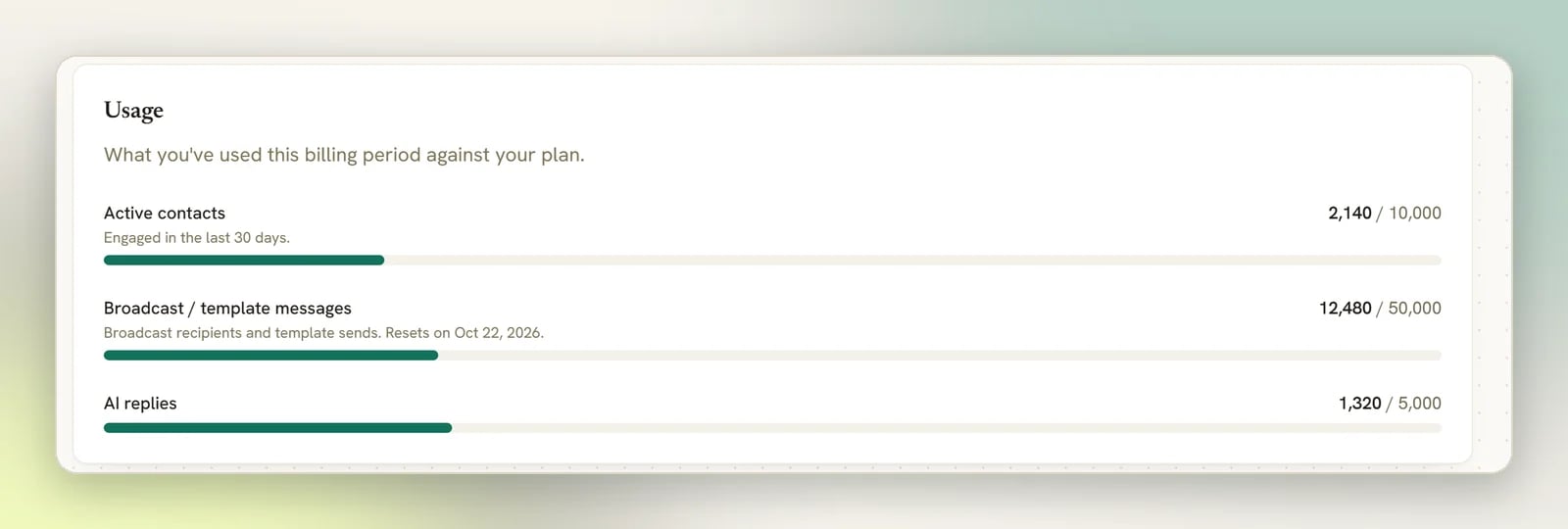
The bar turns amber once you pass 90% of the limit and red at 100%. Where your plan sets no cap, the row reads Unlimited in place of a limit and has no bar at all, so “no cap” never looks like “nothing recorded”.
The contacts limit shown is your real one: the plan’s allowance plus any active add-on that tops it up.
Usage is there whether or not you’re subscribed, unlike Payment Method and the cancellation panel below it, which appear only once you have a subscription. It reports your own numbers rather than a plan’s allowances, so it can’t be used to compare tiers. For that, see Choosing a plan.
What a plan governs
A plan carries two different kinds of setting, and they behave differently.Allowances you can count
A number you use up: active contacts, broadcast and template messages, connected channels, people who can log in, AI replies on DMLY’s shared AI, and how many bots can be switched on at once per channel.
Capabilities switched on or off
Whole areas your plan either includes or does not: connecting your own AI provider keys, Reputation and reviews, a custom booking domain, connecting a Meta ad account, connecting an AI client to the MCP server, and which channels you are allowed to connect.
The AI agent itself (the AI node in automations, connecting an AI provider, the AI playground and AI-suggested inbox replies) is included on every plan; it isn’t one of the on/off capabilities above. What differs by plan is AI Replies (a monthly allowance, not a switch) and whether the plan can connect its own AI provider key instead of DMLY’s shared one. See below.
Own AI integrations
Own AI integrations
Whether this plan can connect its own AI provider key (OpenAI, Claude, Gemini or DeepSeek) instead of using DMLY’s shared AI. Connect your own key and replies generated on it are unlimited and don’t draw from your AI Replies allowance; you’re billed by your own provider directly instead. See Connect OpenAI.
Reputation and reviews
Reputation and reviews
Covers connecting a Google Business Profile, replying to and syncing reviews, and the review-request automation node. See Reputation.
Custom booking domain
Custom booking domain
Serving your booking page on your own domain. This one is off unless your plan explicitly includes it. See Custom domain.
Meta Ads
Meta Ads
Connecting your Meta ad account to DMLY. That one connection turns on three things: ad spend and cost per conversation in the ads report, paid Marketing Messages broadcasts on Facebook Messenger (Meta bills those to the ad account), and your active Facebook ads in the comment automation’s post picker. Like the custom booking domain, this is off unless your plan explicitly includes it. Without it, the Meta Ads tile under Integrations is marked Plan locked and offers Upgrade instead of Connect. See Connect your Meta ad account.
MCP server (AI clients)
MCP server (AI clients)
Whether an AI assistant may connect to this workspace over DMLY’s MCP server: Claude, Cursor, n8n or anything else that speaks MCP. A plan that doesn’t set it is treated as including it, so this is on unless your plan (or your agency’s plan for your workspace) explicitly turns it off. Where it is off, a client trying to connect gets a 403 reading Your plan does not include the MCP server and nothing else changes. The panel lists it as MCP server (AI clients), so you can check before buying. See MCP overview.
Allowed channels
Allowed channels
A plan can restrict which channels you may connect: any of WhatsApp, Facebook, Instagram, SMS, TikTok, Telegram, Live Chat or Google Business. If your plan sets no restriction, every channel is available. See Channels.
Two caps that are easy to confuse
The panel lists both, and they are not the same thing:- Active contacts is your engaged audience, counted over the last 30 days. Crossing it never blocks anything.
- Contacts stored is how many contact records the workspace holds at all. This one does block: a new contact or a CSV import is refused with You’ve reached your plan’s limit of N contacts.
AI Replies is the one allowance a plan can leave unset without meaning unlimited. Where a plan sets no figure, the panel shows the shared system-AI default that applies instead, with the note This plan sets no AI-reply cap, so the shared system-AI default applies. Replies generated on your own AI provider key are never counted against it.
When you reach a limit
Nothing is switched off quietly, and you’re always told which limit you’ve hit. But three limits don’t work like the rest:- Active contacts never blocks you. Crossing it doesn’t stop a new contact, an inbound reply or an import; DMLY doesn’t refuse contacts or messages because of it. Instead, the Contacts page carries a usage gauge (your active count, contacts engaged in the last 30 days, against your cap) that turns amber once you pass 90% and red at 100%, so it’s harder to miss the closer you get. The Usage panel on Billing reports the same figure, alongside your AI replies: see Check your usage. On a plan that meters active contacts, DMLY also raises an in-app alert when you cross 90% and again at 100%: Approaching your active-contacts limit and Active-contacts limit reached. Everyone in the workspace sees it in the notification bell, and it links straight to Contacts. It is a once-a-day check, each threshold alerts at most once a week, and both re-arm if you drop back under 90%. See Inbox notifications.
- AI Replies pauses the AI step, not the whole automation. Once a calendar month’s allowance on DMLY’s shared AI runs out, the AI Reply step stops generating new replies until the next calendar month; the flow carries on to whatever comes after it rather than failing. If your plan allows connecting your own AI provider key, replies on that key are unlimited and untouched by this cap. See Reply with AI.
- Broadcast messages stop you at the compose step, not mid-send. When the allowance is gone, DMLY refuses the broadcast as you schedule, send or approve it, so you find out before a blast is half out rather than during one. See the note below for what counts.
- Team members count pending invitations and unlinked staff. An invitation that was never accepted still uses a seat, and so does every active bookable staff member who has no login of their own. Adding such a staff member is refused at the cap, as well as an invite. Cancel stale invitations on Workspace Settings → Team Members, or deactivate staff who have left, before adding someone new. See Team members.
- Bots can always be built. Only switching one on beyond the per-channel cap is blocked, so hitting this limit never breaks a flow you already have running. See Automation.
What the broadcast allowance counts. Two things, matching the label on the plan card: every recipient a broadcast is sent to, on any channel, and every template message sent from anywhere else, including the inbox, a flow, a sequence, a booking message and DMLY’s own notifications. Replying inside an open conversation is not counted, because Meta bills the template that opened it rather than the messages inside it. A message that never left, because the window had closed or the contact had opted out, costs you nothing.It resets on your billing cycle, not on the 1st of the month: the allowance refreshes on the day you are re-billed. A yearly plan still resets monthly, on its anniversary day, because the allowance is sold per month. Your usage, your limit and the reset date are all on the Usage panel on Billing.Meta’s own per-conversation charges are separate and are billed to you by Meta: see WhatsApp rules and limits.Paid Marketing Messages count too. Each person a paid Facebook Messenger broadcast is sent to uses one broadcast message from this allowance, the same as any other broadcast. Meta also charges your own ad account for each delivered message, against the budget you set. That is a separate bill, in your ad account’s currency, and DMLY does not pay it for you. Someone skipped because they were sent a marketing message in the last 12 hours uses nothing, and so does a failed send. See What it costs.
Raise a limit
You have two routes, and they are not the same thing:Change plan
Move the whole workspace to a plan with different allowances and capabilities.
Buy an add-on
Keep your plan and buy extra capacity on top: extra active contacts, an extra profile per channel, or an extra teammate.
Related
Payment methods
Update the card your subscription is charged to.
Cancelling
What happens when you cancel, and how to resume.
Roles and permissions
Who on your team can reach billing.
Agency plans and billing
For agencies setting plans for client workspaces.