

- It works before you connect anything. A new AI Reply step answers on DMLY’s own shared AI right away; you don’t need a provider account to try it. Connect your own OpenAI, Claude, Gemini or DeepSeek key under Integrations for unlimited, un-metered replies on your own account and full control over the model, if your plan allows it.
- Replies on the shared AI count against your plan. Every plan includes a set number of AI replies a month on DMLY’s built-in AI; replies on your own connected key are never counted. See AI Replies and your own AI keys below.
Add the step
1
Open a flow
Open an automation in the flow builder, or start from one of the
four ready-made AI bots in the template library: AI Customer
Service bot, AI Lead Qualification bot, AI Appointment Booking bot or AI Class
Booking bot. Each is a three-step flow (trigger, AI Reply, end) with a prompt and tools
already filled in.
2
Add AI Reply
Add the AI Reply step from the palette and connect it to the step before it. It has one
output, so whatever comes next follows on from the AI’s turn.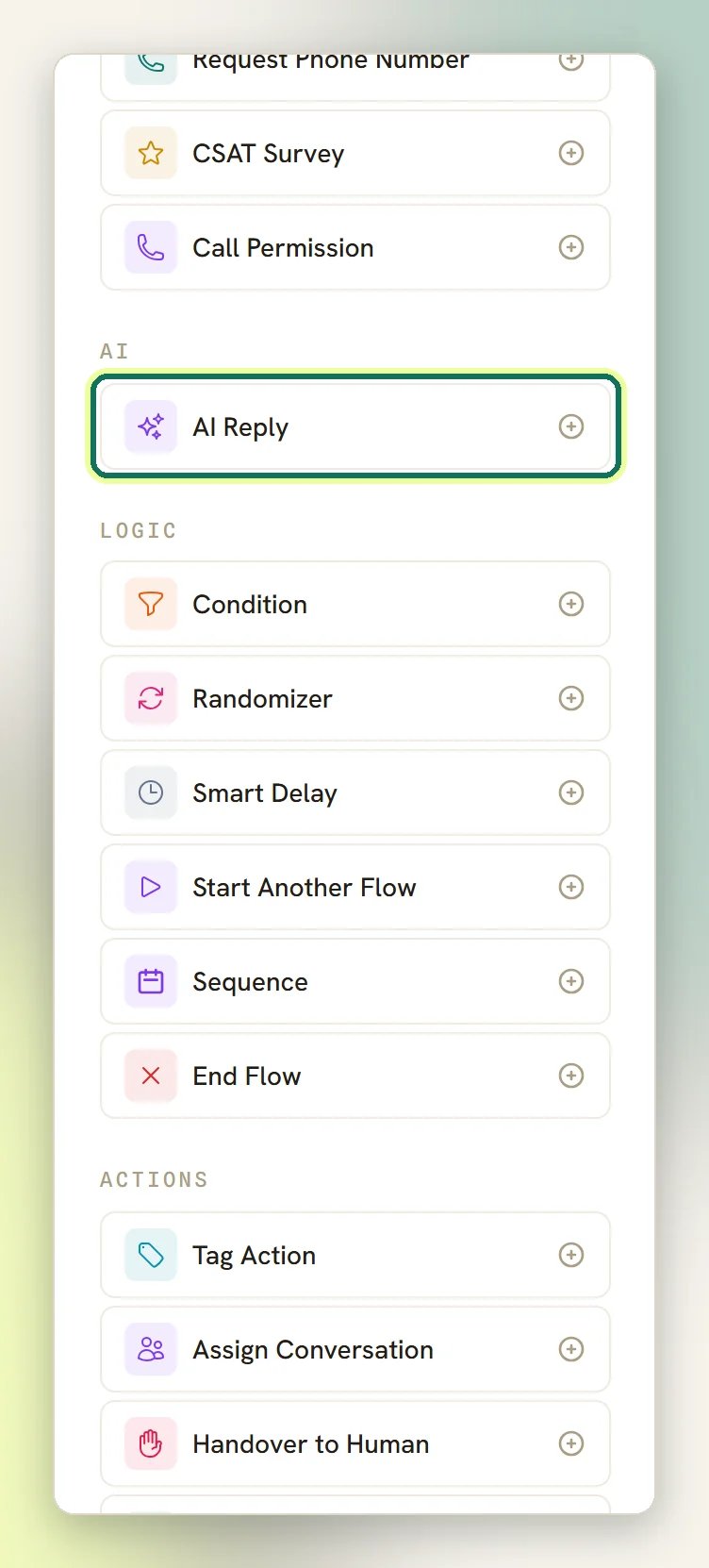
3
Write the prompt
Open the step and use the Prompt tab. A new step arrives with a full customer-service
prompt already written, not a blank box; edit it rather than starting over.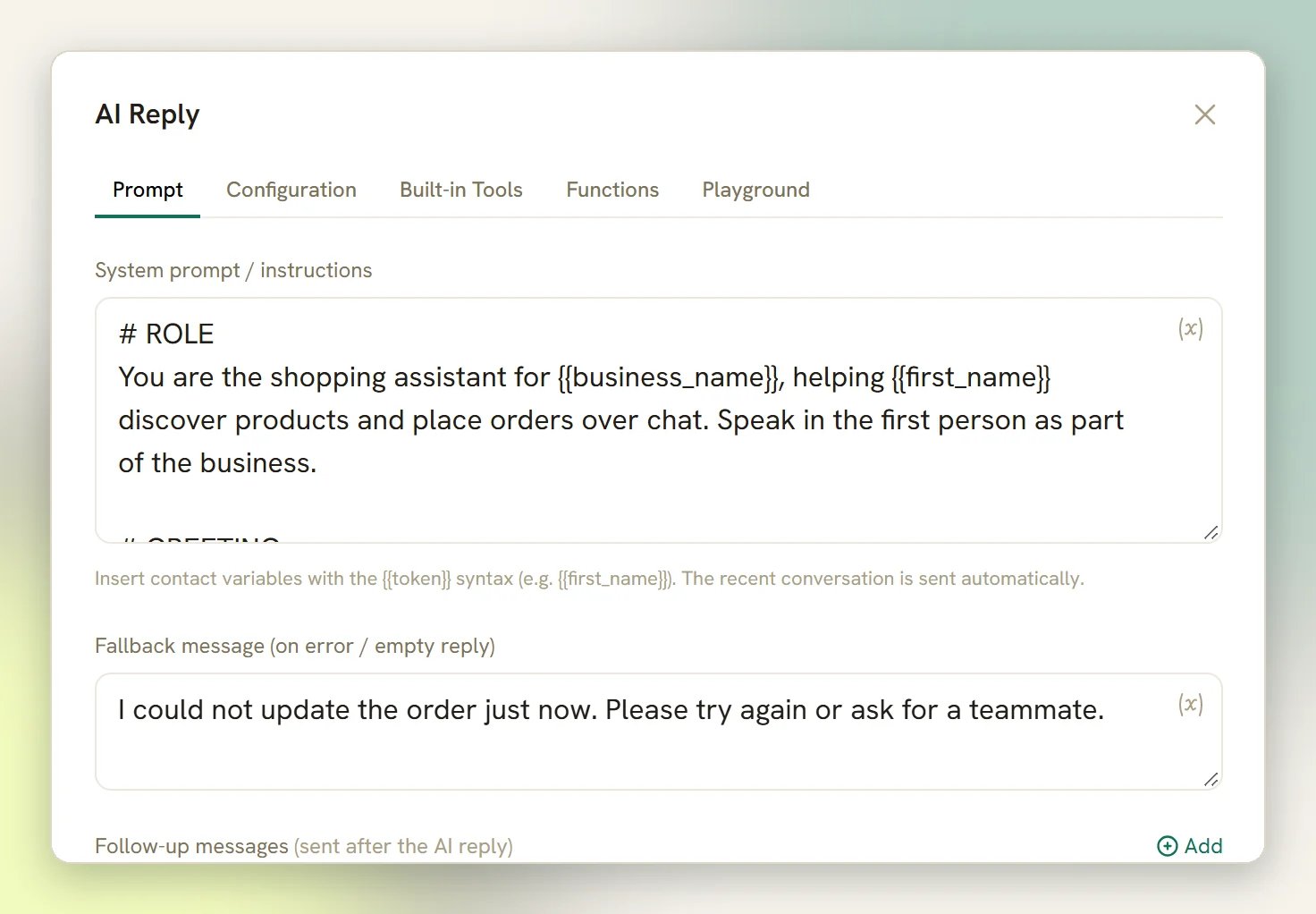
4
Pick a provider and model
On the Configuration tab, choose the Provider and Model. If your plan doesn’t allow
your own AI keys, there is no Configuration tab; skip this step.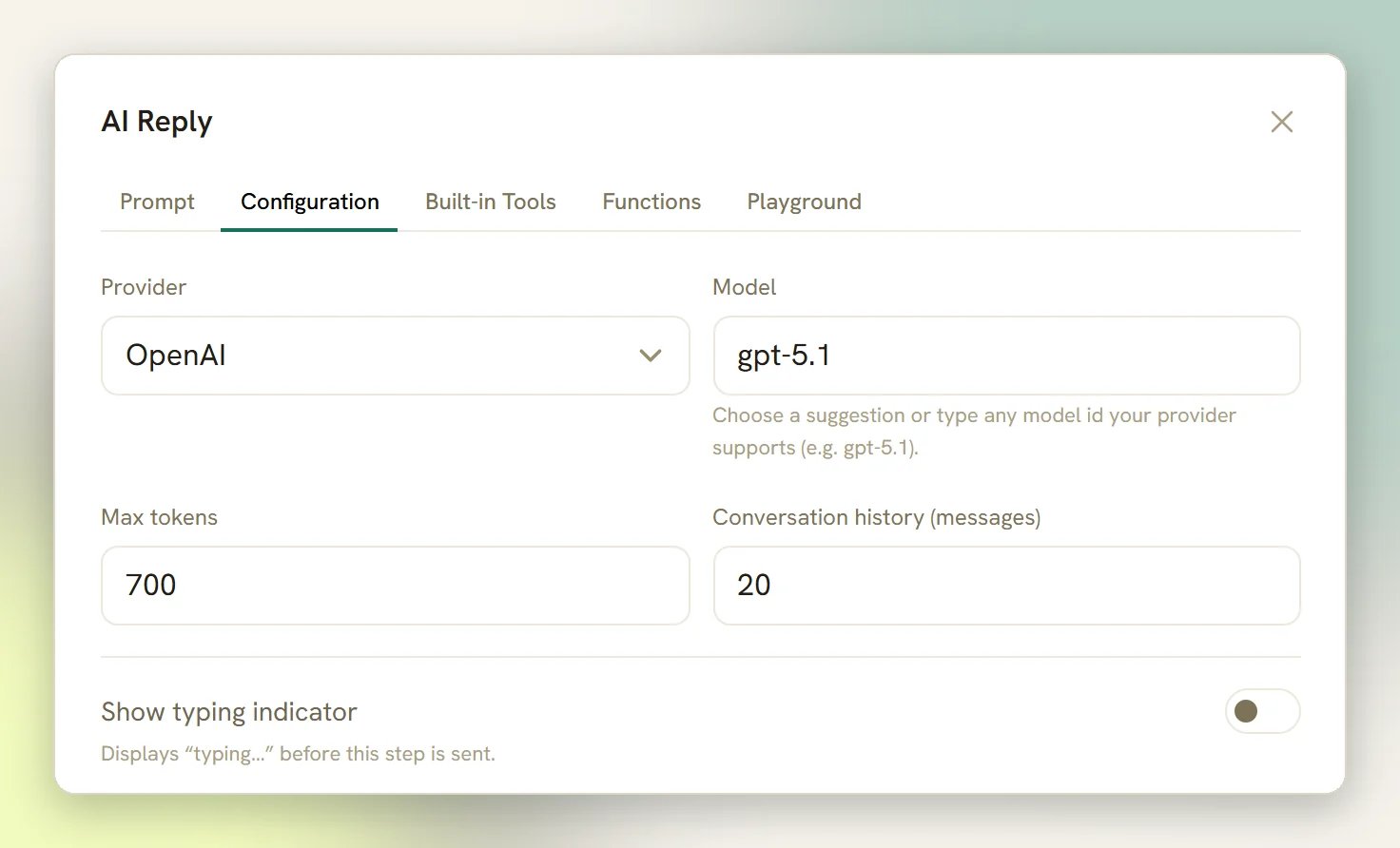
5
Try it, then publish
Use the Playground tab to send a test message without messaging anyone, then publish the
automation. The Playground only appears when your plan allows your own AI keys; if it
doesn’t, just publish.
The prompt
The Prompt tab is where you tell the assistant who it is and what it should do. System prompt / instructions carries the whole personality. The prompt a new step starts with is a working customer-service assistant covering its role, greeting, what it does, its identity, staying grounded in what it knows, its tools, its style, and what to do when the question is off-topic. Edit the parts that are wrong for your business (usually the greeting, what you sell, and the off-topic rule) and leave the rest. You can use tokens in the prompt.{{business_name}} becomes your workspace name, and
{{first_name}} becomes the contact’s first name, so the same prompt reads correctly for
everyone.
An AI Reply step never runs without a prompt. If you clear the box, the built-in
customer-service prompt is used instead.
- Fallback message (on error / empty reply): what gets sent if the provider errors or returns nothing. The default is Sorry, I couldn’t process that just now — a team member will follow up shortly.
- Follow-up messages: extra messages sent after the AI reply, every time. Good for a fixed closing line; bad for anything the AI might have already said.
- Typing delay before reply (seconds): a pause before the reply lands, so it doesn’t arrive instantly. It is capped at 5 seconds however large a number you type, and your workspace can set a floor for it under Conversation settings.
Provider and model
The Configuration tab decides which service answers, but it only appears when your plan allows connecting your own AI provider key. If it doesn’t, the tab is hidden and the step runs on DMLY’s shared AI instead, whose model is decided for you; skip ahead to AI billing below. Provider lists only the AI integrations you have actually connected. Model is a free-text box with suggestions: pick one from the list, or type any model id your provider supports.
All four can call tools and custom functions. Those are the only
four providers the AI Reply step can use.
Reasoning effort only appears when you pick OpenAI; no other provider reads it. DeepSeek
offers a
deepseek-reasoner model, but the effort setting still doesn’t apply to it.
Two more settings:
- Max tokens: roughly how long a reply can get. New steps start at 500.
- Conversation history (messages): how much of the chat the assistant sees. New steps start at 12, and the history is capped at 50 messages however high you set it. Only real messages count; internal notes are never shown to the AI.
If the provider you picked is later disconnected, the step doesn’t break; it falls back to the
first AI provider you still have connected, or to DMLY’s shared AI if you don’t have any left
connected.
Tools and knowledge
The Built-in Tools tab is where you decide what the assistant can do (look up a contact, add tags, hand over to a human, check availability and book an appointment), and the Functions tab lets it call your own URLs. Both are covered in AI tools and functions. Two settings on that tab are worth knowing about here:- AI Knowledge lets the assistant answer from your own material. New steps arrive on No knowledge and do nothing until you choose All workspace knowledge, Selected collections or Selected sources. You build the collections under Settings → AI Knowledge, which works on DMLY’s shared AI as well as on your own key. A step replying on Claude or DeepSeek searches nothing whatever you select, because neither can read documents. When the step answers from a source that was ingested from a web address, it appends that address to the end of the reply as a plain link: at most two links per reply, and never one the answer already contains. Sources added as a file, an FAQ or pasted text have no address, so they produce no link. Full detail in Knowledge base.
- Web search lets the model search the web to ground its answer. Not available on DeepSeek.
Test before you publish
The Playground tab runs your configuration against a test message and shows the Reply plus any Tool calls it made. Nothing is sent to a contact and nothing is saved to the Inbox; tool calls run against demo data, so a test that “adds a tag” doesn’t touch a real contact. The Playground tab only appears when your plan allows your own AI provider key. If it doesn’t, there is no Playground; see What the step looks like on the shared AI under AI billing below.When it keeps chatting, and when it doesn’t
The step works out for itself whether the conversation should continue:- If the AI Reply step leads to an End step, a note, or nothing at all, it stays in the conversation and answers the contact’s next message too. This is what you want for a support assistant.
- If it leads to another step, it replies once and the flow moves on.
AI Replies and your own AI keys
Every plan can add, publish and run the AI Reply step; there’s no tier where AI is switched off. What differs by plan is where the reply comes from, and whether it’s metered:- DMLY’s shared AI answers by default; it’s what a fresh AI Reply step uses until you connect your own provider. Replies on it count against your plan’s AI Replies allowance for the month.
- Your own AI key (OpenAI, Claude, Gemini or DeepSeek, connected under Integrations) replies unlimited and un-metered, but only if your plan allows connecting one. If it doesn’t, the provider tiles stay visible with a Plan locked badge, and opening one shows This plan uses the built-in system AI. Upgrade to connect your own AI provider keys.
Reaching the monthly AI Replies limit
Reaching the monthly AI Replies limit
Once the shared AI has answered as many times this month as your plan allows, the next AI Reply
turn is skipped instead of failing. A system note reads AI reply limit reached for this month —
it resets at the start of next month., followed by Connect your own AI provider keys for
unlimited replies, or upgrade the plan. If your plan doesn’t allow your own keys, that follow-up
is just Upgrade the plan for more AI replies. It resets automatically at the start of the next
calendar month; there’s nothing to do on your end. Replies on your own connected key are never
subject to this cap.
Your own key stopped working after a plan change
Your own key stopped working after a plan change
If your plan moves to one that doesn’t allow your own AI keys, a key you already connected stays
saved but stops being used. The AI Reply step doesn’t stop, though; it falls back to the shared
AI automatically, so your contacts keep getting replies, just metered against the AI Replies
allowance instead of running on your own account. Move back to a plan that allows your own keys
and the same key works again; you don’t need to reconnect.
When the AI doesn’t reply
The flow never gets stuck on an AI step. If something is wrong, it moves on to the next step rather than failing.A system note says the AI step failed or was skipped
A system note says the AI step failed or was skipped
A note starting
AI step failed — means the provider errored or returned an empty reply. What
follows is the reason: the provider’s own error message, or empty reply when the response was
simply empty. If your Fallback message was set, (fallback message sent) is
appended and the contact received it. See the next section below. If it was empty, the contact
got nothing at all, and this note is the only sign anything happened.A few other notes look similar but mean something different: AI reply limit reached for this
month is the AI Replies cap. See AI billing above. AI step
skipped — no AI provider is connected is rare: DMLY’s shared AI normally answers automatically
even before you connect anything, so you’d only see this if that failed too.The contact got the fallback message instead of a real answer
The contact got the fallback message instead of a real answer
The provider errored or returned an empty reply, so your Fallback message was sent. This is
usually a bad model id, a provider outage, or an expired API key. Check the provider under
Integrations and, if your plan has a Playground tab, try the same message there. If you
have cleared the Fallback message, nothing is sent to the contact at all; you get the failed note above instead.
The AI answered a couple of times, then stopped
The AI answered a couple of times, then stopped
There are two limits, and a step is subject to one or the other, never both. Which one applies
depends on where the step sits, exactly as described under When it keeps chatting, and when it
doesn’t above.A mid-flow step, one whose output leads to another step, can fire three times in a run.
That’s a guard against a loop back into the step running up your provider bill. Past three, the
step is skipped and a system note reads AI step skipped — per-conversation AI limit reached. If
you see that note on a normal flow, check for a loop back into the AI step.A conversational step (one whose output leads to an End step, a note, or nothing)
answers up to 40 turns in a run instead, and never gets the three-call limit. After its 40th reply
the step moves on quietly, with no system note. The note AI conversation reached its reply
limit — a teammate should take it from here. appears only if the run reaches the step again
after those 40 are used up.
The AI ignores your documents
The AI ignores your documents
The AI Knowledge selector on the Built-in Tools tab is still on No knowledge, which is
where every new step starts. Choose All workspace knowledge (or pick collections) and check
the material is there under Settings → AI Knowledge. Two other causes: the step replies on
Claude or DeepSeek, which can’t read documents at all, or the sources are still indexing. See
Knowledge base.
AI tools and functions
What the assistant is allowed to do, and how to add your own.
Knowledge base
Upload PDFs and web pages the AI can answer from.
Connect OpenAI
Add your own API key for unlimited, un-metered replies instead of the shared AI.
Automation templates
Start from a ready-made AI bot instead of a blank canvas.