

It exists on three channels only
The persistent menu is a Facebook, Instagram and Telegram feature. It is not a WhatsApp
feature and not a Live Chat one, and the section doesn’t appear when either is selected.
- WhatsApp: Commands (slash commands such as
/menu) on Bot Setup → Conversational Components. See Bot setup and WhatsApp. - Live Chat: Quick replies in the widget’s Behavior panel. See Live Chat widget.
Build the menu
1
Select the channel
Open Configurations → Bot Setup and pick the Facebook Page, Instagram account or
Telegram bot in the channel selector at the top. The page always shows the selected
channel’s settings.
2
Open the menu section
Select Persistent menu, then turn on Show a persistent menu in the conversation.
3
Add your items
Select Add item, give it a Label (the words the contact taps) and choose what it
does. You get three items per level; once you reach it, the page says Meta allows 3 items
per level. and the add button goes away.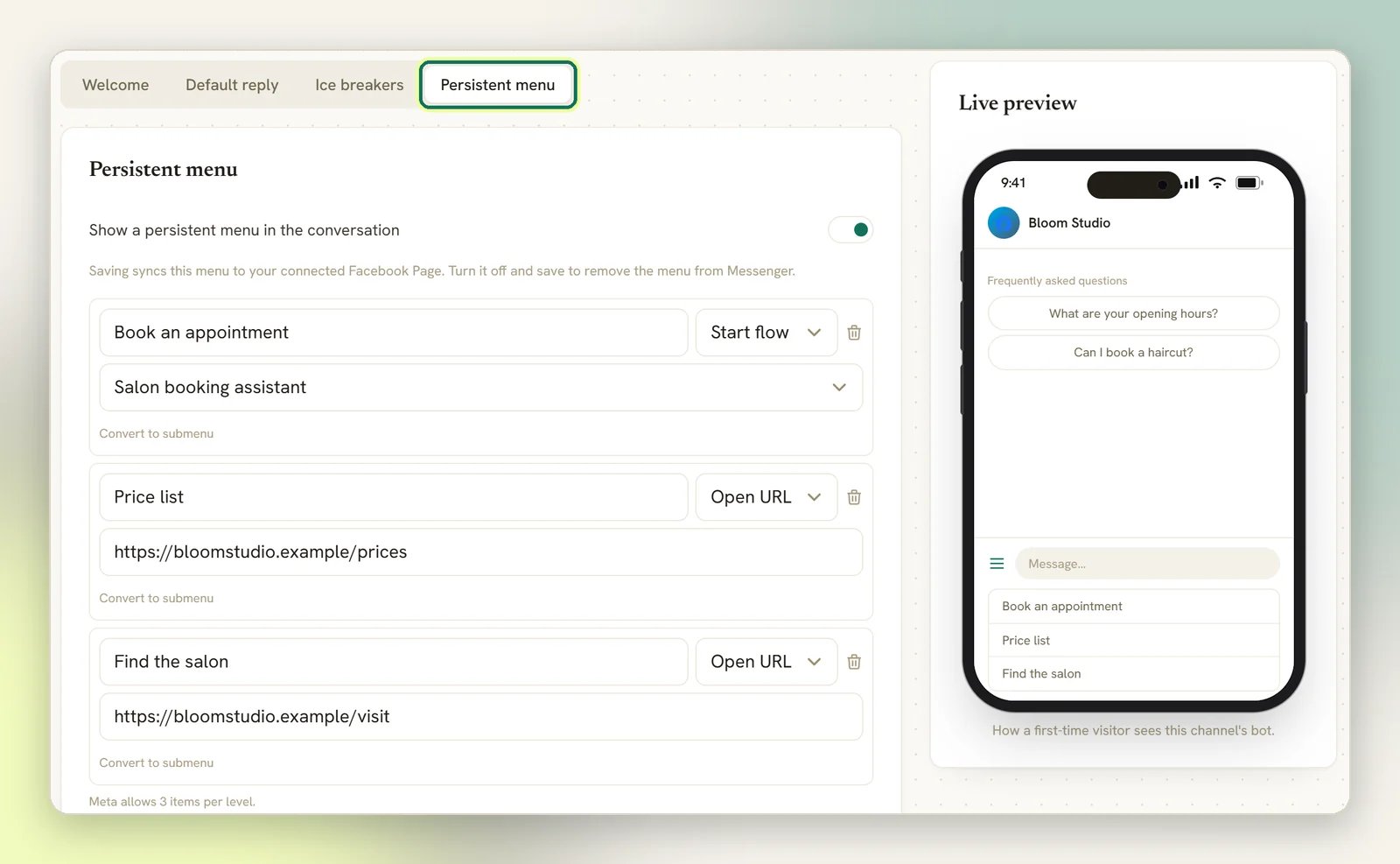
4
Save
Select Save changes. Saving is what pushes the menu out to Facebook, Instagram or
Telegram; until you save, nothing has changed for your contacts.
What an item can do
You can also select Convert to submenu on an existing item to nest options underneath it,
up to three levels deep.
Postback is the one that surprises people. On Facebook and Instagram it has no reply of its
own, so a tap goes through as an ordinary message: an active automation or your default reply may
answer it, and the automation matches
the item’s Label, not the
PAYLOAD value you type. A keyword flow on BOOK fires only if
the item’s label is BOOK; setting the payload to BOOK does nothing on its own. If you want a
tap to reliably do something, use Start flow.How a menu item starts a flow
Set the item’s type to Start flow and pick the flow from Choose a flow…. A tap then starts that flow for the contact directly; the flow’s own trigger doesn’t have to match, so you don’t need a keyword for it. The picker only lists flows that are built in the flow builder, active, and on the channel you have selected. That gives you the two things to check when a menu item does nothing:- A draft flow won’t be in the list. Publish it and set it active first. See Flow builder.
- Pausing a flow later breaks its menu item silently. The item stays in the menu and stays tappable, but the tap starts nothing. On Facebook and Instagram it then goes through as an ordinary message with the item’s label as its text, so another automation or your default reply may answer instead. On Telegram nothing happens. The menu doesn’t update itself when a flow’s status changes.
If the bot is paused for a contact, a Start flow item won’t start the flow for them. Pause
and resume the bot per contact from the Inbox.
What Telegram does differently
Telegram has no persistent menu of its own, so DMLY builds the closest thing: each item becomes a/command in the bot’s command list, reachable from the ☰ button next to the message box.
That means a few differences worth knowing before you design the menu:
- Your labels become commands.
Book a visitis registered as/book_a_visit, with the label as its description. If two items’ labels reduce to the same command name, the second one is dropped. - Submenus are flattened. Telegram’s command list has no nesting, so the items inside a submenu are listed alongside the top-level ones rather than under them.
/startis always offered first, described asStart / main menu. It opens your welcome message. You don’t add it, and you can’t remove it.- Open URL doesn’t open anything. Telegram sends the label and the link back as an ordinary message for the contact to tap.
- Postback never reaches your automations. DMLY replies to the contact with the
PAYLOADtext you typed (or the label, if you left the payload empty) and stops there. No automation runs, so the Facebook and Instagram advice above doesn’t apply.