

The 24-hour window governs everything
You can send a free-form WhatsApp message to a contact only within 24 hours of their last message to you. Outside that window, Meta delivers approved templates only, nothing else. This is Meta’s rule, not DMLY’s, and there is no way around it. Three consequences follow:- A contact who has never messaged you has no open window. A brand-new lead you imported from a spreadsheet can only be reached with an approved template. Not a “quick hello”.
- WhatsApp gets no extension. Facebook Messenger and Instagram give you a longer period when a human replies. WhatsApp does not; 24 hours is 24 hours.
- The window is per contact, and every inbound message restarts the clock.
- a countdown on the conversation,
- a WhatsApp 24-hour customer-care window hint,
- the template route, offered when the window is shut.
The practical rule: templates start conversations, free-form continues them. Broadcasts,
reminders, invoices and receipts to cold contacts all need an approved template. Read
Message templates and
WhatsApp rules and limits.
Connecting is not instant
Connecting a number is a Meta process, not a DMLY form. Expect to:- have a phone number that meets Meta’s criteria (below),
- have access to your Business Manager,
- have business documents ready if your business is not already verified with Meta,
- register the number with a 6-digit PIN before it can send or receive anything (a co-existence number skips this step),
- wait for Meta to approve each message template before you can use it.
Before you connect
Phone Number
A phone number without a WhatsApp account, or with an existing WhatsApp Business Account.
It must be owned by you, have a country code, and be able to receive a one-time code by
voice call or SMS.
Business Manager Access
Make sure you can access Business Manager for your company. If you can see the business,
you have access to configure.
Business Documents
Have your accepted business documents ready if your business is not already verified with
Meta.
A plan that includes WhatsApp
If your plan doesn’t include the WhatsApp channel, connecting is blocked and you’re asked
to upgrade.
- To onboard via Cloud API you can either delete an existing WhatsApp account or use an eligible WhatsApp Business Account.
- Not all WhatsApp Business Accounts qualify for embedded signup — only accounts with significant message history and growth potential can onboard.
- Some features may not be available for WhatsApp Business Accounts due to Meta’s limitations.
Connect your number
The recommended path is Meta’s Embedded Signup. The page describes it as Configure WhatsApp via Embedded Signup — Simple (10 mins).1
Open the channel picker
Go to Integrations → Channels and select Add account.
2
Choose WhatsApp
Select the WhatsApp tile (Connect a business number). It opens WhatsApp Cloud
API Configuration.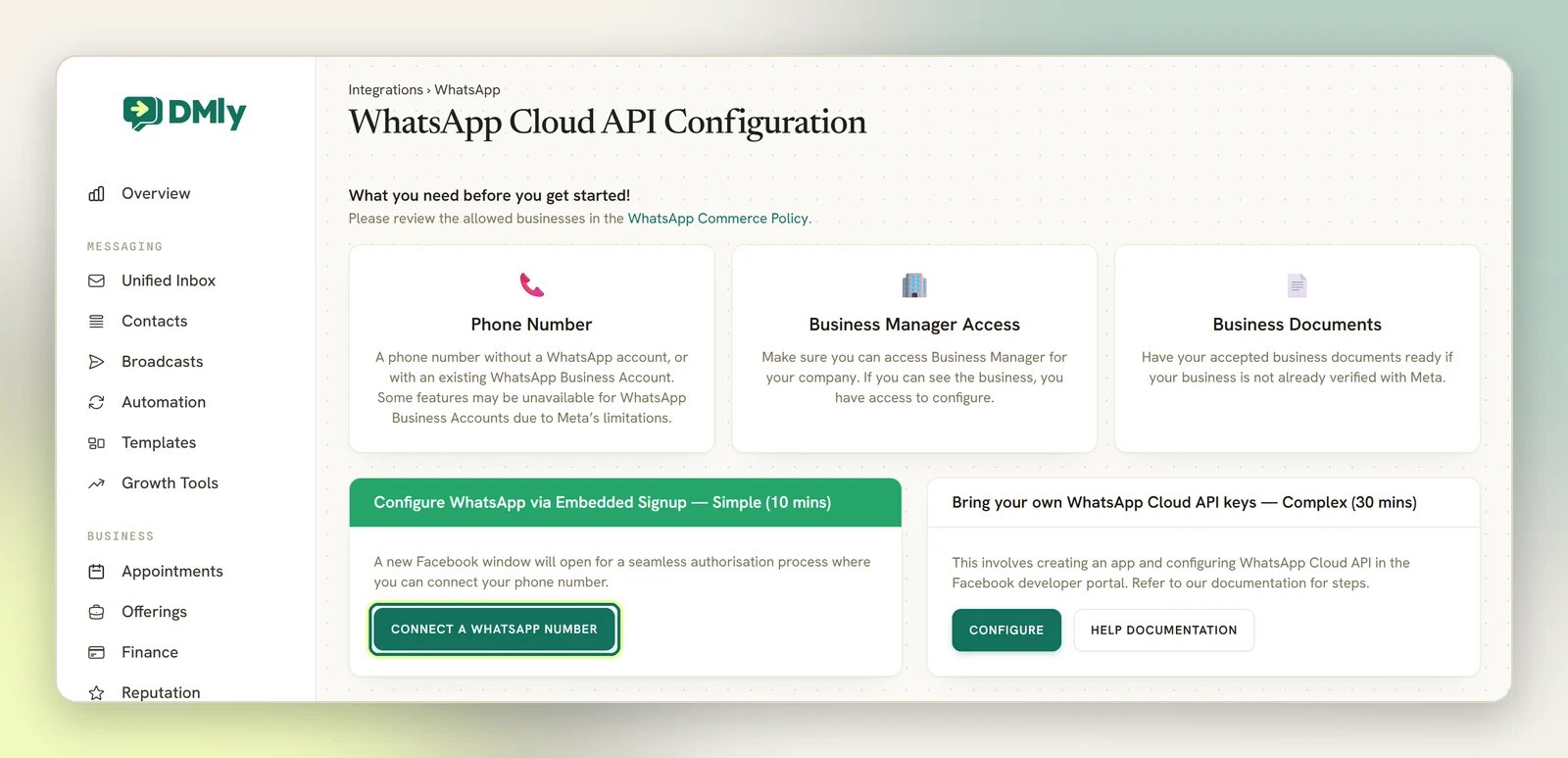
3
Start signup
Select Connect a WhatsApp number. A requirements page appears.Read it, then select Connect a WhatsApp number again for the normal flow. To keep
using the WhatsApp Business phone app on this number as well, use co-existence mode
instead: see Keep using the WhatsApp Business app too below.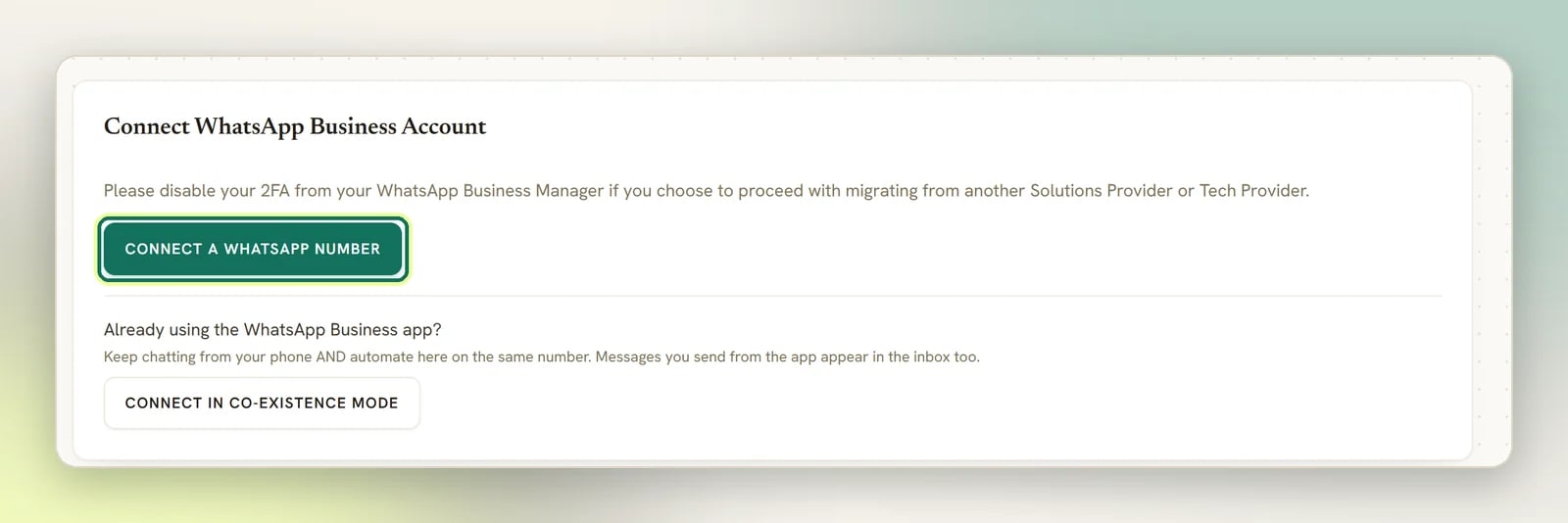
4
Finish at Meta
You’re taken to Facebook to sign in, pick or create the WhatsApp Business Account, add the
phone number and verify it with the code Meta sends. Complete every step; stopping
halfway returns you with no account granted.
5
Land back in DMLY
DMLY reads the granted WhatsApp Business Account and its phone number, subscribes your
number to inbound messages, creates the Channel, and submits the built-in DMLY message
templates to Meta for review.
Keep using the WhatsApp Business app too
By default, connecting a number to DMLY’s Cloud API takes it over exclusively. The WhatsApp Business phone app stops working on that number. So if your front desk still answers customers from the phone app, and you want DMLY’s inbox and automation running on the same number, choose co-existence mode instead. On the requirements page, below the main Connect a WhatsApp number button, there’s a separate section: Already using the WhatsApp Business app? with its own Connect in co-existence mode button. Use that one instead of the main button. The rest of the Meta signup is the same.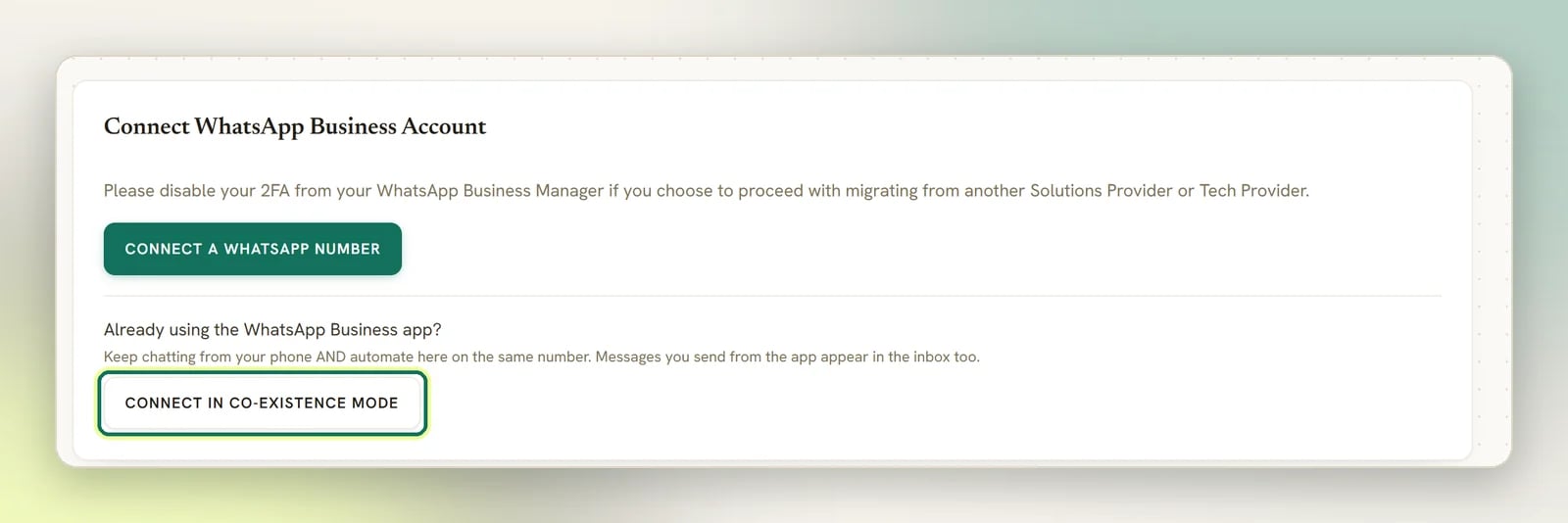
- Your existing chats come across. When you connect, DMLY asks WhatsApp for the phone app’s contacts and chat history. WhatsApp only allows this once, in the 24 hours after you connect, so DMLY keeps retrying until that window closes and writes an error to Logs if it never gets through. If you chose not to share your chat history when WhatsApp asked, nothing is imported. Imported chats keep their original times and both sides of the conversation. They don’t set off automations, notifications, unread badges or a new 24-hour window, and the contacts they create don’t trigger New contact automations. Photos and files come across for the last 14 days only. Names from the phone’s address book fill in contacts that would otherwise show just a number, but never replace a name you already have.
- Messages you send from the phone app appear in the DMLY inbox too, recorded against the same contact so the thread stays in sync. They’re logged as sent by you, not routed to your bot or automations, because a human is already handling that conversation from the phone.
- Automation can run on the same number as the app. If you’d rather your bot stay quiet whenever you’ve personally replied from the phone, turn on Pause the bot when I reply from the phone app. It pauses the bot for that one contact only, and it’s off by default.
The number’s other management surfaces (the account card’s Manage Number menu item, and
the Bot Setup → WhatsApp → Configuration tab it opens) are for registration, profile,
commerce and calling settings. The Configuration tab does show a co-existence number’s state
(Business app + Cloud API) where registration would be, but the pause toggle isn’t there.
Use the Add account → WhatsApp path above for the pause toggle.Co-existence itself is a connection choice made once, at signup. To switch a number between
modes, disconnect and reconnect it. See
Delete a WhatsApp number.
Bring your own WhatsApp Cloud API keys (advanced)
Bring your own WhatsApp Cloud API keys (advanced)
The second option on the same page, Bring your own WhatsApp Cloud API keys — Complex (30
mins), is for businesses that already run their own Meta developer app. Select
Configure and supply:
- API Token: a system-user generated permanent API token
- WhatsApp Phone Number ID: from your Meta Developer App › WhatsApp › Getting Started
- WhatsApp Business Account ID
messages field. The Callback URL is your app address followed by
/whatsapp/webhook.If Meta rejects the inbound subscription, the number still connects but messages won’t
arrive: the token needs the whatsapp_business_management permission and the number must be
registered, not pending.Register the number
Connected is not the same as registered. A normal number that isn’t registered for Cloud API can’t send or receive anything, even though it shows up in DMLY. Open Bot Setup → WhatsApp → Configuration. If the number shows Not registered, enter the 6-digit two-step verification PIN for that number to register it for Cloud API messaging. A co-existence number is different. It shows Business app + Cloud API instead, with no Register button. It is deliberately not registered for Cloud API and sends and receives as it is. Registering it would disconnect it from the WhatsApp Business app on your phone. If Meta refuses, the reason appears on the PIN field; DMLY won’t claim success it didn’t get.Check the number’s health
The Configuration tab reads live from Meta every time you open it:- Quality rating: Meta’s view of how recipients react to your messages. Let it slide and your limits drop.
- Messaging limit (your messaging tier): how many customers you can start conversations with per day. The row reads whichever Meta currently reports: 50 customers / 24h, 250 customers / 24h, 1,000 customers / 24h, 10,000 customers / 24h, 100,000 customers / 24h, or Unlimited. An unverified business starts at 250. Meta raises this on its own as you send well-received messages; nothing in DMLY changes it. See WhatsApp limits.
- Registration and verification state, including whether the display name has been reviewed.
What you get
Unified Inbox
Every inbound WhatsApp message threads onto its Contact, with assignment, statuses and
quick replies.
Broadcasts
One-to-many campaigns, using approved templates for anyone outside the 24-hour window.
Templates
Sync approved templates from Meta and build new ones to submit for review.
Automation
Flows with buttons, lists, link buttons, location requests, phone requests, catalogues and
WhatsApp Flows.
Voice calling
Customers call your number on WhatsApp, and you call them back from the Inbox.
Profile and Commerce
Your business profile and catalogue settings, on their own tabs under Bot Setup →
WhatsApp.
Voice calling in short
Voice calling in short
Three settings on the Calling tab:
- Enable voice calling turns WhatsApp Business calling on for the number.
- Auto-grant call-back permission lets you call a customer back for 7 days after they call you, without a separate permission request.
- Call button in WhatsApp controls whether the call icon shows in the customer’s chat with you.
Compliance (India): only if Meta asks you for it
Compliance (India): only if Meta asks you for it
Meta requires some businesses selling to customers in India to submit WhatsApp Commerce
compliance information. This only applies if Meta’s own rules require it of your business;
most workspaces will never need this tab.If it applies to you, open the Compliance (India) tab and fill in:
- Legal business name and Entity type (sole proprietorship, partnership, limited liability partnership, private or public limited company, or Other with a field to specify it). For partnerships and Other, a Registered business switch records whether it’s a government-registered legal entity.
- Customer care contact: email (required), plus optional mobile and landline numbers.
- Grievance officer: name and email (required), plus optional mobile and landline numbers.
Templates: the ones you get and the ones you build
Open the WhatsApp Templates page. It has two tabs. System holds the templates DMLY ships and maintains, marked Managed by DMLY. They cover:- appointment confirmations, updates and reminders, each with a second variant carrying a join link for bookings that happen online, plus one confirmation covering a whole series of bookings at once,
- staff alerts and new conversations,
- invoices, payment receipts, failed payments and renewal reminders,
- gift cards, letter links and phone-number requests,
- review requests, CSAT surveys and client-portal login codes.
utility category. The login code
sits in authentication, Meta’s own category for one-time passcodes. Nine are marketing:
gift cards, review requests, the two abandoned-cart nudges, and five opt-in extras (rebook
nudge, back in stock, VIP perk, birthday offer, referral invite). A marketing template needs the
contact’s marketing opt-in and is billed at marketing rates. Once approved, all of them are
deliverable outside the 24-hour window.
You don’t get all 43 automatically. When you connect a live number, DMLY creates and submits
the ones that fit your business: order and cart templates only if you sell products or have a
connected store, and appointment or payment templates unless your business type doesn’t use
them. The five opt-in marketing templates are never added automatically, and templates added to
the catalogue after your workspace was set up aren’t pushed onto it. Anything you don’t have is
listed on the System tab under Available to install. Installing one creates it and submits
it to Meta like any other.
My Templates is where you add your own with Add template. Two things to know:
- The template name is what Meta references: lowercase letters, numbers and underscores only.
- Media templates are reviewed against a sample you upload: JPG/PNG up to 5MB, MP4 up to 16MB, PDF up to 100MB.
Opening the window on purpose
A closed window is the default for anyone new, so get them to message you first:- Click-to-WhatsApp links and QR codes from Growth tools open a chat with a prefilled code. The flow starts when the contact sends that first message, which is also the moment your 24-hour window opens.
- The Inbox and Contact pages offer Message on WhatsApp wherever a reachable contact appears.
- Store triggers (Shopify, WooCommerce) almost always fire outside the window. Start those flows with an approved template.
- A Click-to-WhatsApp ad does the same thing, and tells you which ad did it. See Arriving from a Click-to-WhatsApp ad.
Arriving from a Click-to-WhatsApp ad
A Click-to-WhatsApp ad is a Facebook or Instagram ad whose button opens a chat with your number instead of sending people to a website. When somebody taps one and sends that first message, Meta tells DMLY which ad they came from, and DMLY keeps it. There is nothing to switch on. Run the ad in Meta Ads Manager, point it at the number you connected here, and the next person who taps it arrives with the ad attached. Their message also opens the 24-hour window, so you can reply free-form. That matters because otherwise the tap vanishes. Their first message would read exactly like anyone else typing your number in off a business card, and the ad you paid for would be invisible from the moment the conversation started. Instead it lands in three places: on the contact record, on the message itself in the Inbox, and in a flow if you want one.Don’t confuse this with the Click-to-WhatsApp links and QR codes in
Growth tools. Those are free links and codes you put on your own site, a
poster or your bio. This section is about Meta’s paid ads, and about ordinary Facebook and
Instagram posts, that open a WhatsApp chat.
What the contact’s Source says
The contact’s Source names the ad. The format is the wordsWhatsApp ad, a colon, then the
ad’s own headline:
WhatsApp ad: Summer Sale
Three variations to expect:
- They tapped a post, not a paid ad. It reads
WhatsApp post: Our new opening hoursinstead. Same shape, different first word. - The ad has no headline. The source is the bare
WhatsApp ad. - A very long headline is trimmed, so the record stays readable.
120209428414010371 names nothing to the person reading
a contact record. The ID is kept too, on the message, which is what Reports → Ads groups by.
Source shows on the contact’s profile, and it is a segment field as well. Pick Source,
choose contains, then type:
WhatsApp adfor every contact any ad has ever brought you,- the full
WhatsApp ad: Summer Salefor one campaign.
The first ad keeps the credit
Source answers one question: which ad brought this person to you in the first place. So once it is set, an ad never overwrites it.- A later ad doesn’t steal it. Somebody won by
Summer Salewho taps yourWinter Clearancead six weeks later still readsWhatsApp ad: Summer Sale. - A source you set yourself is never touched. If you’d typed
Walk-in referralon that contact, the ad click leaves it exactly as it is. - The bare channel name counts as blank. A WhatsApp contact starts life with a source of
just
WhatsApp, which is a placeholder rather than an answer, so the first ad they tap replaces it. That holds for contacts you already had, not only brand-new ones.
Winter Clearance tap above is stored
on the message it arrived on, so nothing about the later click is lost; it just doesn’t move the
contact’s Source. That is what lets Reports → Ads count what each ad produced in
conversations while still crediting each customer to the ad that actually won them.
On the message itself
In the Inbox, the customer’s message carries a small card above their words: a strip of the creative, the line From an ad (or From a post), the headline, and the first couple of lines of the ad’s body text. Full detail: when a message came from an ad.When things go wrong
Connected, but nothing arrives in the Inbox
Connected, but nothing arrives in the Inbox
Two things must be true: your WhatsApp Business Account must be subscribed to the app, and
the number must be Registered (or show Business app + Cloud API if it’s a
co-existence number). Check the Configuration tab first.If both look right and messages still don’t arrive, the remaining suspect is the webhook
configuration in the Meta App Dashboard: the callback URL and the
messages field. DMLY
can’t read or set that from here, so it has to be checked at Meta. Full walkthrough:
No inbound messages.It says Connected but messages silently fail
It says Connected but messages silently fail
DMLY marks a number Unauthorized when Meta returns an authentication error. Other kinds
of Meta rejection (a policy block, a quality restriction, a disabled account) don’t look
like authentication errors, so the channel can keep showing Connected while sends fail.If sends are failing and the badge looks fine, check the number’s status directly in your
Meta Business Manager, then see
Account disabled and
Logs.
Nothing sends to one particular contact
Nothing sends to one particular contact
Two likely causes, in this order: the contact has opted out (nothing is sent to an opted-out
contact, ever), or their 24-hour window is closed and the message isn’t a template.
An old reconnect left a second WhatsApp profile
An old reconnect left a second WhatsApp profile
Reconnecting a number now updates the existing profile in place, even when it is a different
WhatsApp Business Account. Workspaces reconnected before August 2026 can still be carrying a
leftover profile from then, because nothing removed it automatically. If the channel selector
offers two profiles for one number, disconnect the stale one. See
Delete a WhatsApp number.
Next
WhatsApp rules and limits
What you can send, to whom, and how often.
Message templates
Build a template Meta will approve.
Set up your bot
Put a flow behind the number.
All channels
Messenger, Instagram, Telegram, LiveChat and Google Business Profile.