

Live Chat has no account to connect, so DMLY mints the widget for you. You can start it from Integrations → Channels like any other Channel, or from Bot setup; both land on the same customizer.
What Live Chat cannot do
Live Chat only reaches someone while they are on your website with the widget open. That, and a couple of gaps worth knowing about up front, rule out several things you can do on WhatsApp:No broadcasts
You cannot send a Broadcast on Live Chat. If Live Chat is your active Channel, broadcast creation is blocked. Switch to WhatsApp, Messenger, Instagram, Telegram or SMS.
No growth tools
Growth tools build links and QR codes that open a chat app. There is no such link for a website widget, so Live Chat is excluded.
Attachments carry no text
A visitor can send a picture or video. It runs your bot with no text, so it never matches a keyword trigger, but it can start a catch-all flow and it answers a flow that is waiting with an empty reply.
No comments
There is no comments surface; Live Chat is conversations only.
Create the widget
1
Open Bot setup
Go to Bot setup. If you have no widget yet you’ll see Add a website Live Chat widget. Select Set up Live Chat.
2
Name it
On New Live Chat widget, fill in Widget name (for example,
Website Chat). This name is only for you; it shows in your channel selector and the Inbox, never to visitors. Select Create widget.3
Customize, then install
DMLY creates the Channel and opens the customizer. Style it, then copy the install snippet from the Install panel.
Install the snippet
The Install panel shows one line of code:</body> tag on every page you want the bubble to appear on. If your site builder has a “footer code” or “custom code” box that applies site-wide, that is the right place; one paste covers the whole site.
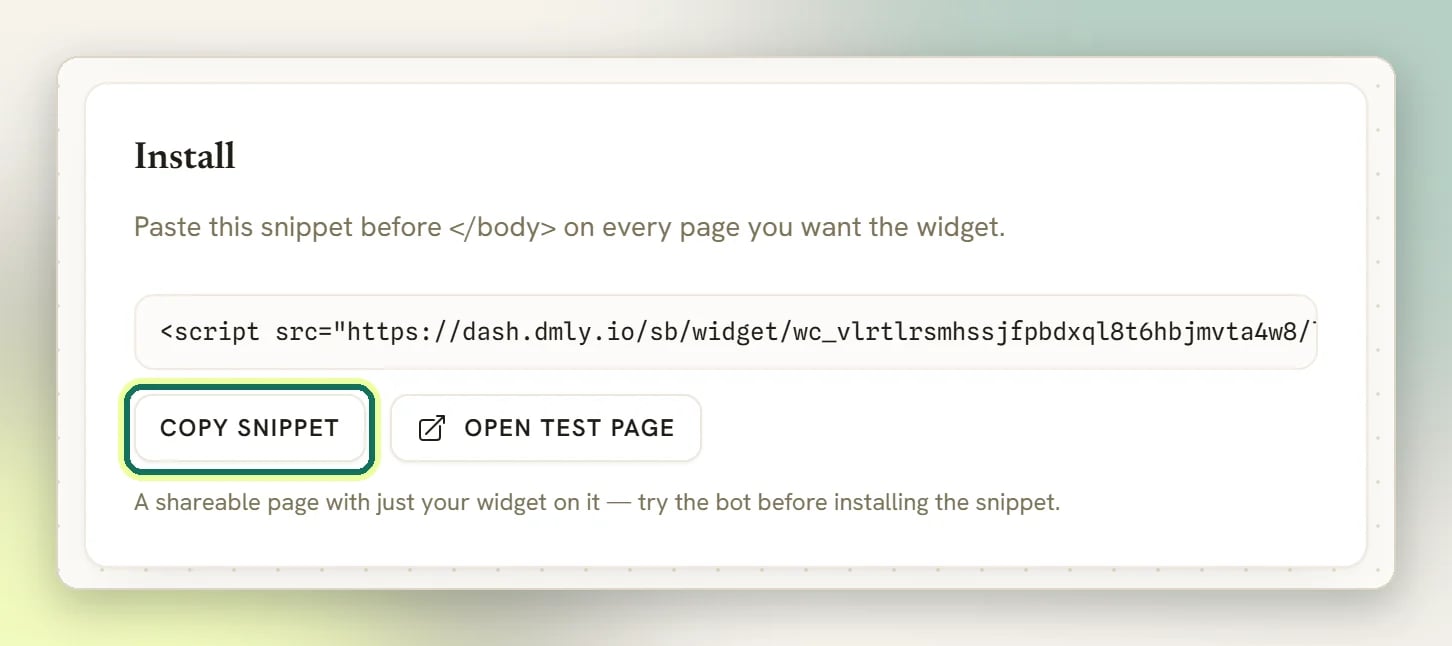
The snippet is tied to this specific widget. If you retire the widget and create a new one, the old snippet stops working and you must paste the new one.
Try it before you install it
The Install panel has a second button beside Copy snippet: Open test page. It opens a page DMLY hosts for you whose only content is this widget, so you can talk to your own bot without editing your site at all. The page shows your business logo and name, the heading “Try the chat”, and nothing else. This is the right way to test the widget, for two reasons. It is the real widget, not a mockup. Same accent, greeting, pre-chat form, quick replies and flows a visitor gets. The page itself says so: “This is the real widget, so anything you send here arrives in the inbox.” It ignores your display rules. Display rules describe where the launcher may appear on your site, and applying them to a page whose whole purpose is showing the widget would leave it looking broken. So on the test page the launcher appears immediately, on any device, whatever your Show on pages, Devices, Show after a delay and Show on exit intent settings say. Your Layout offsets still apply, because those are the widget’s own geometry rather than targeting. The URL is shareable: send it to a colleague to try, or open it on your phone to check the mobile layout.The pre-chat form
Before a visitor’s first message you can ask for their details. All four are off by default. Turn on the ones you need under Behavior:
Whatever you turn on is genuinely required: Start Conversation stays disabled until the visitor fills it in, and the email and phone are checked for a sensible format.
What you collect lands on the Contact record: name, phone and email are saved. If a field on that Contact is already filled, the widget doesn’t overwrite it, and a name only fills in while it is still the
Website visitor … placeholder. When a visitor ticks the consent box, DMLY records the time on the Contact (the first tick wins), and the Inbox conversation details show a Consent given badge with the date.
A typed email or phone number does not link the visitor to a Contact you already have, even when it matches one exactly. Nothing verifies what someone types into an anonymous form on a public web page, so DMLY treats it as a claim rather than as proof of identity: accepting it would let anyone who knows a customer’s email address open that customer’s conversation history. When a website visitor turns out to be someone you already know, join the two records with Merge, which is a decision a person makes.
Website visitor <four characters> until you learn more about them.
The pre-chat labels (“Name”, “Phone number”, “Email”, “Start Conversation”) are English only and can’t be translated. The Consent text and the Greeting are yours to write.
When the visitor has left
A visitor who leaves your site before you reply still gets the answer, as long as they gave you their email. Turn on Require email before chat in the pre-chat form and DMLY emails your reply to a visitor who is no longer there.- Who counts as gone: their browser hasn’t been in touch with your widget for about 30 seconds, because they closed the page or left your site. DMLY waits 45 seconds after a reply before checking, so someone who only switched tabs isn’t emailed.
- One email, not a stream: if your bot sends several messages in a row, the visitor gets one email with the latest.
- What it says: You have a new message from your business name, then the message, then a link back to the page they were chatting on, with the chat already open.
- Whose replies: your team’s and your bot’s alike.
What a visitor can send
The message box holds three controls: a smiley that opens a small emoji grid, a paperclip that attaches a picture or a video, and the send button. Both extras are always there, and there is no setting to turn either off. An attachment can only be a picture or a video:
A document, a spreadsheet or a zip is refused before it uploads at all, with “Only pictures and videos can be attached.” So is an oversized one: “Image must be 10MB or less.” or “Video must be 50MB or less.” Either message appears under the message box for a few seconds and the file is never sent.
A video in some other format (an AVI or an MKV, say) is only caught once it reaches DMLY, and the visitor sees the generic “Upload failed. Please try again.” rather than anything that explains why, so it is worth knowing the three formats above are the whole list.
Anything that does upload shows in the widget as a thumbnail the visitor can see, and arrives in your Inbox as an image or video message you can open. It writes a row in Logs like any other message, whose details read
[media] and the file name, since an attachment carries no text of its own.
A visitor can’t reach the message box until your pre-chat form is done, so an attachment never arrives without the details you asked for. If a picture is the first thing they send after filling the form in, those details are saved against the Contact just the same.
Style the widget
The customizer has a live preview that renders the real widget, so what you see is what visitors get. Use the Open / Launcher toggle to check both states.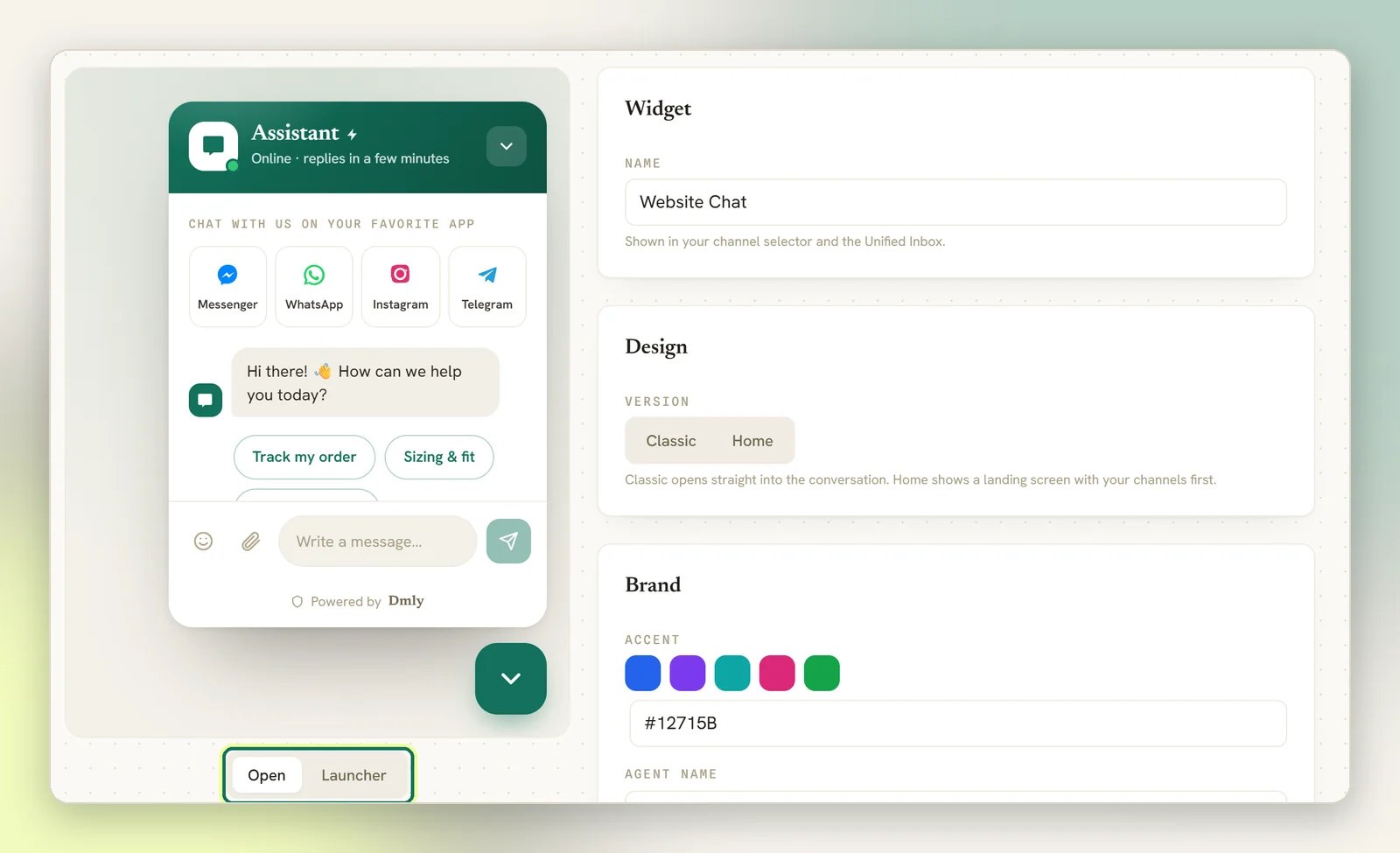
Design
Design
Classic opens straight into the conversation. Home shows a landing screen with your channels first. Pick Home if you want visitors nudged toward WhatsApp; pick Classic if you want them talking to you now.
Brand
Brand
Accent is your colour: five swatches or your own hex code. DMLY works out the text colour on top of it for you. Agent name and Greeting are what the visitor reads first.
Layout
Layout
Header (Gradient or Solid), Channels (Buttons or Icons), Dock side (Right or Left), and whether the Greeting teaser shows.
Channels
Channels
Your Messenger, WhatsApp, Instagram and Telegram deep links, shown under Chat with us on your favorite app.
Behavior
Behavior
The same panel holds the pre-chat gates, covered above, and Launcher text, covered in the note below.Online presents the agent as available. It sets the green presence dot in the header, and when Status text is blank it picks the line “Online · replies in a few minutes” or “Away · leave us a message”.Status text replaces that line. On the Home design it is also the sub-line under Send us a message.Offline message shows as a band across the widget, just above the message box, and only while Online is off.Quick replies are up to six tappable chips offered before the visitor’s first message. They disappear the moment the visitor sends anything, and blank rows are dropped when you save.Show typing indicator controls the animated dots the widget shows while it waits for the bot’s reply. It is on by default; turn it off and the dots never appear. It covers the bot only, so a visitor can still see
<name> is typing… when a teammate answers by hand from the Inbox.The widget carries a “Powered by” footer, and it can be rebranded but not removed. There is no switch to hide it: it renders on the Home screen and under the reply box in the conversation, whatever else you change.On a workspace an agency sells, it reads the agency’s own App name (shown to customers) and links to the agency’s Powered by link (or, if that’s blank, the agency’s custom domain; with neither set it’s plain text and links nowhere). It follows whoever owns the workspace, not the website the snippet is pasted on, so an agency’s client sees the agency’s brand on their own site. On a workspace bought direct from DMLY it reads Powered by DMLY and links to dmly.io.
Launcher text under Behavior is only used when Greeting is empty. The teaser bubble beside the launcher shows your Greeting first and falls back to Launcher text only if that is blank, and since Greeting ships with a default, most widgets never show Launcher text at all. Edit Greeting under Brand to change what the teaser says.
Control where and when it appears
The Display rules panel decides whether the widget loads on a page at all, and if so, how soon the launcher shows up. This is separate from styling: a page that fails these rules never gets the iframe, not even a hidden one.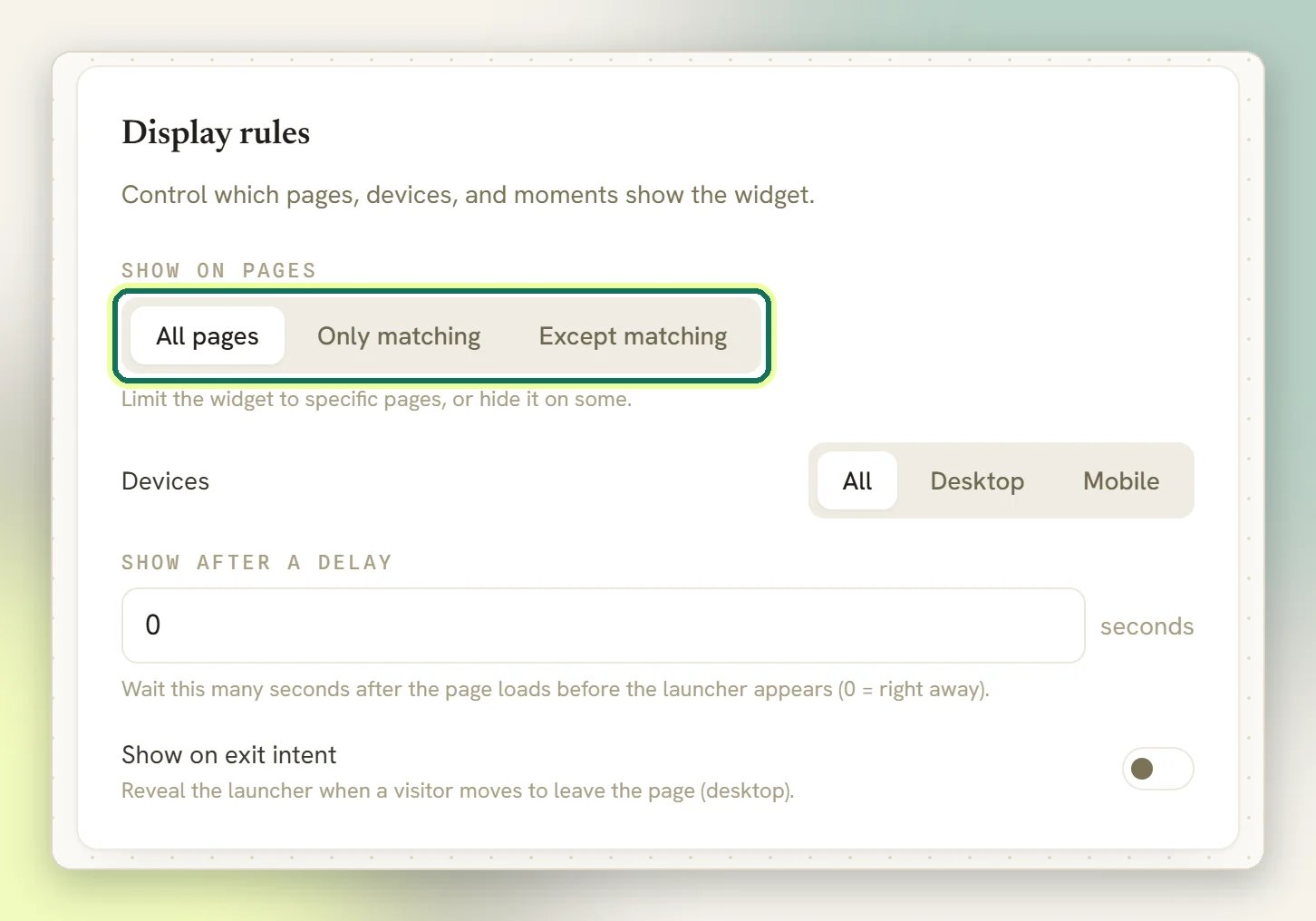
Show on pages
Show on pages
Three choices: All pages (the default), Only matching, or Except matching. Pick one of the last two and a URL patterns list appears, one rule per line, up to 50. Use
* as a wildcard, for example */pricing* or *help.site.com/*. A pattern matches if its pieces appear anywhere in the page’s full URL, so you don’t need to anchor it to the start or end.Devices
Devices
All, Desktop, or Mobile. DMLY guesses phone vs. desktop from the visitor’s browser and screen size; you don’t set a breakpoint yourself.
Show after a delay
Show after a delay
A number of seconds (0–300) to wait after the page finishes loading before the launcher appears.
0 (the default) shows it right away.Show on exit intent
Show on exit intent
A switch that reveals the launcher the moment a visitor’s pointer moves to leave the page. It is a desktop-only signal, since it relies on mouse movement rather than touch. Turn on both this and a delay and whichever fires first shows the launcher; turn on neither and it shows as soon as the page is ready, like before.
The install snippet loads these rules from a script that’s cached for about a minute, so a saved change can take up to a minute to reach visitors who already have the site open.
The daily limit on new visitors
The widget is addressed by a key that sits in the page source of every site running it, so anyone at all can send it a message. Every brand-new visitor becomes a Contact, and Contacts count towards your plan, so without a ceiling a slow trickle of junk could quietly fill your CRM and eat your allowance. DMLY therefore caps how many brand-new visitors one workspace picks up in a day at 500. It is the same figure for everyone and your plan doesn’t change it. What matters is what it counts:- New visitors, not messages. A visitor is new the first time that widget sees their browser. After that they can send as many messages as they like and none of them count again, so a long conversation costs one.
- Per workspace, per day, across every widget you run. The count resets at midnight UTC.
- Only the first message is checked. Once the ceiling is reached for the day, every conversation already under way keeps working normally: existing visitors send and receive, your flows run, your team replies. The only thing that stops is someone brand new starting their first chat.
- The same browser is the same visitor. DMLY remembers a visitor in their browser’s storage, so a returning customer doesn’t count twice. A different browser, a different device, a private window and cleared site data all read as new, and so does the same person meeting a second widget of yours for the first time.
- Your own testing counts. A conversation you start from the test page is a real one, so it consumes a slot like any other.
temporarily_unavailable under the message box. If a visitor ever sends you a screenshot of that, this limit is your answer.
500 first-time chats in one day is far more than a normal site produces, so hitting this is a signal in itself: either you have just been mentioned somewhere very large, or something is hammering the widget. If it is the first, contact DMLY support rather than waiting it out.
Rename or delete
Live Chat has no account behind it, so you rename it from the Channel card rather than from account settings.Next steps
Automate replies
Widget messages run your flows the same as WhatsApp.
Answer in the Inbox
Live Chat conversations sit alongside every other Channel.
Move it to WhatsApp
Collect a phone number in pre-chat, then follow up where they’ll actually reply.
Nothing arriving?
Open the test page first: if the widget works there, the snippet is the problem, not DMLY. Logs records every visitor message it receives.