

Why templates exist
WhatsApp lets you send a free-form message only within 24 hours of a contact’s last message to you. Outside that window Meta delivers approved templates and nothing else. So: Templates start conversations. Free-form continues them. A broadcast is by definition a conversation you are starting, which is why a WhatsApp broadcast shows no message box at all, only a template picker. The wizard says so plainly: Broadcasts send an approved WhatsApp template — you can’t type a message directly. Only approved templates are listed.A template belongs to one WhatsApp Business Account. Not to a single number, so two numbers on
the same account share every template; but not to your workspace either, so a template approved on
one account does not appear on a number belonging to another. Both the Templates page and the
broadcast picker are filtered to the account behind the number you have selected in the channel
switcher. Connect two numbers on separate accounts and switching between them changes the list.One exception you may notice: a template DMLY saved before it started recording which account a
template came from still shows on every number, until the next sync from Meta files it under its
own account.
Approved is the only status that sends
Saving puts a template into Pending; Meta then returns Approved or Rejected. Draft means the submission didn’t reach Meta; save it again. The one exception is a template saved with no WhatsApp number connected: it reads Pending even though Meta has not seen it (see below). Only Approved templates appear in the broadcast picker, the Inbox composer, or anywhere else you choose a template. DMLY checks approval twice: once when it builds the list, and again at the moment of sending. If Meta revokes a template between scheduling a broadcast and sending it, those sends fail rather than going out as something else.Build a template
1
Open the Templates page
Go to Messaging → Templates on a WhatsApp channel and select Add template, or start
from a ready-made template in the library instead.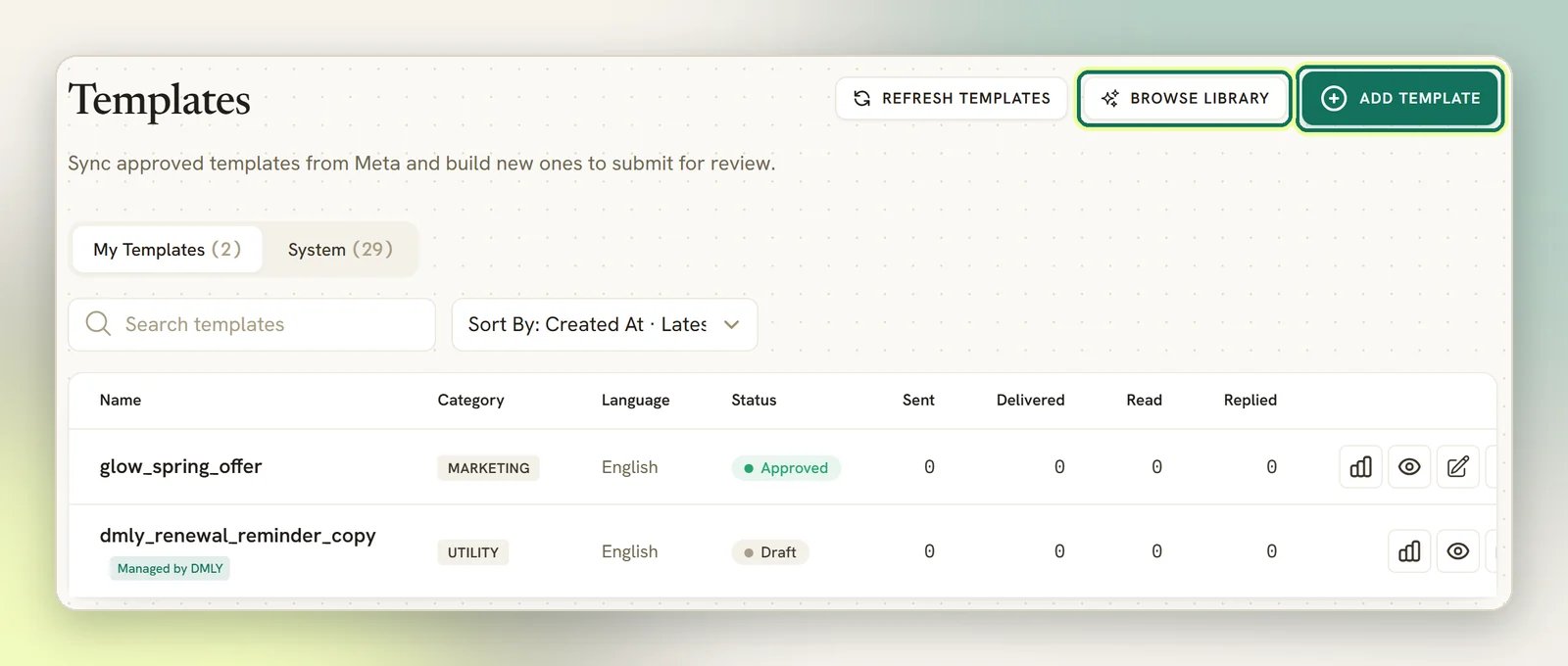
2
Name it
Template name is the name Meta references: lowercase letters, numbers and underscores only,
up to 100 characters. You cannot rename it later without submitting a new template.
3
Pick a category and language
Category is Marketing, Utility or Authentication. Meta reviews against the
category you choose, so pick honestly: a promotion filed as Utility is a rejection.Marketing adds a Type of marketing message choice: Custom Message (text, media and
buttons), Catalog Message (products from your connected catalog), or Carousel Message
(up to 10 swipeable cards).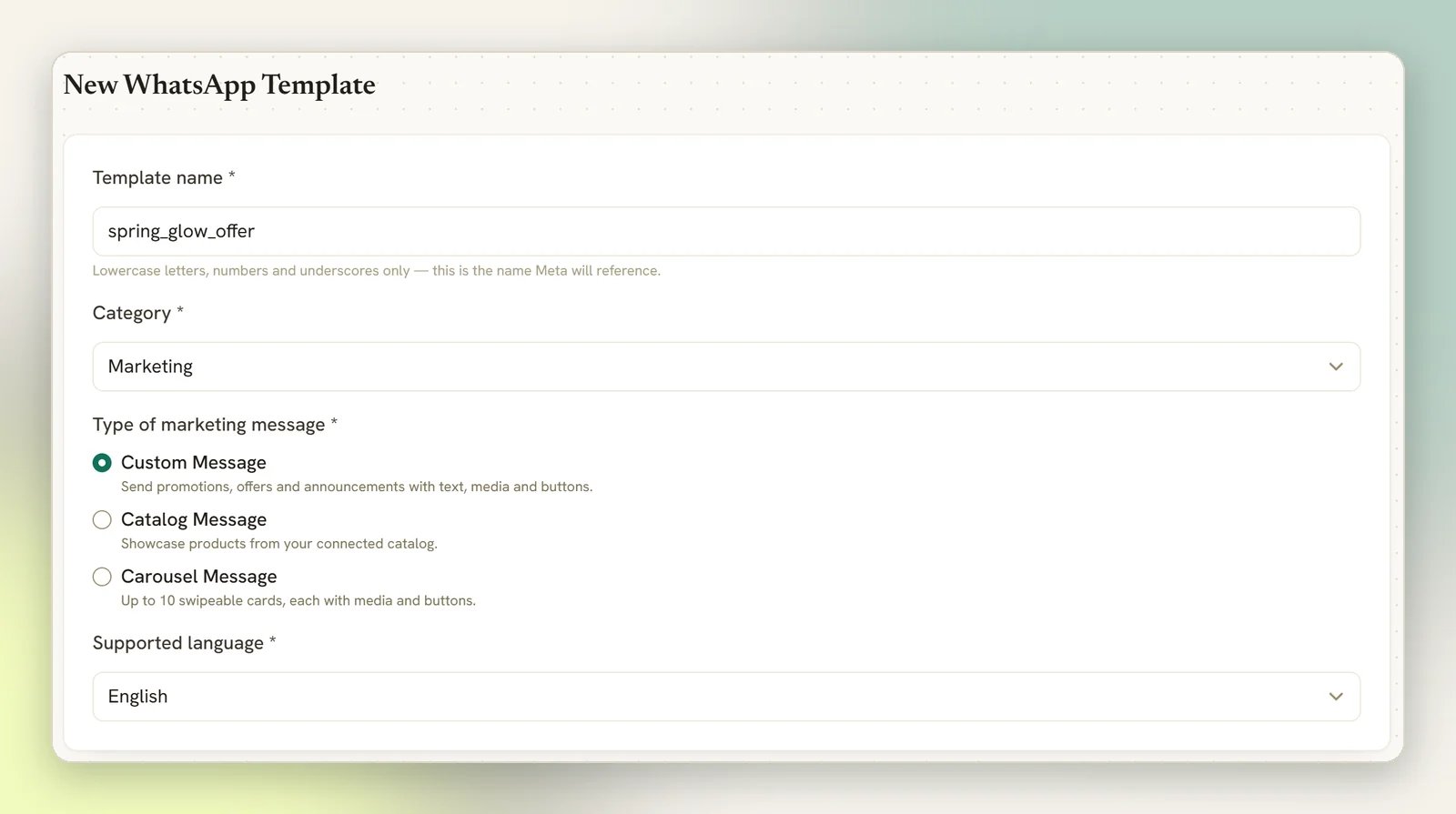
4
Write the body
Body is the message itself, up to 1024 characters. Add personalisation with Add variable.
See below.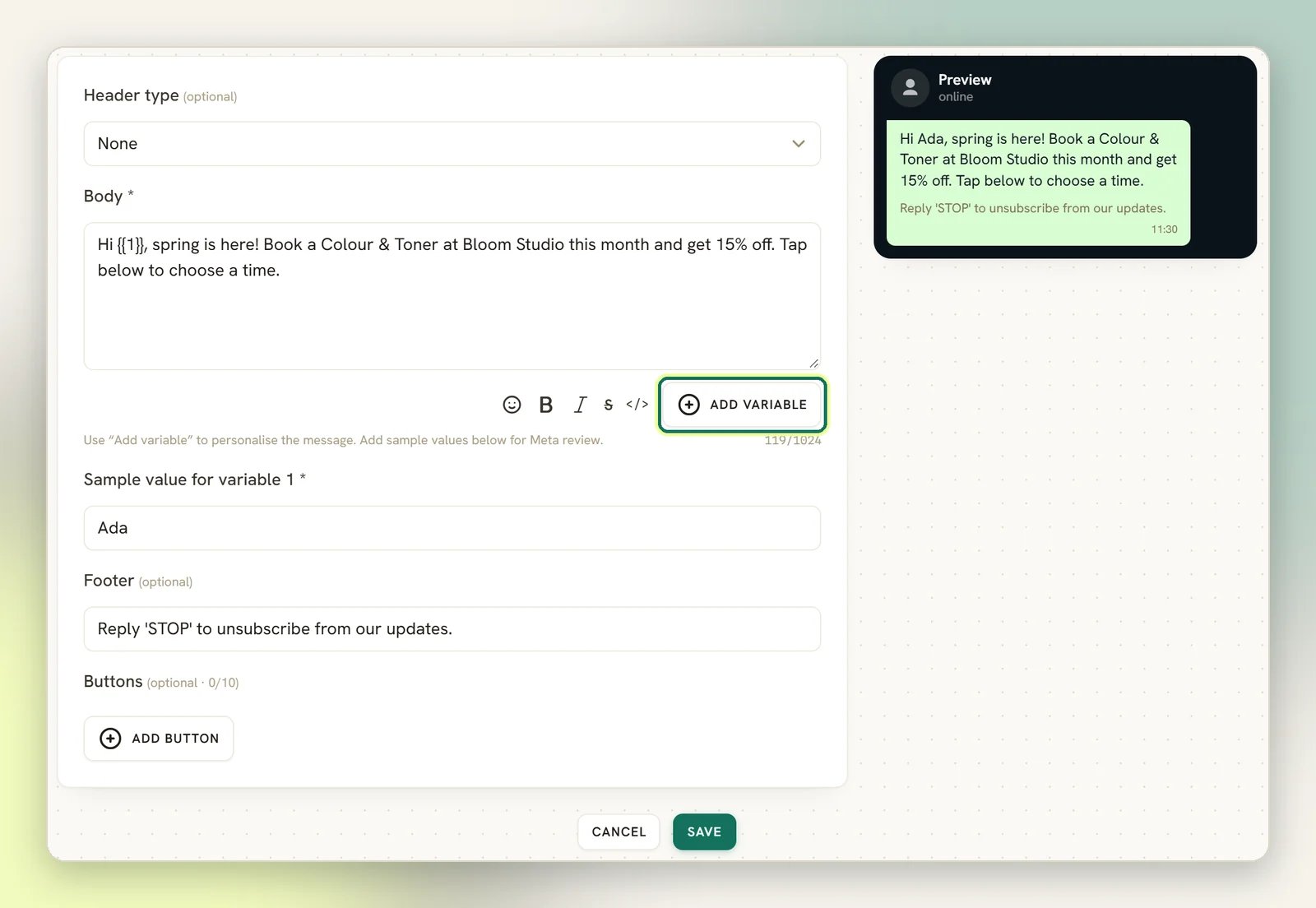
5
Add a header, footer and buttons if you need them
All optional. A Header type of Image, Video or Document requires a Sample header media
file, because Meta reviews media templates against a sample: JPG/PNG up to 5MB, MP4 up to 16MB,
PDF up to 100MB.
6
Save
Saving submits the template to Meta immediately and sets it to Pending. There is no separate
submit button.
With no live WhatsApp number connected, saving keeps the template locally and tells you: Template
saved. Connect a live WhatsApp number to submit it to Meta for review. The template shows as
Pending, but it was never submitted, and connecting a number does not submit it for you. Once a
number is connected, open the template and save it again. Only
dmly_ system templates are
submitted automatically when you connect or sync.Limits Meta enforces
Start from the template library
Rather than write marketing copy from a blank body field, browse a built-in library of ready-made promotional templates and start from one of those instead.1
Open the library
On the Templates page, select Browse library, next to Add template.
2
Filter or search
Narrow the list with Search the library, or the All industries / All occasions
dropdowns: salon, clinic, fitness, retail, restaurant, home & professional services,
education, or a generic “any business” set, crossed with occasions like promotion, flash
sale, win-back, seasonal, new arrival, back in stock, loyalty, referral, event, upsell and
feedback nudge.
3
Preview
Every card shows the template as a WhatsApp bubble, filled in with realistic sample values, so
you can read it exactly as a recipient would before deciding whether to use it.
4
Customize or submit
Customize opens the normal template builder (the same steps as above) pre-filled with
the entry’s name, body, variables, buttons and footer, so you can edit anything before saving.
Submit as-is asks you to confirm, then submits the entry to Meta exactly as written, with
no detour through the builder.
The library has 64 templates, 8 for each industry. Every one is Marketing category, already
written with contiguous
{{1}}, {{2}} variables, sample values for Meta’s reviewer,
quick-reply buttons, and an opt-out footer: the things Meta actually rejects templates over.
That makes them a safer starting point than a blank body, though Meta can still reject one on
wording or policy grounds like any other submission._2 appended instead.
Variables
Variables are numbered placeholders ({{1}}, {{2}}) that you fill in per recipient when you
send. Select Add variable to insert the next one; it numbers them for you.
One rule the builder blocks you on, and one Meta will reject you for:
- A template can’t start or end with a variable. Meta wants text around it.
- Every variable needs a sample value for review. That value is only for Meta’s reviewer; it is never sent to anyone.
Filling variables in a broadcast
Once a template is approved, picking it in a broadcast shows one Enter parameter box per variable, under Body parameters. Each box takes either a fixed value or a personalisation token, so a template with one variable can greet everyone by name: put{{first_name}} in parameter 1 and
DMLY resolves it per recipient as it sends. Custom fields work the same way, for example
{{custom.order_id}}.
This is the split worth understanding: Meta approves the template’s wording; you supply the
variable values at send time. Changing what goes in a variable never needs re-approval. Changing
the sentence around it does.
Approval
Meta reviews automatically. Most templates come back within minutes, but Meta allows itself up to 24 hours. Plan a campaign around a day of slack, not five minutes. You don’t have to do anything to find out the verdict. Meta pushes a template’s status to DMLY when it changes, and DMLY re-checks every template with Meta about every ten minutes regardless, so a status you are looking at is minutes old at worst. The bottom of the Templates page shows when it last synced. That automatic pass does the housekeeping too: because it reads Meta’s live list, it picks up templates created outside DMLY (in Meta’s own tools) and re-submits anydmly_ system template that
never reached Meta. Refresh templates on the same page runs exactly that work on demand, so its
one advantage is not waiting up to ten minutes for it. Use it when you’re watching for an approval.
The template came back Rejected
The template came back Rejected
The rejection reason from Meta is saved and shown on the template, with Edit to fix. The usual
causes are a category mismatch (marketing content submitted as Utility), promotional wording in a
Utility template, or a placeholder-heavy body with too little real text. Fix the content and save
again to resubmit.
I edited an approved template and it stopped sending
I edited an approved template and it stopped sending
This is the big one. Editing a template that is already on WhatsApp sends the change to Meta for
re-review. DMLY tells you: Your change was sent to WhatsApp — it stays Pending until Meta
re-reviews it (usually a few minutes). Until Meta approves it again the template reads
Pending and cannot send, so editing a live template (a reminder, say) stops it sending in the
meantime. If the edit does not go through, you see one of three results:
- A temporary failure leaves it Draft: Temporary error submitting to WhatsApp — please try saving again.
- If Meta refuses the change, it is marked Rejected with Meta’s reason.
- If Meta holds the name but DMLY cannot reach it, nothing is sent and the template keeps its previous status: WhatsApp already has a template with this name and we couldn’t reach it to apply your change. Hit Refresh to re-sync from WhatsApp, then save again.
System vs My Templates
System vs My Templates
System holds the templates DMLY ships and maintains, marked Managed by DMLY. They are
named
dmly_… and power appointment reminders, invoices, receipts, review requests and the rest.
They are submitted to Meta for you when you connect a live number.My Templates is everything you build. Broadcasts can use either, as long as it is approved.A system template I need isn't there
A system template I need isn't there
You get the system templates that existed when your workspace was set up, minus the ones your
kind of business never sends: a salon is not given seven order and shipping templates. Anything
DMLY adds later is not pushed onto an existing workspace, because installing a template means
filing it with Meta for review, and a batch of unrequested submissions is the fastest way to put a
WhatsApp number at risk.So when you start doing something new, such as taking bank transfers, selling gift cards or
running win-back offers, the template for it may not be on your number yet. Open Templates → System
and look under Available to install. Each one shows its wording and its category; Install
adds it and sends it to Meta for review, exactly as if you had built it yourself. It cannot send
until Meta approves it, which usually takes minutes but can take longer.Install what you are about to use, not everything at once. Marketing-category templates are
flagged: they need the contact’s marketing opt-in and are billed at marketing rates.
Delete a template
Select Delete template and confirm. DMLY deletes the template on WhatsApp as well as in your list, so it can’t come back the next time your templates are refreshed. A few cases work differently:- WhatsApp refuses. The template stays in your list and DMLY shows WhatsApp’s reason, starting WhatsApp would not delete this template, so it is still here:. It never disappears from DMLY while it can still be sent.
- The same name exists in other languages. Only the language you picked is deleted. If DMLY can’t tell WhatsApp which one that is, it stops rather than deleting them all: This template also exists in other languages on WhatsApp. Refresh the templates, then delete it again.
- A draft you never submitted is simply removed from DMLY.
- A template you delete in WhatsApp Manager drops out of DMLY at the next refresh.
What the other channels do instead
Facebook & Instagram
No templates. You type a plain message. Meta only delivers it to people who messaged you in the
last 24 hours, or who opted in to notifications; everyone else is skipped.
SMS & Telegram
No templates and no messaging window. You type the message and it sends to everyone, with
personalisation tokens resolved per recipient.
Related
Create a campaign
Pick a template, fill its variables and send.
WhatsApp rules and limits
How the 24-hour window plays out across a whole campaign.
Connect WhatsApp
Set up the number your templates belong to.
Sequences
Multi-step follow-ups. On WhatsApp a step can send an approved template to reach a contact
outside the 24-hour window.
Read broadcast results
See lifetime Sent, Delivered, Read and Replied for each template, across every place it sends.