

Only workspace admins can open Workspace Settings → Billing. Members and viewers cannot
reach it.
What you can add
Contacts
Room for more contact records than your plan allows.
Profile per channel
Room for another connected account, including a second number on a channel you already use.
Teammate
Room for one more person to be invited into the workspace.
What one unit of this add-on buys. On the Billing page it appears as Extra profile per
channel, and the name is literal: it raises Profiles per channel by one, and it does
so on every channel: on a plan allowing one profile per channel, a single unit lets you
connect a second WhatsApp number, and a second Facebook page, and so on. It raises the total
Connected accounts cap by one as well. Where your plan sets that total, it is what actually
limits you: you get one more account, on whichever channel you choose to spend it. Both figures
are on the plan panel, so you can see which one you are against.
Buy an add-on
If an agency manages your workspace, you don’t buy add-ons yourself; your agency grants them
to you. The steps below won’t apply: there’s no add-on catalogue, no quantity box and no
Buy button. Ask your agency for the capacity you need.
1
Open Billing
Go to Workspace Settings → Billing and scroll to the Add-ons panel.
2
Choose what you need
Each available add-on has its own row. Set the quantity you want, for example two extra
teammates rather than one.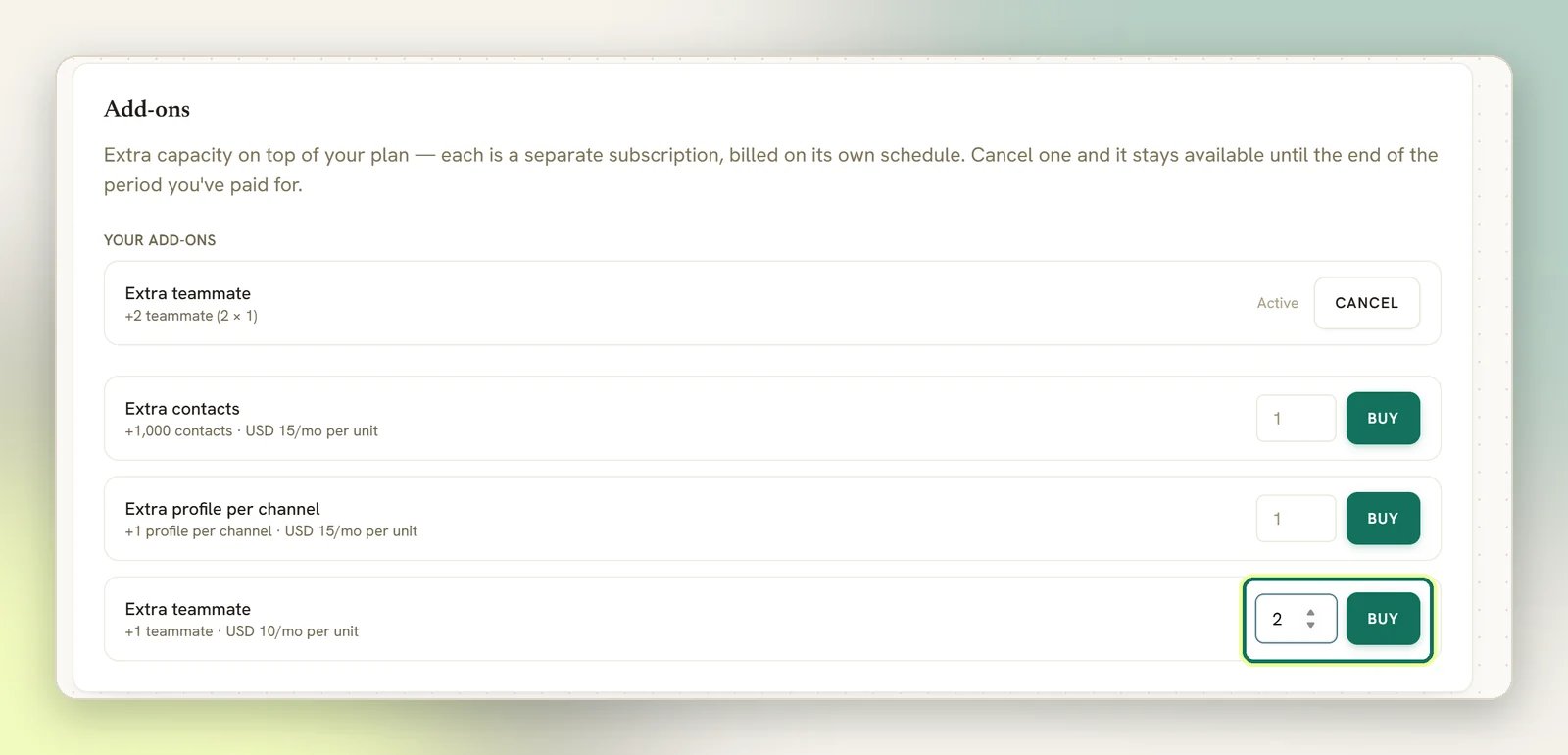
3
Select Buy
You’re taken to the payment step to confirm. Each add-on is charged as its own
subscription, separate from your plan.
Your add-ons
Anything the workspace already owns is listed under Your add-ons on the Billing page, with each one marked either:- Active: it was bought here, and it’s being billed to you.
- Granted by your agency: an agency gave the workspace the capacity, and you aren’t billed for it.
- Ends and a date: you cancelled it, and it stays available until that date.
Cancelling an add-on
Each add-on you bought carries a Cancel button on its row under Your add-ons. Selecting it asks you to confirm, then cancels that add-on at the end of the period you’ve already paid for, leaving your plan and your other add-ons alone. The extra capacity stays until then. The row then shows Ends with the date, and the Cancel button goes away. Cancelling your plan cancels your add-ons too. They are separate subscriptions, but the plan’s cancellation takes them with it rather than leaving them billing on their own, and the confirmation tells you so before you commit. Add-ons granted by your agency have no cancel button. Those are your agency’s to give and take away, so ask them. See Cancelling.Add-on or bigger plan?
An add-on is the right tool when you’re over on exactly one thing. If you’re pushing against several limits at once, or you want a feature your plan doesn’t include at all, changing plan is usually simpler than stacking add-ons.Plans
What each plan includes and where the limits bite.
Upgrading and downgrading
Move to a different plan instead.