

https://book.yourbusiness.com/<service slug> instead. Nothing about your services, staff or availability changes. Only the address does.
The domain isn’t booking-only. Once it’s live, your review request links and your growth and QR short links are built on the branded host too (https://book.yourbusiness.com/r/<token> and https://book.yourbusiness.com/go/<id>), so plan for those links changing address as well.
You get one booking domain per workspace.
Set it up
The whole flow lives on one panel: Business → Appointments → Settings → Appointment. Scroll to the Custom domain panel, below Branding.1
Point your DNS
Under 1. Point your DNS, DMLY shows the records to create. Add one of them at whoever manages your domain’s DNS: your registrar or your web host. DMLY doesn’t do this part for you.
2
Add your domain
Under 2. Add your domain, enter the host you just pointed (for example 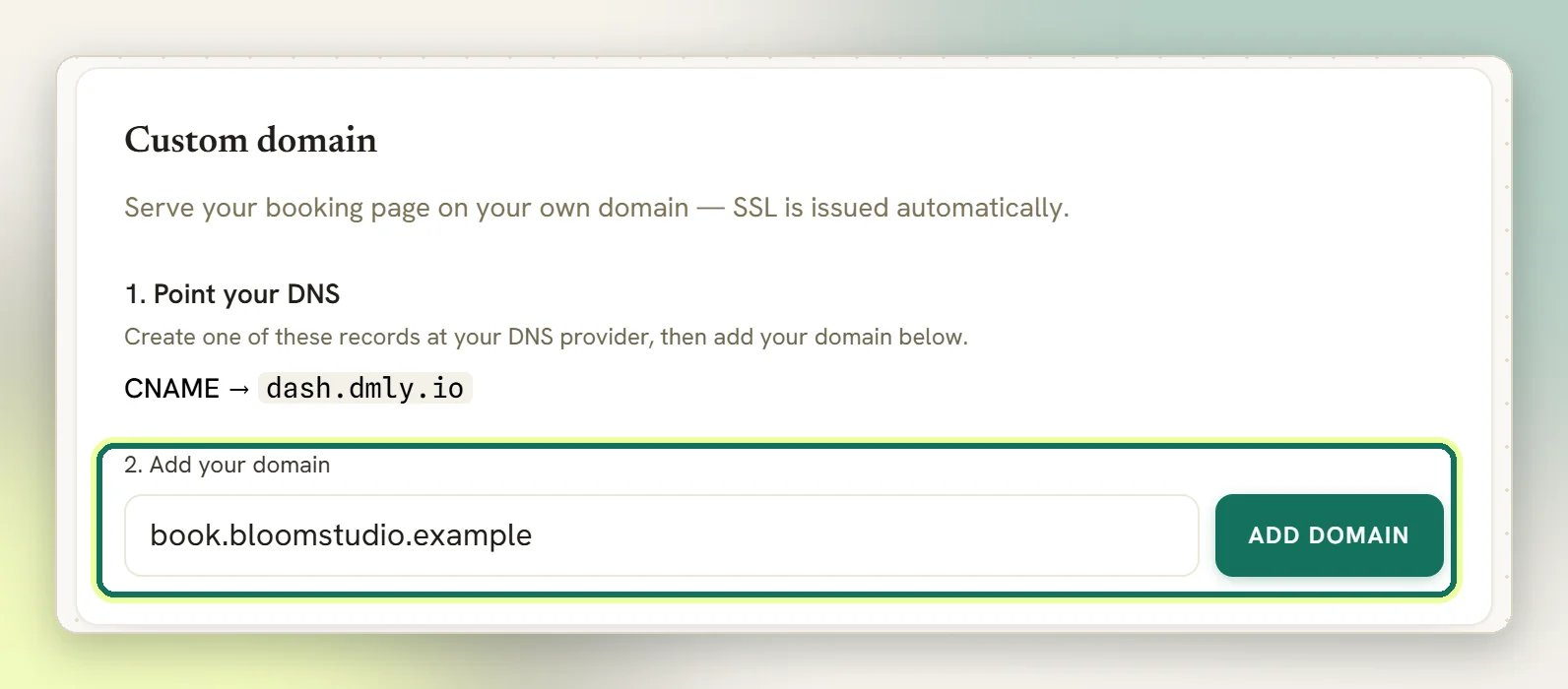
book.yourbusiness.com) and select Add domain.3
Wait for verification and SSL
DMLY re-checks the domain in the background, roughly every ten minutes, and issues the SSL certificate for you once the DNS resolves. You can select Verify to check immediately instead of waiting. DNS changes can take a while to spread, so a first check that fails isn’t a problem; leave it and check back.
Your booking links keep working the whole time. DMLY only starts putting the branded host into booking links once the domain is verified and its SSL certificate is live. Until then every link (the one in a flow, the one in a reminder, the one you copy yourself) uses the standard DMLY booking URL. A link you shared during setup will never turn into a broken or insecure page.
That background check also runs in reverse, so a live domain isn’t permanently live. If the DNS record is removed or stops resolving for around 24 hours, the domain drops back to Pending DNS and links quietly revert to the standard DMLY URL: no message, no failure. They switch back to the branded host once the record resolves again. Keep the DNS record in place for as long as you want the domain.
Remove a domain
Select Remove on the panel. Your booking page stops being served on that host and its SSL certificate is released. Booking links fall back to the standard DMLY URL.If verification doesn’t complete
The domain never verifies
The domain never verifies
DMLY can only verify a host that actually points at it, so the cause is almost always the DNS record rather than DMLY. Re-check the record against what the 1. Point your DNS step shows: the record type, the exact host, and that there isn’t an older conflicting record for the same name still in place. Some DNS providers append your domain to the host automatically, which silently produces
book.yourbusiness.com.yourbusiness.com. After a correction, select Verify again.Either record the panel lists works: the CNAME to the DMLY host or the A record to the DMLY IP. Don’t proxy the record through a CDN (for example Cloudflare’s orange cloud). A proxied record answers with the CDN’s addresses instead of DMLY’s, so the check can’t match it and the domain stays on Pending DNS. SSL is only issued once the domain verifies. Set the record to DNS only.Booking page
Brand the page itself: logo, colour, title and description.
Services
The services clients see and book on that page.