

Billing
Your current plan, add-ons, payment method, and cancellation.
Receipts
The history of what you’ve been charged, with a download for each.
Only a user whose base role is Admin can open Billing or Receipts; a custom role doesn’t unlock them, however many permissions it has. See Roles and permissions.
Find your billing pages
Workspace Settings is a separate area from the main sidebar, with its own short menu (Settings, Team Members, Billing and Receipts, plus Security if you’re the workspace owner) and a Back button to return to the app. Open Workspace Settings → Billing. The page stacks up to five panels, in this order: Current Subscription Plan, Usage, Add-ons, Payment Method, and cancellation at the bottom. Usage reports your active contacts, your broadcast and template messages (with the date that allowance resets) and your AI replies against your plan’s limits, and it shows whether or not you’re subscribed: see Check your usage. Panels that don’t apply to you yet are hidden: Payment Method and the cancellation panel only appear once you have a subscription.Update your payment method
DMLY doesn’t hold your card. Changing it hands you to your payment provider’s own hosted portal, where you make the change and then come back.1
Open Billing
Go to Workspace Settings → Billing and scroll to Payment Method.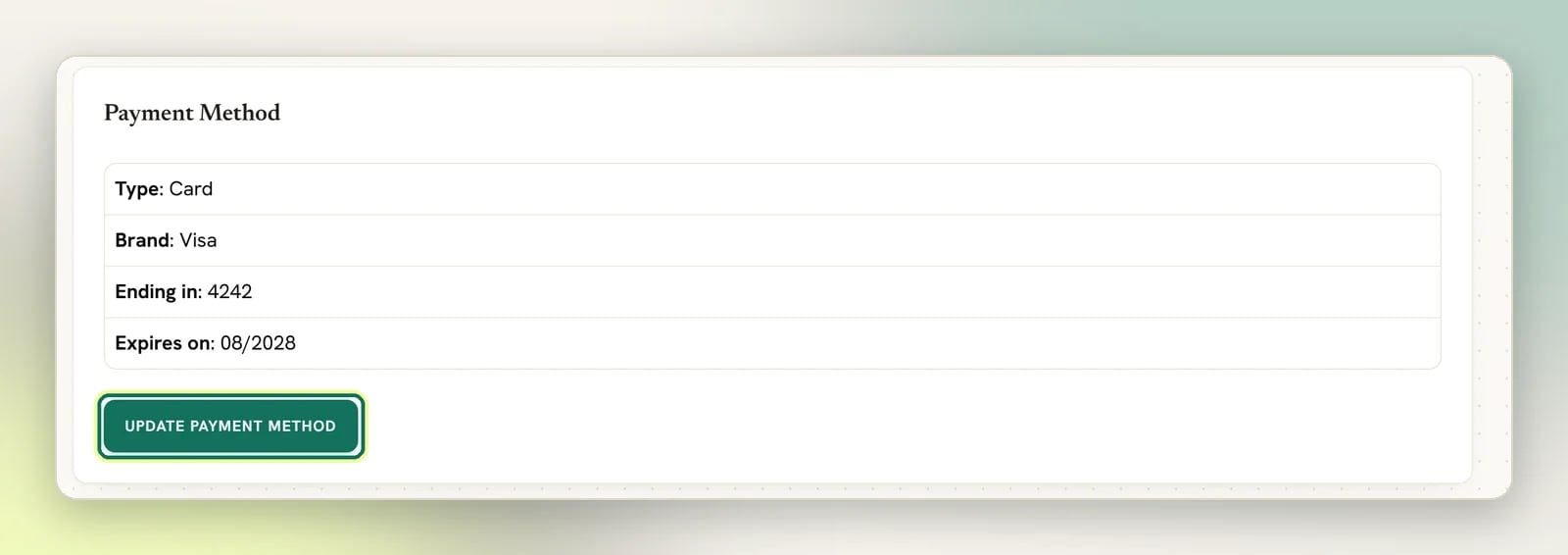
2
Select Update payment method
You’re redirected out to your payment provider’s portal.
3
Change the card there
Update the card in the portal, then return to DMLY. The new card is used from your next charge.
The Billing page never shows a card form; it only displays the card on file and hands you to your provider to change it. Card details are only ever entered in your payment provider’s checkout, whether that opens in the Payment details window or on the provider’s own site.
Your first payment
You add a payment method by subscribing rather than by filling in the Payment Method panel first. On the upgrade page you pick a plan and a billing cycle, then either get sent to your provider’s checkout or fill in a Payment details form that opens over the page; which one you see depends on the provider. See Upgrading and downgrading. If a coupon panel appears on that page (Use coupon, then Enter the coupon here), your provider supports coupons and you can apply one before you subscribe. If there’s no coupon panel, it isn’t supported and there’s nothing to find.Plans, prices and what’s included vary (including per agency, if your workspace is managed by one), so they’re not listed here. The upgrade page shows the limits for whichever plan you’re looking at. See Plans.
Find a receipt
Open Workspace Settings → Receipts. Each row is one charge: its invoice number, what it was for, the billing date, and the amount. Select Download on a row to get the receipt for it. These are DMLY’s receipts to you. They’re unrelated to the invoices you raise against your clients, which live in Finance.Add-ons are billed separately
Extra capacity (more contacts, another profile, another teammate) is bought as add-ons on the same Billing page, and each add-on is its own subscription, charged separately from your plan, so they appear as their own rows in Receipts. Buying one needs an active plan; without one, the page tells you You need an active plan to buy add-ons. If your workspace is managed by an agency you can’t buy add-ons yourself: there’s no purchase list on the page. Any add-on you have was granted by your agency and shows as Granted by your agency; you’re not paying for it. See Add-ons.Upgrading and downgrading
Change plan, or drop to a free plan if one exists.
Cancelling
Cancel, and what happens to the rest of your paid period.