

Billing lives in Workspace Settings, which only workspace admins can open. Security, where a workspace is deleted, is restricted further: only the workspace owner sees it.
Cancel the subscription
1
Open Billing
Go to Workspace Settings → Billing. The Current Subscription Plan panel at the top shows your plan and its status.
2
Select Cancel subscription
The panel at the bottom of the page states it plainly: You may cancel your subscription at any time. Your subscription will remain active until the end of the current billing period.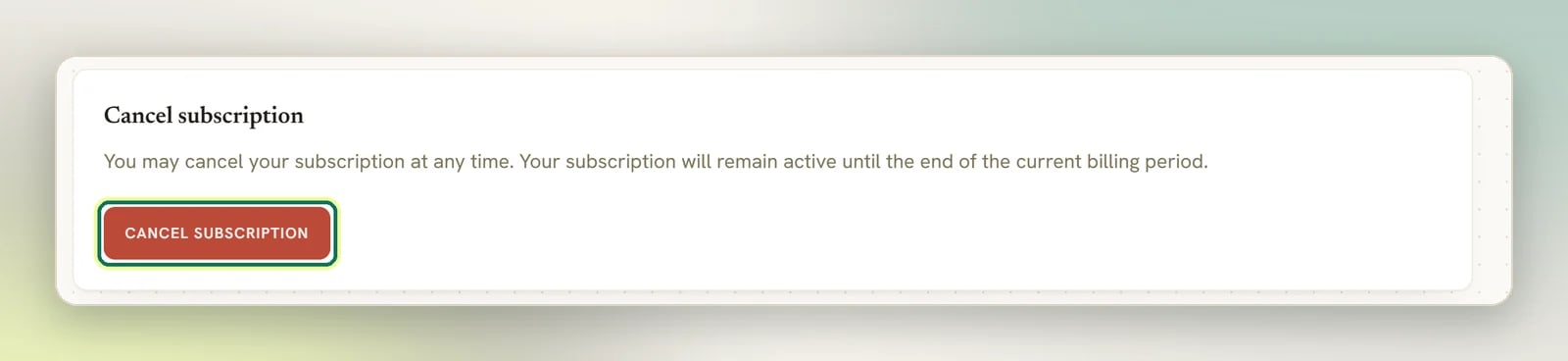
3
Confirm
DMLY asks you to confirm before anything happens. Once you do, Current Subscription Plan shows the new status and the date your access ends.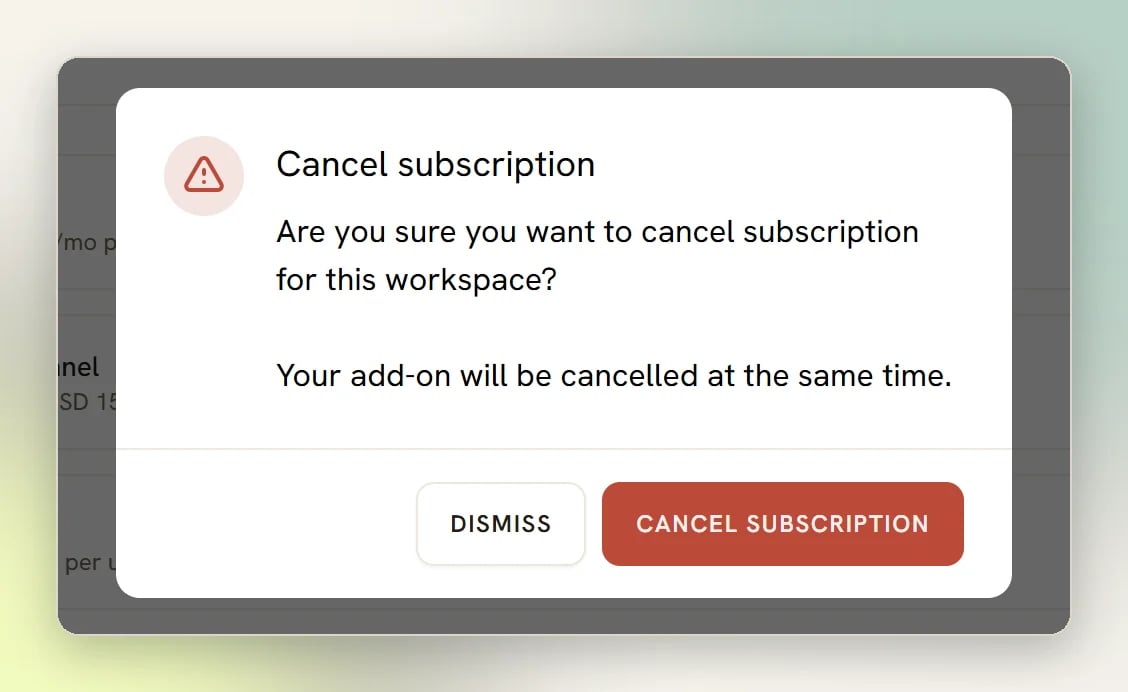
What happens to your data
Nothing is removed when you cancel. Contacts, conversations, appointments, invoices and automations stay in the workspace exactly as they were. What changes is access. You keep everything until the paid period you have already bought runs out, so cancelling mid-period takes nothing away early. After that date the workspace is locked rather than moved down to a smaller plan. Opening the inbox, contacts, automations, appointments or finance bounces you to a page reading Sorry, this workspace has been locked. and This is due to the cancellation of the subscription or because an invoice has remained unpaid., with a Reactivate subscription button that takes you to the plan picker. Nothing is deleted while it is locked. Workspace admins can still reach Workspace Settings, Billing and Receipts, so you can still download your invoices and pick a plan; everyone else cannot get in at all. Choosing a plan again unlocks the workspace exactly as it was. See Plans for how limits work.Download anything you need for your records from Workspace Settings → Receipts before you cancel. It lists each invoice with a Download link.
Change your mind
If you cancel and then reconsider, Resume appears on the Billing page while the subscription is paused or still inside its grace period (that is, before the paid period ends). Resuming puts you back on the same plan with no interruption. It restores the plan only: add-ons that were cancelled along with it stay cancelled and end at the close of their own paid periods. Buy them again after resuming if you still need the capacity. Once the period has fully lapsed, Resume is still the button you want; it just takes you to the plan picker rather than restarting the old subscription in place. Pick a plan there the same way you did the first time. (Change subscription plan is the label that button carries while a subscription is still running, not after it has been cancelled.) See Upgrading and downgrading.Your add-ons go with the plan
Add-ons are their own subscriptions, not part of your plan. The Add-ons panel says so directly: Extra capacity on top of your plan — each is a separate subscription, billed on its own schedule. Cancel one and it stays available until the end of the period you’ve paid for. Cancelling your plan cancels them too, so you do not have to hunt them down afterwards. The confirmation says as much before you commit: Your add-ons will be cancelled at the same time. Each add-on then runs to the end of its own paid period, unless the plan itself ends immediately, in which case the add-ons end immediately too. If you want to drop one add-on but keep everything else, use its own Cancel button on the Billing page instead. Add-ons granted to you by an agency show as Granted by your agency rather than Active, and have no cancel button; those are the agency’s to change, not yours. See Add-ons.Downgrade instead of cancelling
If you want to stop paying but keep the workspace running, a downgrade is usually the better move. When a free plan is available, Downgrade to free plan appears on the Billing page next to the plan controls, with the honest warning: You won’t be able to use the features of the current plan anymore.Deleting a workspace
This is not a cancellation. It is the end of the workspace. Only the workspace owner can do it, from Workspace Settings → Security. To make an accident unlikely, DMLY asks you to type the workspace name before the delete button will work: To continue deleting, type the name of the workspace to delete into the box below.Can I hand the workspace to someone else instead?
Can I hand the workspace to someone else instead?
Not from the workspace settings: there is no owner-transfer control in DMLY. If the current owner is leaving the business, contact your provider (your agency, or DMLY support) rather than deleting the workspace and rebuilding it.
What about my own login?
What about my own login?
Deleting your user account is a different action, on your own Edit profile page, but it is not a smaller one. DMLY deletes every workspace you own along with your account, and cancels their subscriptions. The page says so plainly: Deleting your account will result in the permanent removal of all account data and associated resources, including the data of any owned workspaces. Workspaces you only belong to are unaffected. See Your profile.
Related
Plans
What each plan includes and how limits apply.
Upgrading and downgrading
Move between plans without cancelling.
Add-ons
Extra capacity bought separately from your plan.
Payment methods
Update the card DMLY bills.