

Start here
1. The 24-hour window
WhatsApp only lets you send a free-form message to someone within 24 hours of their last message to you. Outside that window, the only thing WhatsApp accepts is an approved template. This is Meta’s rule, not DMLY’s, and nothing in DMLY can widen it. So the first question is always: when did this contact last message you? Open the conversation in the Inbox and look at the timestamp on their last inbound message. If it is more than a day old, the window is closed, and:- A free-form message will not go.
- An approved template will.
This is why the same automation can look reliable for weeks and then appear broken. Nothing
changed. The contacts changed. A contact who just wrote to you gets the message; a contact who
went quiet three days ago doesn’t.
2. Template approval
If the window is closed, everything depends on whether Meta has approved the template DMLY wants to use. DMLY ships a set of its own system templates for things like booking confirmations and invoice notifications (their names all start withdmly_) and submits them
to Meta when you connect a WhatsApp number. Not every one is added, though. The set depends on
your business type, a few optional marketing templates are never added for you, and templates
DMLY introduced after your workspace was set up are not added to it at all.
DMLY will only use a template Meta has approved. Not one that is pending, not one that was
rejected. That leaves three outcomes for any automated WhatsApp notification:
That last row is the single biggest cause of “the notification never arrived.” It is a
deliberate choice: sending a free-form message outside the window would be silently rejected by
Meta and would show in DMLY as a phantom Sent. Skipping is honest; it’s just quiet.
Check and fix it
Open your WhatsApp Templates and look at every template whose name starts withdmly_. Any
that is not approved is a hole in your notifications.
Then open the System tab and look at Available to install. It lists DMLY templates this
number does not have yet. A missing template behaves exactly like an unapproved one: a free-form
message inside the window, skipped outside it. Refresh templates does not add these. Install
the ones you need from that section, which sends each one to WhatsApp for review.
1
Select Refresh templates
Refresh templates re-reads the real state from Meta and re-submits anything that never
made it there. This matters because a template can show as pending in DMLY while Meta has no
record of it at all; it looks like it’s waiting on Meta, but nothing is. Refresh
templates repairs that.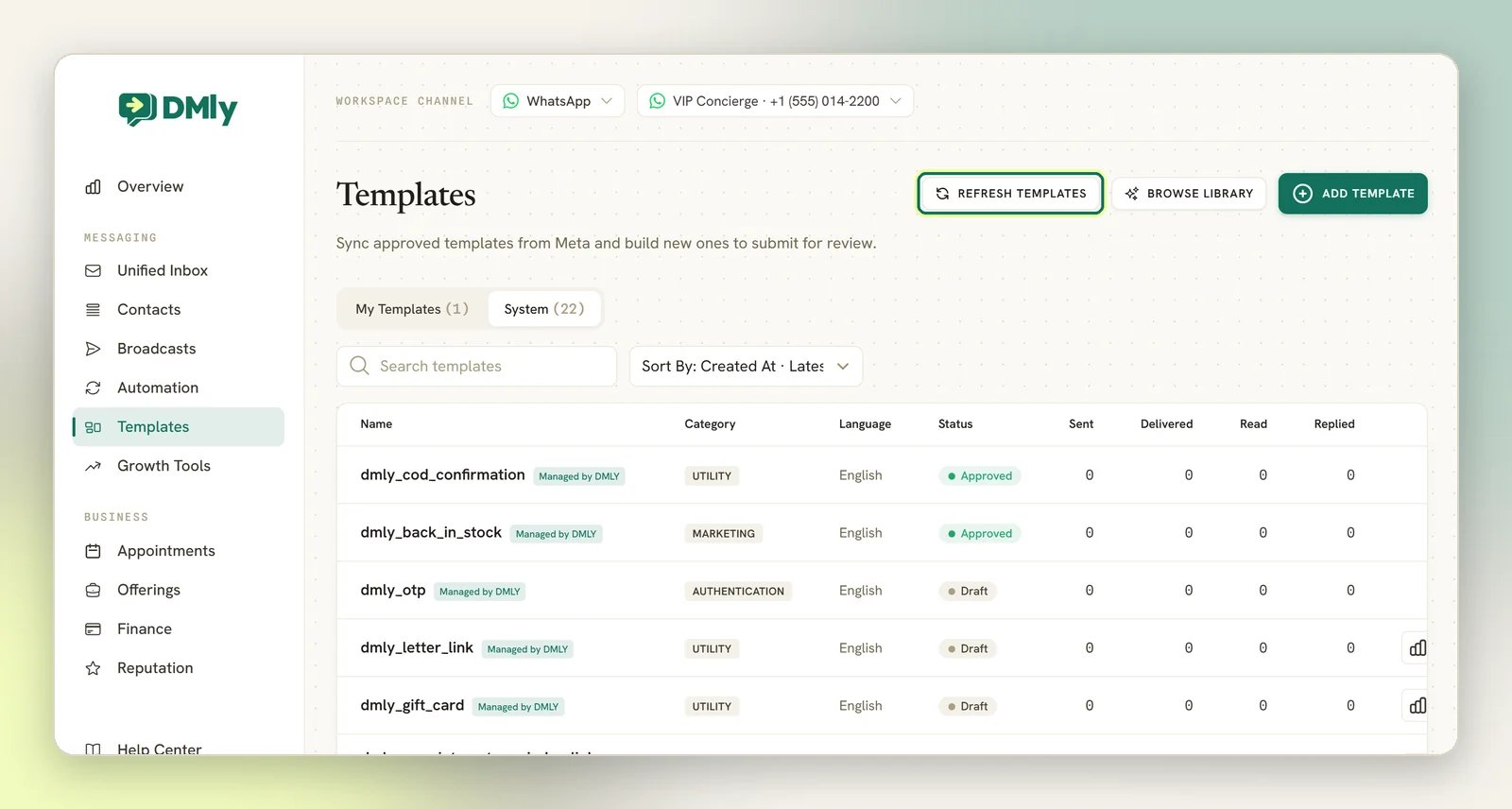
2
Give Meta time, then check again
A genuinely submitted template is waiting on Meta’s review. You don’t have to keep pressing the
button: statuses sync themselves about every ten minutes, so come back to the page later and the
verdict will be there.
3
If templates can't be submitted yet
Templates can only be submitted once a live WhatsApp number is connected. If you connected
recently or the number isn’t fully live, fix that first. See
Connect WhatsApp.
Your own templates for Broadcasts follow exactly the same approval
rule. See message templates.
3. Is the contact reachable at all?
If it works for some contacts and not others, the contact is the variable. DMLY treats a contact as unreachable on a channel if any of these is true:- They opted out. An opt-out blocks messaging on every channel, permanently, until it’s reversed. See contacts and privacy.
- They’re blocked. A blocked contact is never messaged.
- They have no identity on that channel. On WhatsApp this rarely blocks a notification, a flow or an Inbox reply: if the contact has a phone number and a WhatsApp number is connected, DMLY attaches the WhatsApp identity itself at send time. It still blocks when there is no usable phone number, when that number already belongs to another contact on that WhatsApp number, on other channels, and for broadcasts. A broadcast only goes to contacts already attached to its channel.
- The messaging window is closed: check 1 again.
Automated notifications go to WhatsApp whenever they can
DMLY is WhatsApp-first, and that is the routing rule: an automated notification goes out on WhatsApp whenever the contact has a phone number on file and you have a WhatsApp number connected, whatever channel they first came in on. Someone who arrived through Telegram, Messenger or SMS is still reached on WhatsApp once you have their number. When WhatsApp isn’t an option (no phone number on file, or no WhatsApp number connected) or can’t carry the message (no approved template with the window closed), the other channels ticked for that notification pick it up: the channel they came in on, plus SMS or email if you have those switched on. See Notifications. Replies inside a conversation work the other way round. A flow answers on the channel the message arrived on; this rule is only about the notifications DMLY sends on its own. The practical consequence: a contact with no channel at all and no phone number (an imported row with only an email, say) has nowhere for an automated message to go. It is skipped, silently. (A channel-less lead who does have a phone number is fine: if a WhatsApp number is connected, DMLY attaches that phone to WhatsApp and sends there.)4. Permanent or retryable
Once you have an actual failure to look at, the question is whether it will fix itself. Retryable: a rate limit. A rate-limited broadcast is put back in the queue and tried again a few seconds later, and writes nothing to Logs while it waits. A timeout or an outage at Meta is not retried; it is recorded as a permanent failure straight away. Permanent: the send will never succeed as-is, and DMLY records it on the Logs page. A send the channel rejected writes a row startingFailed <platform> send to …, whatever sent it: an Inbox reply, an invoice notification, an AI
reply, a broadcast message, an automation step. An automation step’s message writes a second row
as well, send_failed. It does not name the automation: its details hold the error, the kind,
the flow run’s ID and the step’s node ID (such as n3). If the failure also failed the run, the
Flow run failed — <automation> / <contact> row names the automation. Both carry the raw reason
from Meta, which is what you act on.
Some failures are a missing setup rather than a bad recipient. Where DMLY records the failure
(an Inbox reply or a flow step), the reason tells you which. You find it at the end of the Logs
row (Failed <platform> send to … — <reason>) and in the row’s details. The Inbox bubble
translates only no_credentials, as “The channel is not fully connected.”; the other two show
as the raw code.
An automated notification (a booking confirmation, an invoice) that hits one of these is not
recorded at all: no bubble and no Logs row. If a notification is missing with nothing logged,
check these setups anyway.
All four are workspace setup, not the contact. None of them will resolve on their own.
5. What Logs shows
Open Configurations → Reports and select the Logs tab, then select Filters and set Status to Error. Set Event to Messages: a failed send is logged as a Messages entry with an Error status, not under Errors. Errors is a different category, for faults while processing an inbound message, so filtering there hides the row you came for. Leaving Event on All events works too. Then read the Logs page guide for what the rows mean, but two traps matter here specifically.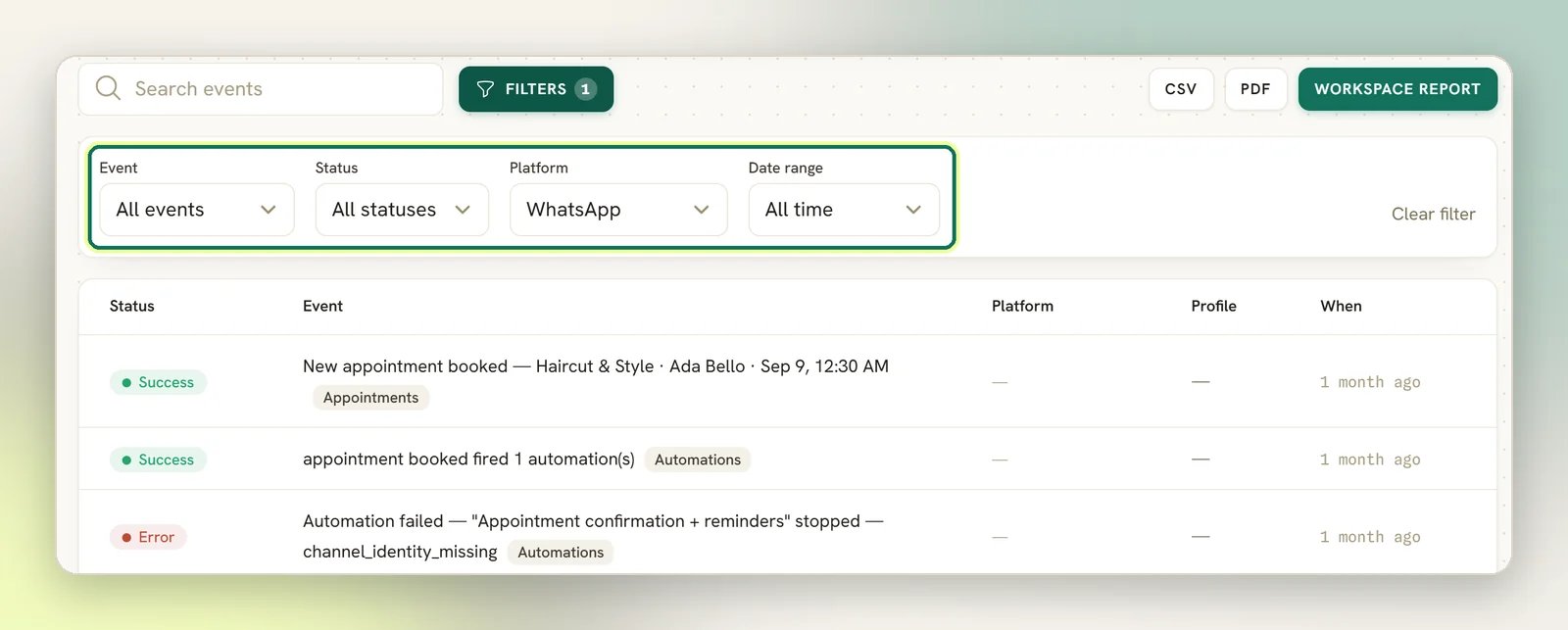
- It was skipped for a pending template with the window closed.
- It was skipped because the contact wasn’t reachable: no record at all.
- It’s mid-retry: nothing is written until it fails permanently.
Next
Reading the Logs page
What a
send_failed row is, and the entries that never appear.WhatsApp limits
The 24-hour window and the messaging tiers, in full.
Message templates
How approval works, and what Meta rejects.
Automation not triggering
When the bot never got as far as sending anything.