

Plan names, prices, limits and trial length depend on which plans your provider offers, so
they aren’t listed here. See Plans for what your workspace is on today.
Open Billing
In Workspace Settings, choose Billing from the left. This page shows Current Subscription Plan, your Usage this billing period, your Add-ons, your Payment Method, and the option to cancel. Receipts, just below it, holds your past invoices.Switch to a different plan
1
Start the change
On Billing, select Change subscription plan.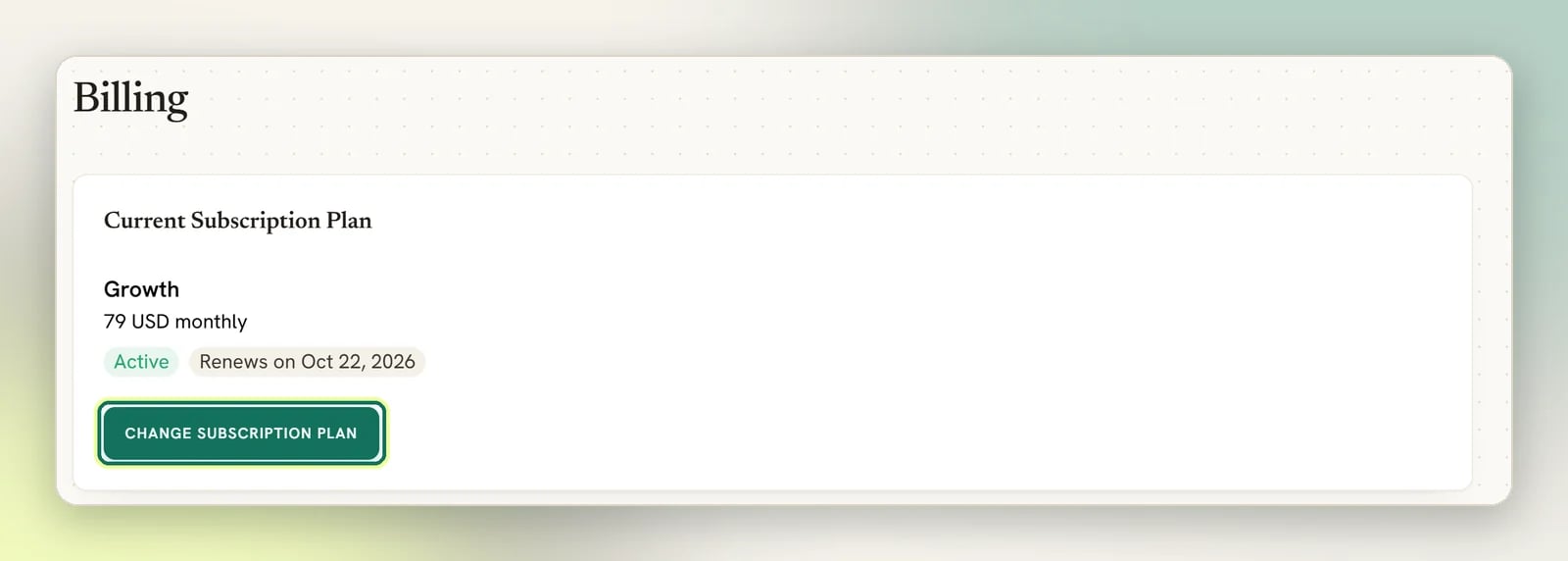
2
Pick the plan and cycle
Choose a plan and whether you’re billed monthly or yearly. As you select a plan, the
panel on the right lists what that plan includes, so you can compare before you commit.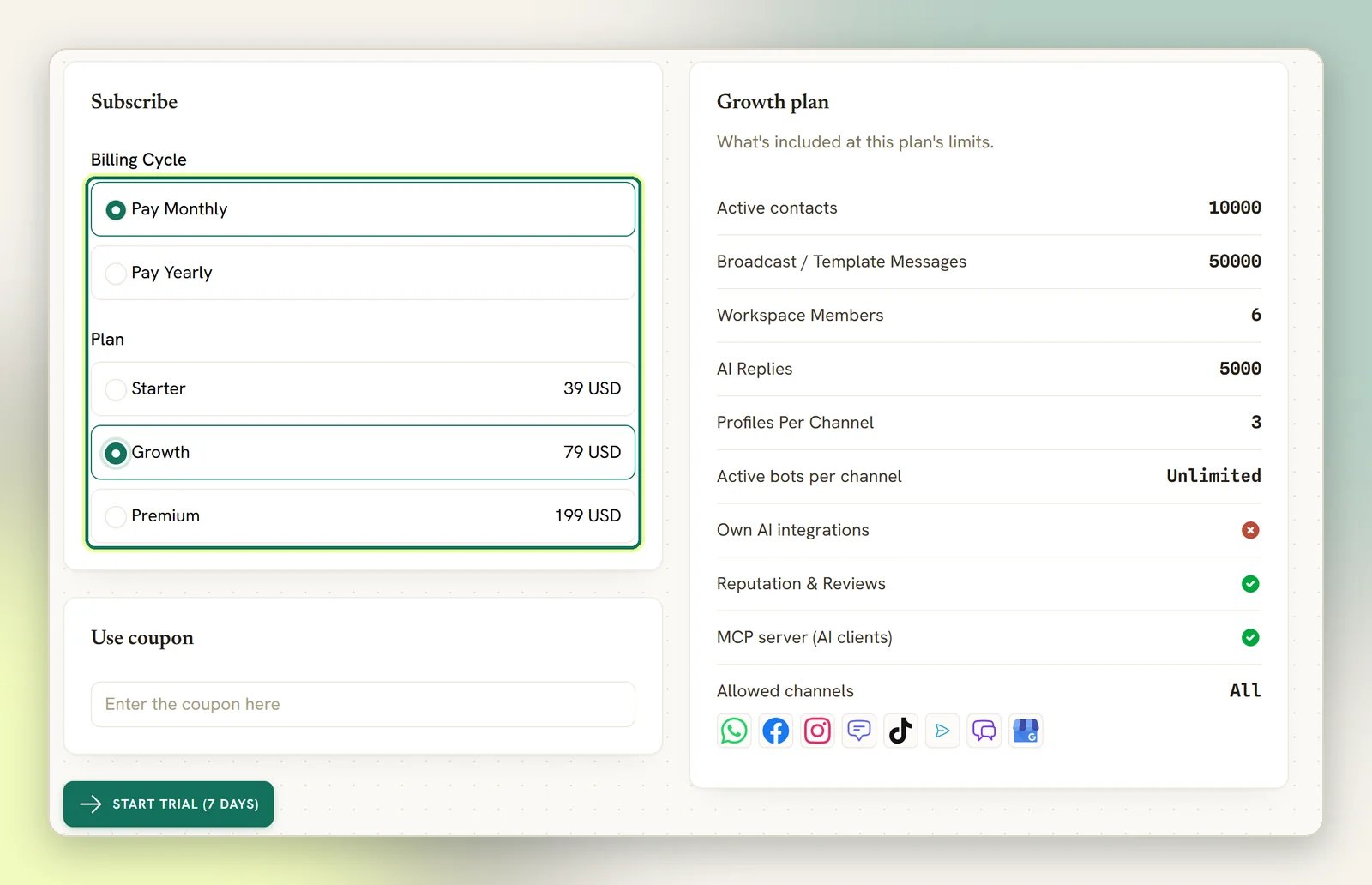
3
Add a coupon
If you’re subscribing for the first time, enter your code in the Use coupon panel: a
text field with the placeholder Enter the coupon here. The panel only appears if your
payment provider supports coupons, and the code is only applied to a new subscription. It
is ignored when you’re swapping between plans on an existing subscription.
4
Confirm
Select the button at the bottom. It reads Change plan when you already have an active
subscription, Subscribe when you don’t, or Start trial when your workspace is
still eligible for a trial. The trial button carries the length in brackets, such as
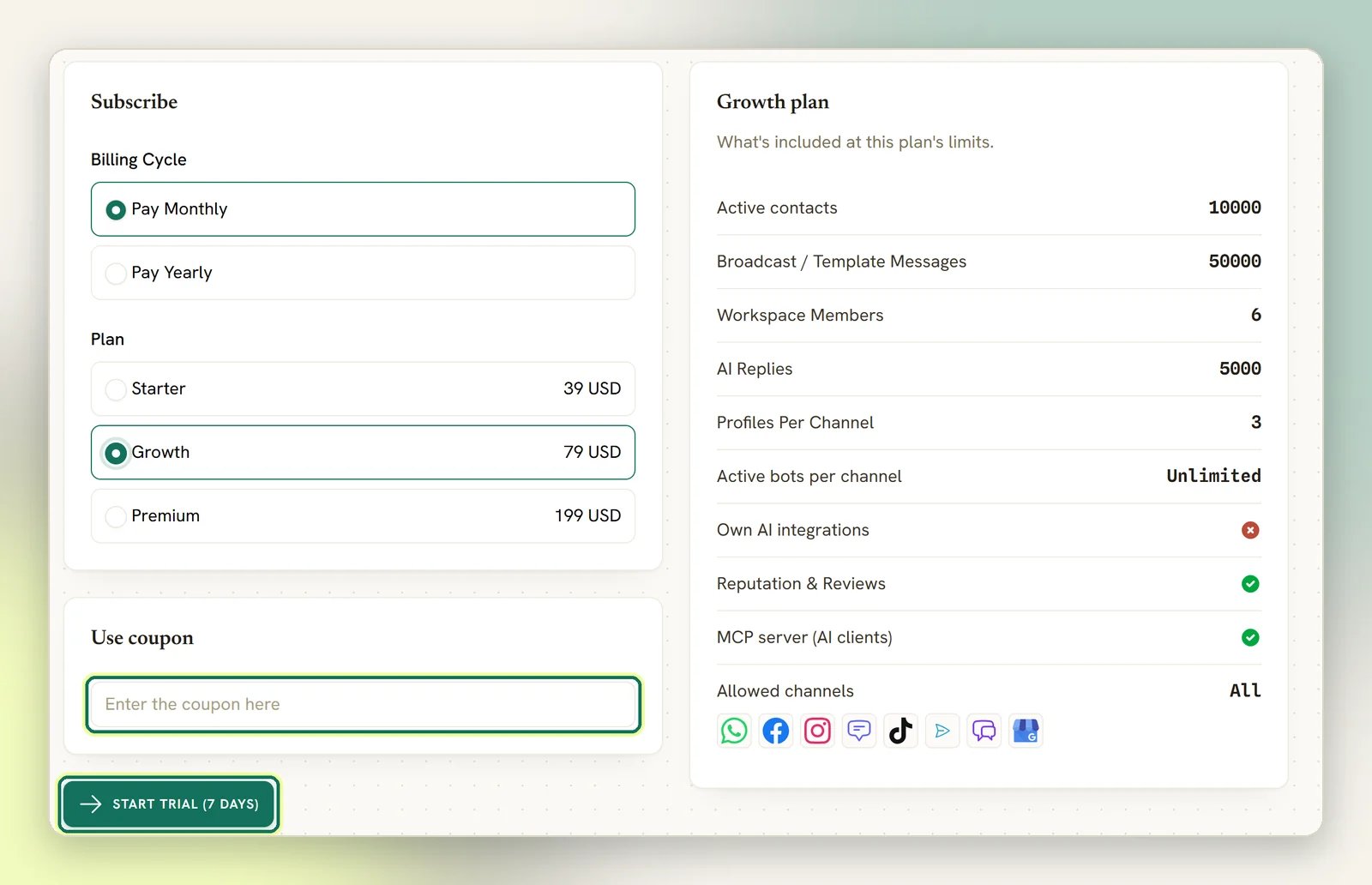
Start trial (7 days). Trial length is a workspace-wide setting, not a per-plan one.5
Finish
If you already have an active subscription, DMLY swaps the plan straight away and returns
you to Billing with Subscription plan changed successfully; there is no checkout
step. If you’re subscribing for the first time, DMLY either sends you to your payment
provider’s checkout or shows a Payment details form, and the change is confirmed by
the payment provider.
If your active payment provider doesn’t support swapping plans, the change is refused and
you’re returned to Billing with To change subscription plan, you need to cancel the
current subscription and create a new one.
Drop to the free plan
If your provider offers a free plan, Billing shows a separate Downgrade to free plan button below the plan change. This ends your paid subscription rather than swapping it for another paid one.What happens if you go under your usage
A plan sets a ceiling on things like connected channels, contacts, team members, broadcast messages, AI replies and active bots per channel, and it switches whole features on or off. Those ceilings are checked when you try to add something new, not on a schedule. So if you move to a plan whose team-member limit is below the number of people you already have, nothing happens to those people, but the next invite fails with Members limit reached until you’re back under the limit or on a bigger plan. The same pattern applies to the other limits.The member limit counts people who have joined, pending invitations, and active bookable
staff who have no login of their own. So after a downgrade, adding such a staff member is
refused as well as inviting. Cancelling an invitation you no longer need, or deactivating a
staff member without a login, frees a place. See
Team members.
Buy capacity instead of upgrading
If you only need more of one thing (contacts, a profile, or a teammate), an add-on is usually cheaper than moving up a whole plan. When add-ons are available to your workspace, they appear in an Add-ons panel on Billing, and each is a separate subscription. Workspaces managed by an agency can’t buy add-ons themselves; their agency grants them.Add-ons
Extra contacts, profiles or teammates on top of your plan.
Plans
What each plan includes and which one you’re on.
I want to stop paying altogether
I want to stop paying altogether
Changing plan and cancelling are separate. Cancel subscription keeps your workspace
active until the end of the billing period you’ve already paid for, and you can resume
afterwards. See Cancelling.
I need to change the card first
I need to change the card first
Select Update payment method on Billing. It sends you to your payment provider’s
portal; DMLY never handles your card details. See
Payment methods.