

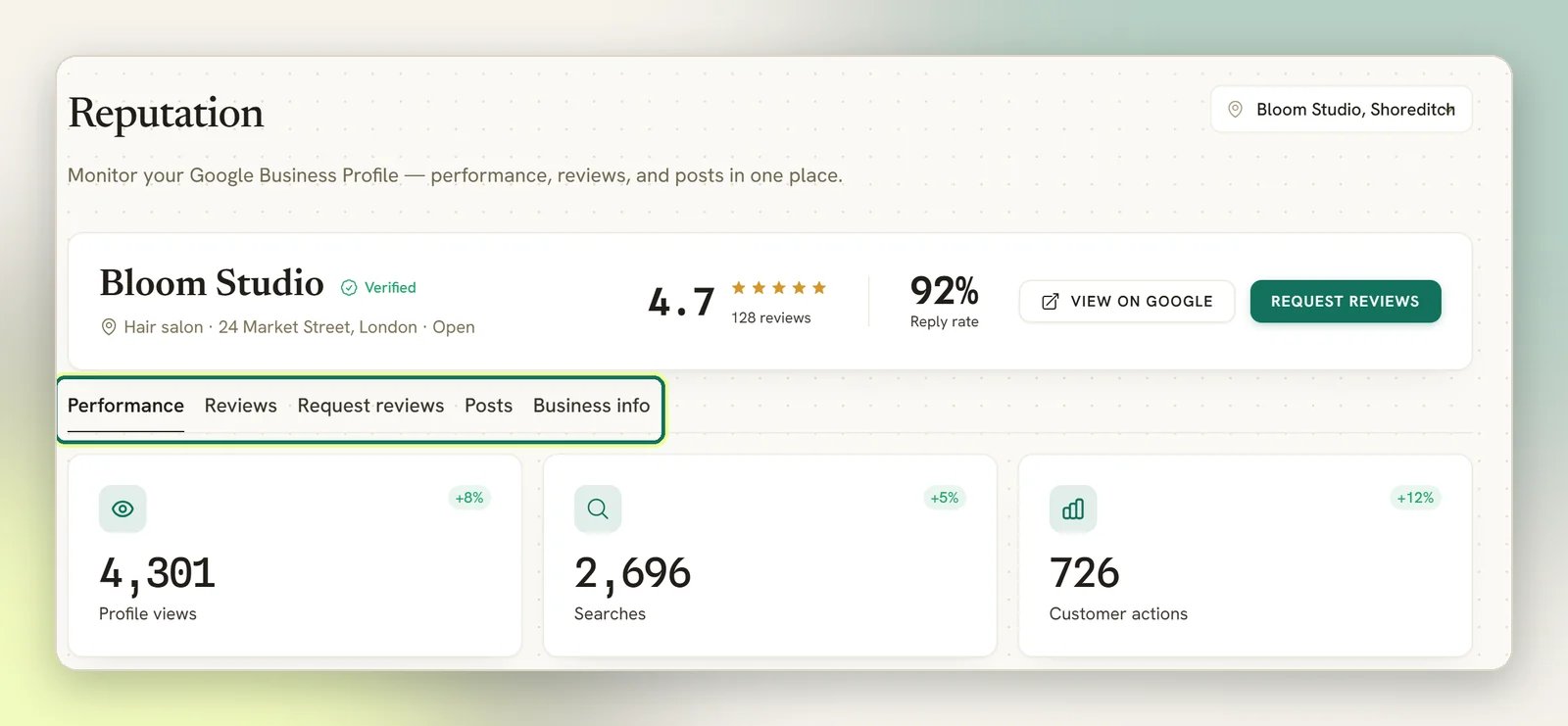
Reputation is on every DMLY plan, Starter included, so if you buy DMLY directly there is
nothing to upgrade for. It is still a per-plan capability, so a workspace on a free plan, or
one whose agency sells a plan without it, sees Reputation & Reviews isn’t included in your
plan. Upgrade to connect a Google Business Profile. and connecting a profile is blocked.
See Plans.
What you can do
Connect your profile
Connect a Google Business Profile as a channel, one per location.
Reviews
Read your Google reviews and post public replies that go back to Google.
Review requests
Send customers a tracked review link on WhatsApp, SMS or email.
Posts and performance
Publish updates, offers and events, and see how people find you.
Before you connect
Every tab works before you connect, but the numbers and reviews on it are made up. You’ll see a Preview badge and a banner reading Connect your Google Business Profile to manage reviews, posts and performance. The data below is a sample. Nothing you see in that state is your business; it’s there so you can look around. Select Connect Google Business Profile to start the real connection. Reputation is one of the few areas that opens with no channel connected at all, so you can reach it before you’ve set up WhatsApp.How it connects
A Google Business Profile is a Channel in DMLY, exactly like a WhatsApp number or a Telegram bot. You add it from Integrations → Channels with the same Add account flow as every other channel, and DMLY caches the ids it needs to talk to Google. Full steps are in Connect Google Business Profile. Because it’s a channel, it’s also a product channel, but a limited one. Google Business Profile is not a social channel and does not support broadcasts. It carries no DMs. Reviews are the only conversation it has.More than one location
Connect one profile per location. When you have two or more, a Switch location picker appears in the page header and everything below it (reviews, review requests, scheduled posts) follows the location you pick. Your choice sticks for the rest of your session. With a single location the picker doesn’t appear at all.Reviews reach you two ways
Reviews land in the Inbox as well as on the Reviews tab. DMLY polls Google and opens each new review as a one-shot thread you can reply to from the inbox, and the Reviews tab syncs the same reviews on its own schedule. You also get a bell notification when a genuinely new review arrives, not for the historical backfill on first connect. Replies posted from either place end up on Google. A reply written in the inbox appears on the Reviews tab once the next sync pulls it back from Google, so don’t be alarmed by a short lag between the two.What Google doesn’t let you do
Business details are the same story: you can edit your Phone, Website, Description and Opening hours from Business info, but not your business name, address or category. Those go through Google’s own verification.Put a WhatsApp button on your listing
Business info has one more control: WhatsApp on Google. Turn it on and Google adds a WhatsApp chat button to your listing itself (in Search and in Maps) so someone can message you in one tap without opening your website first. Pick a connected WhatsApp number (only asked if you have more than one) and select Add WhatsApp button. The panel switches to Button live on Google with the link underneath, so you can confirm which number it points at. Remove from Google takes it back off, after DMLY asks you to confirm.Whether Google offers this attribute at all depends on your business category and region. If
Google turns the change down, DMLY shows you its reason and suggests putting the WhatsApp link
in your Website field instead, which has no such restriction.
Asking for reviews is the WhatsApp part
Request reviews is the only part of Reputation that never talks to Google. DMLY takes your Google review link, wraps it in a tracked short link, and sends that link to your contacts: WhatsApp first, with SMS and email as alternatives. When someone opens the link they land on your Google review page and DMLY records the open. Review requests go out on thedmly_review_request WhatsApp template, which is what lets them
deliver outside the 24-hour window, but only once Meta has approved it. While the template is
still Pending, a request to a customer who hasn’t messaged you in the last 24 hours is
dropped silently and still counted as Sent and Delivered. Check the template’s status
before you run a campaign. See Message templates.
A contact is marked Failed if they have no identity on that channel (or no valid email
address), or if they’ve opted out. Beyond that, a WhatsApp request sends to any of those
contacts who have a phone number on file and a connected WhatsApp number to send from. The
channel they normally talk to you on doesn’t decide it: a contact who chats with you on
Instagram, but who also has a WhatsApp identity, gets the request on WhatsApp. Contacts with no
phone number on file are dropped silently and still counted as Sent.
Every send fires the Review request sent automation trigger, so you can chain a follow-up.
See Triggers.
You can also drop the Request Google review step into any flow yourself. It never ends the
conversation: whether the request sends, is skipped, or fails, the flow carries on.
Two stats that don’t mean what they say
Delivered records the moment DMLY handed the message to the sending channel, not the moment it reached the phone. It equals Sent minus the requests that failed: Sent counts every request row, failures included, so the two cards only match when nothing failed. Nothing feeds real delivery receipts back into it.Where to go next
Connect Google Business Profile
Start here: everything else needs a connected profile.
Setup checklist
The wider set-up order, including WhatsApp.