

In-app alerts and client messaging are two separate systems. As the settings page puts it:
In-app alerts show up in your DMLY notification centre. They keep your team informed and don’t
message clients. To change what your contacts receive on WhatsApp, SMS or email, see
Notification settings.
The bell is a third system again, separate from the Inbox’s own new-message chime and desktop
notifications, which are per-browser and can’t be turned off by an admin. See
New messages and sound.
Workspace switches and personal push settings
The on/off switches on the In-app alerts tab are set per workspace, not per person. If you turn New conversation off, it goes off for every member of the workspace. What you have read is yours alone: marking an item read clears it for you and nobody else. If you use the DMLY mobile app, every bell alert is also pushed to your phone. There, each person sets their own push preferences per workspace in Settings > Notifications: which events to be told about (Notify me about), a Push switch for the device, and a Daily digest. Replies on existing threads also push to the assigned person (or to the team when nobody is assigned) without adding a row to the bell.Where the bell lives
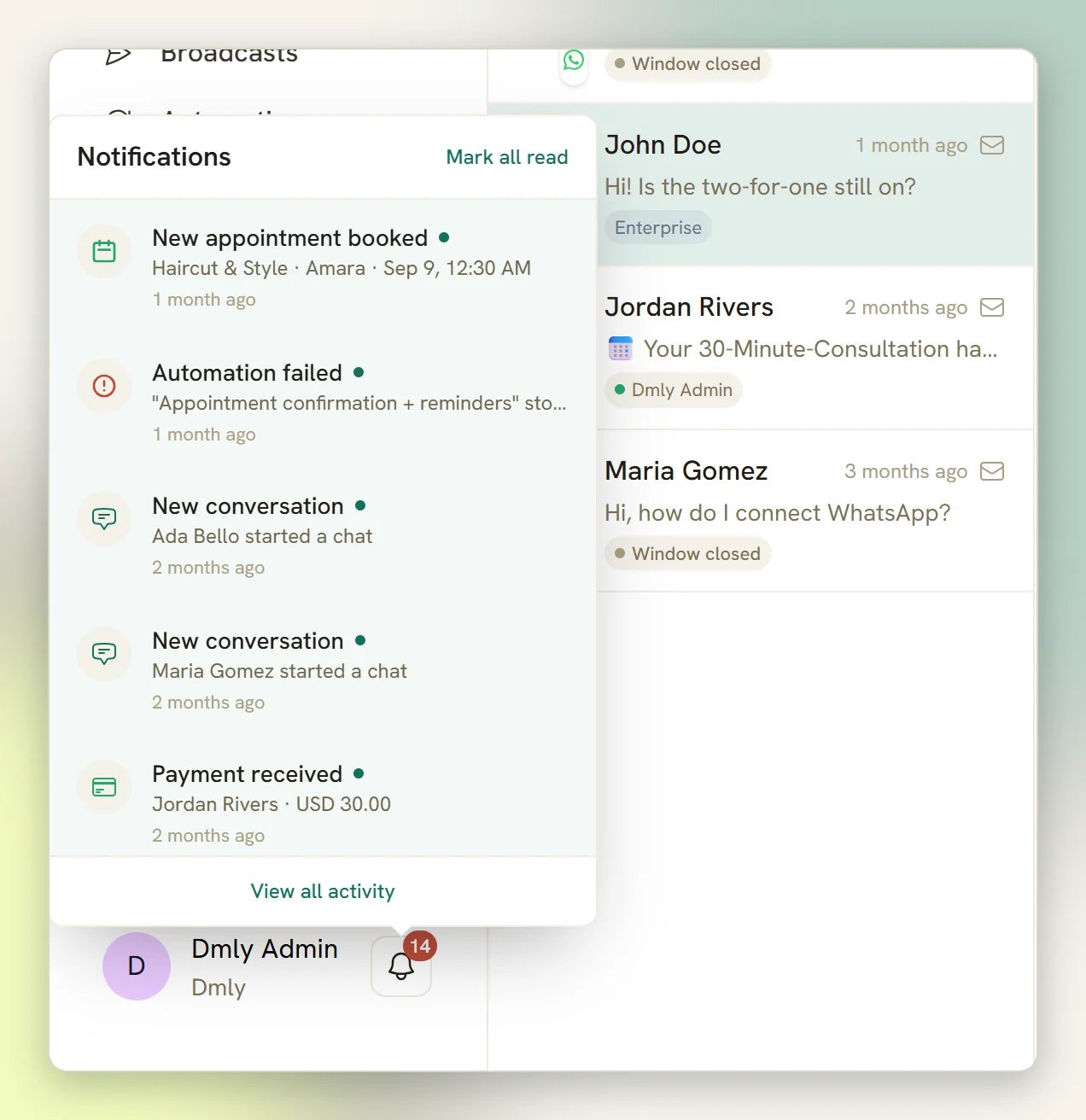
99+). Select the bell to open the feed, then:
- Select an alert to mark it read. New conversation, Conversation assigned to you and You were mentioned open the conversation itself. Appointment, review and automation alerts open the relevant module list rather than the individual record, and the two active-contacts alerts open your Contacts page. Transfer claimed and Payment needs review open Finance > Payments. The other three invoice and payment alerts (Invoice sent, Payment received, Payment failed) carry no link at all, so selecting one only marks it read.
- An alert raised in another workspace carries that workspace’s name as a small chip next to its timestamp. Selecting it switches your active workspace before it opens the item, so you can land somewhere other than where you started.
- Select Mark all read to clear the count. It clears unread across every workspace in the feed, not just the one you are looking at.
- You’re all caught up. means the feed is empty.
View all activity at the bottom of the feed opens Logs. It is not an
archive of the bell: Logs records what DMLY did, not the alerts you were shown. It always opens
Logs for the workspace you are currently in, whichever workspaces the alerts above it came from.
What lands in the bell
Seventeen events can create an alert.
“Everyone in the workspace” means every active team member, except a
member whose profile access leaves out the channel the event happened on. Owners and admins are
never limited this way. Invoice sent
is the only alert that starts off; turn it on if your team wants a heads-up on every invoice
leaving the workspace.
The two active-contacts alerts only exist on a plan that meters active contacts, and DMLY checks
once a day rather than the moment you cross the line. Each threshold alerts at most once a week,
and re-arms once you drop back under 90%. Crossing either line never blocks a contact, an import or
an inbound message; the alert and the usage gauge on the Contacts page are the whole of it. See
Plans.
Who controls what
You control
Which alerts you’ve read, and (if your workspace uses WhatsApp calling)
whether you’re available to take calls.
An admin controls
Which of the seventeen events fire at all, for the whole workspace, plus everything on the client and
staff messaging side.
Turn an alert on or off
1
Open the Notifications settings
Go to your workspace Settings and open the Notification settings tab. The page it opens
is headed Notifications.
2
Switch to In-app alerts
The page has two tabs. Client & staff messages is what your contacts and staff receive over
WhatsApp, SMS and email. In-app alerts is the bell.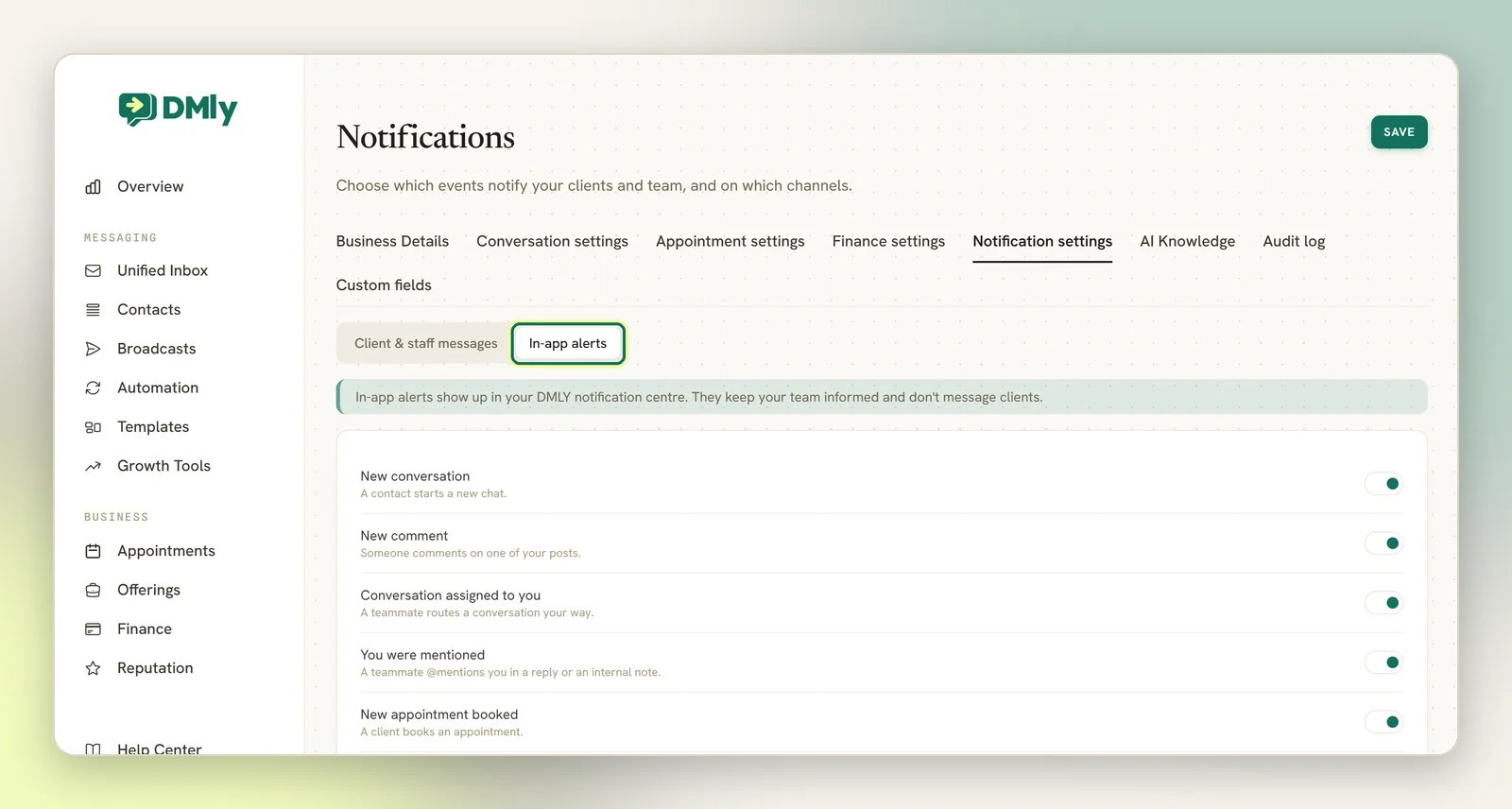
3
Toggle the events you want
Each of the seventeen alerts has a switch. Turning one off stops it for everyone in the workspace.
4
Select Save
Nothing applies until you save.
Troubleshooting
An alert never arrived
An alert never arrived
Check the In-app alerts tab first; someone in your workspace may have switched that event off
for everybody. Also check the alert’s audience in the table above: Conversation assigned to you
only reaches the assignee, and You were mentioned only reaches the people tagged.
Alerts only show up when I change pages
Alerts only show up when I change pages
New alerts normally appear without a refresh. If yours only appear when you navigate, real-time
updates aren’t reaching your browser. Nothing is lost, the alert is still there, it just arrives
late. Report it if it persists; see Logs.
I want a teammate notified on WhatsApp, not just in the bell
I want a teammate notified on WhatsApp, not just in the bell
That’s the other system: staff notifications live on the Client & staff messages tab.
Staff appointment confirmation and Staff appointment updates already go out over WhatsApp
and email by default. Staff new conversation is the one that ships off, because it can get
noisy. Switch it on there. See Notification settings.