

The four switches
Opt-out and blocked are the two that count as suppression. Both appear on Contacts →
Suppressions.
How a contact opts out
A contact opts out by sending one of these words as their whole message:stop · stopall · stop all · unsubscribe · cancel · quit · end · opt out · optout
The match is exact. “cancel my appointment tomorrow” does not opt anyone out, because the
message is not only the word cancel. But a contact who replies with just cancel (meaning
their booking, not your marketing) is opted out immediately and silently.
The list is the same on every channel. Telegram also accepts its /stop command on top of it.
Opt-out lives on the contact, not on one channel. A contact who sends STOP on WhatsApp is
opted out on Instagram, Telegram and SMS too, because it is one person
record with several channel identities. See Contacts overview.
start, unstop, subscribe, opt in or optin. On
Telegram, /start works as well. These are only honoured while the contact is already opted out;
a contact who has never opted out cannot “double opt in” by typing subscribe.
You can also clear it yourself with Resubscribe on Contacts → Suppressions. Only do that
when you have a record of the contact asking.
What opting out actually stops
At the moment a contact opts out, DMLY immediately:- cancels any Flow they are currently running
- stops any Sequence they are enrolled in
- Broadcasts: opted-out contacts are still counted into the audience unless you tick Reachable contacts only; the send itself is refused at the channel sender, so they land in the broadcast’s failed count rather than receiving the message
- Sequences: due steps skip them
- Automations: the send step refuses, and any “can I reach this contact?” check returns no
- Booking reminders: appointment reminders are not sent
Manual replies are refused too
An agent who replies by hand to an opted-out contact gets an error instead of a sent message: “This contact opted out of messages — resubscribe them before replying.” The mobile app and the MCP send tools get the same words. The public API refuses with the same message ending “before sending.” The check runs on the server, so it covers every one of those, and a payment link sent from the Inbox is refused too. That includes a contact who unsubscribed from your offers but is still mid-conversation about an order. To carry on, the contact must opt back in by sendingstart, or someone must
Resubscribe them on Contacts → Suppressions. Only resubscribe someone when you have a
record of them asking.
The Unsubscribe tag
Every workspace ships with one tag called Unsubscribe, and DMLY keeps it in step with opt-out automatically: it is attached when someone opts out and removed when they opt back in, on every channel, Telegram included. That tag is why you cannot rename or delete it. The UI says so directly: “This tag is required for opt-out compliance and can’t be renamed.” Its practical use is in Segments. Add Unsubscribe to Exclude contacts with tags and the segment drops those people by tag as well as by timestamp: belt and braces on any audience you reuse. See Tags and segments.Blocking
Blocking is a different axis from opt-out and is done from the conversation in the Inbox, not from the contact’s page. It sets the contact’s status to blocked and pauses their bot in one move, and automations treat a blocked contact as unreachable. Like opt-out, blocking stops manual replies, and it makes that plainer. The composer is hidden, and a request that gets sent anyway is refused by the server; the same goes for payment links. The conversation shows the contact is blocked, with the note ”— replies are disabled. Unblock from the details panel to message again.” The difference is who decides and what else it does. Opt-out is the contact’s own request. Blocking is your decision, and it also pauses the bot. Both are reversible. Use blocking for spam, abuse and time-wasters. Use opt-out for consent. A contact can be both, and the Suppressions list shows both.Unblocking does not resume the bot. Blocking pauses the bot as well as setting the status,
but unblocking only restores the status. If you want the bot answering that contact again, use
Resume bot reply on their page as well.
The Suppressions list
Contacts → Suppressions is a filtered view of “Blocked and unsubscribed contacts — no automated messages are sent to them.” Filter it by Blocked or Unsubscribed.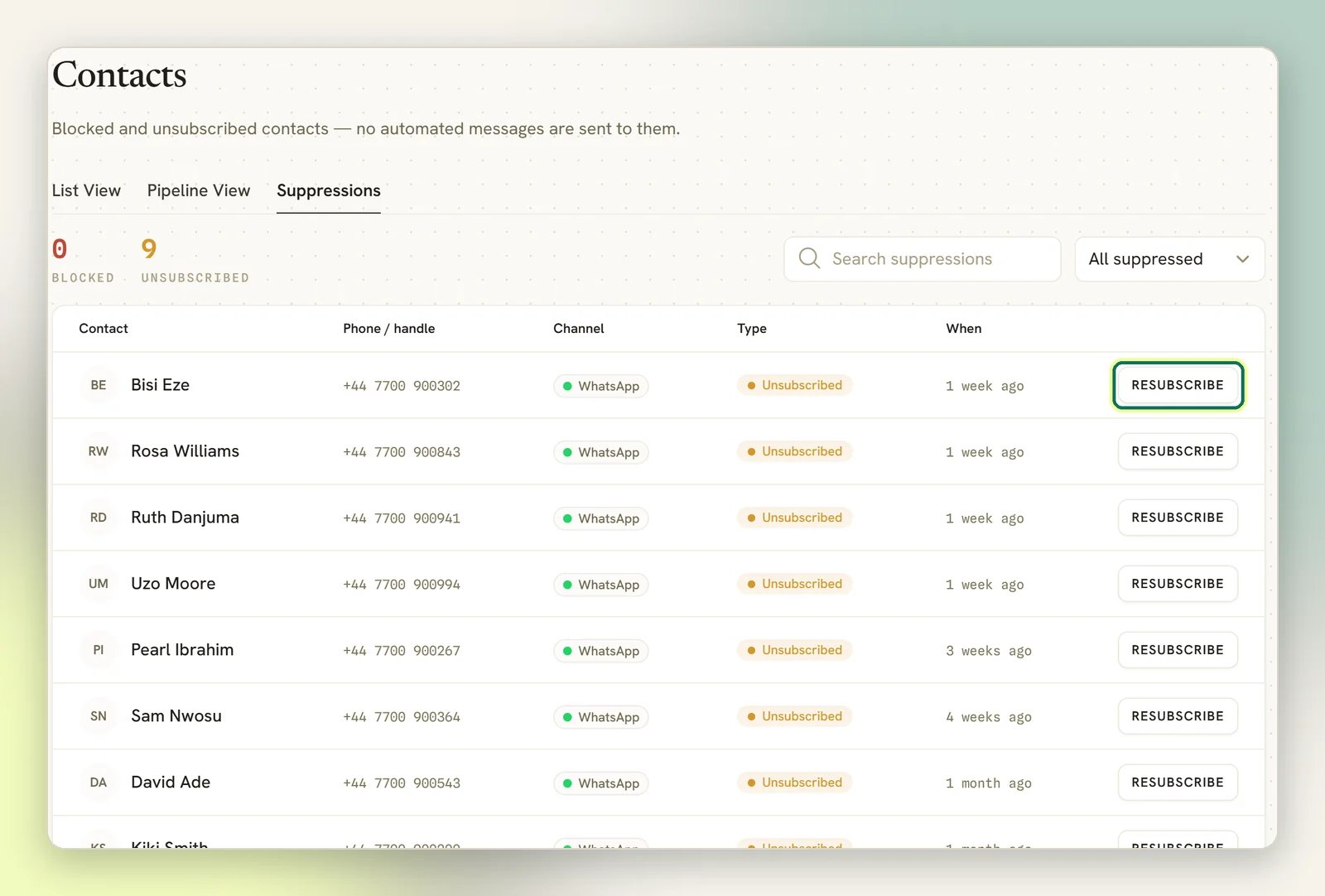
- Unblock: clears the blocked status
- Resubscribe: clears the opt-out and removes the Unsubscribe tag
Opt-out and blocking both survive a merge. If you merge two duplicate contacts and either one
had opted out, the surviving contact is opted out, with the earlier of the two dates; if either
one was blocked, the survivor is blocked. WhatsApp calling consent goes the same way: per
connected number, if either profile had declined calls, the survivor is left declined. Neither
consent nor a block is lost by tidying up your records.
Bot paused
Pause bot reply on a contact’s page is not a consent control. It is a human hand-off: it stops automations, sequences and booking reminders for that one contact while a person deals with them, and Resume bot reply puts them back. It has no bearing on whether the contact consented to anything.Exporting a contact’s data
Contacts → Export streams a CSV of your contacts, honouring the channel filter you have applied. It needs the export permission. See Roles and permissions. The file has exactly seven columns, the same seven the importer reads:name, country_code,
phone, tags, stage, notes, custom_fields. The country_code column is always written
empty; the full number is already in phone, so a round trip back through
CSV import still works.
If you need to answer a data request properly today, you have to assemble it by hand from the
contact’s page (Profile, Custom fields, Activity timeline, Channels, Internal notes and the
conversation itself) or pull it through the API, which exposes
considerably more of the record than the CSV does.
Deleting a contact
Delete contact (in the contact’s ⋯ menu on the Contacts list, or on the Pipeline board) reaches further than the name suggests. It removes the contact and cascades to their channel identities, their whole message history (the photos and files exchanged in those conversations are deleted from storage as well), their internal notes, their client profile, their tags, their uploaded documents, any letters generated for them, and their family links. DMLY then sweeps every one of its own tables that stores the contact’s id, around 38 of them, so the person is not left behind in a table nobody thought to name: their flow runs and captured answers, their conversation events, their broadcast and sequence enrolments, their calls and CSAT responses all go with them. The confirmation saysDelete {name}? This cannot be undone., but for 30 days that is not quite
true: the contact can be restored from Recently deleted.
Finance and booking records go too
That sweep includes the money and the diary. Deleting a contact destroys:- their invoices, and the payments recorded against them, refunded ones included
- their orders, their subscriptions, and any saved payment method
- their appointments and their places in any class, past as well as future
- their account statement, credit balance and loyalty ledger entries
- their coupon and gift card redemptions, and their review requests
Recently deleted
Every ordinary delete keeps a recovery copy for 30 days. That covers a single delete, a bulk delete, a delete through the API, and the contact merged away in a merge. Open Recently deleted from the Contacts header. It reads “Contacts deleted in the last 30 days. After that they are gone for good.” It needs the same delete permission. Each entry has two actions:- Restore brings back the contact and the records deleted with them: message text, notes, invoices, payments, bookings and the rest. Attachments and document files do not come back, because they were removed from storage at the time of the delete.
- Delete permanently destroys the recovery copy at once, with nothing left to restore.
What DMLY does not have
Being straight about the gaps is more useful than implying coverage:- No contact-facing privacy page. There is no “request my data” or “delete my data” link you can give a contact. Shopify is the exception: with Shopify connected, DMLY handles Shopify’s customer data requests and customer redaction requests automatically. On a redaction, a contact who came only from the store and never wrote in is deleted (with the usual 30-day copy in Recently deleted), and any other matched contact has its store details redacted. Every other request is handled by you, by hand, in the dashboard.
- Only a partial consent record. DMLY records a STOP as a withdrawal, with the word the contact used, when it has a WhatsApp number or phone number for them. It records an opt-in in full only when it came through a WhatsApp popup growth tool: the consent wording shown, the page, the time, a hashed IP address and the browser details. The dashboard does not show that record. What the Inbox does show is a Consent given date in the conversation’s details panel, for a popup opt-in and for a visitor who ticked the consent box on the Live Chat pre-chat form. Other opt-in routes are not recorded. For proof of consent from any other route, keep it in a custom field or a note.
- No retention schedule for contacts. A contact is never aged out for being old. The one automatic deletion is archiving: an archived conversation, and a contact left with no other conversation, is removed 30 days later. See Conversation status.
DMLY does handle Meta’s data-deletion callback, but that is about a connected social account
(an owner disconnecting their Facebook or Instagram login), not about a contact in your CRM. It
never deletes CRM contacts.
Practical rules for a compliant workspace
1
Let STOP do its job
Do not delete the Unsubscribe tag or try to work around opt-out. It is wired into every
send path already, manual replies included.
2
Add Unsubscribe to your exclusions
Put it in Exclude contacts with tags on any Segment you use for
Broadcasts. Redundant, but free.
3
Tell your team what a refused send means
The composer stays open for an opted-out contact, but the send is refused. Resubscribe the
contact only when they have asked to hear from you again.
4
Delete on request, and only on request
It takes the message history, the invoices and the payments with it, which also moves your
revenue totals. Restore works for 30 days but does not bring back attachments or
documents. For an erasure request, finish with Delete permanently in Recently
deleted. Download the invoice PDFs and anything else you are legally required to retain
first.
5
Never send the export as a data request response
Seven columns is not the record. Build the answer from the contact’s page or the API.
Tags and segments
Use the Unsubscribe tag to keep opted-out people out of an audience.
Contacts overview
How one person record spans several channels.
Broadcast audiences
Who a campaign actually reaches once suppression is applied.
Roles and permissions
Restrict who can export or delete contacts.