

Before you start
You need a connected Google Business Profile; the review link comes from it, and there is nothing to send without one. Until you connect, Request reviews shows sample numbers badged Preview and the send button is disabled with Connect your Google Business Profile to send review requests. Review requests are part of the Reputation & Reviews plan feature. Without it, both the connect button and the flow node are blocked.Connect your profile
Connect a Google Business Profile before you send anything.
Plans
Check whether Reputation & Reviews is on your plan.
Send requests by hand
1
Open Request reviews
Go to Reputation → Request reviews.
2
Pick the customers
Under Recipients, use Search contacts to add… to build the list. You can send to up to
200 contacts at a time.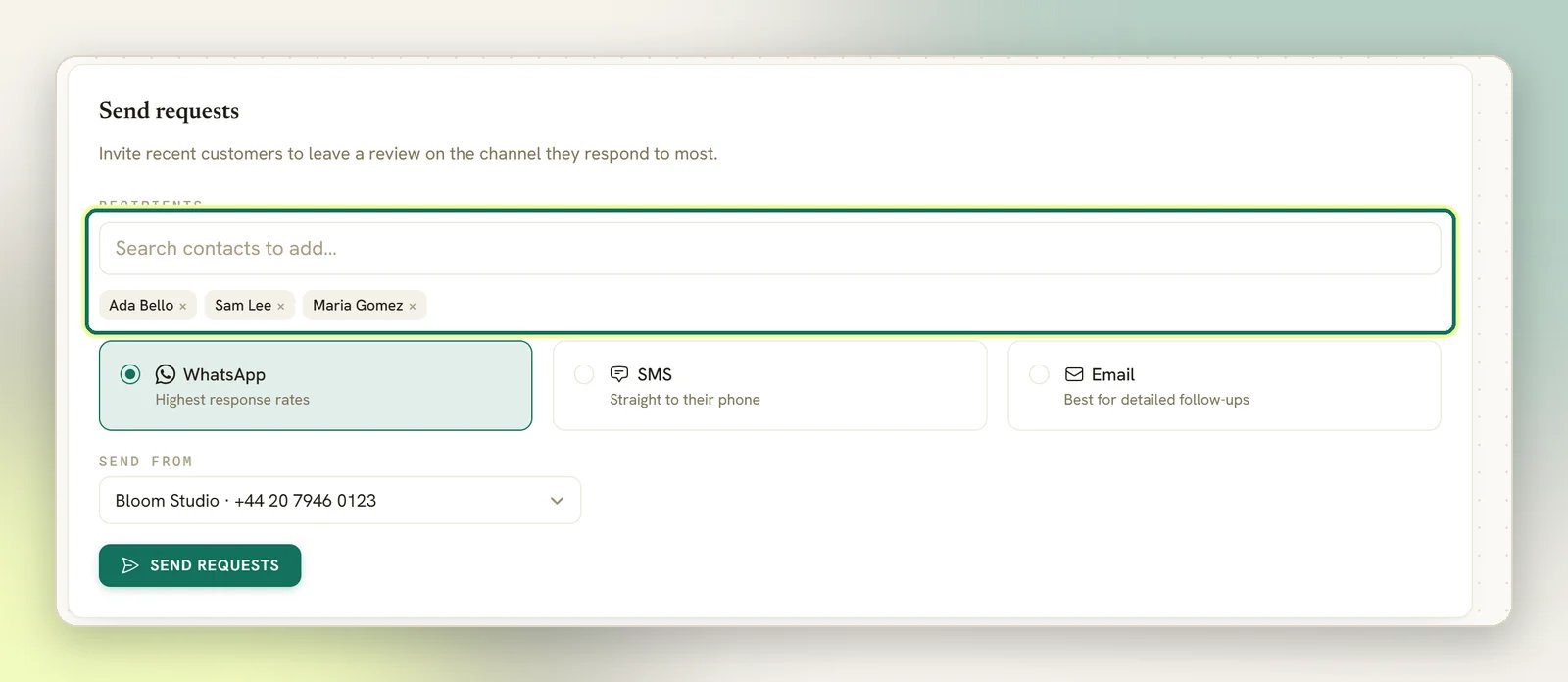
3
Choose the channel
Pick WhatsApp, SMS or Email. Whichever you pick is the channel that sends; this is
a send you asked for, so it isn’t filtered by your notification settings.
4
Choose which number it comes from
If you have more than one WhatsApp number connected, a Send from picker appears. It only
shows for WhatsApp.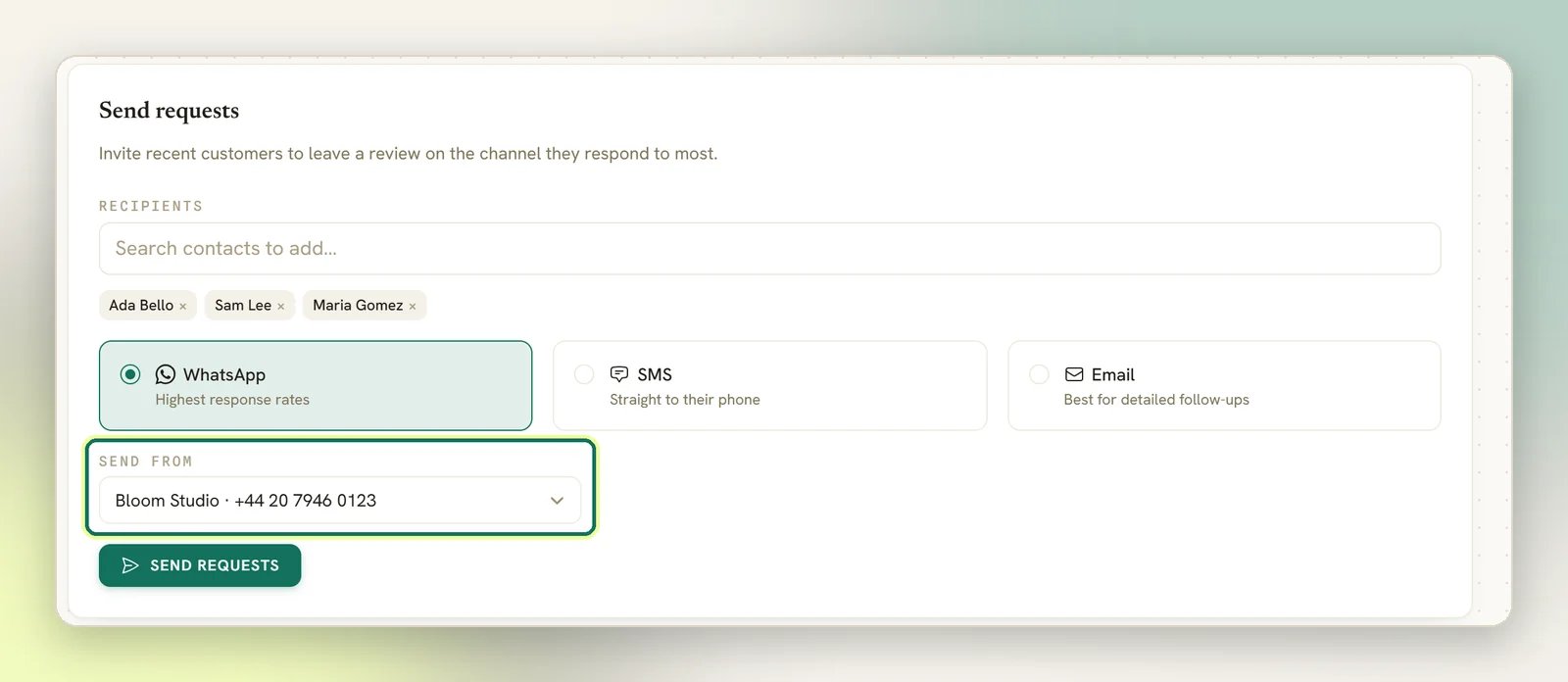
5
Send requests
Select Send requests. DMLY tells you how many went out and how many “couldn’t be reached on
that channel.”
Which channels actually deliver
- WhatsApp: the request goes out on the Meta-approved
dmly_review_requesttemplate, which delivers outside the 24-hour window. That matters: you usually ask for a review days after the last message, when a freeform reply would be blocked. - SMS: sends if you have SMS set up.
- Email: available from the Request reviews tab only. The flow node cannot send email.
Requests are always scoped to the active location (the one selected in Switch location when
you have more than one). If you disconnect a location, its requests stop showing, even when only
one location remains. Nothing is deleted.
What marks a request Failed
A request is marked Failed when DMLY doesn’t know how to reach the contact on the channel you picked:- WhatsApp or SMS: the contact needs an identity on that channel. A contact with no WhatsApp identity cannot be asked on WhatsApp, whatever else is on their record.
- Email: the contact needs a valid email address.
- Opted out: a contact who has opted out is never sent a request, on any channel.
dmly_review_request template isn’t approved yet and the customer hasn’t
messaged you in the last 24 hours, if the contact has no phone number on file, or if Meta rejects
the send. The contact’s active channel doesn’t matter: a contact who talks to you on Instagram but
has a phone number is asked on WhatsApp. Your logs are where the real outcome is recorded.
Read Opened first
The Request reviews tab shows four numbers. Only Opened is a direct measurement:- Opened is real. It is counted by the tracked link (
/r/<token>) in the message, which redirects to your Google review page and records the first open. No Google data is involved. - Sent counts request rows, not messages that went out. It includes the ones marked Failed, so the contacts DMLY just told you “couldn’t be reached on that channel” are inside the number. A row also counts as sent whenever the send didn’t raise an error, and a WhatsApp send can be dropped without raising one. Read it as “DMLY created the request and nothing errored”.
- Delivered is stamped the moment DMLY hands the message off, not when the customer’s phone receives it. It equals Sent minus the requests that failed.
- Responses counts requests linked to a review. When a new review syncs, DMLY looks for
requests (sent or opened, not yet linked) sent in the 30 days before it. The reviewer’s name has
to match the contact’s: exactly, by first name with a matching surname or initial (“Sam T.” for
“Samantha Taylor”), or closely enough. An anonymous “Google user” never matches. If exactly one
request fits, it is linked as Likely attributed. If two or more fit, none is. (The
74you see before connecting is sample data.)
To check whether your messages are landing, use Opened and your
logs; those are the two that reflect what actually happened.
Google never tells DMLY who wrote a review, so a link is a best guess. The Attribution column
in recent requests shows Confirmed, Likely attributed, Linked by hand or Not
attributed. Use Correct to link, re-link or unlink a request; each change goes in the audit
log. For the overall picture, use Reviews and the rating trend there.
Ask automatically with the Request Google review node
Add a Request Google review step to any flow to ask without lifting a finger. It has two settings:- Send on: Contact’s active channel (the default), WhatsApp or SMS. On the default, DMLY sends on WhatsApp unless the contact’s active channel is SMS.
- Review template: the WhatsApp template used for the request. Default review template uses the customer name, business name and review link. Hidden when Send on is SMS.
Route happy customers to Google
Asking everyone for a public review is how you collect one-star reviews. The shipped Post-chat CSAT → Google review template handles the sorting for you:- An agent replies to a customer in the Inbox.
- An hour later, the customer gets a 5-point rating question on WhatsApp.
- ★ to ★★★: the conversation is assigned to a person to put things right.
- ★★★★ or ★★★★★: the customer gets a thank-you, then the Request Google review step.
The template’s review step is set to Contact’s active channel, which for a WhatsApp
conversation means WhatsApp. You don’t need to change it.
The shareable review link
The Review link at the top of Request reviews is your raw Google review URL. Copy it into a receipt, a bio or a poster. It works anywhere, but it isn’t tracked: opens are only counted for requests DMLY sends.Print assets: a QR code for the counter, door or table
Print assets, further down Request reviews, turns the same review link into a tracked QR code and hands you three ready-made print designs. That’s for whenever a WhatsApp message isn’t the ask, like a walk-in customer at the till.1
Generate the QR
Select Generate review QR. DMLY mints one QR code for the connected profile: a single
scan target every design below shares.It’s stored as a growth tool on the connected Google profile, so a card
for it also turns up under Growth Tools whenever that profile is selected. Download its
designs from here, not there, and don’t delete the card there: that removes the review QR.
2
Download a design
Pick a template and select Download PDF: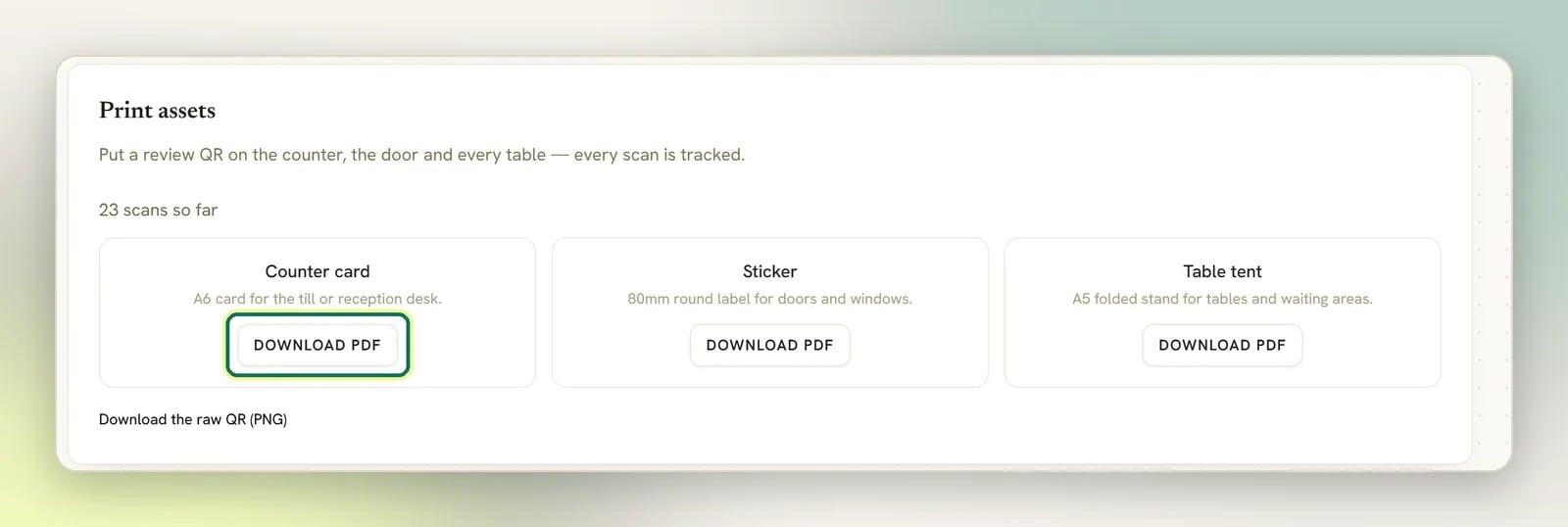
- Counter card: an A6 card for the till or reception desk.
- Sticker: an 80mm round label for doors and windows.
- Table tent: an A5 folded stand for tables and waiting areas.
Generating the QR needs the Send review requests permission. Without it, the card reads
Ask an admin to generate the review QR instead of showing the button. The same permission
is needed to send requests by hand, above, and to correct an attribution. See Roles and permissions.
Every request comes back as Failed
Every request comes back as Failed
You picked a channel the contacts can’t be reached on. Sending on WhatsApp to contacts who have
never messaged you on WhatsApp fails for all of them. Check the contact has an identity on that
channel, or send on the channel they actually use.
No Google review link yet — reconnect your Business Profile to fetch it
No Google review link yet — reconnect your Business Profile to fetch it
DMLY fetches your review link from Google the first time it needs it. This message means the fetch
hasn’t succeeded, usually an expired connection. Reconnect under Integrations → Channels and
try again. You’ll see the same message if you try Generate review QR before the link has been
fetched.
Reviews
Read and reply to the reviews you collect.
CSAT
How the rating question works and what it reports.