

Before you start
Growth tools live in the sidebar under Messaging → Growth Tools. Two other things gate the page:- You need a connected channel. With none connected, the page shows a prompt to connect one instead of the grid. See Channels.
- Your role needs the permission. Growth tools sit behind their own permissions: viewing them and creating or editing them are separate. If a team member can’t see Growth Tools in the sidebar at all, that’s why. See Team members.
Create a growth tool
1
Select the right profile
Pick the channel you want people to land in from the channel bar at the top. The modal
has no channel picker; it creates the tool for whatever profile is selected, and the
page confirms this with Created for the profile selected in the channel bar above.Lead with WhatsApp. It’s the channel most people already have open.
2
Open the modal
Go to Messaging → Growth Tools and select New growth tool.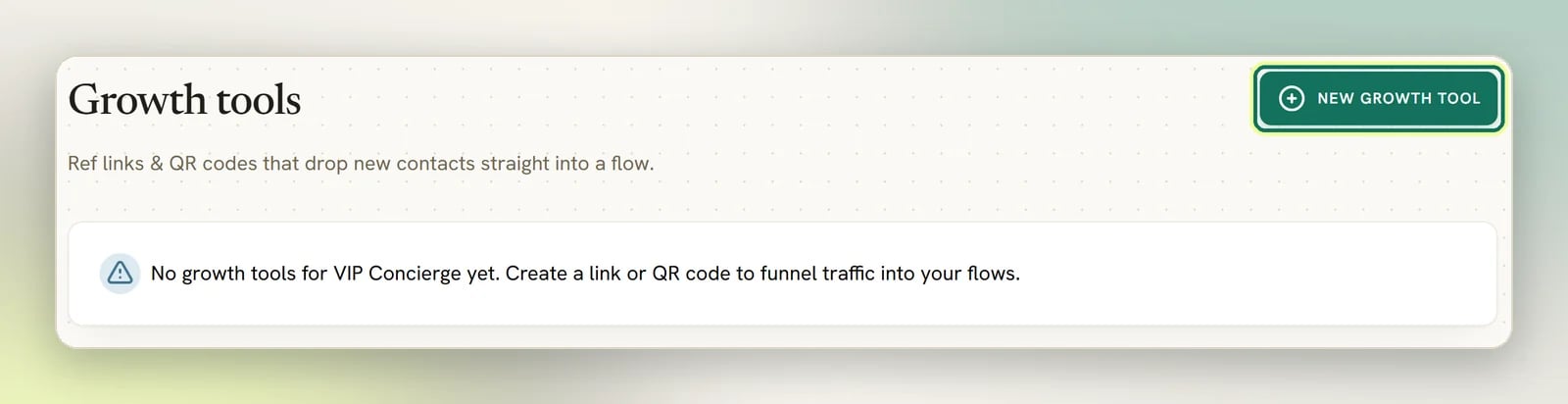
3
Name it
Give it a name you’ll recognise later, like
Spring campaign link or Window QR. Up to
80 characters.The name matters more than it looks: it’s what gets stamped on every Contact the tool
brings in, and it’s the row label in your reports.4
Choose the type
The options under Type: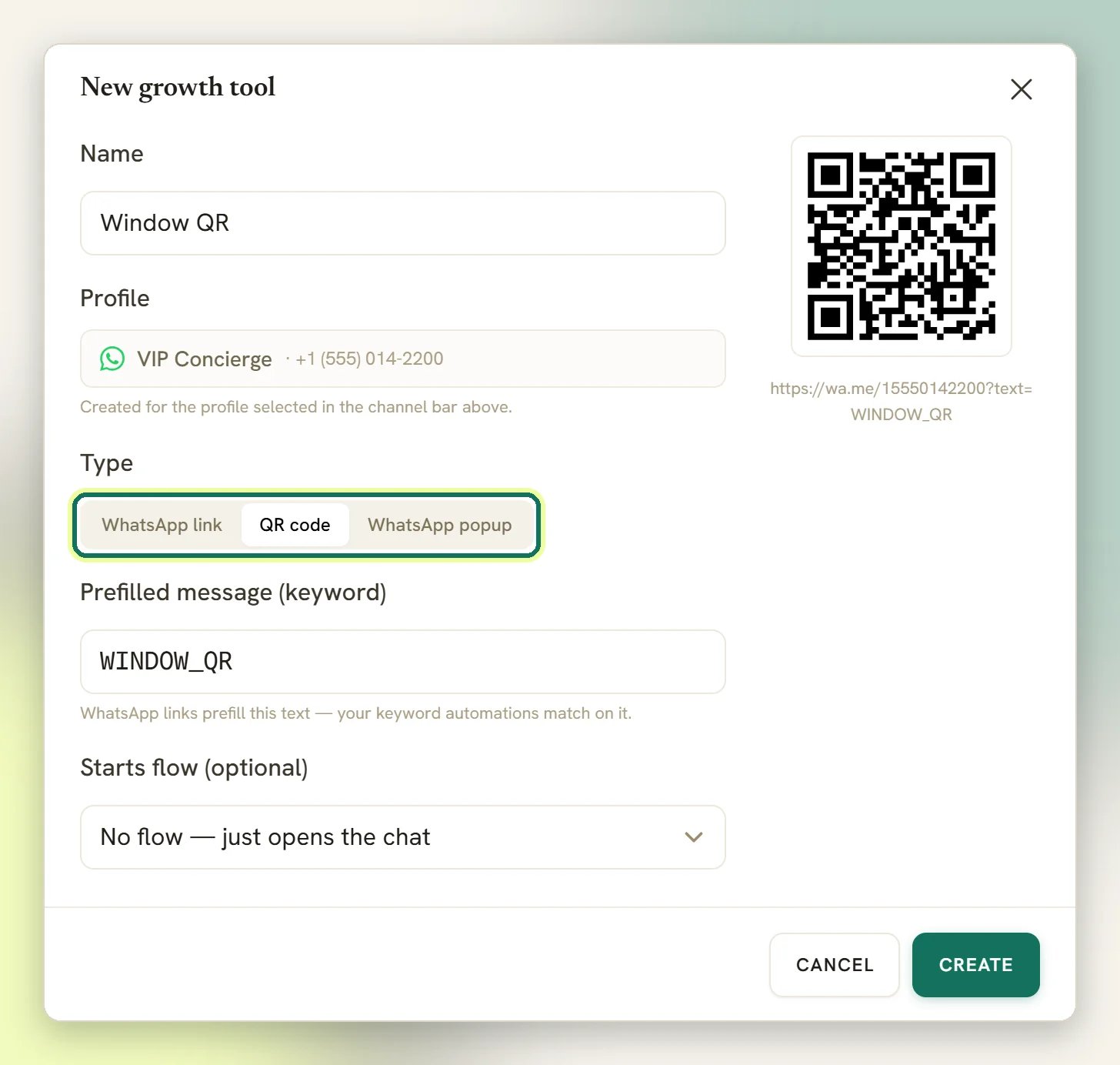
- WhatsApp link (called Ref link on Facebook, Instagram and Telegram): a plain URL you paste anywhere.
- QR code: the same destination, rendered as a scannable code you can download.
- WhatsApp popup (WhatsApp profiles only): a pop-up on your website that asks for a WhatsApp number and starts the conversation. You get a script snippet to paste into your site, and its card counts views and opt-ins instead of clicks.
5
Check the ref
DMLY fills the ref for you from the name: uppercased, with anything that isn’t a letter
or number turned into an underscore, so 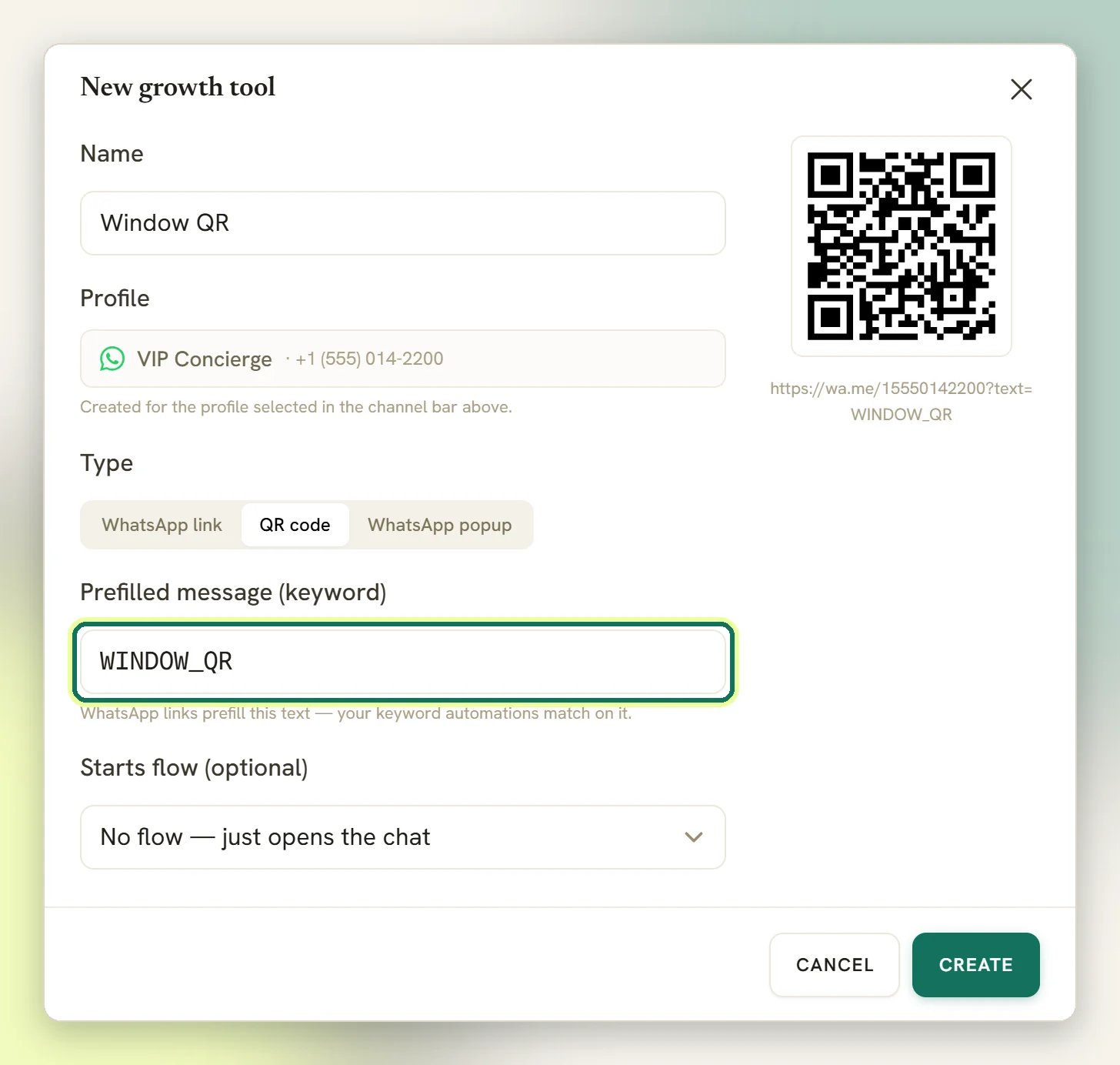
Spring campaign link becomes
SPRING_CAMPAIGN_LINK. Edit it yourself if you want something shorter; once you do,
DMLY stops rewriting it. Letters, numbers, dashes and underscores only.On WhatsApp this field is labelled Prefilled message (keyword), because that’s
exactly what it is: the text sits ready in the person’s message box. On the other
channels it’s Ref parameter and stays invisible to them.6
Point it at a flow (optional)
Under Starts flow (optional), pick the flow that should greet whoever arrives, or
leave it on No flow — just opens the chat. Only flows that are Active on this
same channel appear in the list.
What you get back
Each tool appears as a card showing the QR image (or a link icon), the name, the profile it belongs to, the raw destination link, and its count so far. The destination is a normal chat link for that platform:
The link you share is different: it’s a short tracked address ending in
/go/ and a
code. That’s what counts the click before bouncing the person on to the chat link above. If
your Workspace has a branded domain set up, the tracked link uses it.
From each card’s menu:
- Copy link: copies the tracked link to your clipboard. Use this one everywhere.
- Download QR: saves an SVG file (QR codes only). SVG scales cleanly, so the same file works for a business card and a shopfront poster.
- Delete: removes the tool.
The QR code encodes the tracked link, not the chat link. That’s how a printed code still
gets counted.
Where to put it
Shop window or counter
A QR code at eye level with one line of copy: “Scan to book.” Someone standing outside
after closing time becomes a Contact instead of a lost walk-in.
Receipts and packaging
A QR code on the receipt or the box, pointed at a flow that asks how it went. Pairs well
with Reputation.
Instagram bio and link-in-bio
Paste the tracked link. Give each placement its own tool so you can tell the bio link
from the story link.
Flyers, posters and ads
One tool per print run. When the numbers come in, you know which flyer earned its cost
and which didn’t.
What happens when someone scans or clicks
- They tap the QR code or the link. DMLY counts it and sends them on to the chat app.
- The chat opens with your business. On WhatsApp they see the ref sitting in the message box; on the other channels the ref travels invisibly.
- They have to send the message. Opening the chat isn’t enough; nothing reaches you until they tap send. This is the gap between your click count and your conversation count.
- Their message arrives in your Inbox as a new conversation.
- DMLY stamps the tool’s name onto the Contact as their source, replacing the plain channel name a brand-new Contact starts out with. A real source you set yourself is left alone.
- If a flow matches, it starts.
Greeting them with a flow
On WhatsApp you have two ways, and the flow builder is the better one. Open a flow on your WhatsApp channel, set its trigger to User clicks a link, then under Which link triggers this? choose either:- A specific link: only that tool starts this flow. Anything else you share won’t.
- Any of my links: any growth tool on this channel starts it. Good for one universal welcome.
When a growth tool starts a flow, that flow takes the conversation. Your normal keyword
and welcome triggers are skipped for that message, so the person doesn’t get greeted
twice. If no growth flow matches, the message falls through to your usual triggers as
normal.
Reading the numbers
On the card. Each card’s footer showsStarts "<flow name>" or Opens the chat on
the left, and the count on the right, labelled scans for QR codes and clicks for
links. New tools start at zero.
On the Overview report. Three things to look at, all scoped to the selected profile:
- Growth clicks: the total across every tool on that channel.
- Growth-tool attribution: your top 6 tools, each with its Clicks, the Contacts it brought in and a Conv %.
- Contact sources: where your contacts came from. Because the tool’s name is stamped on every Contact it brings in, your tools show up here by name.
Telegram counts twice. The tracked link counts the tap, and Telegram counts the arrival
again when that person’s message reaches you, so one person can add two to your click
count. It happens on every arrival through the link, not just their first. Only a raw
t.me link you’ve pasted by hand counts once.Don’t rename a tool that is already bringing people in. A contact’s source is the tool’s
name at the time they arrived, and renaming doesn’t update it. The old contacts stay under
the old name in Contact sources, and Growth-tool attribution shows zero contacts for
the renamed tool, because it matches on the current name.
Deleting a tool
Use Delete from the card menu and confirm. DMLY warns you that “the link will stop being promoted in your assets.”Troubleshooting
Clicks are going up but nobody appears in my Inbox
Clicks are going up but nobody appears in my Inbox
People are reaching the chat and not sending. That’s the normal shape of the problem; the
link did its job. Check that the prefilled text makes sense to read (it’s the first thing
they see), and that whatever you promised on the poster is obviously about to happen.
The flow doesn't start
The flow doesn't start
Work through these in order:
- Is the flow Active and published? Only Active flows are offered and only Active flows run.
- Is the flow on the same channel as the growth tool? They can’t cross profiles.
- If the trigger is set to A specific link, is it the same tool the person actually used?
- On WhatsApp only: is this person already a Contact? Growth attribution only fires on a brand-new Contact’s first message.
Two tools with the same ref
Two tools with the same ref
DMLY won’t let you. Saving a tool with a ref another tool on the same channel already uses
fails with an error on the ref field. Pick a different ref and save again.
Next steps
Flow builder
Build the flow that greets people when they arrive.
Triggers
Set a flow to start on User clicks a link.
Tags and segments
Group the Contacts your tools bring in.
Analytics
Find Growth clicks and your contact sources.