

Publishing and deleting posts need Reputation & Reviews on your plan. If it isn’t
included, connecting a profile is refused up front: Your plan does not include Reputation &
Reviews. Upgrade to connect a Google Business Profile and request reviews. See
Plans.
Publish a post
1
Open Posts
Go to Reputation → Posts and select New post.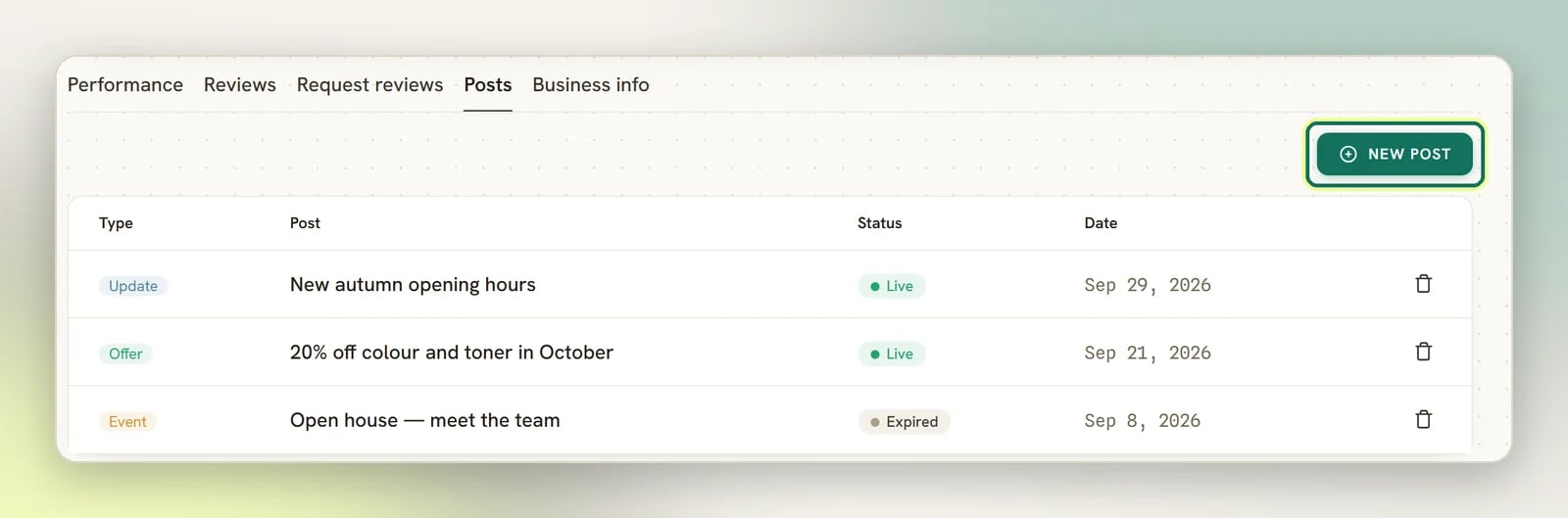
2
Pick the type
Update for news, Offer for a promotion, Event for something with a date.
3
Write it
Fill the message box: Share news, an offer or an event with people who find you on
Google…. Add Button link (optional) to put a link button under the post, and
Photo (optional) to attach a picture from your media library or an image URL.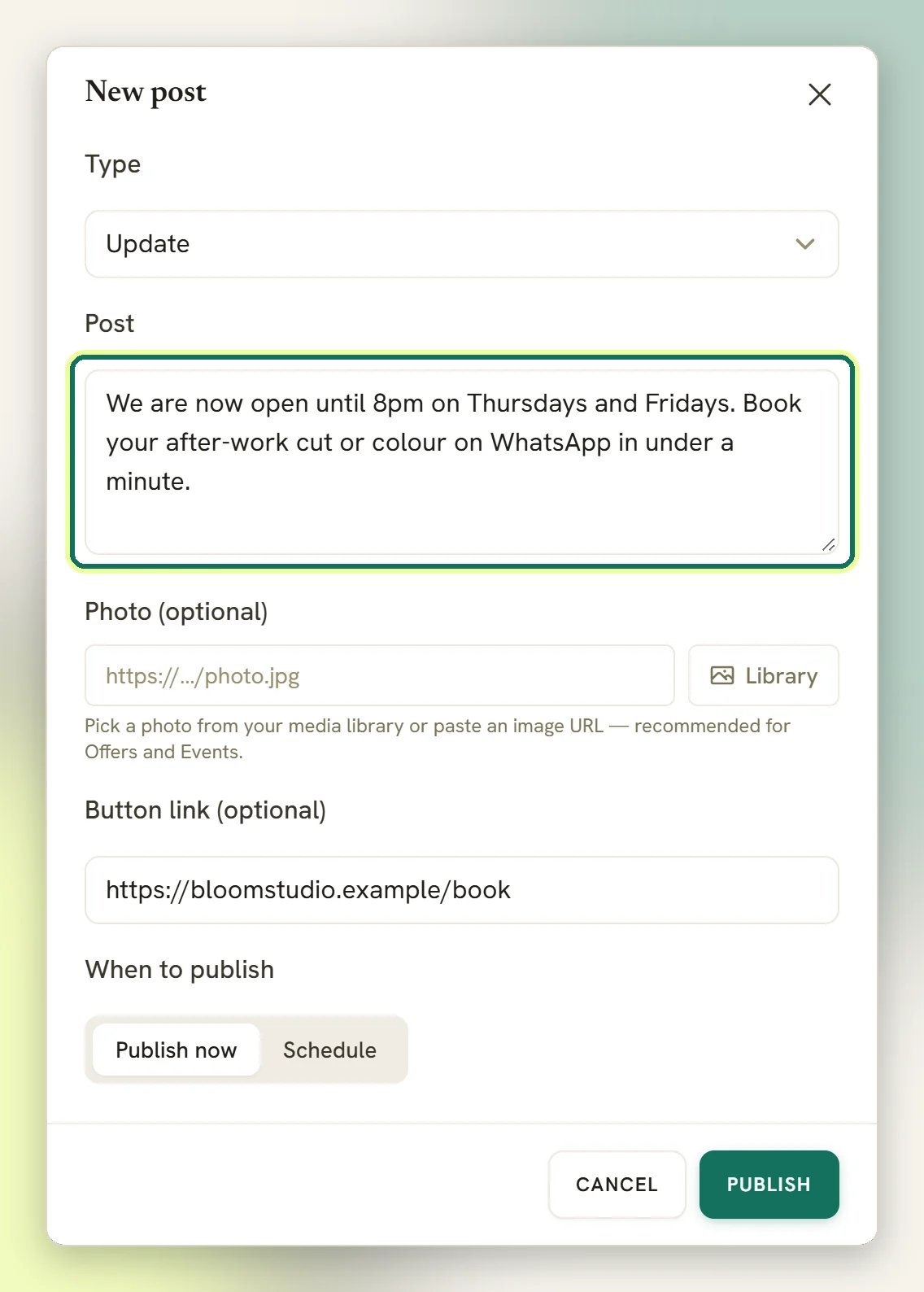
4
Fill the extras an Offer or Event needs
Offer and Event both require Event / offer title, Starts and Ends;
Google will not take them without a title and a date range. An Offer can also carry
Coupon code (optional), Redeem link (optional) and Terms (optional).
5
Publish or schedule
Publish now sends it to Google straight away: Post published to your Business
Profile. Or choose Schedule, set When to publish, and DMLY holds it: Post
scheduled.
Scheduling
Google has no scheduled posting of its own, so DMLY does it: a scheduled post is held here with its finished content and pushed when it comes due. A check runs every five minutes, so a post can go out a few minutes after the time you set.- The time you type is read in your workspace’s timezone, not Google’s and not your browser’s.
- A time in the past is refused: Choose a publish date and time in the future.
- Scheduled posts (and any that failed to publish) sit at the top of the Posts tab. Everything below them is the live list read back from Google.
Editing and deleting
There is no edit. A post is published or it isn’t; to change one, delete it and publish again. Deleting behaves differently depending on which kind of row you delete:- A scheduled post that hasn’t gone out yet is simply dropped from DMLY: Scheduled post removed. Nothing reaches Google.
- A live post is deleted from your Google listing.
The Posts tab doesn’t link out to an individual post on Google. Use View on Google in the
page header to open your listing and see the posts as customers see them.
Read the Performance tab
Performance is the Reputation landing tab. Everything on it comes from Google, for the location you have selected; DMLY doesn’t count any of it.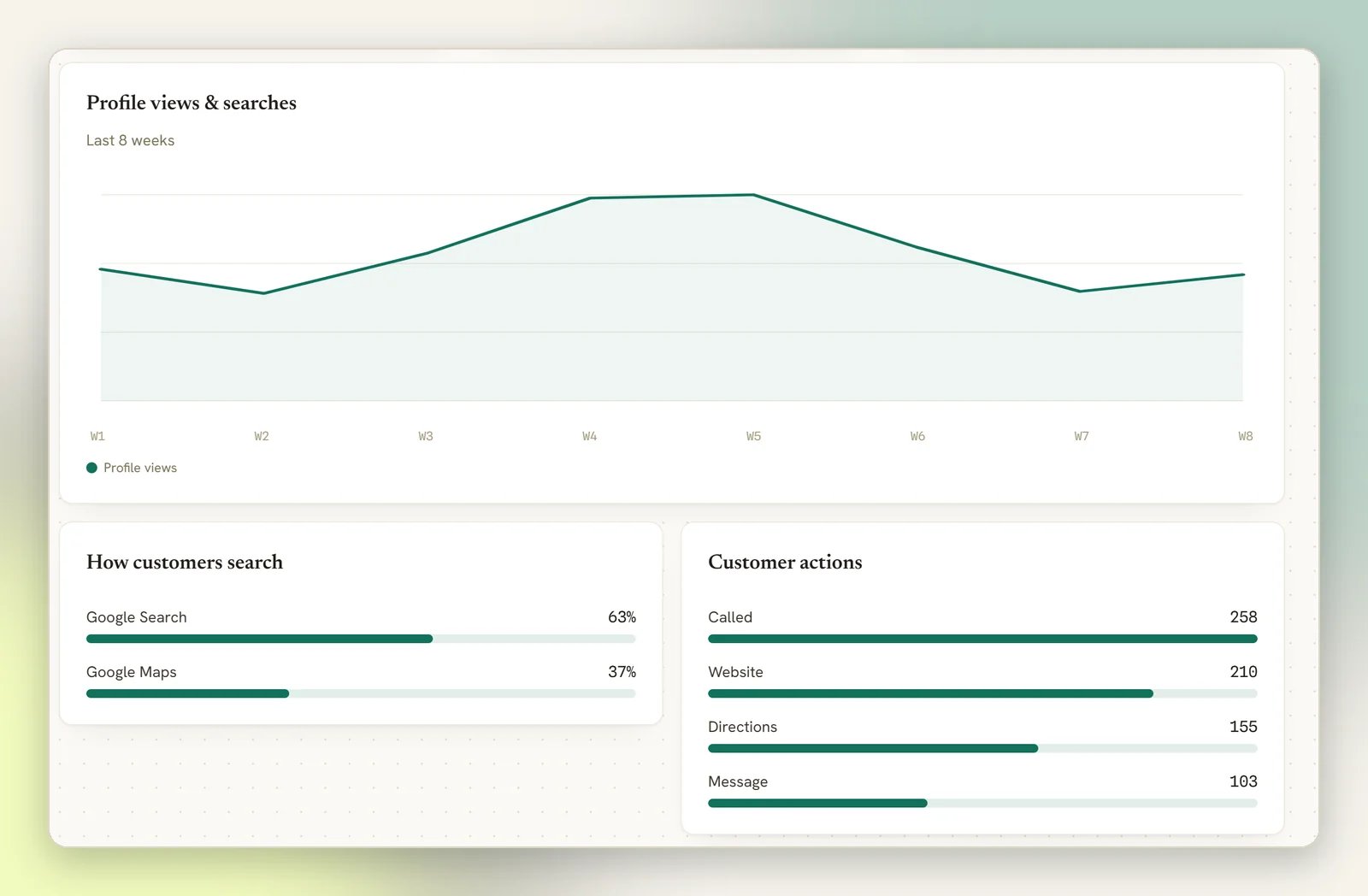
Profile views
How many people looked at your listing.
Searches
How many times you turned up in a search.
Customer actions
How many of them did something: called, tapped your website, asked for directions, or
started a message.
Trend and split
Profile views & searches plots the Last 8 weeks. How customers search splits
it between Google Search and Google Maps.
Performance is blank or the numbers are zero
Performance is blank or the numbers are zero
First check the top of the page. If your Google connection has expired you’ll see Your
Google Business Profile connection has expired. Reconnect it under Integrations → Channels to
restore reviews, posts and performance. Reconnect the profile and the numbers come back.
See Connect Google Business Profile.If the banner instead mentions a permissions or API-scope issue, reconnecting is still the
fix: DMLY couldn’t read the profile from Google at all.A profile that is genuinely new, or one you’ve only just verified, will have little for
Google to report yet.
A scheduled post never went out
A scheduled post never went out
Failed posts stay in the Posts tab alongside the scheduled ones, so a post that vanished
from your schedule and never appeared on Google will still be listed there. Delete it and
publish again. If it keeps failing, reconnect the profile; an expired connection stops
publishing the same way it stops everything else.
Next
Reviews
Read and reply to the reviews on this listing.
Ask for reviews
Send a tracked review link to recent customers on WhatsApp.