

Two things gate this page. Reviews only work once you
connect a Google Business Profile. Before that,
every Reputation tab shows sample data badged Preview behind a
Connect Google Business Profile banner. And Reputation is a paid feature: on a plan
without it, connecting a profile and posting a reply are both blocked. See
Plans.
Where the reviews come from
DMLY copies your reviews from Google into your workspace so the list loads fast and the star numbers can be counted locally. It refreshes them:- Every hour, in the background, for every workspace.
- When you open the Reviews tab, at most once every 20 minutes per location.
If you have several Google locations connected, use Switch location in the page header
to change which one you are looking at. The selector only appears when more than one
location is connected. See
Connect Google Business Profile.
What the Reviews tab shows
Reputation → Reviews gives you your average rating, how many reviews it is based on, a Reply rate, a breakdown from five stars down to one, and Latest reviews: the review text, the reviewer’s name, when it was left, and whether you have Replied. The star and reply numbers are counted from the reviews DMLY has synced, not queried live from Google, so they move when the sync runs. They cover at most your 200 most recent synced reviews.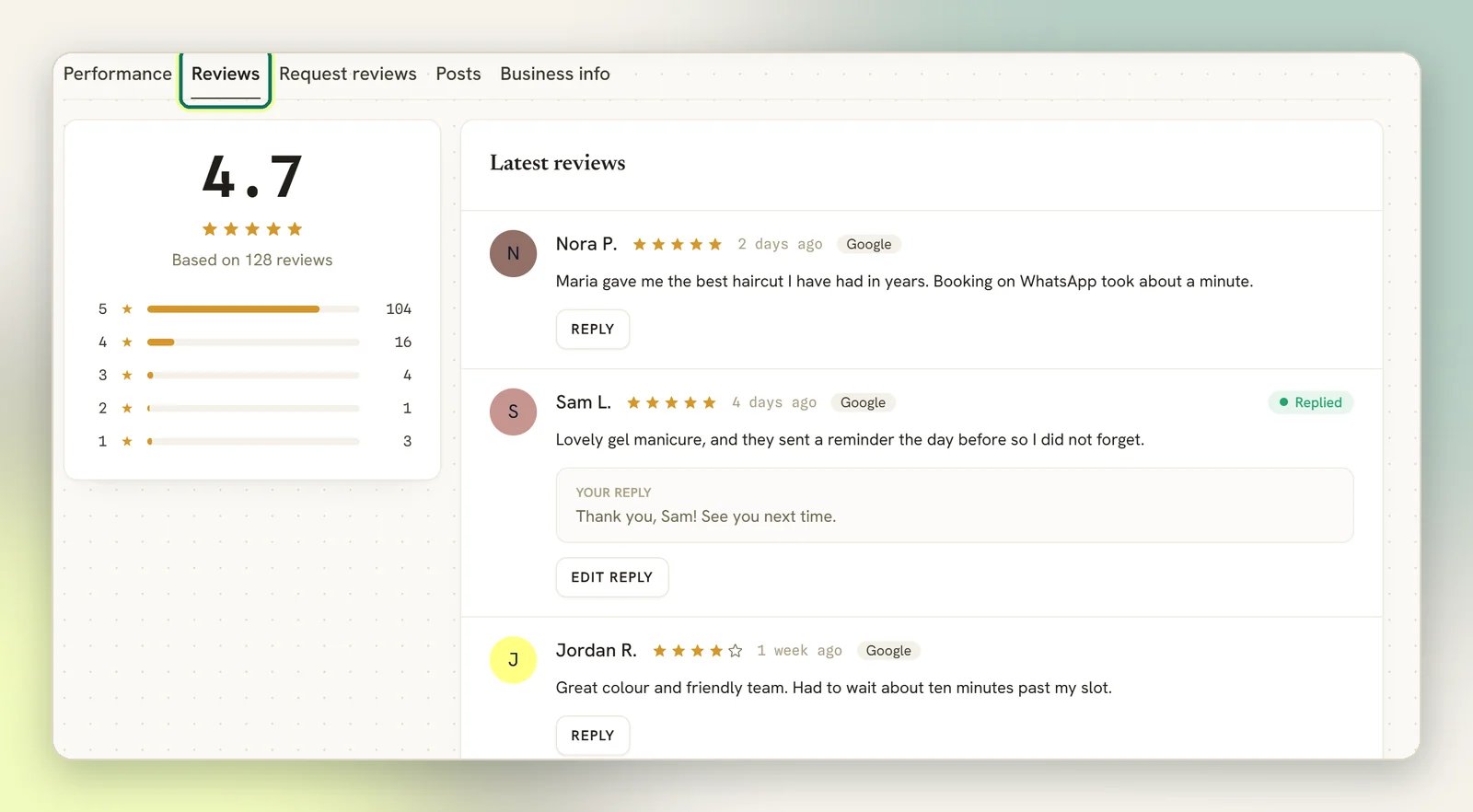
Reply to a review
1
Open the review
Go to Reputation → Reviews and find it under Latest reviews.
2
Write the reply
Select Reply and type into Write a public reply…. Assume every customer will
read it; this is published on your Google listing under your business name.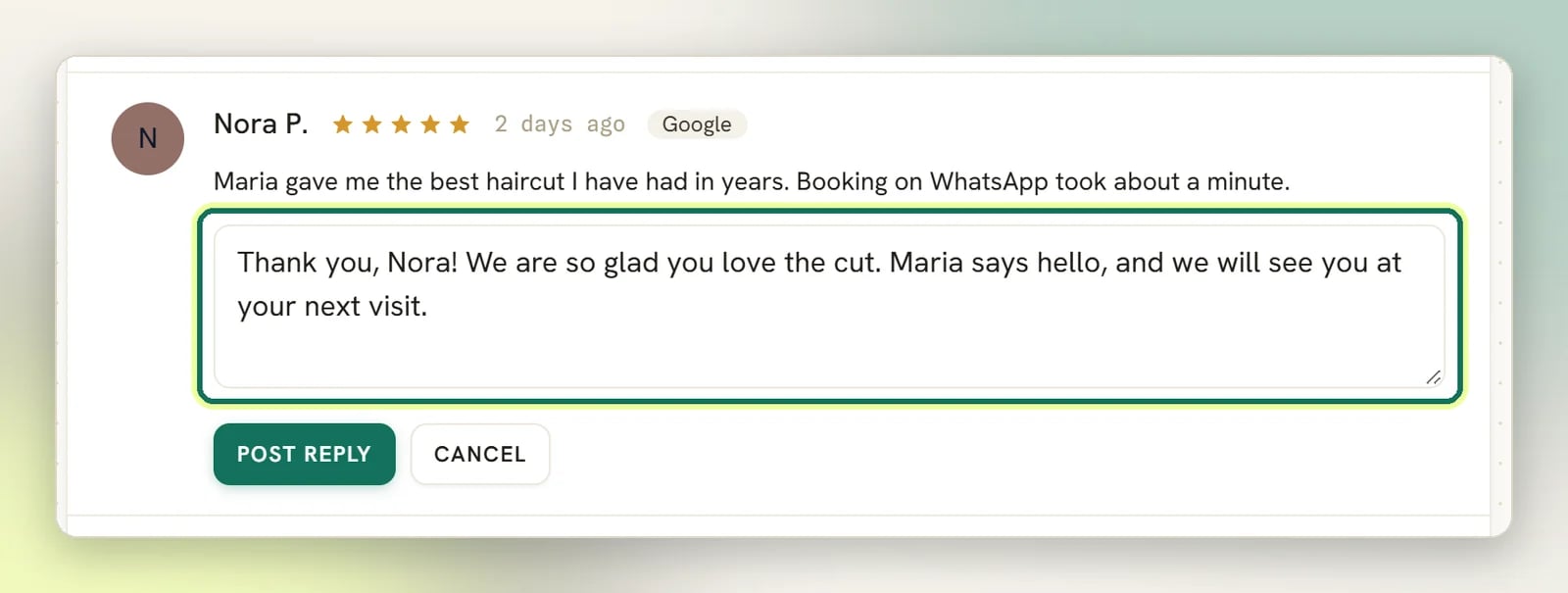
3
Post it
Select Post reply. DMLY sends it to Google and confirms with
Reply posted to Google. The review is then marked Replied and your text shows
under Your reply.
What Google allows, and what it does not
- One reply per review. Google keeps a single owner reply. Editing does not add a second one, it overwrites the first.
- You cannot delete a review from DMLY. Nothing in DMLY removes a review; a business cannot delete customer reviews, only respond to them.
- You cannot change a rating, a reviewer’s name, or the review text. Those belong to the customer.
- You can only reply to reviews DMLY has synced. A review Google has not handed over yet is not on the list, so wait for the next sync rather than assuming it is lost. Each sync fetches only your latest 50 reviews from Google, so older reviews are never brought in. Reply to those on Google directly.
- Google is slow to confirm. A reply you post may take a moment to show on the public listing. DMLY does not overwrite your reply with an empty one while Google catches up.
Reviews in the Inbox
Separately from this page, Google reviews are also polled into the Inbox as one-shot threads: the stars and the comment, roughly every half hour. Each review shows up as its own thread; there are no back-and-forth messages, because Google has no direct messaging on a Business Profile. A reply you post from the Inbox shows as Replied on the Reviews tab only after the next review sync: hourly, or when you open the tab (at most once every 20 minutes per location).When something looks wrong
A review is on Google but not in DMLY
A review is on Google but not in DMLY
Open Reputation → Reviews to trigger a sync, then wait. DMLY checks at most once
every 20 minutes per location, and hourly in the background. If it still never arrives,
check the connection is healthy and that you are looking at the right location in
Switch location.
A reply will not post
A reply will not post
You will see Could not post the reply to Google. Please try again. This is usually the
Google connection rather than the text. Reconnect under Integrations → Channels and
retry. If your plan does not include Reputation, replying is blocked entirely.
Next
Request reviews
Ask happy customers on WhatsApp with a tracked review link.
Connect Google Business Profile
Connect a location, or add a second one.
Posts and performance
Publish updates and see how people find you.
CSAT
Rate a chat, then route the happy ones to Google.