

Reputation is on every DMLY plan, Starter included, so if you buy DMLY directly there is
nothing to upgrade for. It is still a per-plan capability: on a free plan, or on an agency
plan that leaves it out, DMLY stops the connection before it reaches Google and tells you to
upgrade. See Plans.
Before you connect
You need the Google account that manages the business listing. DMLY connects through Google’s own sign-in, so you never give DMLY your Google password; you approve access on Google’s screen and can revoke it there later. Until a profile is connected, every Reputation tab shows Preview sample data behind a Connect your Google Business Profile to manage reviews, posts and performance. The data below is a sample. banner. The numbers you see there are examples, not your business.Connect a profile
1
Open Reputation
Go to Reputation and select Connect Google Business Profile. You can also start
from Integrations → Channels → Add account and pick the Google Business Profile
row.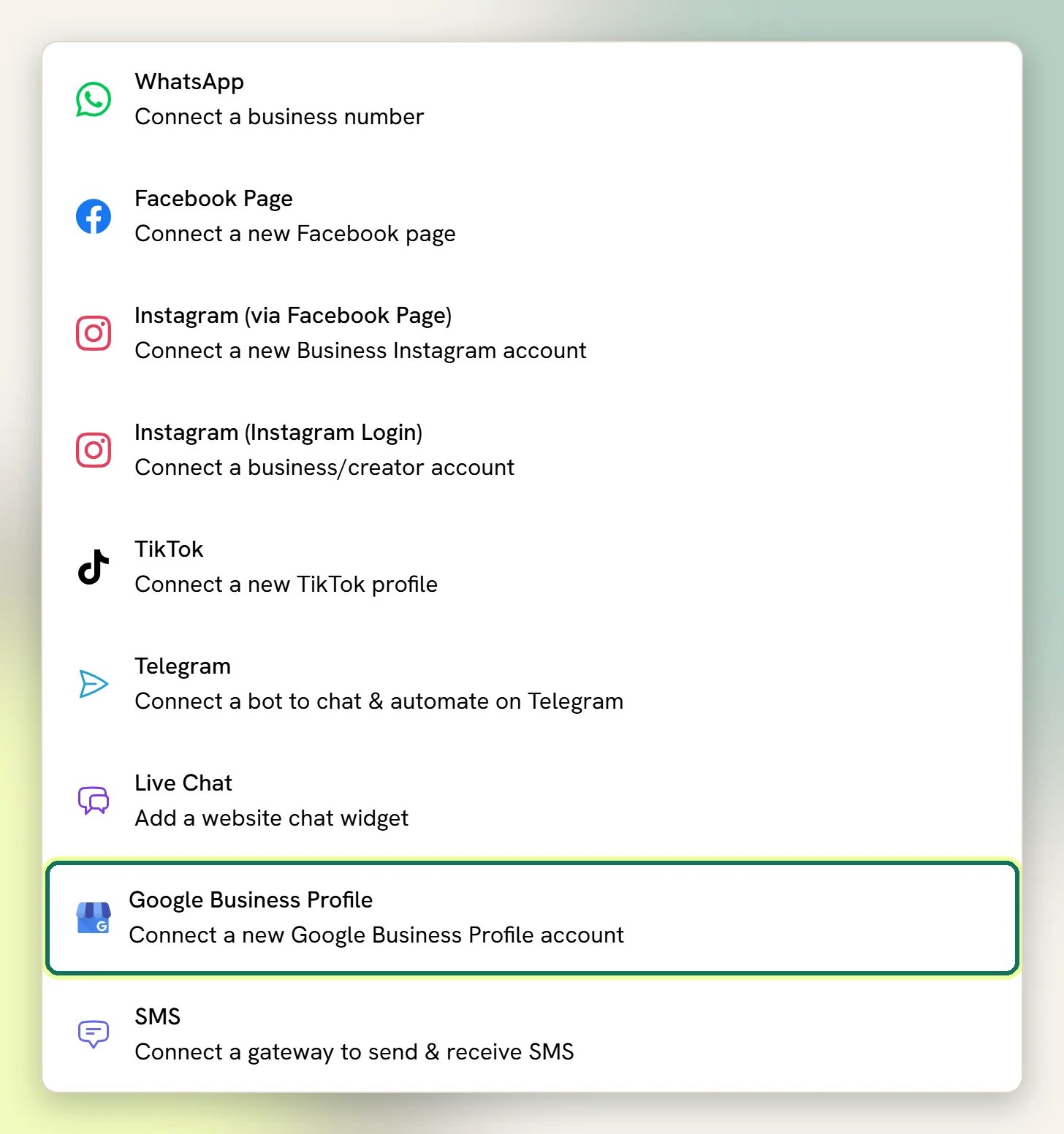
2
Sign in with Google
Sign in with the Google account that manages the listing and approve the access Google
asks about.
3
Choose your locations
On the Choose entity screen, tick every location you want to manage (every location
on the Google account is listed) and select Finish Connection. Each location you
connect becomes its own Channel in DMLY.
4
Check it worked
Back in Reputation, the sample data is replaced by your real profile: your business
name appears in the header, and your reviews arrive when you open the Reviews tab.
Open the Business info tab once to fill in the category and address shown in the
header.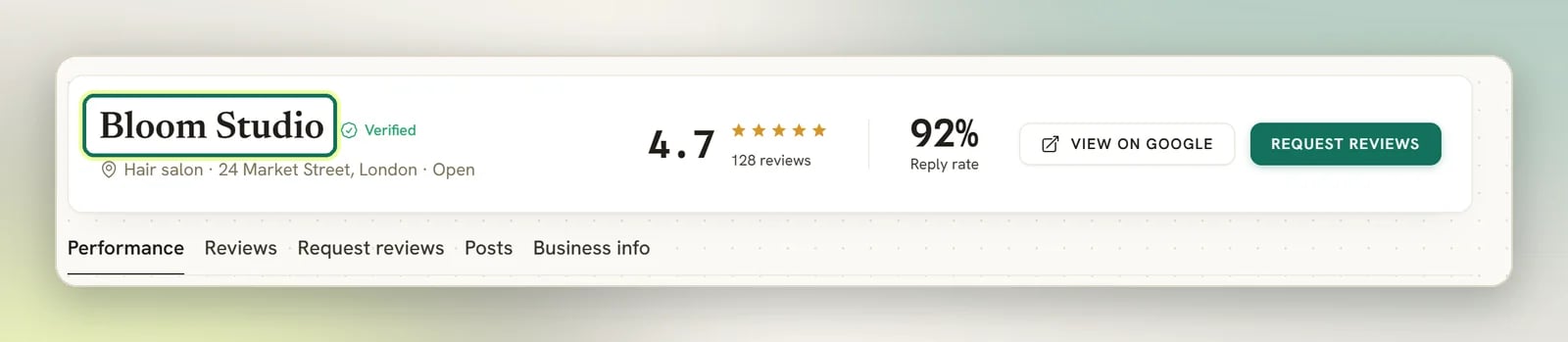
What connecting gives you
Reviews
Your Google reviews sync into DMLY and your reply posts back to Google. Ratings, reply
rate and the star breakdown are calculated for you.
Review requests
Your shareable review link is filled in automatically, so you can ask customers for a
review on WhatsApp with no extra setup.
Posts and performance
Publish an update, offer or event to your listing (or schedule one for later) and see
how many people found and contacted you.
Business details
Edit your phone, website, description and opening hours from DMLY, with a listing-health
checklist showing what’s still missing.
Google Business Profile is a management channel, not a messaging one. You can’t send a
Broadcast to it, and it isn’t a social posting channel. Google also
doesn’t allow deleting reviews; you can reply, and that’s it.
Connect more than one location
If you run several branches, you don’t connect each one separately: sign in once and tick every location you want on the Choose entity screen. The Reputation module sets no limit of its own, but that doesn’t make locations free. Each location you tick becomes a connected account like any other channel, and it is gated by the same plan caps: your Profiles per channel allowance for Google Business, and your workspace-wide connected-accounts total. Tick more than your plan allows and the connect is refused with the limit named. A plan can also leave Google Business out of its Allowed channels altogether, in which case you cannot connect any. See How plans work. Once you have more than one location connected, a Switch location picker appears in the Reputation header. It sets which location you’re looking at across every tab: Performance, Reviews, Request reviews, Posts and Business info. Your choice sticks as you move around the app. Reviews, review requests and scheduled posts are always filtered to the active location. After you disconnect a location, its rows stop showing, even if only one location is left. Nothing is deleted. Switch location if a review you expect to see isn’t there.Troubleshooting
Reputation says your connection has expired
Reputation says your connection has expired
Google access tokens don’t last forever, and Google can revoke one if the account’s password
changes or access is withdrawn. DMLY keeps showing your profile and shows a banner asking
you to reconnect. Go to Integrations → Channels and connect the profile again; your
reviews, replies and scheduled posts are kept.
A tab is blank or performance shows zeros
A tab is blank or performance shows zeros
DMLY shows a warning explaining what Google returned. If it mentions permissions, reconnect
the profile and make sure you approve everything Google asks for, using an account that
actually manages the listing.
You still see sample data after connecting
You still see sample data after connecting
The Preview badge and the connect banner only disappear once a location is bound to the
workspace. If they’re still there, the connection didn’t finish. Start it again from
Reputation → Connect Google Business Profile.
Next
Reply to reviews
Answer every review from DMLY.
Ask for reviews on WhatsApp
Send tracked review links to recent customers.