

What you get
Reviews
Google reviews sync into DMLY, and you can post the public owner reply from here.
Posts
Publish an update, offer or event to your listing. Schedule ahead or delete a live post.
Performance
Daily metrics showing how people find and act on your listing.
Business info
Phone, website, description and opening hours, edited in DMLY and pushed to Google. Name, category and address are read-only.
Channel or Reputation?
Both. Google Business Profile connects like any other channel, under Integrations → Channels, and the Reputation section reads whatever you connect there. The Connect Google Business Profile button inside Reputation does exactly the same thing as adding the channel; it is a shortcut, not a separate setup. Reconnecting later is always done under Integrations → Channels.Connect it
1
Open the channel list
Go to Integrations → Channels and start adding a channel.
2
Choose Google Business Profile
Pick Google Business Profile.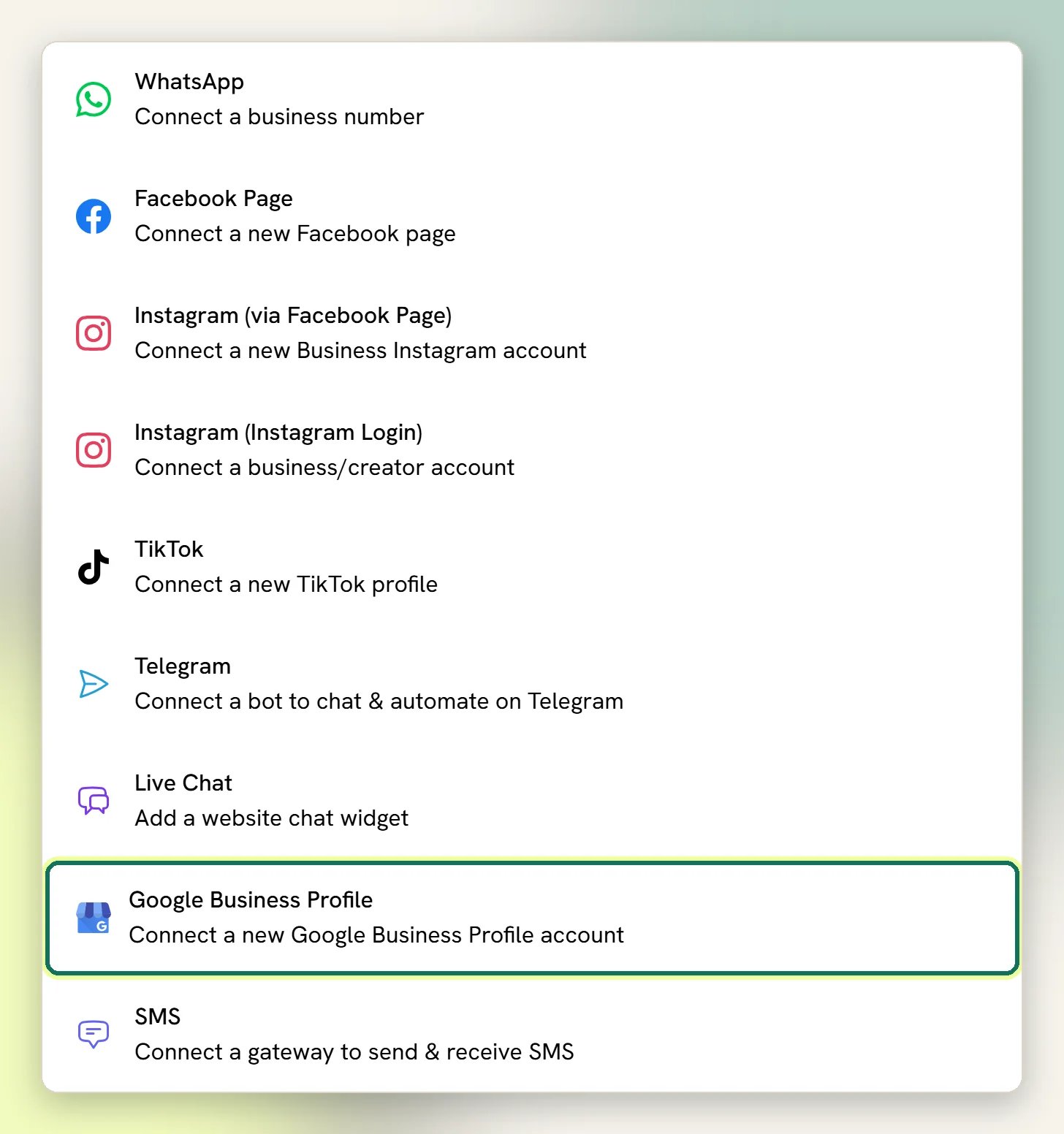
3
Sign in with Google
Sign in with the Google account that manages the listing and grant access. Google asks for permission to manage your business; DMLY needs it to read reviews and publish replies and posts.
4
Check Reputation
Open Reputation. Your real reviews, posts and performance replace the sample data.
More than one location
Connect a Google Business Profile channel per location. When more than one is connected, a Switch location control appears in Reputation and every tab (reviews, posts, performance, business info) follows the location you pick. The choice sticks for your session only: it doesn’t change what your teammates see, and signing out resets it. With a single profile connected, there’s no picker and nothing to choose.Reviews in the Inbox
Every review syncs into Reputation → Reviews, and a new review raises an in-app notification. Each review also lands in the Inbox under Comments. The reviewer becomes a contact only when an active automation on the Google review trigger runs on the review; otherwise they are kept comment-only, so they aren’t listed in Contacts or counted toward your plan’s contact limit. When a review is in the Inbox, replying there posts your public owner reply on Google. A review has exactly one owner reply, so replying again replaces what you posted before rather than adding a second reply. There’s no back-and-forth here: the customer can’t reply to you, and you can’t message them from the review. You can also reply from Reputation → Reviews using Write a public reply… and Post reply. Same result either way.How fresh the data is
Google doesn’t push anything to DMLY, so DMLY asks Google on a schedule:
Opening Reputation → Reviews also pulls in anything new, but at most once every 20 minutes per location, and a teammate’s visit counts too. Opening it again within that window shows what is already synced; new reviews then come from the next open after 20 minutes or from the hourly sync. A brand-new review can take a little time to appear; that’s Google’s pace, not a fault.
Ask customers for reviews
Reputation → Request reviews invites recent customers to leave a review, and there’s a Review link you can share anywhere to collect reviews yourself.A request only goes out if the contact is reachable on the channel you pick: an email request needs a valid email address on file, and WhatsApp or SMS needs that channel’s identity on the contact. Unreachable contacts are recorded as Failed, so the campaign stays auditable.
Reviews and posts stopped working
Reviews and posts stopped working
If DMLY shows “Your Google Business Profile connection has expired. Reconnect it under Integrations → Channels to restore reviews, posts and performance.”, Google has revoked or expired the access. Reconnect the profile under Integrations → Channels. Nothing on Google’s side is lost, and your reviews come back on the next sync.Disconnecting a Google Business Profile channel in DMLY only removes it from your Workspace. Your listing, reviews and posts on Google are untouched.If replies or posts fail while the connection looks healthy, check Logs for what Google sent back. If that doesn’t explain it, contact your agency or DMLY support.
What doesn’t apply here
- No broadcasts. Google Business Profile isn’t an option in the broadcast wizard.
- No message templates. Templates are a WhatsApp thing.
- No bot setup. Google Business Profile isn’t one of the channels you can put a bot on. A Flow can still start on the Google review trigger (“A customer leaves a review on your Business Profile”) to tag the contact or alert your team, but it can’t send a message back on Google. The owner reply is posted from the Inbox or Reputation → Reviews.
- No outbound messages. You reply to a review, and that’s the only thing you can send.
Reputation overview
Reviews, posts, performance and review requests in one place.
All channels
What each channel can and can’t do.