

Before you start
You need a Telegram account and a bot. Message @BotFather in Telegram, follow the prompts to create a bot, and keep the token it sends you. It looks like123456:ABC-DEF1234ghIkl….
Connect the bot
1
Open Integrations
Go to Integrations → Channels and start adding a channel. Scroll the list to
Telegram (Connect a bot to chat & automate on Telegram).
2
Paste the token
Put the token from @BotFather in Bot token. Add a Name (optional) if you want the
channel labelled something other than the bot’s own name, for example 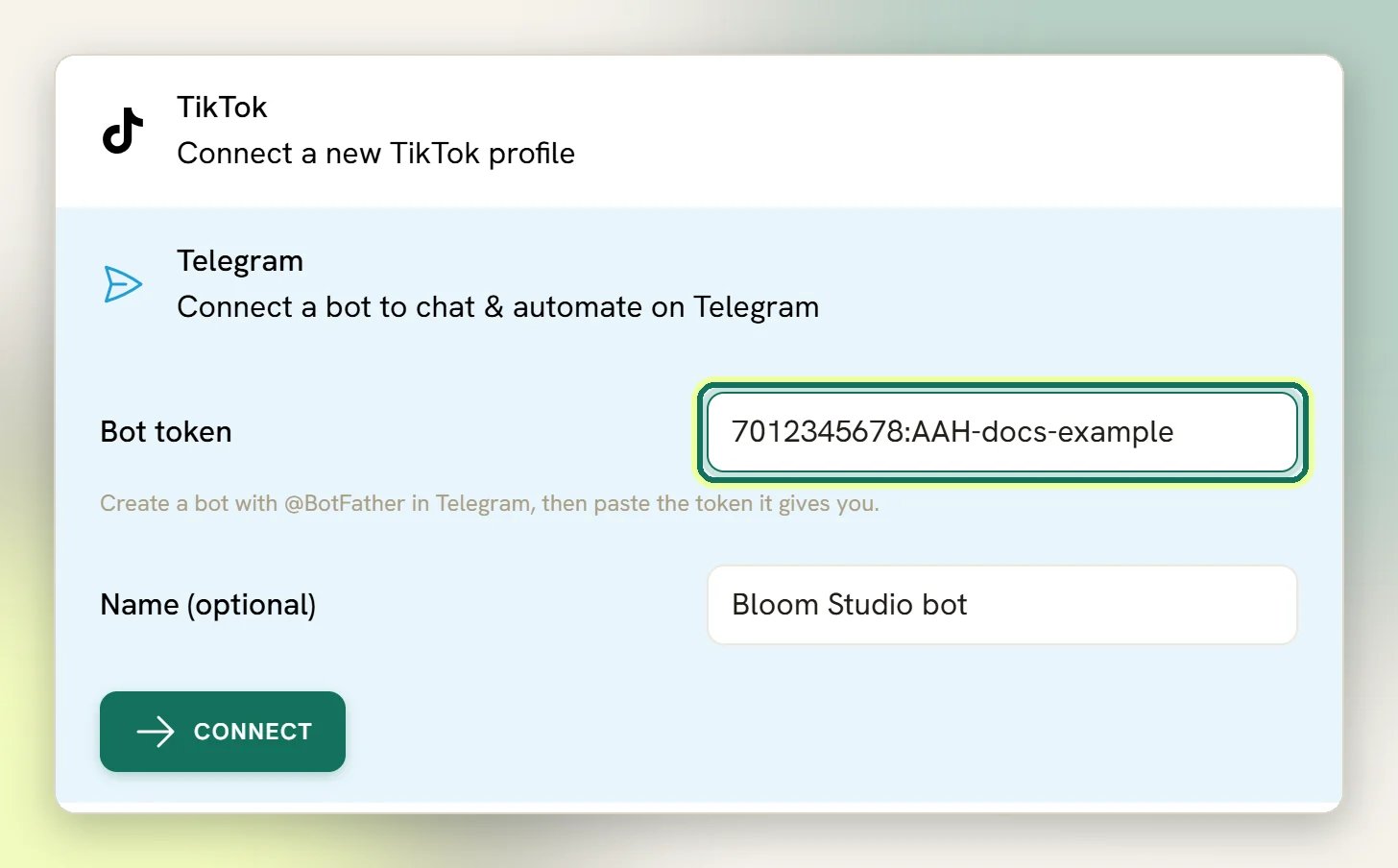
Support bot.3
Connect
Select Connect. DMLY checks the token with Telegram before saving it. A wrong or
revoked token is rejected on the spot with an error on the field.
dash.dmly.io this succeeds normally.
Re-pasting a new token for the same bot reconnects the existing channel: your
conversations, contacts and bot setup stay put, and it doesn’t use up another channel
against your plan. Only a genuinely new bot counts as a new channel.
What you get
Unified Inbox
Telegram chats arrive in the same Inbox as everything else, with assignment, statuses
and quick replies.
Flows and automations
Keyword-matched flows, quick automations and your published bot all run on Telegram.
Broadcasts
Telegram supports broadcasts, with no message templates and no approval queue, unlike
WhatsApp.
Growth links
Growth tools build
t.me/<bot>?start=<ref> links, and DMLY attributes the contact when
someone opens the bot through one.- No 24-hour messaging window. Once someone has started your bot, you can message them at any time. There is nothing to reopen and no template to get approved.
- Contacts can share their phone number in one tap. When someone sends their contact card to the bot, DMLY saves the number onto the Contact if the Contact doesn’t have one yet, and only if the card is their own, not a forwarded third party’s.
Set up the bot
Once the channel exists, open Bot setup with Telegram as the active channel. It has four sections (Welcome, Default reply, Ice breakers, Persistent menu) plus a Live preview that shows what the chat looks like. Select Save changes when you’re done.Welcome
Turn on Send a welcome message when someone taps Start (/start) and write the Message. Telegram sends this the first time someone opens the chat or taps Start.Default reply
Default reply works on Telegram, Facebook and Instagram alike: a message that matches no keyword or flow gets an automatic answer. On Telegram it’s especially handy because there’s no 24-hour window to worry about, so it can reach the contact at any time. Turn on Reply automatically when no keyword or flow matches and write the message, for example Thanks for your message! A teammate will reply soon. Under Send, choose:- Once per 24 hours per contact, the default. One auto-reply per person per day, no matter how many messages they send.
- Every time: every unmatched message gets one.
What DMLY tries before the default reply
What DMLY tries before the default reply
Every inbound Telegram message runs through this order, and stops at the first thing that
handles it:
- Opt-out keywords sent as the whole message, in any case:
/stop,stop,stopall,stop all,unsubscribe,cancel,quit,end,opt outoroptout - A
/startgrowth link, for attribution - A persistent-menu
/command - Your flows: a run the contact is already in, or a published flow whose keyword matches
- Quick automations
- The welcome message (on a bare
/start), otherwise the default reply
/start, start, unstop, subscribe, opt in or optin afterwards
clears it. Watch out for this when writing flows: asking people to reply CANCEL, END,
QUIT or STOP opts them out instead.Ice breakers
Ice breakers are suggested questions shown as tappable buttons under the welcome message. Each one has a Question and either a Text reply or Start flow (then Choose flow). Tapping a button sends its reply or starts the flow.Persistent menu
On Telegram this is the bot’s command list, the ☰ button next to the message box. Turn on Show a persistent menu in the conversation and add your items; each label becomes a/command, and saving pushes the command list to Telegram. Give items short, plain labels,
because that’s what people will see as commands.
Turn it off
Disconnecting the bot from its channel card unregisters the webhook with Telegram and removes the channel from DMLY. The bot itself still exists in Telegram. Delete it with @BotFather if you want it gone for good.When messages don’t arrive
Telegram writes a log line for every inbound message, so Configurations → Reports, then the Logs tab, is the fastest way to tell whether Telegram reached DMLY at all.- Log rows are there, but nothing in the Inbox: the message arrived and something downstream is the problem. Check the flow or automation that should have handled it.
- No log rows at all: Telegram isn’t reaching DMLY. Reconnect the bot by pasting the token again, which re-registers the webhook. See No inbound messages.