

What SMS can’t do
Worth knowing before you connect, because these catch people out:- No growth tools. Growth tools build a chat link or QR code, and SMS has no equivalent. The Growth section stays in the sidebar but is greyed out when SMS is your active channel. Clicking it explains why: “Growth tools need a channel reachable by a chat link — not available on SMS, TikTok or Live Chat.” It also offers a Switch profile button to jump to a channel that supports them.
- Text only. No images, no files, no tappable buttons. If a flow step tries to send media on SMS, only the caption and the link go out as plain text.
- No message templates, because SMS doesn’t need them: you can always send freely.
- No read receipts. SMS tells you a message was sent, delivered or failed. Nothing tells you it was read.
Before you start
Pick a provider and open an account with them. Three are supported, and only three:Twilio
Send & receive SMS worldwide via Twilio. Two-way: replies and delivery reports both
come back.
Plivo
Send & receive SMS via Plivo. Two-way: replies and delivery reports both come back.
Custom HTTP gateway
Connect any SMS provider via a custom HTTP send URL. Sending only. See the warning
below.
Connect a gateway
SMS doesn’t connect from the Channels list. That’s the path for social accounts you log in to. SMS lives in the SMS category on the Integrations page.1
Open the SMS category
Go to Integrations and find the SMS category. Pick Twilio, Plivo or
Custom HTTP gateway.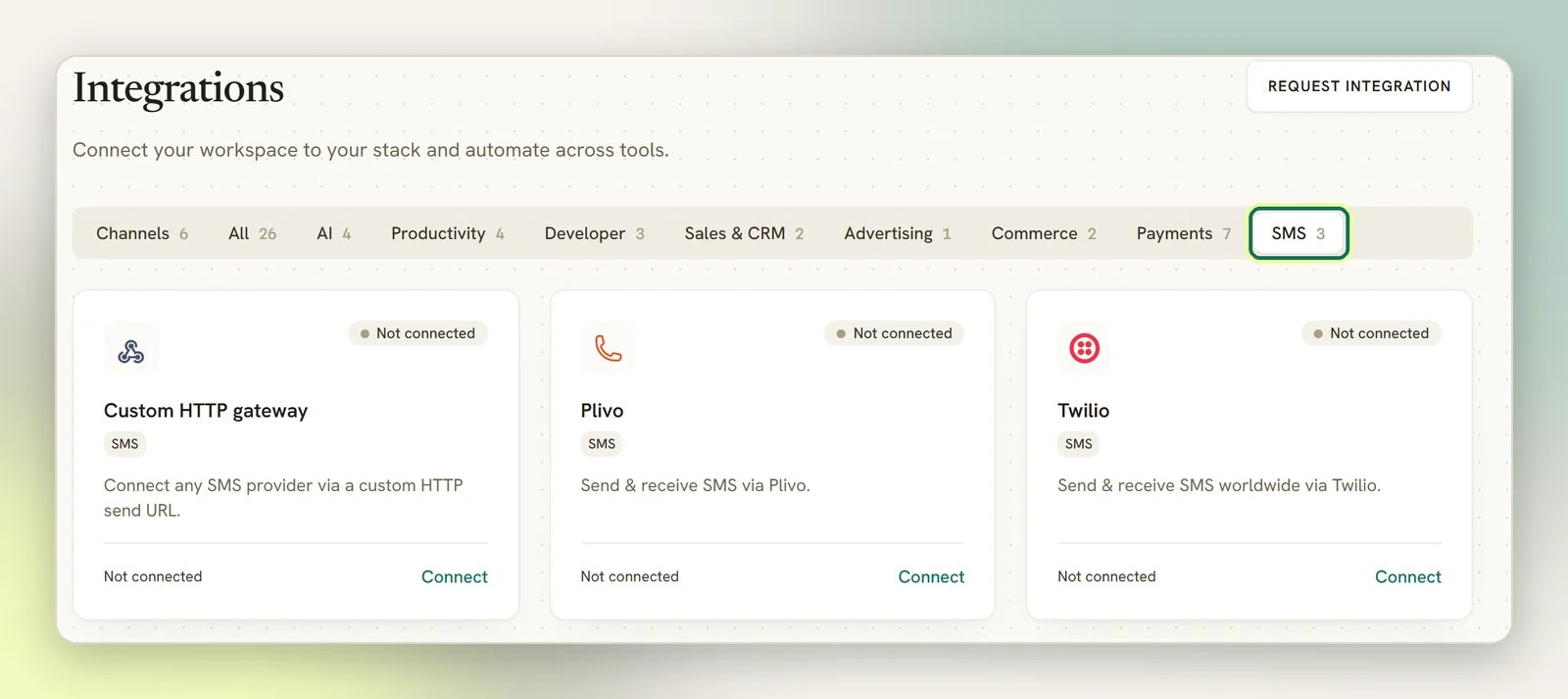
2
Paste your credentials
For Twilio: Account SID (starts 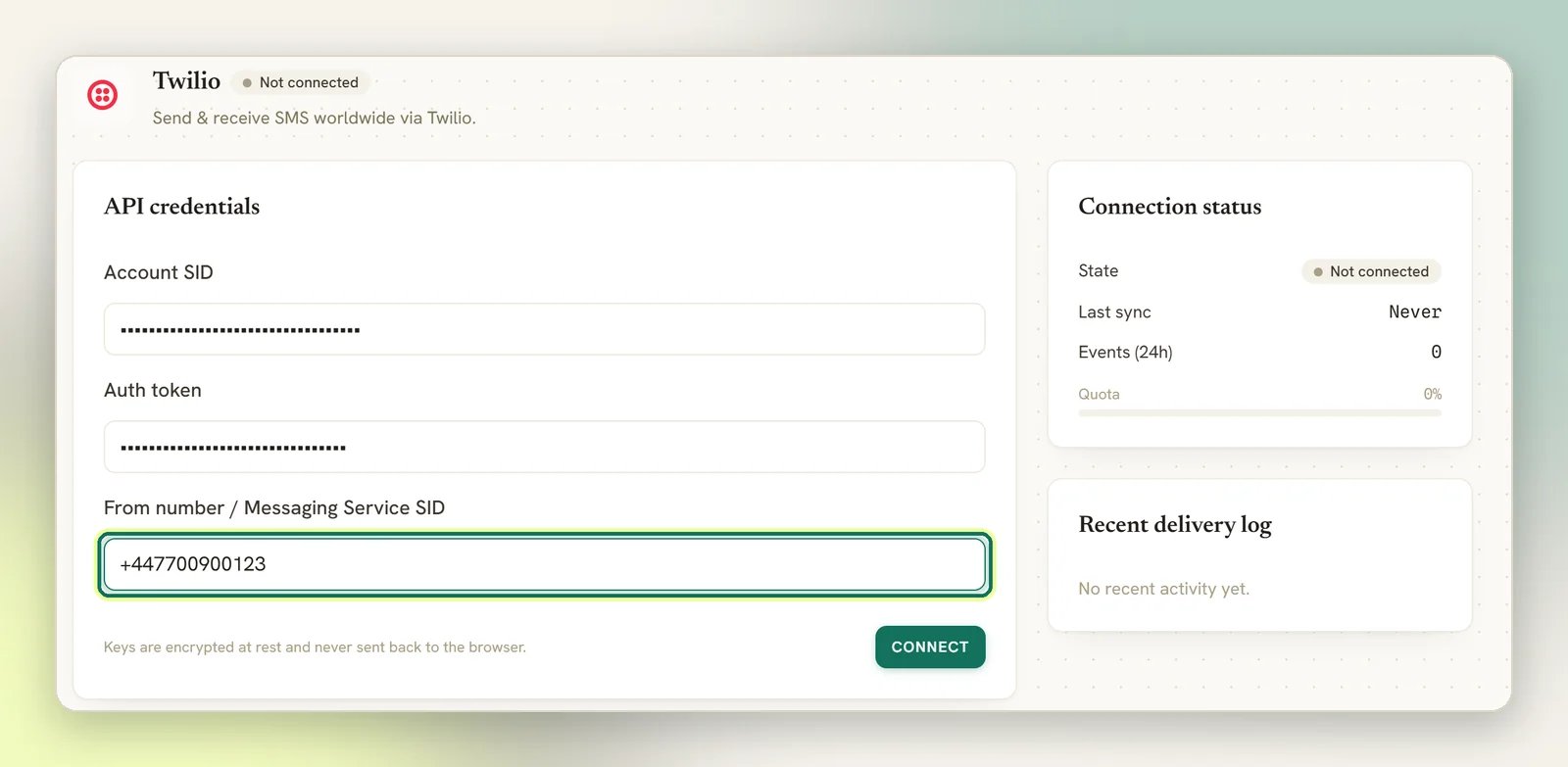
AC…), Auth token, and From number /
Messaging Service SID (either a Twilio number like +1500… or a Messaging Service SID
starting MG…). DMLY works out which one you gave it.{to}, {text} and {from}
where the values belong, the HTTP method your gateway expects, an Authorization
header value if it needs one, and a Sender ID.3
Connect
For Twilio and Plivo, DMLY calls the provider’s API to check the credentials.
Wrong ones fail here with the provider’s own error rather than failing quietly later. The
custom HTTP gateway is only checked for a non-empty send URL, so a wrong URL, method or
Authorization header connects successfully and only shows up on the first send. Watch
Logs after connecting one.Connecting creates one workspace-wide SMS channel: “Connecting provisions a
workspace-wide SMS channel for broadcasts, the inbox and the “Send SMS” flow step.”
4
Set the webhook (Twilio and Plivo)
DMLY shows an Inbound & delivery webhook URL after you connect. Copy it and paste it
into your provider’s dashboard as both the inbound-message URL and the delivery-status
URL. Nothing does this for you, and until it’s set, replies won’t arrive.In Twilio, it’s on the number under Phone Numbers → Active numbers. In Plivo,
it’s under Phone Numbers → Manage numbers.
The credentials are stored encrypted and never sent back to your browser. Disconnecting the
gateway wipes them and removes the SMS channel. To change them, reconnect with the new
values.
The sender is your brand, not just a credential
The From number / Messaging Service SID, Sender number or Sender ID you enter is what appears as the sender on every text you send: every reply from the Inbox, every broadcast, every Send SMS flow step. To your customers, that value is you, so treat it as a branding decision, not a connection detail:- Use a number your customers will recognise, and keep it. Changing it later means your next text arrives as a new, unknown thread on their phone, cut off from the conversation history they had with the old number.
- On Twilio and Plivo the sender is a phone number (or a Twilio Messaging Service that manages a pool of them), which is what makes two-way SMS work: replies go back to that number and land in your Inbox.
- On the custom HTTP gateway, the Sender ID is passed to your provider as-is. With some providers and in some countries that can be a name rather than a number. Since that gateway is outbound-only anyway, an unreplyable name costs you nothing extra.
DMLY passes the sender through to your provider without validating it. Whether a given
number or name is allowed to send (sender registration, country rules on alphanumeric
IDs) is between you and Twilio, Plivo or your gateway, and a disallowed sender fails at
the provider, visible in Logs.
What you get
Unified Inbox
Replies land in the same Inbox as WhatsApp, with assignment and statuses. DMLY creates or
matches a Contact by phone number.
Broadcasts
Supported, with no window and no template queue.
Flows
Inbound texts start and continue flows, with keyword matching like any other channel.
Send SMS from any flow
The Send SMS step texts a contact’s phone from a WhatsApp, Messenger or Instagram flow
too, not just an SMS one.
No messaging window
This is SMS’s real advantage over Meta channels. There is no 24-hour window on SMS: you can text a contact at any time, whether or not they have ever texted you, with no template and no approval queue. Compare that with WhatsApp’s rules, where an automated message outside the window needs an approved template. The trade-off is cost and reach: every SMS costs you money at your provider, and you only get plain text.Broadcasts
SMS broadcasts work like any other, minus the window filter and the template step: you write the message, DMLY personalizes it per recipient, and it sends. DMLY’s own note on the step: “Sent as a plain SMS via your connected gateway. Keep it concise — long messages split into multiple segments.” Opted-out contacts are protected either way: a contact who has sent STOP is refused at send time even if they’re still in the audience. The audience-level filter that excludes them up front only applies if you turn on the reachable-only audience option, so a broadcast to a large segment will still show individual failures for people who opted out. That’s expected.STOP and START are automatic
SMS opt-out is handled for you, and it runs before anything else: before flows, before automations, before your bot ever sees the message. A text whose whole body is one of these opts the contact out:stop, stopall, stop all,
unsubscribe, cancel, quit, end, opt out, optout. Case doesn’t matter. When it
happens, DMLY marks the contact opted out, tags them Unsubscribe, cancels their active
flow runs and sequences, and writes a note in the conversation: ”🚫 Contact opted out (STOP)
— automated messages suppressed. Agents can still reply manually.”
start, unstop, subscribe, opt in or optin reverses it.
Flows on SMS
Flows run on SMS with a smaller palette, because the channel is text-only. With SMS as the flow’s channel, the Messaging steps are limited to the plain text message and the question step. The image, video, audio and file steps aren’t offered. Everything in the Actions group still works: tagging, assigning, handing over to a person, webhooks, and the rest. So the SMS flows that make sense are the text-shaped ones:- Keyword auto-replies: someone texts
HOURS, you text back your opening times. - Ask a question and branch: collect an answer, tag the contact, route the conversation.
- Hand over to a person: catch the reply and put it in front of an agent.
- Notify and record: tag, assign, or push to a webhook off the back of an inbound text.
You can’t pick the gateway on a Send SMS step. If you have more than one connected, the
step uses whichever one DMLY finds first, so connect only the gateway you want your flows to
send through.
Limits
- 600 messages per minute per SMS channel. Sends past that are throttled. Your provider has its own limits on top of this one.
- Your provider’s rules still apply: sender registration, country restrictions, and per-message pricing are between you and Twilio or Plivo. DMLY doesn’t check them for you.
When replies don’t arrive
Almost always the webhook. Work through this order:- Is the webhook URL set in your provider’s dashboard? It isn’t automatic. Reopen the gateway in Integrations → SMS, copy the Inbound & delivery webhook URL, and check it’s set as both the inbound-message and status URL on your number.
- Is it the custom HTTP gateway? Then inbound replies are never supported. Switch to Twilio or Plivo.
- Did the contact text STOP? Opted-out contacts still reach your Inbox, but automated messages to them are suppressed. Look for the opt-out note in the conversation.
- Still nothing? See No inbound messages and Logs.