

Two things it needs before any of this works
Payment mode lives in Offerings, not Appointments. You set it on the Service, under Offerings → Services. There is no payment setting on the Appointments screens. A mode without a price does nothing. Payment only ever happens on a service priced above zero. Set Pay before booking on a service priced at 0 and DMLY ignores it completely; the booking behaves exactly as if no payment were required. The editor tells you as much: Set a price above 0 to require payment.Set the payment mode
1
Open the service
Go to Offerings → Services and edit the service you want to charge for.
2
Set a price above 0
A price of 0 makes every payment mode inert.
3
Choose a payment mode
Pick No payment required, Pay after the appointment, or Pay before booking.
If no gateway is connected you get a warning here: No payment gateway is connected, so
clients won’t be able to pay. Connect one in settings.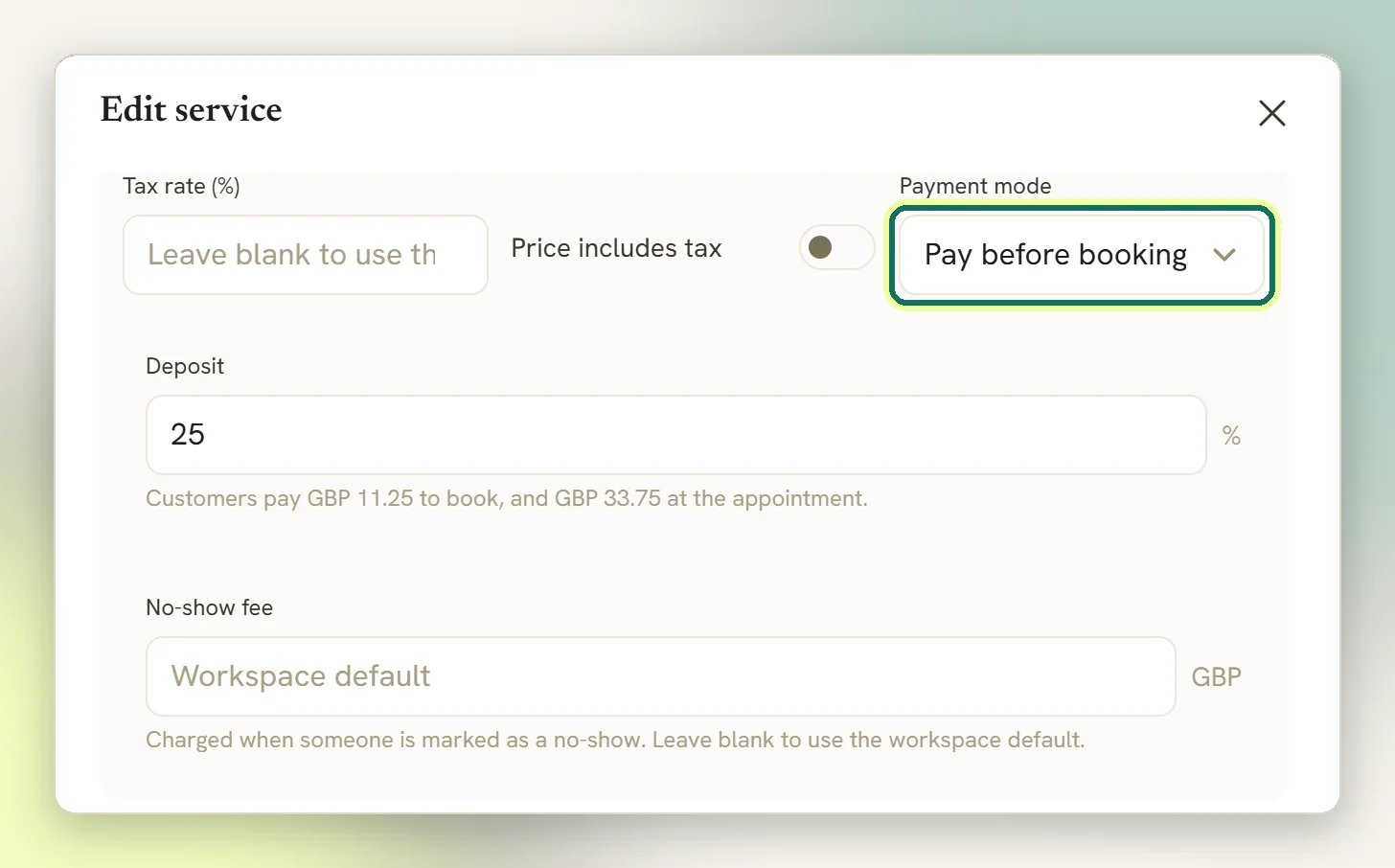
The three modes
No payment required
The default. The booking confirms immediately and DMLY never mentions money. Use it for
consultations, or when you take payment in person.
Pay after the appointment
The booking confirms immediately, then DMLY sends the client a pay link. The booking is
real whether or not they pay.
Pay before booking
The slot is held, not booked. It only becomes a real appointment once the payment clears.
Pay after the appointment
The booking is confirmed first: the client gets their confirmation, the reminders are scheduled, the slot is yours. Only then does DMLY mint a checkout link and message it to the client on their active channel. The message reads💳 Complete your payment for <service name>: <pay link>.
This step is best-effort by design. If no gateway is connected, or the gateway errors, or the
message can’t be delivered, the booking stays confirmed and unpaid. Nothing rolls back and
nothing warns you. Treat pay-after as an invoice you sent, not as money you collected; check
the booking’s paid state rather than assuming.
Pay before booking
The slot is held for 15 minutes while the client checks out, then confirmed by the gateway. During the hold the booking exists but almost nothing else does:- No confirmation message to the client.
- No reminders scheduled.
- No push to your connected calendar.
- No
appointment_bookedtrigger, so any Automation hanging off a booking stays quiet.
If no gateway is connected, the public booking page refuses a pay-before booking before any
hold is created. The client sees: Online payment isn’t available right now. Please contact
us to book this service. An AI chatbot booking releases the slot again and hands off to a
human; a booking created through the API holds the slot with no pay link until the hold
expires. Connect the gateway first.
Take a deposit instead of the full price
A Pay before booking service can ask for part of the price up front. A salon or clinic usually wants a deposit to make a slot cost something to abandon, not to collect the whole fee weeks early.1
Open the service
Go to Offerings → Services and edit a service set to Pay before booking. The
Deposit field only appears on that mode.
2
Enter a percentage
Type a number from 1 to 99. Left blank, the field shows Full price and the whole price
is charged up front, as before. Under the field, DMLY works out the split for you: what the
client pays to book, and what is left to pay at the appointment.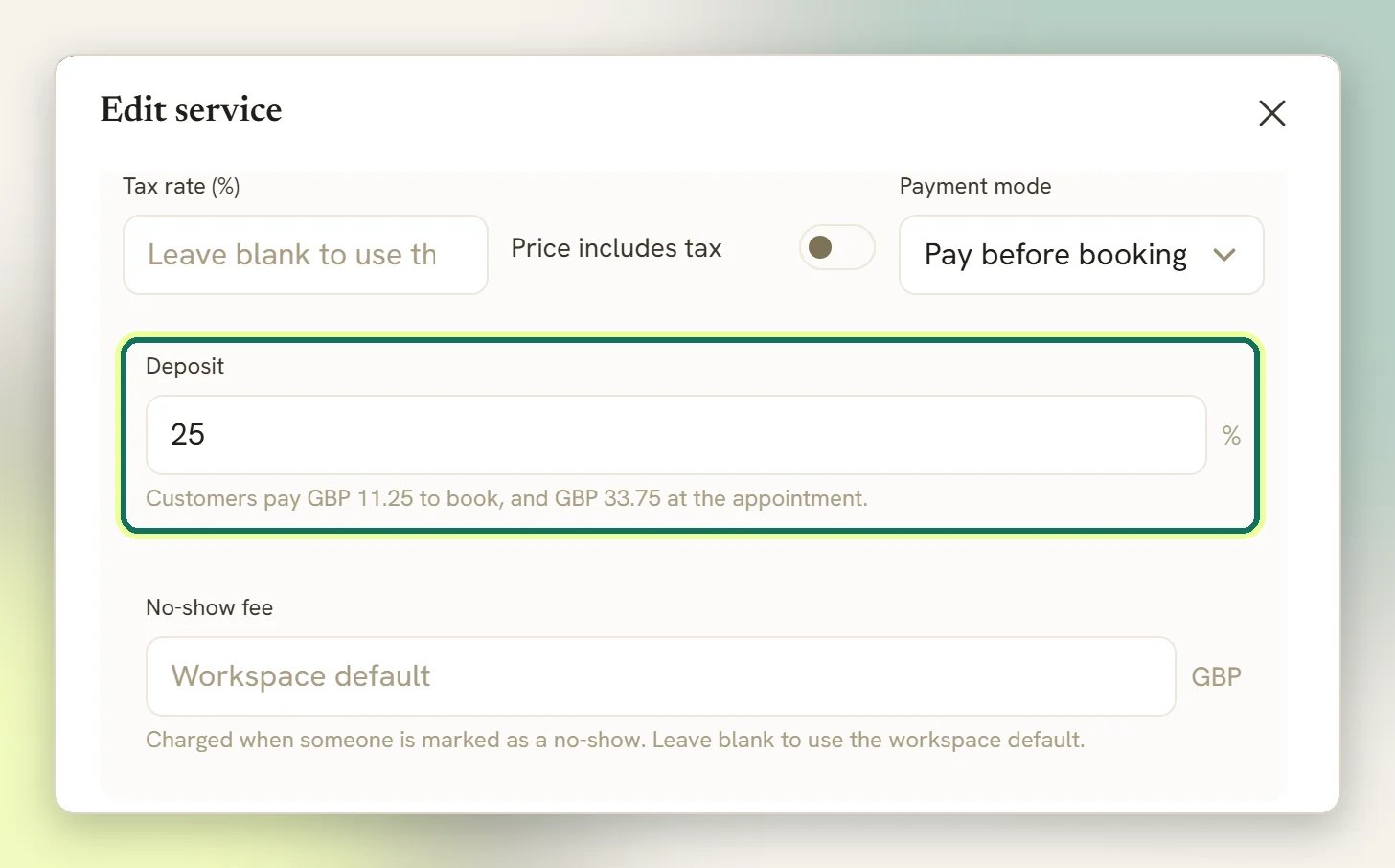
The deposit applies wherever the booking is made: the public booking page, the Calendar,
the AI agent, the mobile app, the REST API and Claude. When the AI agent takes the booking,
it also tells the client what’s left to pay at the appointment.
When payment never lands
Every 15-minute hold ends one of three ways.
A background sweep runs every minute and releases holds past their deadline, so a freed slot
comes back on the booking page within about a minute. Either way, any reminders queued for
that booking are skipped; they never fire for a booking that fell through.
Expired and payment-failed are both final. DMLY does not re-hold the slot, chase the
client, or reopen the booking. If they still want the appointment, they book again.
What the client is charged
The charge is priced off the booking’s own price snapshot, taken at the moment the slot was held, not the service’s live price. Editing the price in Offerings → Services while someone is mid-checkout cannot change what their gateway charges. Tax comes from the service’s own Tax rate (%) field in Offerings → Services, applied to that snapshotted price. Leave the field blank and the booking uses the workspace default tax from Finance settings, as the field’s hint says (Leave blank to use the default tax rate). Invoices use the same fallback, so a booking and its invoice are taxed the same way. A deposit is a percentage of this taxed total.Charge a fee when someone doesn’t show
A No-show fee charges the client when their appointment is marked as a no-show. It works on any service, whatever its payment mode, including No payment required. Set it in either or both of two places:- On a service: in Offerings → Services, the No-show fee field, in the service’s currency. Its hint reads Charged when someone is marked as a no-show. Leave blank to use the workspace default.
- As the workspace default: in Appointments → Settings, under Booking policy. It applies to every service that doesn’t set its own. Left blank, it shows No fee.
When it’s charged
Only when somebody marks the booking as a no-show: from the Appointments screens, the mobile app, the API, an automation step that marks a no-show, or class attendance. An appointment nobody marks is never charged. To make sure no-shows get marked, set Appointments nobody marked to Wait for review; see Past bookings close themselves. The fee comes on top of the usual no-show handling: theappointment_no_show trigger still fires, so your automations run as before.
How the money is taken
- A saved card is charged. The client is then messaged that a missed appointment has been charged, and invited to reply if they think it’s wrong.
- Otherwise they’re sent a payment link on the channel they use.
- Once per booking. Correcting the status and marking the no-show again doesn’t charge a second time. Changing the status back doesn’t refund it either.
- Separate from any deposit. DMLY doesn’t subtract a deposit the client already paid. If you want the deposit itself to be the penalty, leave the fee blank.
- Charged in the booking’s currency. The workspace default has no currency of its own.
Paid classes
Classes follow the same three modes, set on the class Service. Two differences worth knowing:- A pay-before class seat is held the same way, and released the same way. Releasing it frees the place in the session.
- When a paid seat is released, the next person on the waitlist is promoted into a pay-before hold of their own: a promoted place still has to be paid for, it is not a free seat. See Classes.
Bookings your team or the API makes
Booking someone in yourself from Appointments → Calendar on a Pay before booking service works like the booking page, with one difference: there’s no checkout page to send the client to, so DMLY holds the slot and messages them a payment link, for the deposit if the service takes one. The booking confirms once they pay. The hold lasts two hours rather than 15 minutes, because a client booked over the phone needs time to see the message. If you’re taking the money yourself (cash, a card machine, a package they already hold), tick Payment taken in person. The appointment is confirmed straight away and no link is sent. The box only appears for a single confirmed booking: booking several slots at once, or a repeating series, confirms them without taking payment, so collect for those yourself. Payment modes do apply to bookings made from the public booking page and by an AI chatbot taking the booking in chat. Through the API, only Pay before booking is honoured; the response carriespayment_required and payment_url. A Pay after the appointment service booked
through the API is confirmed with no pay link, so send one yourself.
A client says they paid but the appointment isn't there
A client says they paid but the appointment isn't there
Almost always a hold that expired before the payment webhook arrived. Check the booking:
if it is expired or payment failed, and their card was charged, the payment landed after
the 15-minute deadline. The booking carries a note saying it needs refund/review. Refund
them, or rebook them manually from Appointments → Calendar and settle the payment
yourself. See Logs if you need to trace the gateway’s side.