

Its address
Every workspace has a booking page at:https://dash.dmly.io/book/<your workspace id>: the landing page, listing your bookable services grouped by category.https://dash.dmly.io/book/<your workspace id>/<service slug>: a single service, so a contact lands straight on that service’s times.
You can serve the page on your own domain instead (
book.yoursalon.com). See
Custom domain. That’s a paid add-on: if your plan doesn’t
include it, you’ll see Custom domains aren’t included in your current plan. Upgrade to connect your own
booking domain. and links keep using your default booking address. Links only switch to your domain once it
is verified and its SSL certificate is live, so a link you shared is never broken.What’s on the page
The landing page lists only services that are active and publicly visible, and only Services of type appointment or class. Add-ons never appear; they’re order extras, not something a contact books. If a service is missing from the page, it is almost always one of those two switches. See Services.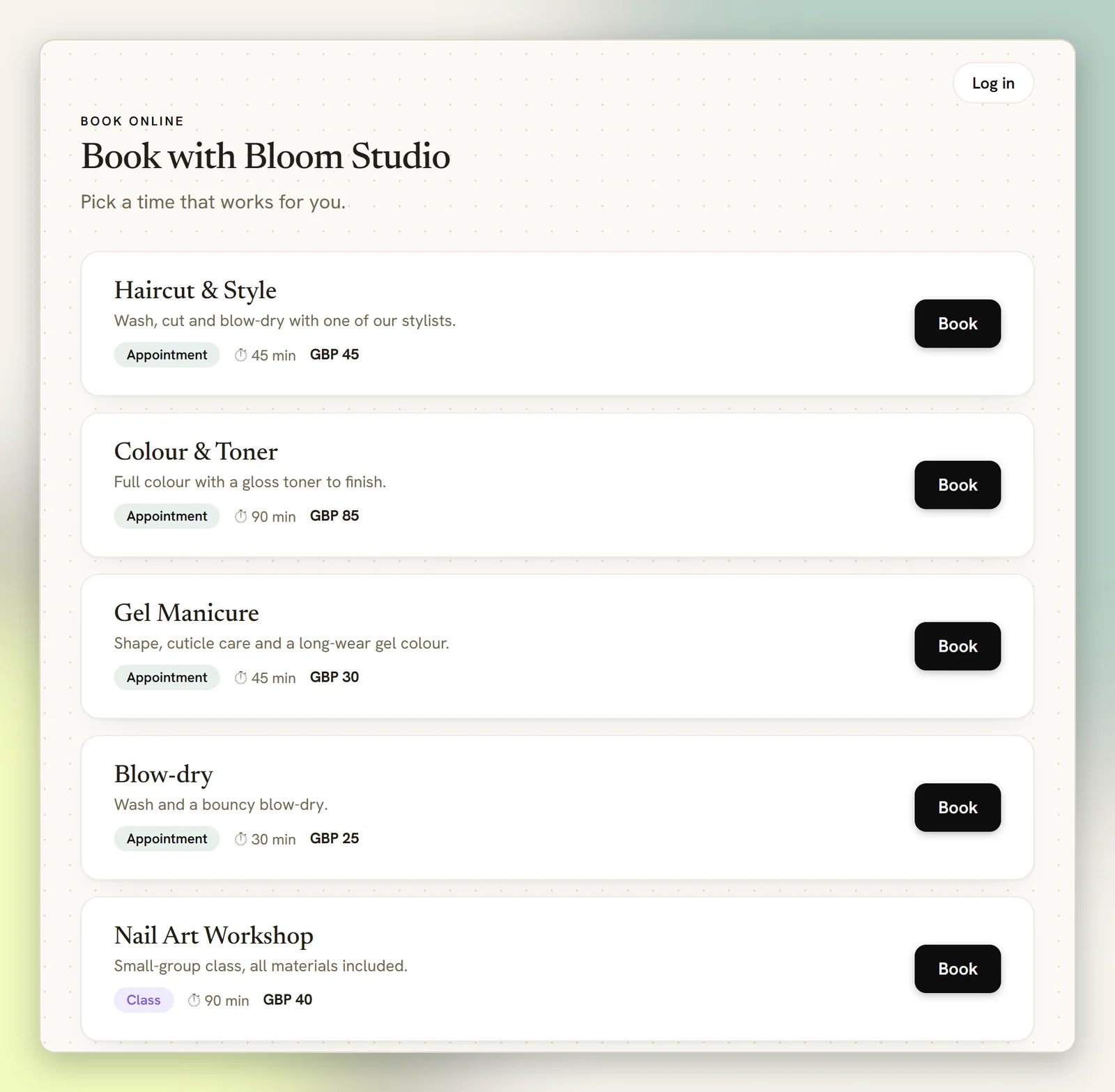
- Booking page favicon: The little icon in the browser tab on your public booking pages. Pick any image from your media library (square PNG or SVG looks best) or paste a URL. Any web image format works: PNG, JPG, GIF, WebP, SVG or ICO. It applies to every public page, meaning the service list, a service’s booking page, a client’s manage page, the client portal login and history, and the payment redirect. There is no fallback: leave it empty and those pages carry no tab icon of their own, whatever your logo is set to.
- Terms URL: a link to your own terms page. Set one and the confirm step shows By booking you agree to our terms., with terms opening the address you gave in a new tab. It appears on appointment and class bookings alike. Leave it empty and no such line is shown; DMLY does not require the client to agree to anything.
- Redirect URL: where the ← Back to website link on the confirmation page sends them. See Sharing it.
What a contact does
1
Picks a service
From the landing page, or straight from a link to one service.
2
Picks a staff member, sometimes
If the service offers a choice, they pick a person. If you turned on Hide staff
selection under Settings → Appointment → Booking flow (it applies to every
appointment service), they don’t: Clients won’t choose a staff member; one is
assigned automatically.
3
Picks a time
Only genuinely open slots are offered. DMLY subtracts your staff’s booked time, buffers,
time off, blocked time and their connected calendar’s busy time. It also applies your
minimum notice and booking horizon. See Staff and availability.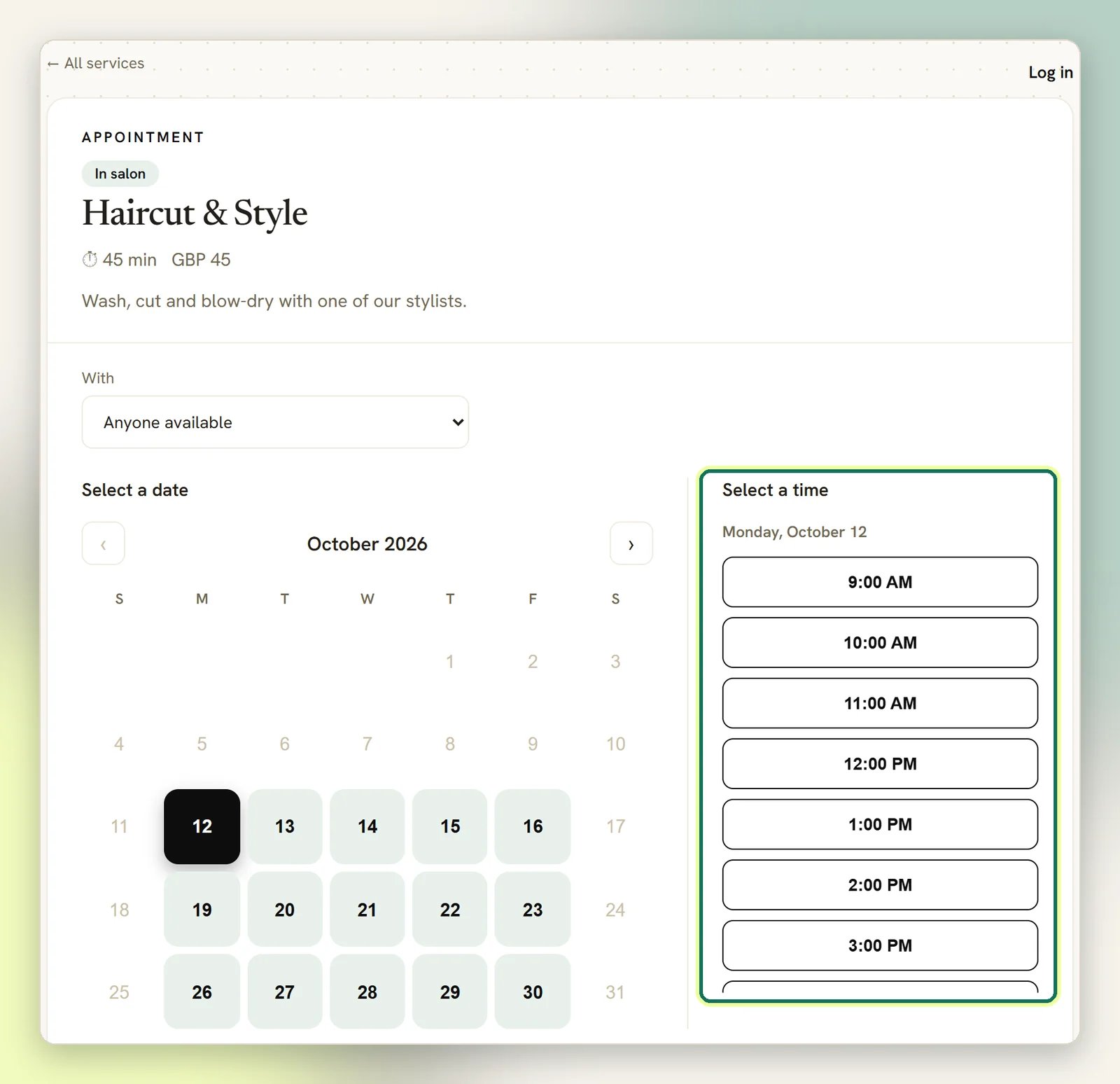
4
Fills in the form
A new visitor must give at least a first name and an email address. The rest of the fields
are up to you: configure them under Settings → Booking Fields. It’s one shared list
for appointments and classes; only Additional Notes is appointment-only.
5
Books
They land on a confirmation page and get a confirmation message on their channel.
When an unknown visitor books, DMLY creates a Contact from the name, email and phone number
they typed (the phone is stored in international form). If your WhatsApp number is connected,
DMLY links that phone to WhatsApp when it sends, so the confirmation and reminders arrive on
WhatsApp. Email is used instead when there is no phone, WhatsApp isn’t connected, or WhatsApp
refuses the send (for example, no approved template). Sharing the link on WhatsApp still
saves a step, because the booking lands straight on the contact you already know.
Times are shown in one of two ways
Under Settings → Appointment, Timezone mode is either Detect automatically or Fixed timezone. With Detect automatically, the page reads the visitor’s browser timezone and shows times on their own clock. If it can’t, it uses the contact’s stored timezone, then the service’s own timezone, then UTC. Only Fixed timezone shows everyone the same clock. Pick Fixed timezone if you’re a single-location business and “3:00 PM” should always mean your 3 PM.Languages
Every public page speaks the language the visitor picks: the service list, a service’s booking page, the manage page, the client portal and its login, the payment page, and the calendar invites the manage page offers. The picker sits in the page footer, beside the timezone. A visitor who hasn’t picked one sees the page in their browser’s language, if it’s one of the 16, and in English otherwise.Fix the language for everyone
If your customers all speak one language, you can set it for them. Go to Appointments → Settings, and under Default booking page language pick a language instead of Automatic (visitor’s browser language). A selected language applies to every visitor until you change it. With a language set, the service list, the booking pages, the manage page and the client portal all use it, whatever the visitor’s browser says. The language picker disappears from the footer, and a?lang= link can’t override it. Pick Automatic again to hand the choice back
to your visitors.
There are 16 languages: Arabic, Basque, Catalan, Czech, Dutch, English, French (France and
Canada), German, Italian, Polish, Romanian, Russian, Slovak and Spanish (Spain and Mexico).
- The choice sticks. It follows the visitor from page to page, through the client portal login, and inside the page when it’s embedded on your website.
- Dates, times and money are written the local way, and the calendar starts its week on the day that language expects. Arabic pages read right to left.
- Your own words stay as you wrote them. Service names and descriptions, your booking page title and description, and questions you added yourself aren’t translated. The standard labels DMLY supplies, such as the default form fields, are.
?lang= and its code to the link, for example
?lang=es-MX or ?lang=fr-FR. This works while the language is set to Automatic.
If the service is paid
- Pay after the appointment: they book normally, the slot is confirmed straight away, and DMLY messages them a payment link.
- Pay before booking: the slot is held for 15 minutes while they pay, and only becomes a real booking once the payment clears. If the hold runs out, the slot goes back on sale.
After they book: the manage link
Every booking gets its own private page athttps://dash.dmly.io/booking/<booking id>. From
it, while the booking is still confirmed and still in the future, a contact can:
- Cancel: if you’re inside the Cancellation deadline (hours) set under Settings → Appointment → Booking policy.
- Reschedule: same, against the Reschedule deadline (hours) in that same panel. Both
are workspace-wide, not per-service. Set either to
0to allow it right up to the start time. - Add to calendar: links for the usual calendars, plus a downloadable calendar file.
When your team books several sessions at once
A contact doesn’t have to visit the page once per slot. When someone on your team books them in from the Calendar (see Add a booking by hand), selecting + Add another time adds another date and time to the same booking, for the same contact, staff member and service, up to 20 slots in one go. Every slot is still a real, individual booking behind the scenes (each one fires its own automations, calendar event and loyalty or credit awards), but the contact and your team only get one confirmation message for the whole set, not one per slot. It names the service, how many sessions were booked, the first date, and lists the rest (after six it switches to “and N more”). If a slot in the batch fails (someone else took it first, say), the confirmation only covers what actually got booked, and whoever booked it sees exactly which ones didn’t.This is a staff action, not something a contact does themselves. There’s no multi-slot picker
on the public booking page; a contact booking their own appointments still books one slot per
visit.
Sharing it
1
Send it on WhatsApp
Copy the link and send it in the Inbox. One line does the job:
Here's my calendar — grab any slot that suits: <link>. Link to the service page, not
the landing page, when you already know what they want: one fewer decision.2
Let a Flow send it
A Book Meeting node in a Flow, with How to book set to
Send hosted booking link, sends the link for you with the contact already identified,
so they skip the form, and the booking lands on the right Contact. The flow then waits:
whatever you put after the booked path only fires once they actually book, not the moment
the link goes out. This is the best way to send it at scale.Leave How to book on its default and the node shows tappable times in the chat instead
of sending the link: the hint reads In-chat shows tappable times on
WhatsApp/Messenger/Instagram and automatically sends a booking link on SMS. A paid service
always uses the hosted page, whatever you pick. There’s also a separate Send Booking
Link node, which sends the attributed link but doesn’t wait for the booking.
3
Put it on your website and your profiles
It’s an ordinary public URL. Use it as your Instagram bio link, your Google Business
Profile booking link, or the button on your site. Set a Redirect URL under
Settings → Appointment → Branding and the confirmation page carries a ← Back to
website link back to you.
Embed it on your website
Instead of sending people away todash.dmly.io, you can put the booking page directly inside a
page on your own site; a contact picks a time and books without ever leaving it.
1
Open the embed panel
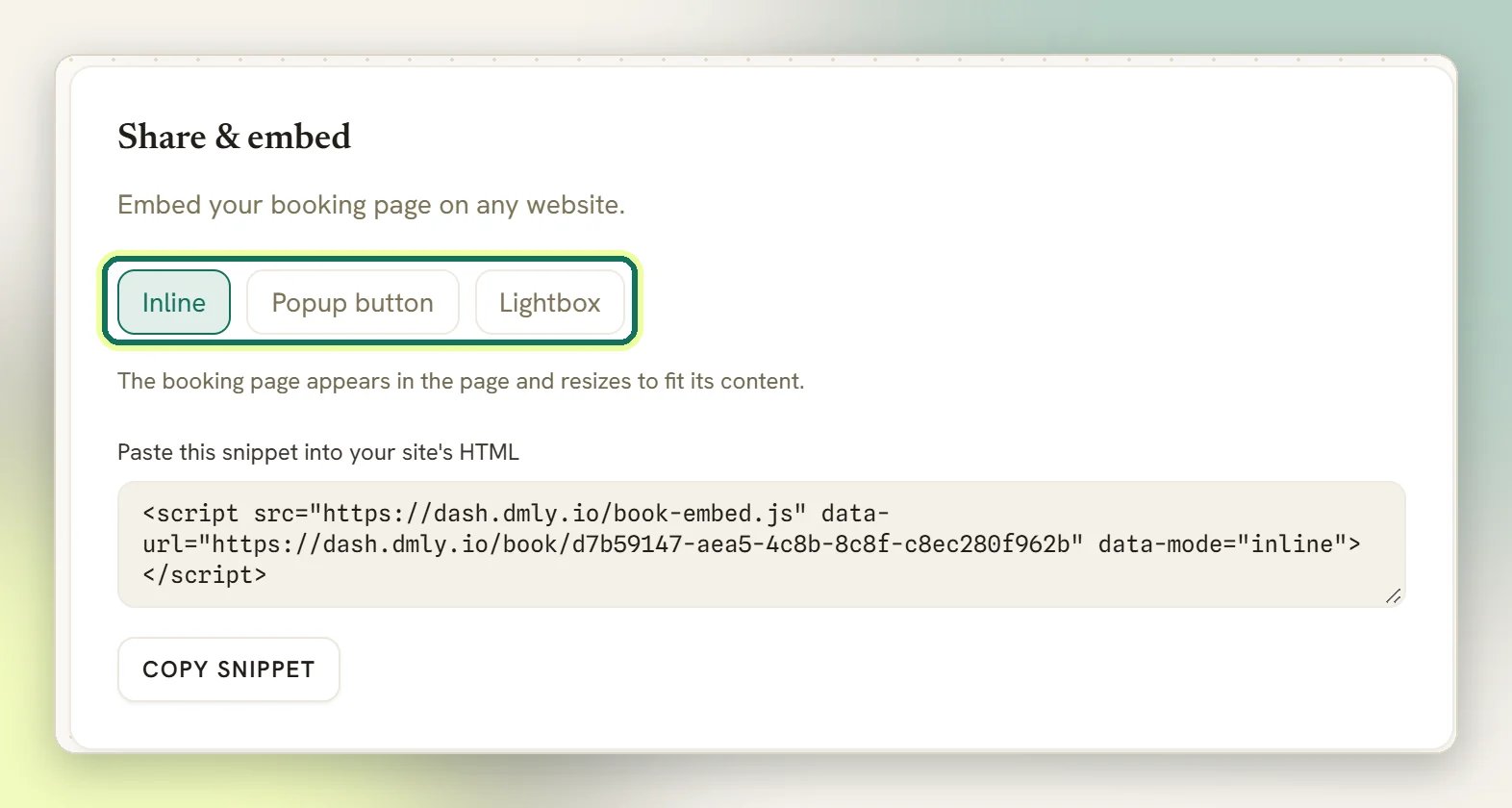
Go to Business → Appointments → Settings → Appointment and scroll to Share &
embed, below Custom domain.
2
Pick a layout
- Inline: the booking page sits directly in your page and resizes itself to fit its content. The booking page appears in the page and resizes to fit its content.
- Popup button: puts a button on your page that opens the booking page in a compact centred card (up to 480px wide, rounded, with a drop shadow) over a dimmed backdrop. Good beside other content. A button that opens the booking page in a centered overlay.
- Lightbox: the same button, but the booking page fills the whole browser window. Good on mobile, or when you want the booking flow to be the only thing on screen. A button that opens the booking page in a full-screen overlay.
3
Copy the snippet and paste it in
Select Copy snippet and paste the single line it gives you into your site’s HTML,
wherever you want the booking page (or the button) to appear.
Payment still works inside an embed. Most payment gateways refuse to load inside someone
else’s page, so if the service needs upfront payment, the embed shows a “Continue to secure
payment” screen that opens the gateway in the browser’s own top-level window instead of the
frame. Everything before that point (picking a service, a time and filling in the form)
stays inside your embed.
Let clients install it like an app
A contact can add your booking page to their phone’s home screen, the same way they’d install any app from a browser: no app store, and nothing for you to turn on. It works automatically on every booking page and needs no setup: the installed name comes from your Booking page title, and the icon from your Booking page favicon if you’ve set one, otherwise your logo, sitting on your brand colour (or a plain brand-coloured tile if you’ve set neither). All of it comes from the same Settings → Appointment → Branding panel that brands the page itself.1
On Android
Open the booking page in Chrome, then use Add to Home screen (or Install app on
newer versions) from the ⋮ menu.
2
On iPhone and iPad
Open the booking page in Safari, tap Share, then Add to Home Screen.
This is a shortcut to the page, not an offline app: booking still needs an internet
connection, the same as installing the DMLY dashboard does.
There’s no separate setting: this is your clients installing your booking page, which is
different from you installing the DMLY dashboard for yourself.
When something looks wrong
The page shows nothing / won't load at all
The page shows nothing / won't load at all
The page fails outright for two reasons. If the workspace has no publicly visible, active
services at all, publish one service and it comes back. If your subscription or trial has
lapsed, visitors see Online booking is unavailable until you renew; publishing a service
won’t help. Existing bookings can still be viewed, cancelled and rescheduled meanwhile. If it loads but looks empty, you’re probably
looking at a filtered view: a category with nothing in it, for example.
A contact sees no available times
A contact sees no available times
Nothing is wrong with the page; the availability rules are eliminating every slot. The usual
causes: the staff member has no working hours set, no staff is attached to the service, your
minimum notice rules out today, or your booking horizon rules out the date they’re looking at.
Work through Staff and availability.
"Sorry, that time was just taken — please choose another."
"Sorry, that time was just taken — please choose another."
Two people picked the same slot seconds apart and the other one landed first. DMLY refuses
the second rather than double-booking your staff. The contact just picks another time: no
action needed from you.
Bookings arrive on the wrong Contact
Bookings arrive on the wrong Contact
A link without contact identification matches first on the email typed in, then on the phone:
an existing contact with that exact email is reused, otherwise an existing contact with that
phone as their WhatsApp number (the oldest, if several). Only when neither matches is a fresh
Contact created. So a client who types a different email and a different phone gets a duplicate. Send it from a
Flow’s Book Meeting node (in Send hosted booking link mode) or a Send Booking Link
node instead; both attribute the link to the contact.
A bulk booking only booked some of the slots
A bulk booking only booked some of the slots
Nothing failed on DMLY’s side: each slot in a multi-slot booking is checked individually, so
one that was taken in the meantime (or genuinely no longer available) is skipped while the
rest still go through. Whoever booked it sees exactly which slots made it and which didn’t, and
the contact’s one confirmation message only lists the sessions that were actually booked.
Services
What appears on the page, and the booking rules behind each one.
Staff and availability
Working hours, time off and buffers: where the open slots come from.
Appointment payments
Pay before, pay after, and holds.
Custom domain
Serve the page on your own branded address.