

Add a staff member
Go to Business → Appointments → Staff: Manage staff members, their hours and the services they offer. An empty workspace shows No staff yet. Add one to get started.1
Create the staff member
Select New staff member and give them a name. Email and Phone are both required;
the form only marks Phone with a 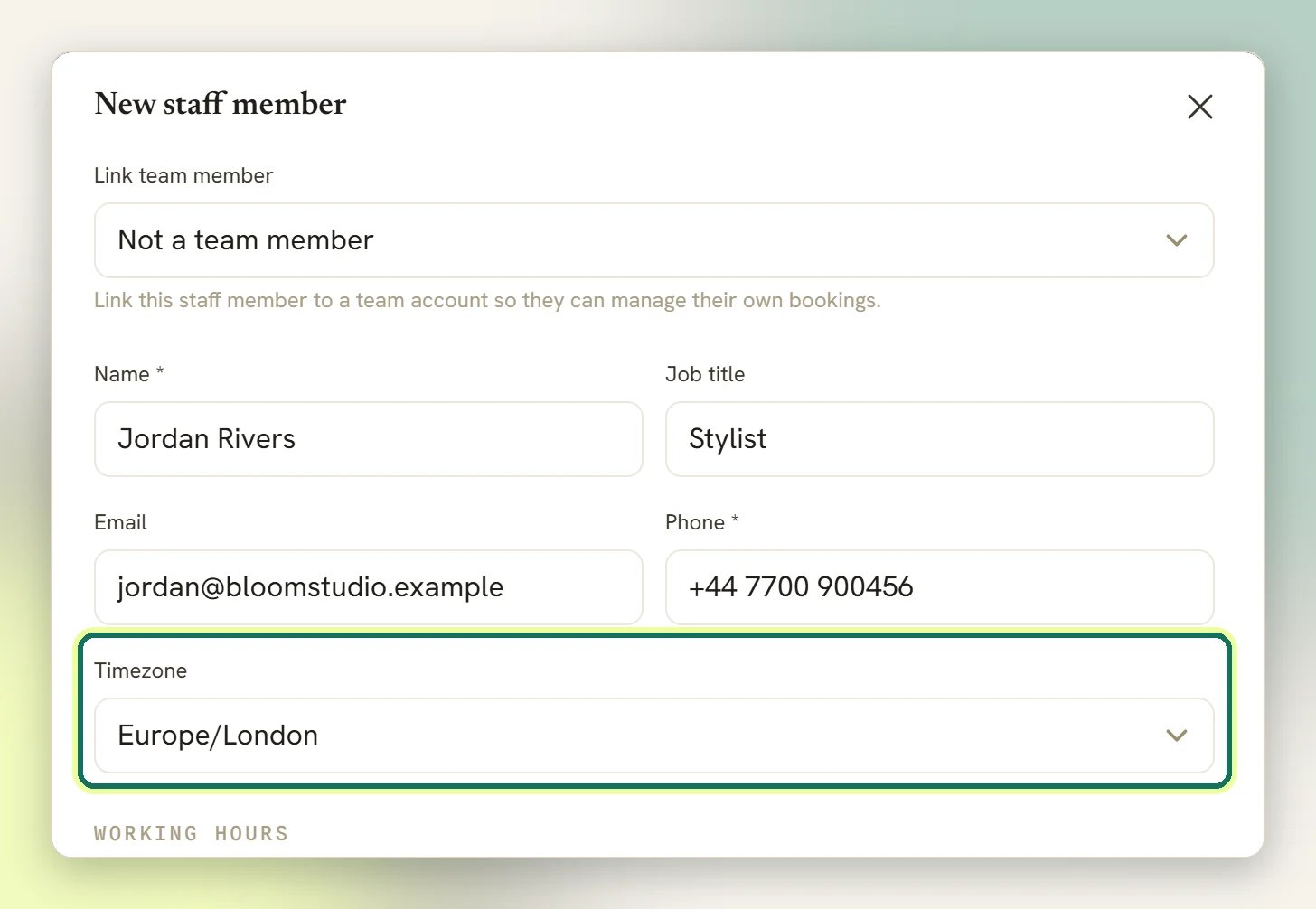
*, but saving without an email is rejected too.
Timezone is required as well and comes pre-filled; check it before you save, because it
decides what their working hours actually mean. A Job title is optional.2
Link a team account (optional)
Link team member connects this staff member to a DMLY login: Link this staff member
to a team account so they can manage their own bookings. Leave it empty for someone who
does not log in to DMLY at all.
3
Let them take bookings
Turn on Accepts bookings and Active (available for booking). These are two separate
switches, and DMLY only offers a staff member a slot when both are on.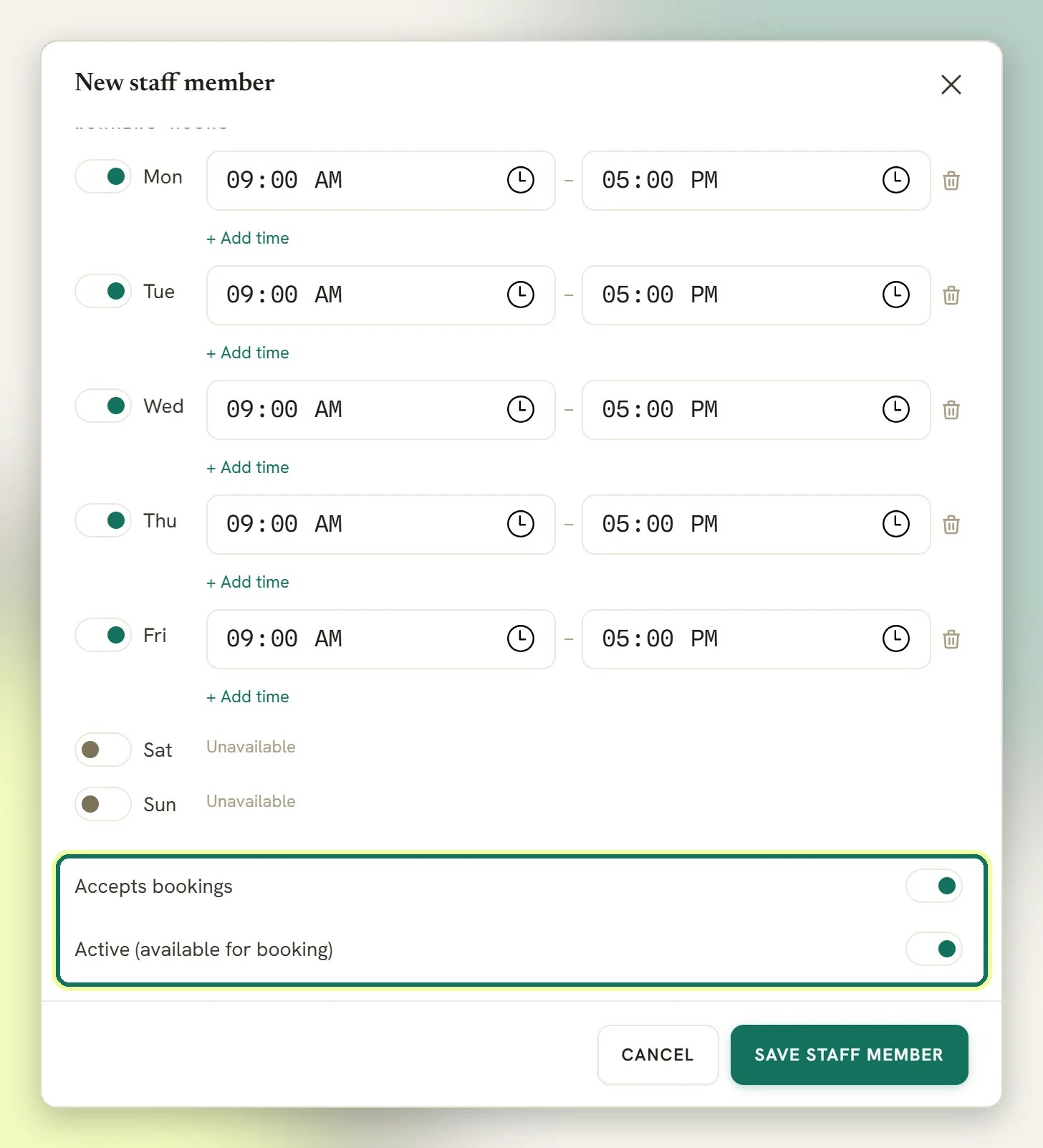
4
Set their working hours
Fill in Working hours: the days and times they normally work. This is the foundation
everything else subtracts from.
5
Save
Select Save staff member.
A staff member does not need a DMLY login. Leaving Link team member empty is normal
for a contractor or a room-based resource. Linking only matters when that person will sign
in and work their own bookings themselves.
Delete <name>? This can't be undone., but that warning overstates it: if the staff member has
any bookings, DMLY does not delete them. It turns Active (available for booking) off
instead and tells you A staff member with bookings was deactivated instead of deleted. Their
history is protected automatically. Only a staff member with zero bookings is really removed:
their availability, their service assignments and the row itself all go.
Working hours are in the staff member’s timezone
Each staff member carries their own timezone, and their Working hours are wall-clock times in that timezone. Nine in the morning for a staff member in Lagos is nine in the morning in Lagos, whatever timezone you or the client are in. DMLY converts the resulting slots for whoever is looking. This is the single most common surprise on a multi-location team: the hours are right, the timezone on the person is wrong, and every slot lands hours off. What clients see on the public booking page is a separate setting: Fixed timezone pins the page to one timezone for everyone, and without it the page renders in the contact’s own timezone. See Booking page.Which services a staff member offers
Each service lists its Assigned staff; a service with none shows No staff assigned yet. Assignment is what connects the two; a staff member is only ever offered for a service they are assigned to. On the booking page, a service with several assigned staff lets the client choose from a With dropdown. Alongside the named staff it offers Anyone available, which doesn’t pin the booking to one person: its slots are the union of every eligible staff member’s slots, so a time shows up if at least one of them is free. That union is why Anyone available almost always shows more availability than any individual, and why turning Accepts bookings off for one person often changes nothing visible. To remove the choice entirely, turn on Hide staff selection: Clients won’t choose a staff member; one is assigned automatically. This one lives on your workspace settings under Business → Appointments → Settings, not on the individual service, so it applies to every service at once.How availability is actually computed
This is the part worth reading. For a given staff member and service, DMLY starts with their weekly Working hours expanded into candidate start times, then removes:1
Times that break the notice and horizon rules
Anything too soon to book, or too far out. See the next section: these rules come from two
places at once.
2
Whatever the connected calendar says they are busy with
If a calendar is connected, its busy time is subtracted directly. External events DMLY does
not own also become blocks automatically. See Calendar sync.
3
Their existing bookings, plus the service's buffers
Any booking that is still live (confirmed, pending, or holding a slot while it waits for
payment) takes the time out, and so does the buffer before and after it. Cancelled,
completed, no-show, failed and expired bookings free the slot back up.
4
Blocks and time off
Both the staff member’s own, and any workspace-wide block that applies to everybody.
5
Classes they are hosting
Every scheduled class session with that staff member as its host comes out too. Class seats
are booked against the session rather than the host, so this is the only step that catches
them. See Classes.
A slot held for a pay-before booking is genuinely taken while the hold lasts; it is not
bookable by anyone else until the hold clears or expires. That is deliberate. See
Payments.
Minimum notice and booking horizon come from two places
Notice and horizon are set in two places, under two different names and, for notice, in two different units. DMLY combines them rather than letting one win. On your workspace settings, under Business → Appointments → Settings:- Minimum notice (hours): Least amount of notice required before a booking can start.
- Booking horizon (days): How far in advance clients can book. Leave blank for no limit.
- Min notice (min): the same rule in minutes, not hours.
- Days ahead: the same horizon. Tick No limit and only the workspace Booking horizon (days) caps it. A typed value must be at least 1.
So if a service allows booking two hours ahead but your workspace requires 24, clients get 24.
Set no workspace values and each service simply uses its own.
Block time and time off
Blocks are one-off holes in availability, made from the calendar view (Business → Appointments → Calendar: View and manage all bookings, classes and blocked time in one place). Select Block time to create one. It opens on a choice of Single day or Date range. Single day asks for a Date; Date range swaps that for a Start date and an End date and blocks every day in between. Either way, All day covers the whole day, or turn it off and give a Start time and an End time. With a range, that same window is blocked on every day in it, so “9:00 to 13:00 every day from the 1st to the 14th” is one action rather than fourteen. Reason is optional. Saving confirms with Time blocked.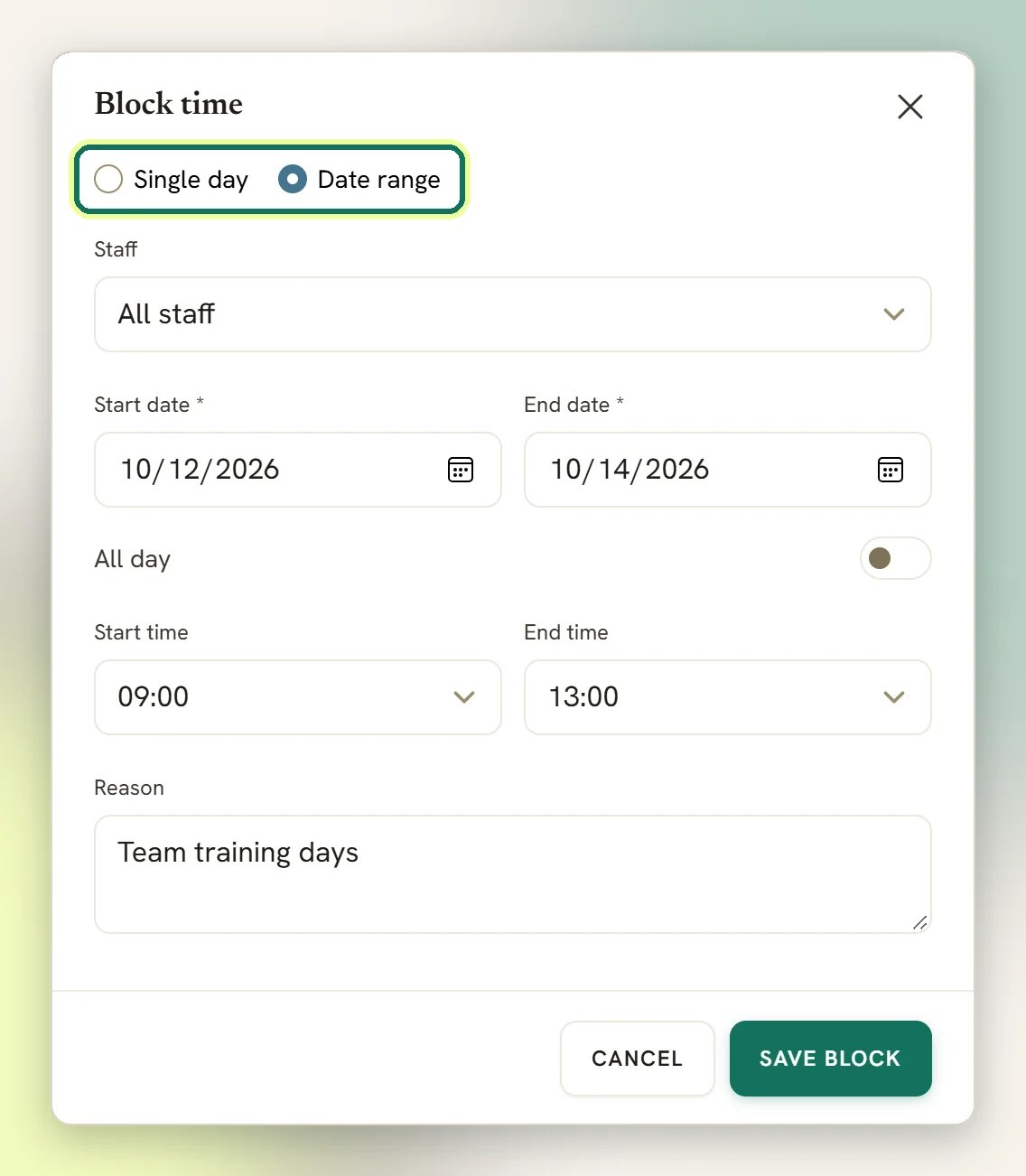
A date range creates one separate block per day, so removing it later means removing each
day’s block individually; there is no “delete the whole range” action. A range is also capped
at about a year: an end date more than 366 days after the start is refused, though all you get
back is the generic Something went wrong. Please try again., so check your dates before
assuming something is broken.
Manual bookings ignore availability on purpose
Booking someone in yourself from the Calendar does not check your published availability. That is intentional: an agent may squeeze a client in outside normal hours, outside the notice window, or on a blocked day. The one thing a manual booking still refuses is a genuine clash: it will not overlap the same staff member’s existing live booking. So “the booking page won’t offer this, but I can” is expected behaviour, not a bug. It also means your calendar can contain appointments no client could ever have made themselves.Two people booking the same slot
They cannot. DMLY locks the staff member’s row while a booking is written, re-checks the slot inside that lock, and backs it with a database constraint as a last line of defence. The loser of a race is told rather than double-booked:- On the public booking page: Sorry, that time was just taken — please choose another.
- Inside DMLY: That time slot is no longer available
A slot I expect isn't showing on the booking page
A slot I expect isn't showing on the booking page
Work down the list in order; the first one that fails is nearly always the cause.
- Accepts bookings is off for that staff member.
- Active (available for booking) is off (a separate switch, and easy to miss). Both it and Accepts bookings must be on. Remember a failed delete turns this one off for you.
- They are not in the service’s Assigned staff, or the service shows No staff assigned yet.
- Their Working hours don’t actually cover that time; check their timezone before the hours.
- Minimum notice rules it out: from the service’s Min notice (min) or the workspace’s Minimum notice (hours), whichever is stricter. Check the units before you conclude the number is wrong.
- The booking horizon rules it out: the service’s Days ahead or the workspace’s Booking horizon (days), whichever is shorter.
- A block, time off, or a workspace-wide closure covers it.
- They are hosting a class then. See Classes.
- A connected calendar says they are busy, including an event you created outside DMLY.
- An existing booking, or its buffer, overlaps it.
A staff member is showing slots I never gave them
A staff member is showing slots I never gave them
They almost certainly have no Working hours of their own, so they inherited the service’s
Weekly availability. Set their hours and the fallback stops applying.
Next
Services
Duration, buffers, notice, horizon and price live on the service, in Offerings.
Booking page
What clients see, the timezone they see it in, and the fields they fill in.
Calendar sync
Connect a calendar so outside commitments block your DMLY slots.
Classes
Group sessions with seats and a waitlist, rather than one-to-one slots.