

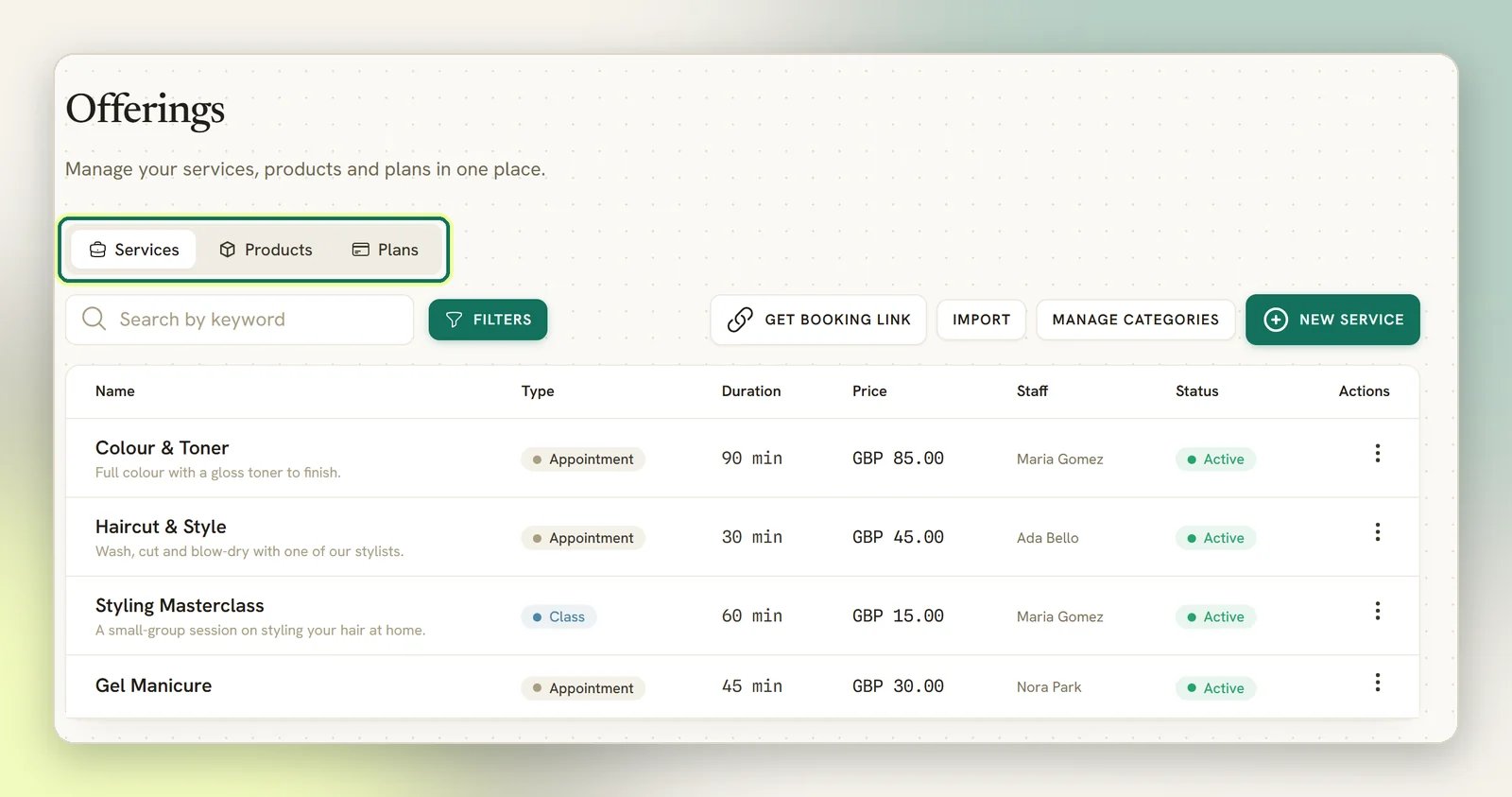
Which one is it?
Everything else in DMLY reads from these. A booking is made against a Service. An invoice line
copies a Service, Product or Plan. A subscription is a Plan someone is on.
The thing that surprises people first
Services: what you do
A Service is more than a name and a price: it carries the booking policy. The duration, the buffers before and after, how much notice you need, how far ahead people can book, and (for a class) how many seats there are. Set those here once and every booking obeys them. Pick a Service type when you create one:
An add-on is never bookable on its own and never appears on your public booking page. It exists
to be added as a line on an order.
Show on public booking page controls whether clients can find and book a service
themselves. Get booking link gives you the link to share. The panel says “Share this link
so clients can browse and book online”, and offers WhatsApp, SMS, Email and
Copy. WhatsApp first, as always.
Payment mode
A service’s Payment mode is one of three:- No payment required: booking is free at the point of booking.
- Pay after the appointment: the slot confirms immediately, then a payment link goes out.
- Pay before booking: the slot is only held until the client pays online. It is not confirmed until the payment lands. An optional Deposit (a percentage) takes only part of the price up front, with the balance due at the appointment. Leave it blank to charge the full price up front.
Services are the same records the Appointments module books against; they moved into the
Offerings catalogue rather than being duplicated. Assigned staff, Weekly availability
and Timezone are on this form; each staff member’s own Working hours are on
Appointments → Staff. See Services and
Staff and availability.
Products: what you sell
Products are your own stocked goods. Create them with New product, give them a SKU, Image, Price and Tax rate (%), and put them in a category. Track stock is off by default and opt-in per product. Turn it on and you get Stock quantity and a Low stock threshold, plus a Low stock only filter on the list. A product only counts as low when all three are true: tracking is on, a threshold is set, and the quantity has fallen to that threshold or below. Every stock change is written to a ledger rather than just overwritten, so the number always has a history behind it. Confirming an order decrements the stock of the products on it, once; re-confirming the same order will not decrement it twice. See Orders. Products have bulk tools: Import products (“Upload a CSV file to add or update products in bulk”), Download sample CSV, and Export. Services have a CSV import too: Import opens the Import services dialog, which also offers Download sample CSV. Its columns are name, type, category, duration_min, price, currency, capacity, description and active. Unlike the product import, rows whose name matches an existing service are skipped, not updated. The Import button needs theofferings.import permission, which only admins hold
by default. Plans are created one at a time.
The Meta catalogue switches do nothing yet. Sync to Facebook and Sync to Instagram
save, but nothing reads them: no product is pushed to a Meta catalogue. The tab labels this
honestly as Meta catalogue · Coming soon. Treat them as off.
Products here are your internal catalogue. They are separate from the products that sync in
from Shopify or WooCommerce, which are their own records with their own stock automations.
Editing one does not touch the other.
Plans: what you bundle
A Plan is what the client actually buys. The price and cadence live on the plan; the contents live in Plan items. Choose a Billing type:- One-time: a package. Bought once.
- Recurring: a membership. Set Interval (day, week, month, year) and Every to control the cadence.
If your plan has credit items, the credits on those items add up to what the client is granted
when the subscription starts, and again on each renewal that is actually charged (auto-charge).
A recurring subscription with no auto-charge rolls its period but does not re-grant credits. The
plan’s own headline credits number is only used when no credit item grants any.
Full detail is on Plans and credits.
A gift card is a different thing, sold from a different place. A Plan’s credits are a
whole number of sessions, spent by booking a service. A gift card is real currency value,
spent against any invoice. It isn’t a catalogue entry here at all. It’s sold and
redeemed from Finance → Gift cards. See Gift cards.
How credits behave
- A credit is a whole number on a contact. One balance per person. Granting adds, booking subtracts.
- A service spends credits only if its Credit cost is above zero. The field’s own help text: “Number of credits this service consumes when a client books with a plan.”
- A client can never go negative. DMLY rejects a spend that exceeds the balance rather than overdrawing it.
- A booking spends credits once. A double-click or a retried job cannot take them twice.
- Whether a credit expires depends on how it arrived. A manual grant given an Expiry date, and the credits from a Recurring plan, are swept overnight once that date or billing period has passed, and only the portion the client provably didn’t spend. A manual grant with the date left blank, a One-time plan’s credits, and credits a flow issues never expire. See When credits expire.
- The client sees their credit history on their profile, showing the most recent 50 entries. See The client profile.
The low-credit alert fires at 3, and you cannot change it. When a client’s balance drops
to 3 or below by using credits, DMLY can trigger an automation. That number is fixed; there
is no setting for it, per workspace or per plan. (Product low-stock thresholds are editable;
credits are not.)
Plans and Finance
Putting a client on a recurring plan creates a subscription: DMLY copies the plan’s items as they are today, grants the credits, and converts the contact to a client. Later edits to the plan do not rewrite an existing subscription.Categories
Categories are managed inline from each tab; there is no separate settings page. A category belongs to the tab you create it on: add one from Products and it is a product category, and it will not appear when you are categorising a service or a plan. The dashboard has no control for making one that spans all three, and cannot rename one: you can add and delete categories. The REST API can do both. A category created withPOST /api/v1/service-categories without a kind (or updated to kind: null) is offered on the
Services, Products and Plans tabs alike, and the API’s update endpoint can rename a category. Deleting one
does not touch what is in it: every service, product and plan in that category is moved to no
category, then the category goes. See Categories.
What the catalogue feeds
Appointments
Every booking is made against a Service, using the duration, buffers and notice you set here.
Invoices and orders
A line copies the offering’s name, price and tax at the moment it is issued.
Automations
Flows can send a client a service with its booking link, or a product or plan, and branch on
whether a product is in stock.
Webhooks
Credits issued, used and low; product stock low and back in stock.
Editing the catalogue never changes an invoice you already sent. Invoice and order lines
store a copy of the name, price and tax rate as they were when the document was created. Put
your prices up tomorrow and last month’s invoice still says what it said.
Stock automations behave differently to the rest
Two things worth knowing before you build one:- They fire on the crossing, not on every save. Low stock triggers when the quantity falls through your threshold, and back-in-stock when it rises above zero from nothing. Editing a product that is already low will not fire it again.
- They have no customer attached. A product running low is not something one client did, so there is nobody to reply to. Instead the flow runs for the contacts holding a tag you choose on the trigger, capped at 500 contacts per run. Pick a small internal tag (your staff), not a customer segment. See Triggers.
Two fields that look like settings and aren’t
Sync to Facebook and Sync to Instagram on a product are likewise saved and unread. See
above.
Where to go next
Products
Stock tracking, the low-stock threshold, and CSV import and export.
Plans and credits
Packages, memberships, plan items and how the credit balance moves.
Gift cards
A fixed-value voucher, sold once and redeemed against any invoice.
Categories
Group the catalogue, and scope a category to one type.
Services
Duration, buffers, staff and the booking policy in full.
Booking payments
Pay before, pay after, and what happens to an unpaid hold.
Finance overview
Where the catalogue turns into invoices, orders and payments.