

This is not your DMLY bill. Subscriptions in Finance are money your clients pay you.
What you pay for DMLY itself lives in Plans and billing and is completely
separate. Cancelling here never touches your own account.
Before you start
Create a Plan
Subscriptions are started from a Plan, which sets the price, the billing interval and any
credits granted each period.
Connect a gateway
Needed for pay links and for auto-charge. Without one you can still track a subscription,
but you cannot collect online. Auto-charge additionally needs a gateway that supports
saved cards; Mercado Pago does not.
Start a subscription
1
Open the tab
Go to Finance → Subscriptions and select New subscription.
2
Pick the client and the plan
Choose the client, then Select a plan. Use Price override if this client pays a
different rate, and add Notes for your own reference.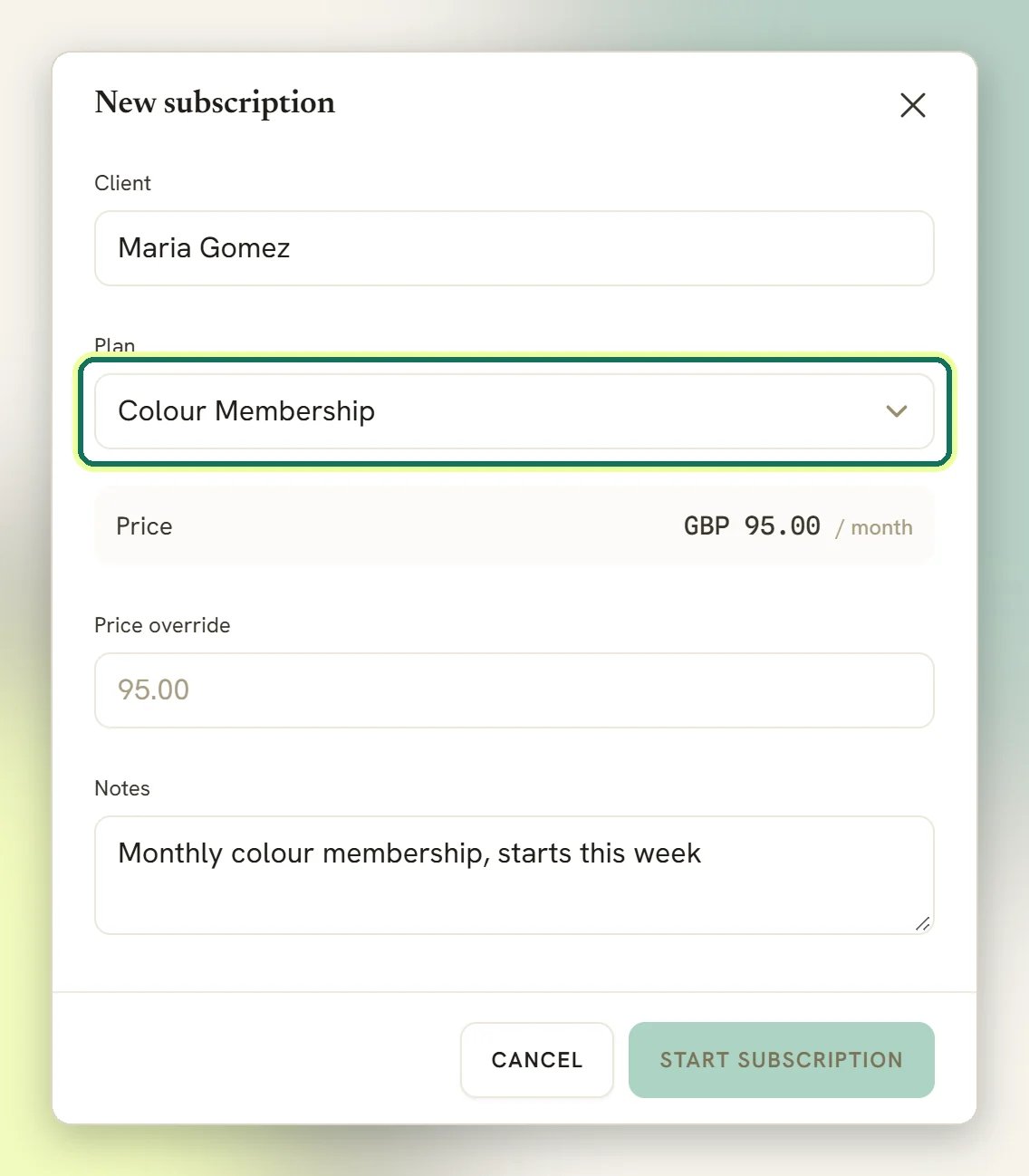
3
Start it
Select Start subscription. Any credits the plan grants are added to the client’s
balance now, and the first billing period begins today.
Auto-charge, or bill by hand
This is the decision that matters most, so make it consciously. With auto-charge, on the billing date DMLY charges the client’s saved card, rolls the period, grants the period’s credits, sends and marks the invoice paid, and sends the client a receipt. To turn it on, open the subscription’s menu and select Set up auto-charge. DMLY sends the client a link to save their card once; you never see or handle the card details. You’ll see Auto-charge setup link sent; the Auto-charge badge appears on the subscription only after the client completes it. Turn off auto-charge ends it.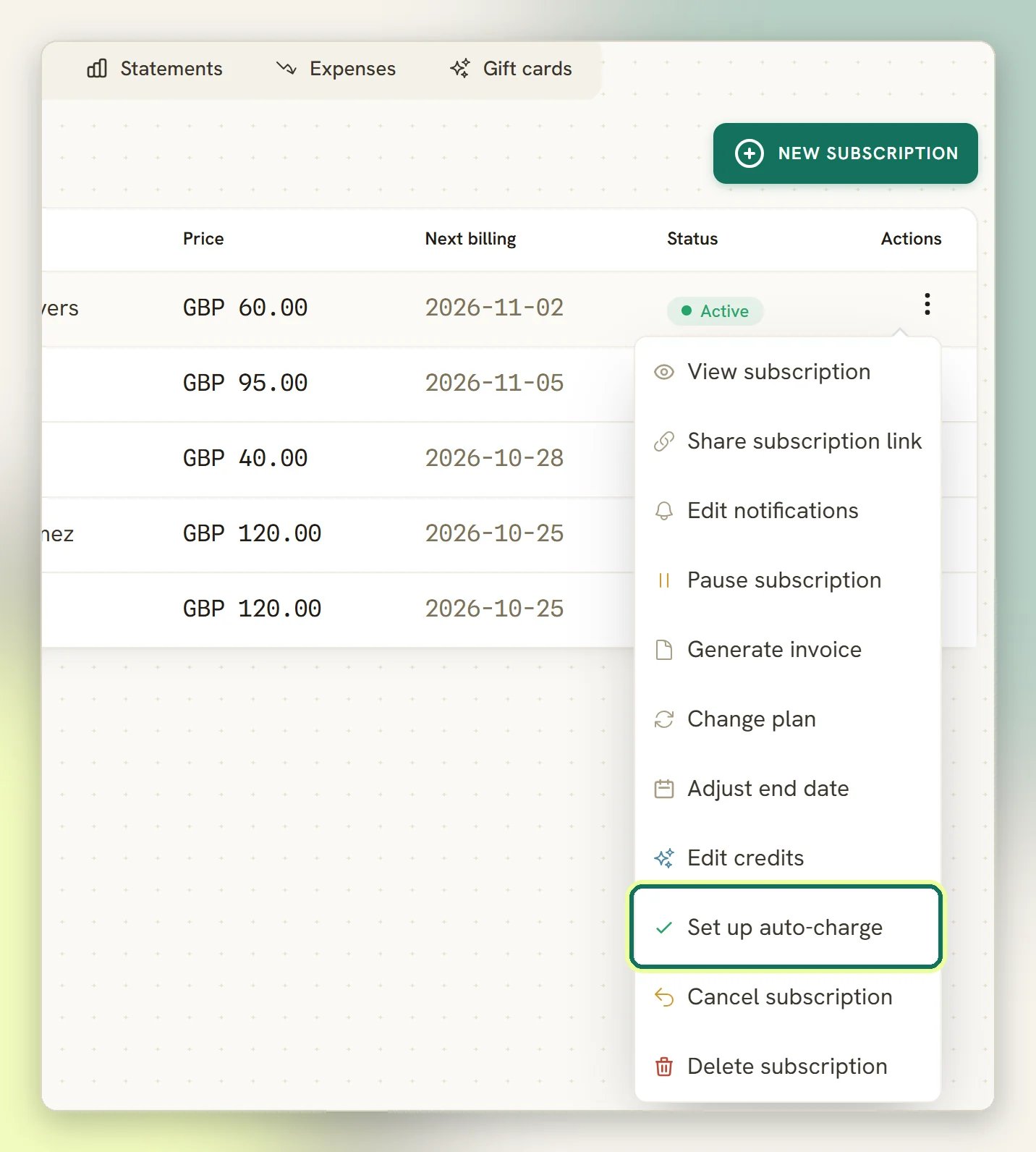
- Share subscription link: the WhatsApp-first way to chase it. It reuses the invoice that is already open, or issues one for the current period if none is, then sends the client a pay link over WhatsApp, SMS or Email. Needs a connected gateway.
- Generate invoice: drafts a new invoice for the current period every time, even when one is already open. Don’t use it for a period the 02:00 run has billed, or the client is billed twice. It is only a draft; send it from Invoices to bill the client.
Credits are granted when you start the subscription, and on each auto-charged renewal. On a
manually billed subscription they are not re-granted each period, even after the client
pays the invoice. Grant them from the client’s profile if the
plan is meant to include them.
Change plan
Move an active client onto a different plan (an upgrade or a downgrade). It’s only offered on an Active subscription with a recurring plan; open its menu and select Change plan.1
Pick the new plan
Choose a New plan. The dropdown lists every recurring plan in your catalogue,
including the subscription’s own current plan; a one-time plan can’t be switched to.
2
Choose when it takes effect
At the next renewal applies the swap at the next billing boundary and changes nothing
today. Immediately applies it right away.
3
Decide on proration
With Immediately selected, Charge the prorated difference now is on by default. On
an upgrade it invoices the price difference for the days left in the current period.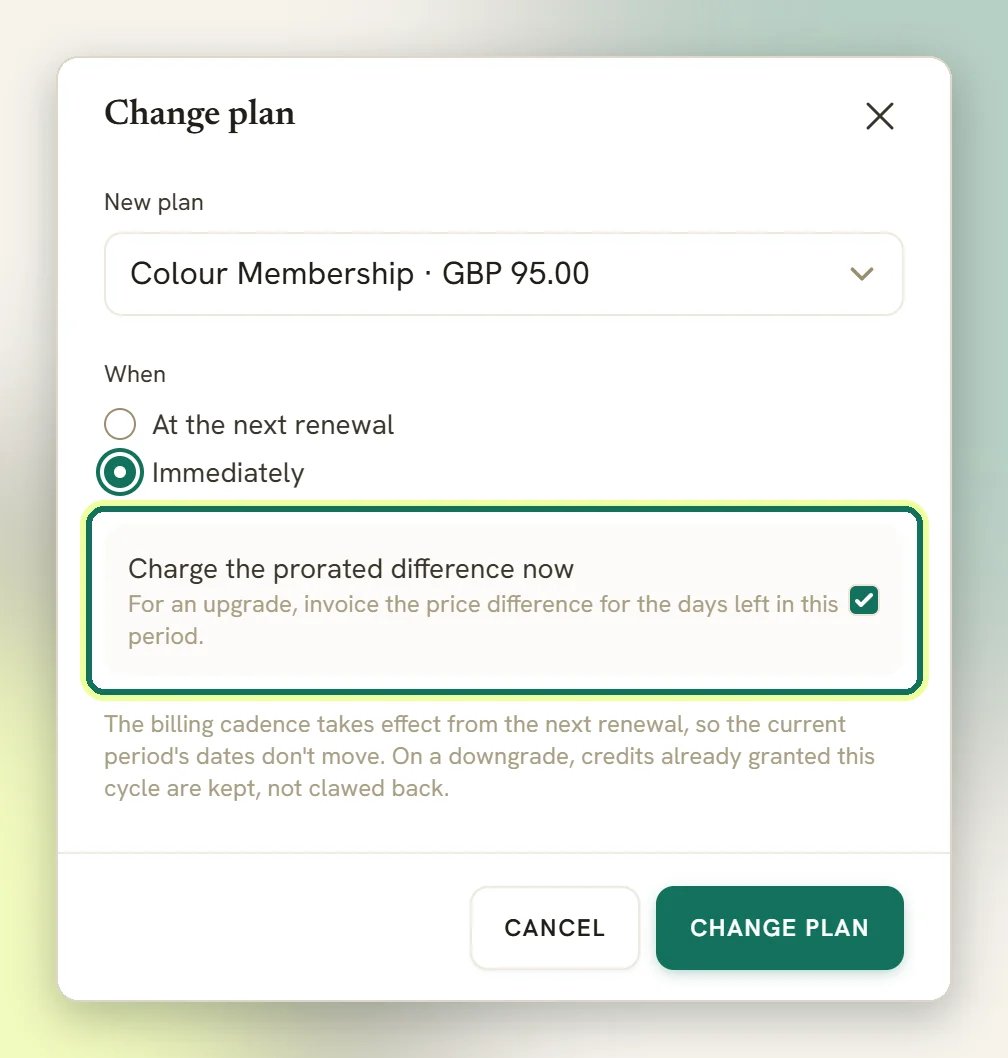
4
Confirm
Select Change plan.
A downgrade never claws back credits the client already has. Credits already granted for
the current cycle stay in the client’s balance; only future renewals grant the plan’s lower
amount. An immediate upgrade grants the increase right away (expiring with the current
period, the same as any cycle grant); a scheduled change doesn’t touch credits until it
applies at the renewal. Proration works the same way: it only ever charges an upgrade’s
difference, never on a downgrade, and never on a scheduled change.
- Open Change plan and pick a different plan: it replaces the scheduled change with the new one.
- Open Change plan and pick the subscription’s current plan again: this clears the scheduled change, with nothing else selected to replace it. It’s the only way to cancel a pending change without cancelling the whole subscription.
- Cancel subscription also clears any pending change.
A scheduled change applies at the next billing date, alongside that renewal’s normal billing:
auto-charge bills the new plan’s price; without auto-charge, the 02:00 run invoices the new
plan’s price. If an auto-charged renewal’s payment fails, the plan swap does not apply
either: the subscription stays on its current plan with the change still pending, ready to
apply once a renewal succeeds.
Renewal reminders and receipts
Three days before the next billing date, DMLY messages the client that the subscription is about to renew. Receipts and failure notices are sent the same way, WhatsApp first. These are on by default for every subscription. Turn them off for one client with Edit notifications: Renewal reminder, Payment receipt and Payment failed.Edit notifications also has an Invoice sent toggle. Turning it off stops DMLY
messaging the renewal invoice and pay link on this subscription’s automatic renewals, which
can leave a manually billed client with no pay link at all. An invoice you send yourself still
goes out.
Pause and resume
Pause subscription stops billing and renewals immediately. Resume subscription starts them again.When you resume a subscription you paused yourself, DMLY moves the period end and the next
billing date forward by the number of whole days it was paused, so the client is not charged
straight away for time they did not get. A subscription paused by failed or unpaid payments
keeps its dates.Adjust end date only moves the billing date on a subscription that is already Active.
On a paused one it moves the period end only. To move the billing date too, resume it first.
Cancel
Cancel subscription asks you to confirm (Cancel the subscription for <name>? Billing will stop immediately.), then stops billing and clears the next billing date.
A few things worth knowing before you use it:
- Cancelling refunds nothing. It stops future billing only. Refund any payment already taken from Payments.
- It cannot be undone from the list. Resume subscription only brings back a paused subscription. To restart a cancelled client, start a new subscription.
- Credits already in the client’s balance stay there.
When a payment fails
Auto-charge failures are retried automatically:1
First failure
The client is told the payment failed, with a link to put in a new card. DMLY schedules a
retry two days later.
2
Second failure
Another two-day wait, then a final attempt.
3
Third failure
After three failed attempts the subscription is Paused and DMLY stops retrying. It will
not charge again on its own.
Let the client update their card
Every recurring subscription has its own card update link. It takes the client to your payment gateway to save a card, and it keeps working however long after it was sent. It reaches the client three ways:- The payment failed message DMLY sends after each failed attempt includes it.
- An automation can send it: add
{{subscription.update_card_link}}to a message, for example in a flow on Subscription payment failed. - Send card update link in the subscription’s menu messages it to the client. It works while auto-charge is on, so you don’t have to turn auto-charge off first.
- Paused after three failed attempts: the subscription resumes and the renewal that’s owed is charged straight away. Its dates don’t move, so the client doesn’t get the missed days free. If the new card fails too, the usual retries start again.
- Paused by you: it stays paused until you resume it.
- Nothing due yet: the new card is used at the next renewal.
A charge failed but the client says their card is fine
A charge failed but the client says their card is fine
You do not have to guess why. Open the subscription with View and the drawer shows the
reason the last attempt failed, in a red banner, in the gateway’s own words. DMLY records it on
every failure and keeps the most recent one.A failure isn’t always the card. A charge also fails if the subscription has no active saved
payment method, or if the gateway it was set up with has since been disconnected. Check
Payments and gateways is still connected, then use Send
card update link so the client can save a card again.
Statuses
Expired appears in the interface but DMLY never sets it; no subscription reaches that
status. Ignore it.
Other actions
- View subscription: the client, price, Next billing, Current period and whether auto-charge is on.
- Edit credits: changes how many credits future renewals grant. It does not add to or remove from credits already in the client’s balance.
- Delete subscription: removes it from the list. Cancel instead if you want a record of what the client was billed.
Related
Invoices
Every subscription period bills through an invoice. Send, share and collect here.
Plans and credits
The catalogue side: price, interval and credits a subscription is copied from.