

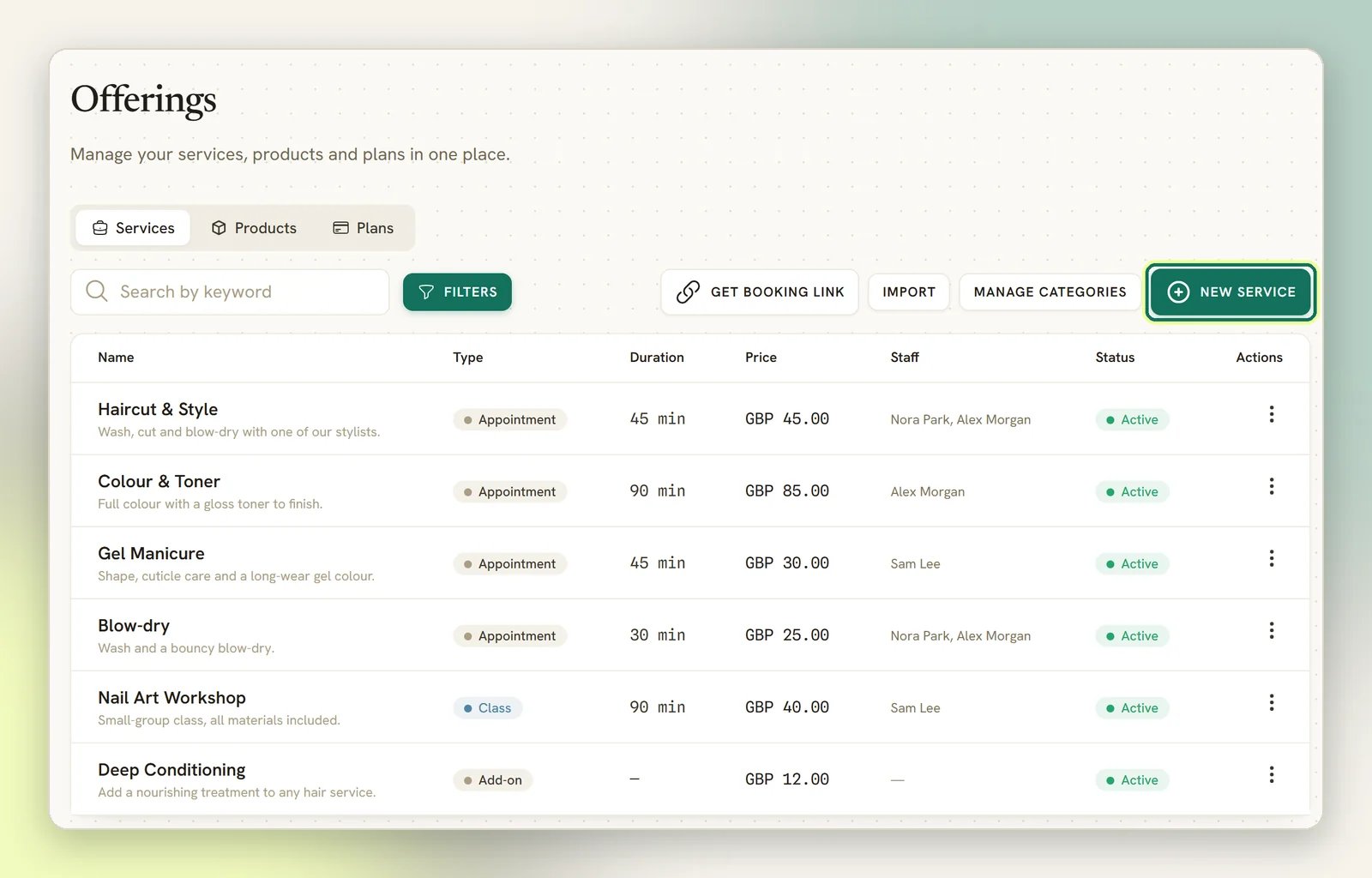
Services are not configured in Appointments. They live under
Offerings, in Services. Appointments shows you the bookings;
Offerings is where you create and edit the services those bookings are made against. There is
no Services page in the Appointments hub; if you are looking for one, that is why.
Three kinds of service
A service is one of three types, and the type decides how it behaves:- Appointment: a one-to-one booking against a staff member’s available time. This is the default and the most common.
- Class: a fixed session with a seat pool that several clients book into. Classes work differently enough to have their own page: see Classes.
- Add-on: an extra you attach to an order. Add-ons are never bookable. They never appear on your booking page and no one can book a time against them.
What a service sets
Only two settings change what a booking is:- Duration (min): how long the booking runs. This is the block of time taken out of a staff member’s day.
- Slot interval (min): how far apart the offered start times sit. A 60-minute service on a 30-minute interval offers 9:00, 9:30, 10:00 and so on, so a gap left by an earlier booking can still be filled.
- Buffer before and Buffer after: padding either side of the booking, so back-to-back bookings leave you room to clean up, write notes, or travel.
- Min notice (min): the least amount of notice before a booking can start. Stops someone booking the 9:00 slot at 8:55.
- Days ahead: how far in advance clients can book.
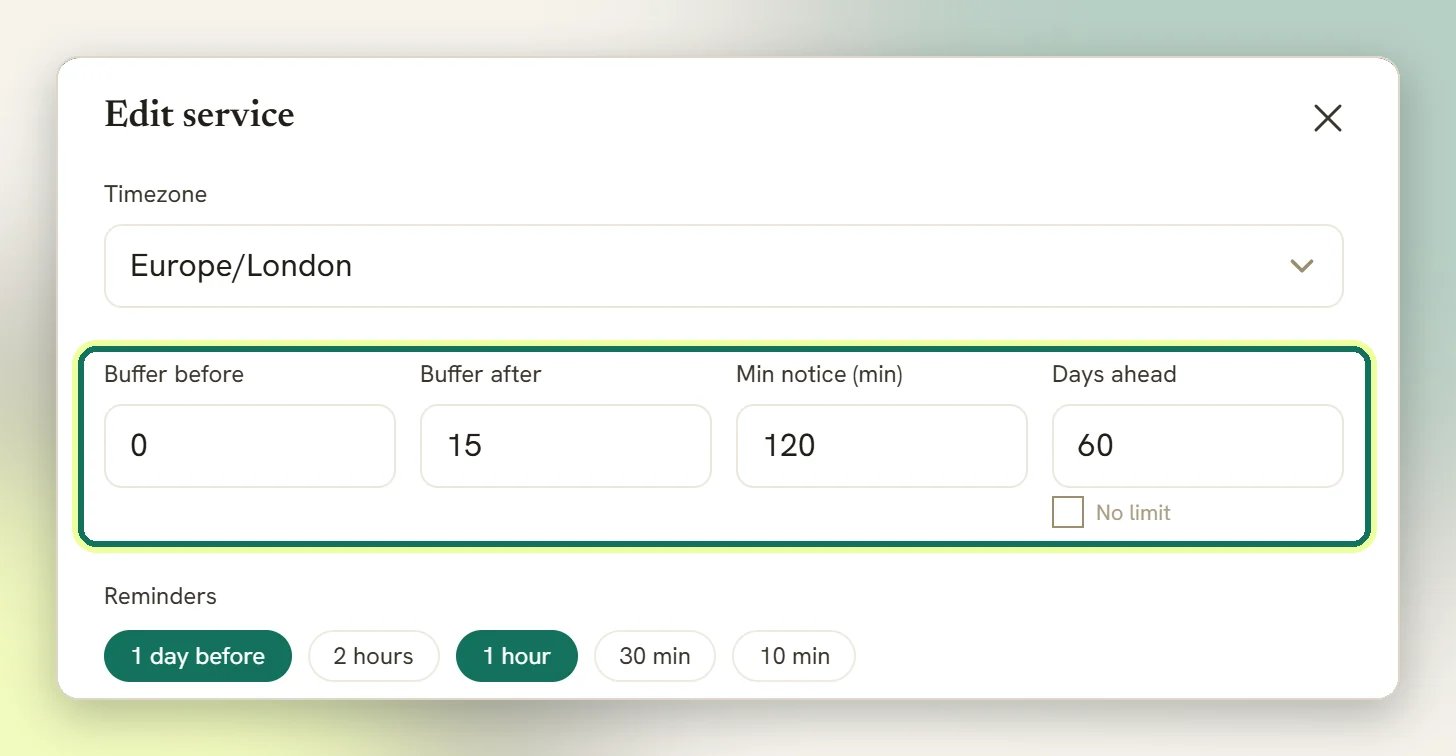
Days ahead has a No limit checkbox. Tick it and the service has no booking horizon of
its own; only the workspace Booking horizon (days), if you set one, caps it. A number you
type must be at least 1.
The workspace has its own notice and horizon
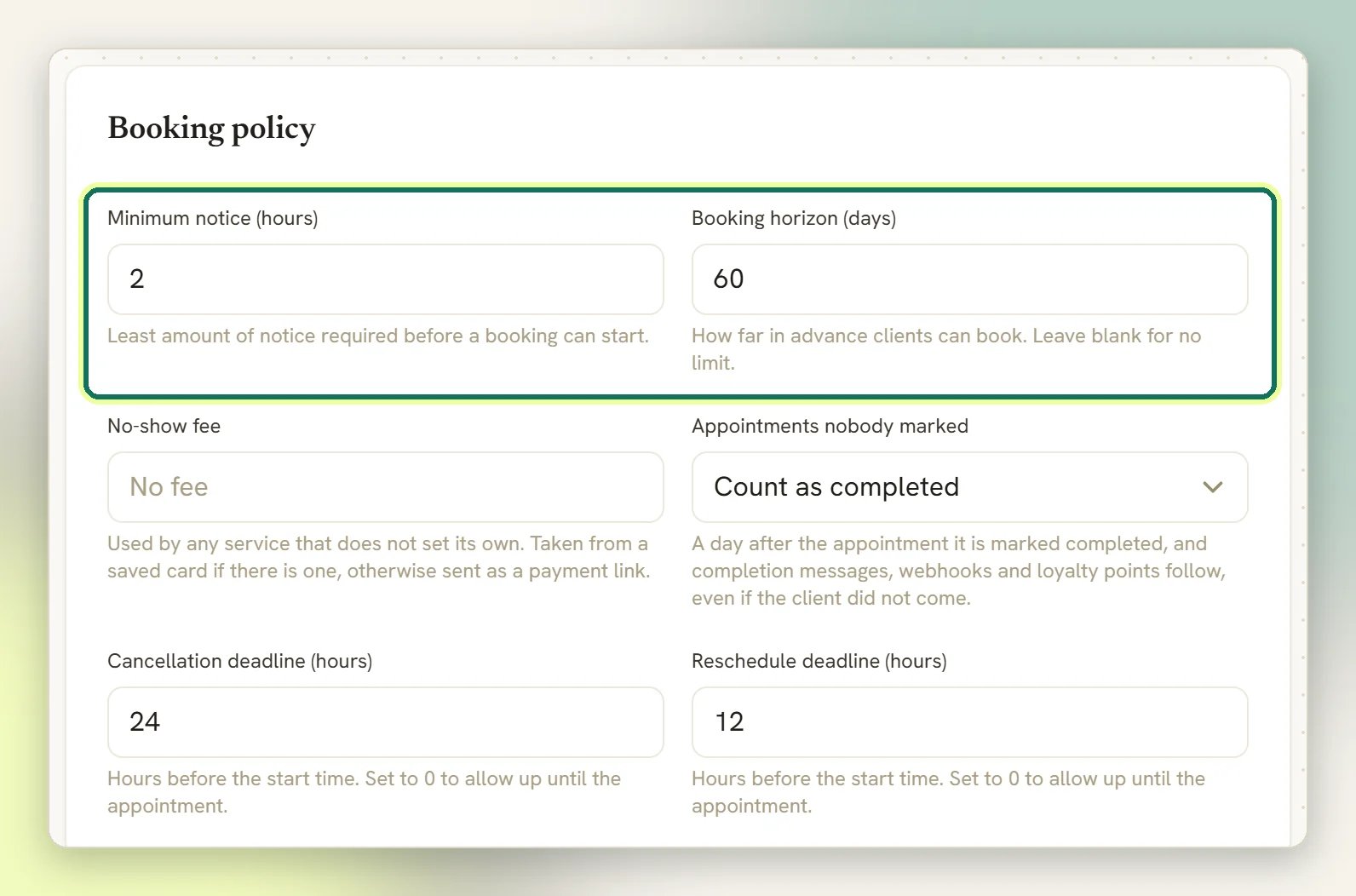
Notice and horizon exist at two levels. Alongside the service fields above, your workspace sets Minimum notice (hours) (Least amount of notice required before a booking can start.) and Booking horizon (days) (How far in advance clients can book. Leave blank for no limit.) under Booking policy at Appointments → Settings. Note the different units: the workspace fields are in hours and days, the service fields in minutes and days.The two levels are not overrides: DMLY takes the stricter of each pair. The workspace
minimum notice acts as a floor (whichever is longer wins) and the workspace horizon as a
ceiling (whichever is shorter wins). A service asking for 120 minutes’ notice in a workspace
that requires 24 hours gets 24 hours. Leave the workspace values blank and the service’s own
numbers apply exactly as written. A service set to No limit in a workspace with a blank
horizon can be booked any distance ahead.
Price and payment mode
A service’s Payment mode decides whether money changes hands, and when:
Pay before booking is the strict one, and it is worth understanding before you switch it on.
The booking is created as a 15-minute hold. During that hold nothing else fires: no
confirmation message, no reminders, no calendar event, no automation trigger. All of it waits
for the payment. If the client pays, the booking confirms and everything catches up. If they
never pay, the hold expires after 15 minutes and the slot goes back on sale. If the payment
fails, the slot is released too.
Pay after the appointment confirms first and asks second. Sending the payment link is
best-effort: if your gateway is missing or errors, the booking stays confirmed regardless. You
get the booking; you chase the money yourself.
Payment behaviour is covered in full on Appointment payments.
Booking with credits
A service can carry a Credit cost: Number of credits this service consumes when a client books with a plan. When the service has a credit cost and the client has the balance, booking draws down one lot of credits, once per booking. See Plans and credits. On Pay before booking you can take a Deposit instead of the full price, and any service can carry a No-show fee. See Take payment for a booking.How services drive availability
You do not set opening hours on a service. Hours belong to staff. A service decides which staff can deliver it, and the offered slots are then built from those people’s working hours. To produce the times a client sees, DMLY starts from the assigned staff member’s Working hours (read in that staff member’s own timezone, so a remote colleague’s 9-to-5 is their 9-to-5) and then removes:1
Times the policy forbids
Anything inside the minimum notice window, or past the booking horizon.
2
Times the calendar has claimed
Busy periods from the connected calendar, so a booking never lands on top of a personal
appointment. See Calendar sync.
3
Times DMLY has already booked
Existing bookings for that staff member, plus the service’s buffers either side of each one.
4
Time off and blocks
One-off blocks and time off for that staff member, and workspace-wide blocks such as a
public holiday.
A service with no staff assigned at all
A service with no staff assigned at all
A service can carry its own weekly availability, and DMLY falls back to it when the assigned
staff member has no hours of their own. This is how the older Meetings screen worked
before staff existed. It still functions, but it is the fallback, not the design; set hours
on your staff and let the service stay a service.
Bulk import from CSV
If you are moving in more than a handful of services (migrating a price list from a spreadsheet, or setting up a new location), Services has its own CSV import, separate from the one on Products.1
Get the shape right
On the Services tab, select Import, then Download sample CSV. The sample has three
example rows (one appointment, one class, one add-on) showing every column that applies
to that type filled in. An add-on, for instance, leaves category, duration and capacity
blank, since none of those apply to it.
2
Fill in your CSV
The columns are: name, type, category, duration_min, price, currency,
capacity, description, active.
- name is the only required column. A blank name skips the row.
- type is
appointment,class, oradd_on. Leave it blank or type something else and the row imports asappointment. - category matches an existing category by name, or creates one if it doesn’t exist yet.
- duration_min and capacity only matter for appointments/classes and classes respectively; add-ons ignore both.
- active accepts
1/0,true/false,yes/no. Leave it blank and the row imports as active.
3
Upload
In Import services, upload your file. DMLY tells you how many rows imported and how many
were skipped.
A row whose name matches an existing service is skipped, not overwritten and not duplicated.
The import panel says as much: “Rows whose name matches an existing service are skipped.” Run
the same file twice, or import a name you already have, and nothing about the existing service
changes; the row is simply counted as skipped in the result message. To change an existing
service’s price or hours, edit it directly; import only ever adds new ones.
Getting a service onto your booking page
A service appears in your public booking catalogue only when it is active, set to be publicly visible, and is an appointment or a class. Add-ons never appear. If your booking page shows nothing at all, it is because no service passes all three tests. On the service form these are two separate switches: Active (available for booking) and Show on public booking page. Both default to on for an appointment or class, so a new service is visible the moment you save it, assuming it also has staff and hours behind it.Offerings
Where you create and edit services, set prices, categories and payment modes.
Staff and availability
Working hours, time off and per-staff service assignments: the source of every slot.
Booking page
The public page your services appear on, and how to share it on WhatsApp.
Appointment payments
Holds, payment links, expiry and failed payments in full.