

Finance → Subscriptions
A client of yours pays you on a recurring basis, from an Offerings Plan. This is
the one documented in this section.
Billing
You pay DMLY for your workspace. Nothing here affects your clients or shows up
in Finance.
The seven tabs
Finance opens as one hub with seven tabs: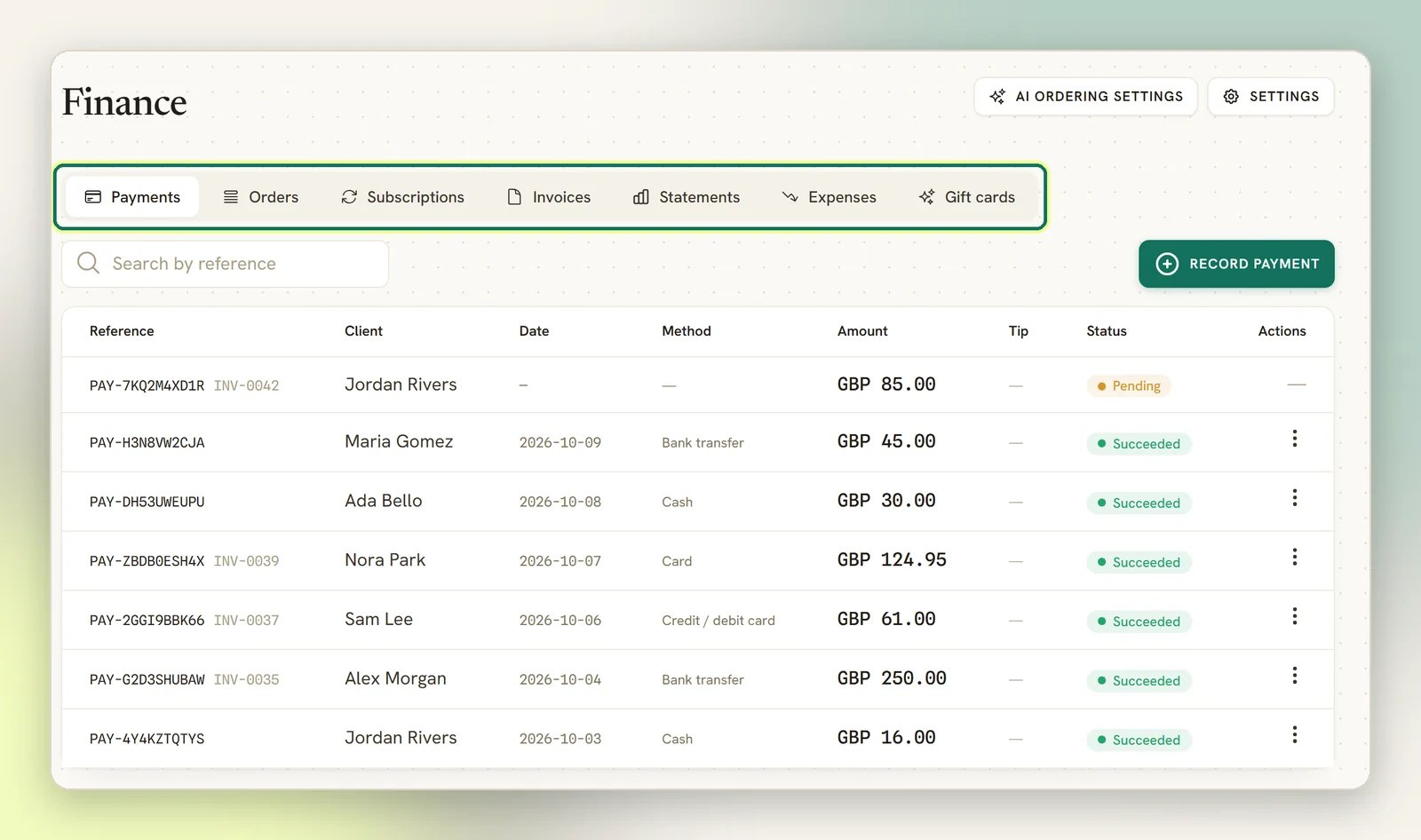
Invoices
The bill you send a client.
Payments
Every payment in one ledger: online, manual, or refunded.
Orders
A sale of products that moves stock when you confirm it.
Subscriptions
Recurring billing for a client, from an Offerings Plan.
Statements
A client’s running ledger. You never write to it directly.
Expenses
Money going out. Not linked to a client and never billable to one.
Gift cards
A fixed-value voucher you sell now and a client spends against any invoice later.
- Recording a payment posts a credit.
- Refunding one posts a debit.
- Sending an invoice posts a debit.
- Voiding one posts a credit for whatever was still outstanding.
How the pieces relate
The invoice is the bill a client receives and pays, and payments attach to it. Not everything routes through one, though:- An order becomes an invoice only when you run Generate invoice on it. Confirming an order moves stock and nothing more.
- An appointment skips invoices entirely. Booking payments are taken as a direct gateway pay link (see Appointment payments).
1
Something creates a charge
You raise an invoice by hand, generate one from an order on demand, or
let an auto-charge subscription renewal generate one for you.
2
You send it
Sending moves the invoice from Draft to Sent and delivers it to the client (on
WhatsApp by default) with a pay link.
3
The client pays
An online payment through a connected gateway reconciles the invoice automatically. You
can also record a payment yourself if they paid you in cash or by bank transfer.
4
The invoice settles
Paying part of the balance marks it Partially paid; clearing the balance marks it
Paid.
Every line on one invoice must be in the same currency. DMLY does not convert between
currencies, so a mixed-currency invoice is rejected rather than guessed at.
Raising an invoice turns a contact into a client
When you create an invoice for a contact, DMLY moves that contact’s lifecycle stage to client for you. That is intended (someone you bill is a client), but it means your client list changes as a side effect of invoicing. See Client profile.You need a gateway to take money online
Out of the box you can raise invoices and record payments you collected yourself. To send a pay link a client can actually click, connect a payment gateway first. DMLY supports Stripe, PayPal, Paystack, Razorpay, MyFatoorah, Mercado Pago and Monnify by Moniepoint (NGN, card and bank transfer, and it can put a one-off account number straight into the chat). You connect them under Configurations → Integrations, not in Finance. Finance settings → Gateways has two panels. Default payment gateway holds the Charge through select, then the line Connect a payment gateway to accept online payments and share pay links. and a link to your integrations. When no gateway is connected it shows No payment gateway is connected yet. instead of the select. The second panel is Bank account for manual transfers. The Payment link & QR modal has its own message when none is connected: No payment gateway is connected yet. Connect one to generate a payment link. Connecting is done by pasting API credentials, and no gateway registers its webhook for you. You set the endpoint in the provider’s own dashboard. Skip that step and payments will be taken but your invoices will still show as unpaid. See Payments and gateways.Sending is WhatsApp-first
An invoice goes out over WhatsApp by default, using a Meta-approved template. WhatsApp will not deliver a template Meta has not approved, so if invoice messages are not arriving, check your template status before anything else. The Payment link & QR action on an invoice opens a modal holding:- a scannable code you can show at a counter,
- Visit link and Copy link,
- Share via checkboxes for Email, SMS and WhatsApp.
The statuses you will see
A payment only ever moves forward through its statuses; a refunded payment never returns to
succeeded.
An invoice’s Refunded and Partially refunded statuses are derived from what you have
given back, and an invoice reaches either only once there is nothing left to collect:
- Refunded: all of the money you collected went back.
- Partially refunded: some of it did.
The order list also offers Fulfilled and Refunded labels. Neither is reachable for
an order you create in Finance; they belong to the separate e-commerce store sync. Ignore
them.
Voiding, not deleting
Only a Draft invoice can be deleted. Once you have sent one, void it instead. Voiding keeps the record, credits the client’s statement for the amount still outstanding, and claws back any loyalty points earned on that sale.What runs on its own
Once a day, DMLY:- marks invoices past their due date as Overdue,
- reminds clients about renewals coming up in three days,
- rolls subscriptions that are due.