

Statements are written for you
You cannot add, edit, or delete a statement entry. There is no button, no form, and no import. The ledger is built entirely from what you do elsewhere in Finance, and it is append-only; history is never rewritten. Four things write an entry, all automatically:
That last pair is the whole design: a mistake is corrected by posting an opposite entry, not
by removing the old one. You always keep the full trail of what happened.
How the money arrived makes no difference. A payment you record by hand and one a client
makes through a gateway pay link post the same credit, and a refund posts the same reversing
debit whether you issue it in DMLY or from the gateway’s own dashboard.
A draft invoice is not in the ledger. The debit posts the moment you send it. Void an
invoice and only the still-unpaid part is credited back, so a part-paid invoice doesn’t
double-count against the payment that was already recorded.
- Orders never post to the ledger on their own. An order reaches the statement only once you convert it to an invoice and send that invoice. See Invoices.
- Shopify and WooCommerce sales stay out of the ledger entirely, including a pay link you send against one. That sale was never invoiced here, so it has no debit for a payment to offset. See Orders.
- Session and package credits are a separate ledger with its own tab. Granting or using a credit changes nothing on the statement. See Plans and credits.
Read the Statements tab
Open Finance → Statements. The columns are Date, Client, Description, Debit, Credit, and Balance. Each row is either a debit or a credit, never both; the other column shows a dash.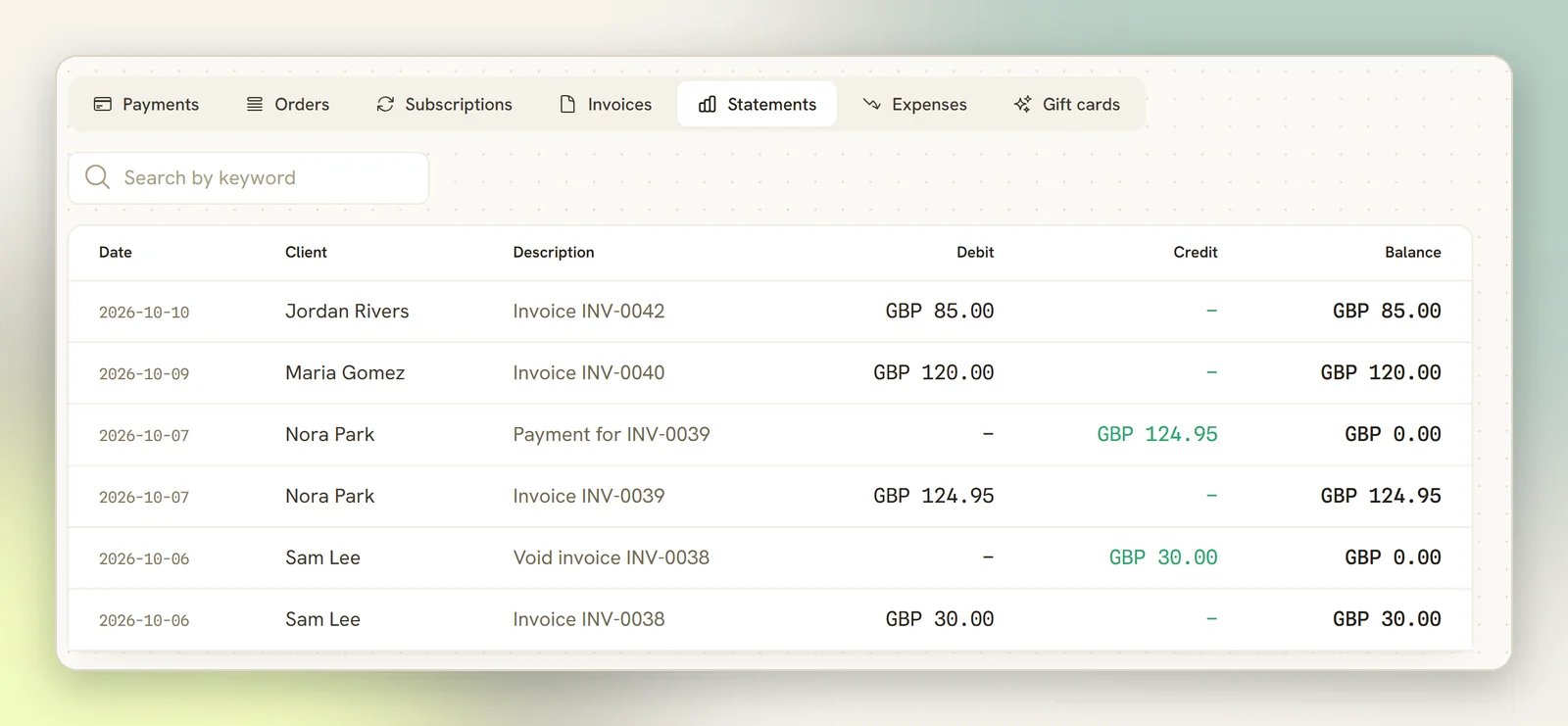
The Balance column runs a separate chain per currency, so a contact you have billed in two
currencies gets two independent balances rather than one meaningless total. The figure beside an
entry is the balance in that entry’s currency, which is why it can appear to jump around as
you read down a mixed-currency list. Read it against the currency on the same row.
Things worth knowing before you rely on it
A contact's profile tab shows only the latest 50 entries
A contact's profile tab shows only the latest 50 entries
Finance → Statements pages through the whole ledger, but the Statements tab on a
contact’s profile is capped: it lists the 50 most recent entries, with no pager and no
search of its own. It does tell you when you’re seeing a slice, in a line under the table
(Showing the latest 50 of 214), so a missing older entry is never a silent truncation. For
the full history of a long-standing client, go to Finance → Statements and search their
name.
A zero shows as a dash on Finance → Statements
A zero shows as a dash on Finance → Statements
A client who settles up completely lands on a balance of exactly 0.00, and on
Finance → Statements the Balance cell renders as a dash rather than a zero. An empty
balance cell there means paid off, not missing. The Statements tab on a contact’s
profile is unaffected: it renders a settled balance as 0.00.
The date is when the entry posted
The date is when the entry posted
Date is the day DMLY wrote the entry, the day you sent the invoice or recorded the
payment. It is not the invoice issue date, and entries can’t be backdated.
Nothing is here at all
Nothing is here at all
No statements yet. means no invoice has been sent and no payment recorded for this
workspace. No matches found. means your keyword filtered every row out. Clear the
search box.
Invoices
Sending an invoice is what puts a debit on the ledger.
Payments
Every payment posts the matching credit, however it was collected.