

Categories belong to the tab they were created on
All three tabs of Offerings (Services, Products and Plans) manage categories inline, and a category is tied to the tab you created it on. One added from Products only appears on the Products tab, so a name only has to make sense there (“Retail”, “Consumables”). If you want the same grouping in more than one place (a brand, a location, a department), create it once per tab.Add or remove a category
1
Open the tab you're organising
Go to Offerings and pick Services, Products or Plans. Categories are
managed from inside each tab, not from a separate settings page.
2
Add the category
Create it under Categories. It becomes available immediately on that tab.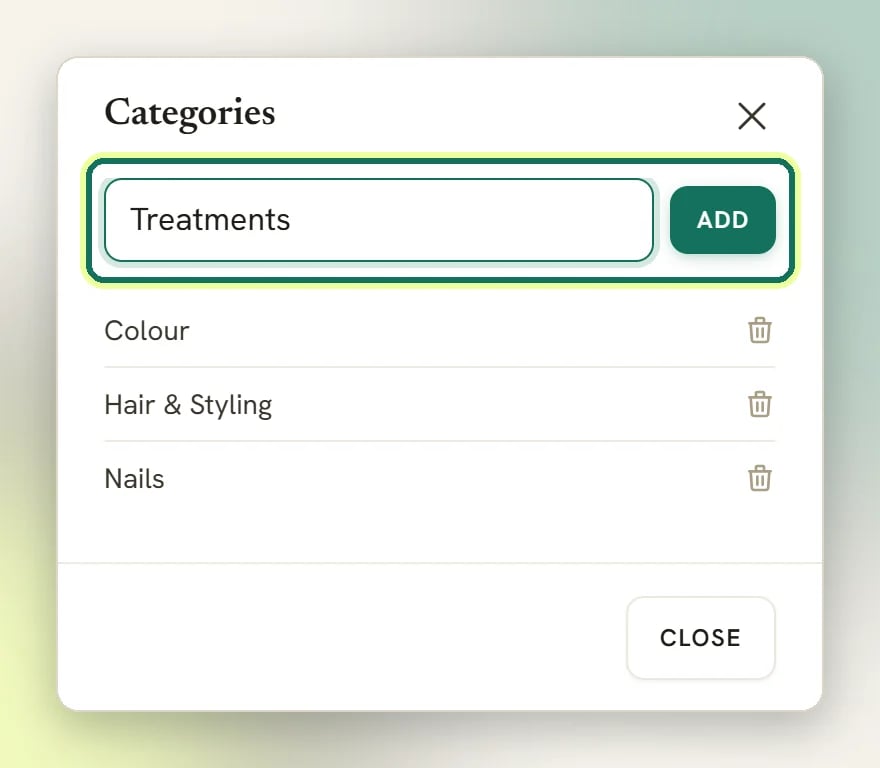
3
Assign offerings to it
Edit a service, product or plan and set its category. Each one belongs to a single
category, or none.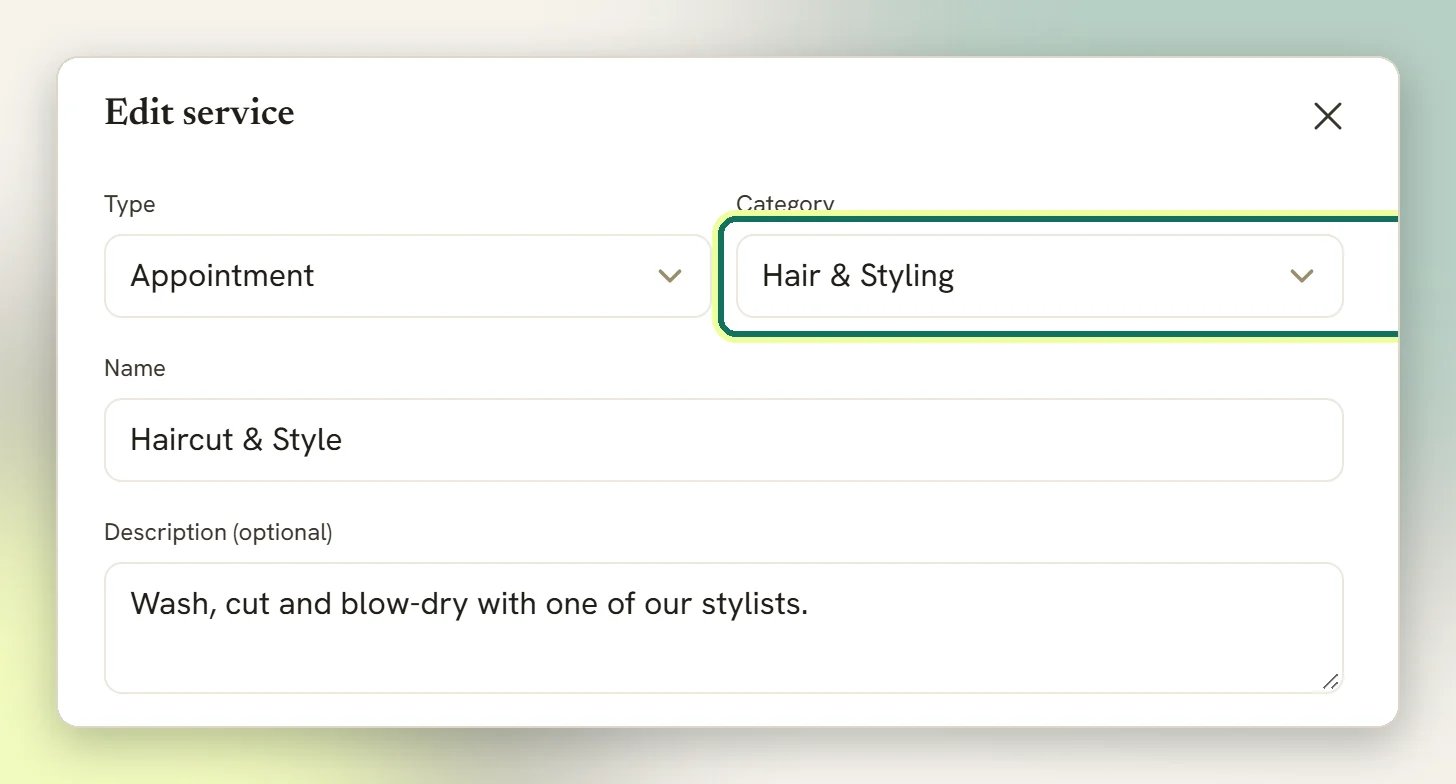
There is no rename in the app: categories can only be created and deleted here. If a name is
wrong, add the replacement, move the offerings across, then delete the old one. The
REST API can rename a category in place.
Deleting a category never blocks, and never takes anything with it. Every service, product
and plan sitting in that category is moved to no category first, and then the category goes.
Nothing in your catalogue is deleted or hidden, so you can re-file them afterwards.
Filter by category
Each tab’s category filter defaults to All categories. Set it to one category to narrow the list (useful when you are doing a price review across one group, or checking stock on a single product range). Sort order is a field on the product and plan forms, not on categories. It orders the offerings in that tab’s list: lowest number first, then by name. Services are listed (and shown on the public booking page) in the same way, but the service form has no Sort order field. Categories themselves are always listed by name.Where to next
Offerings overview
How services, products and plans fit together.
Services
Bookable services, classes and add-ons.
Products
Stocked goods, stock tracking and CSV import.
Plans and credits
Packages, memberships and the credit wallet.