

A pay link needs a connected payment gateway. Until you connect one, an invoice still
sends and still produces a PDF, but there is no link to pay it with. Opening Payment link
& QR shows No payment gateway is connected yet. Connect one to generate a payment link.
Set one up first in Payments and gateways.
Create the invoice
1
Open Finance → Invoices
Start a new invoice and pick the contact it is for.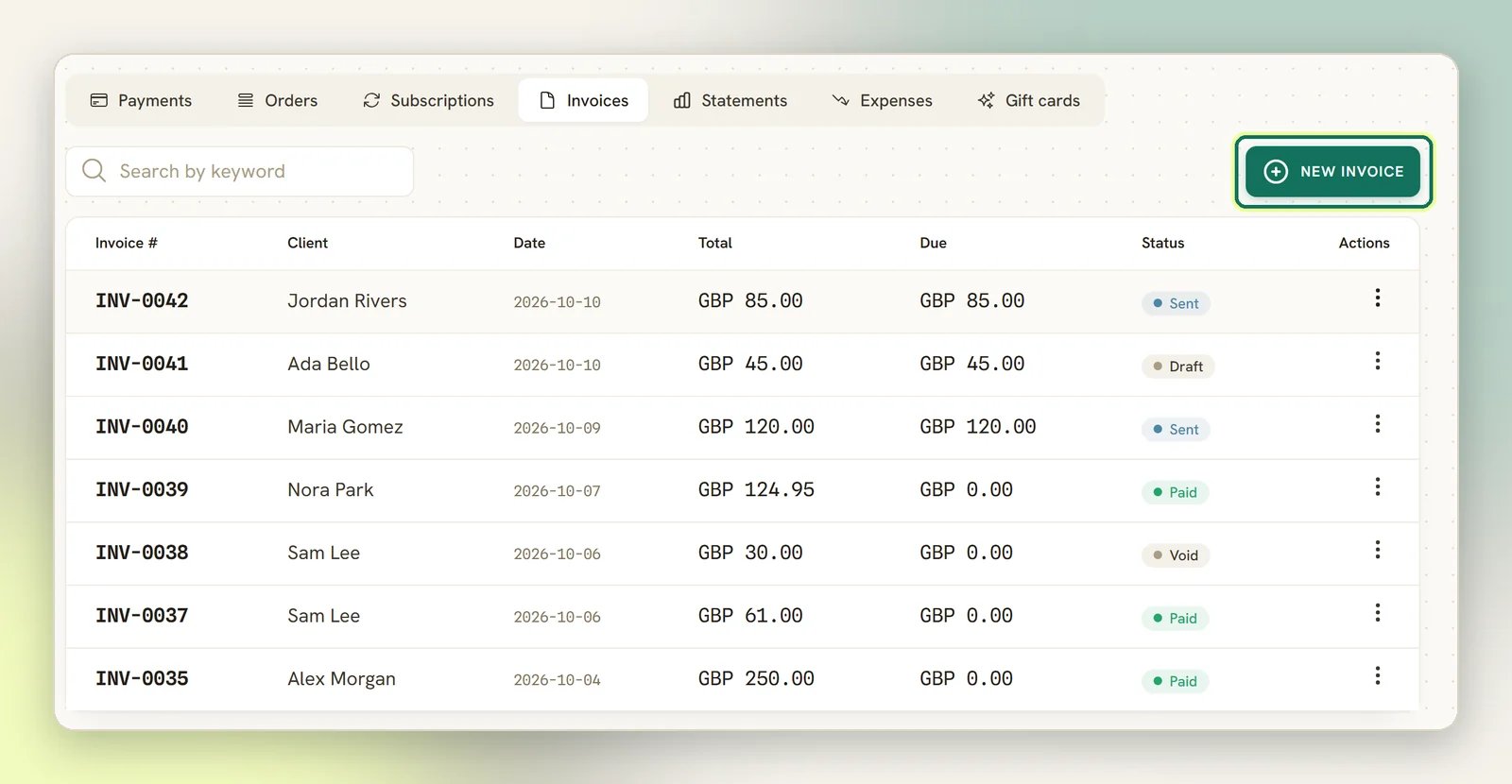
2
Add your line items
Line items come from your catalogue. When you add an Offering, its name and price are
copied onto the invoice as a snapshot. Editing that Service or Product later never
changes an invoice you have already issued.Every line must be in the same currency. There is no exchange-rate conversion, so an
invoice mixing currencies is rejected rather than converted.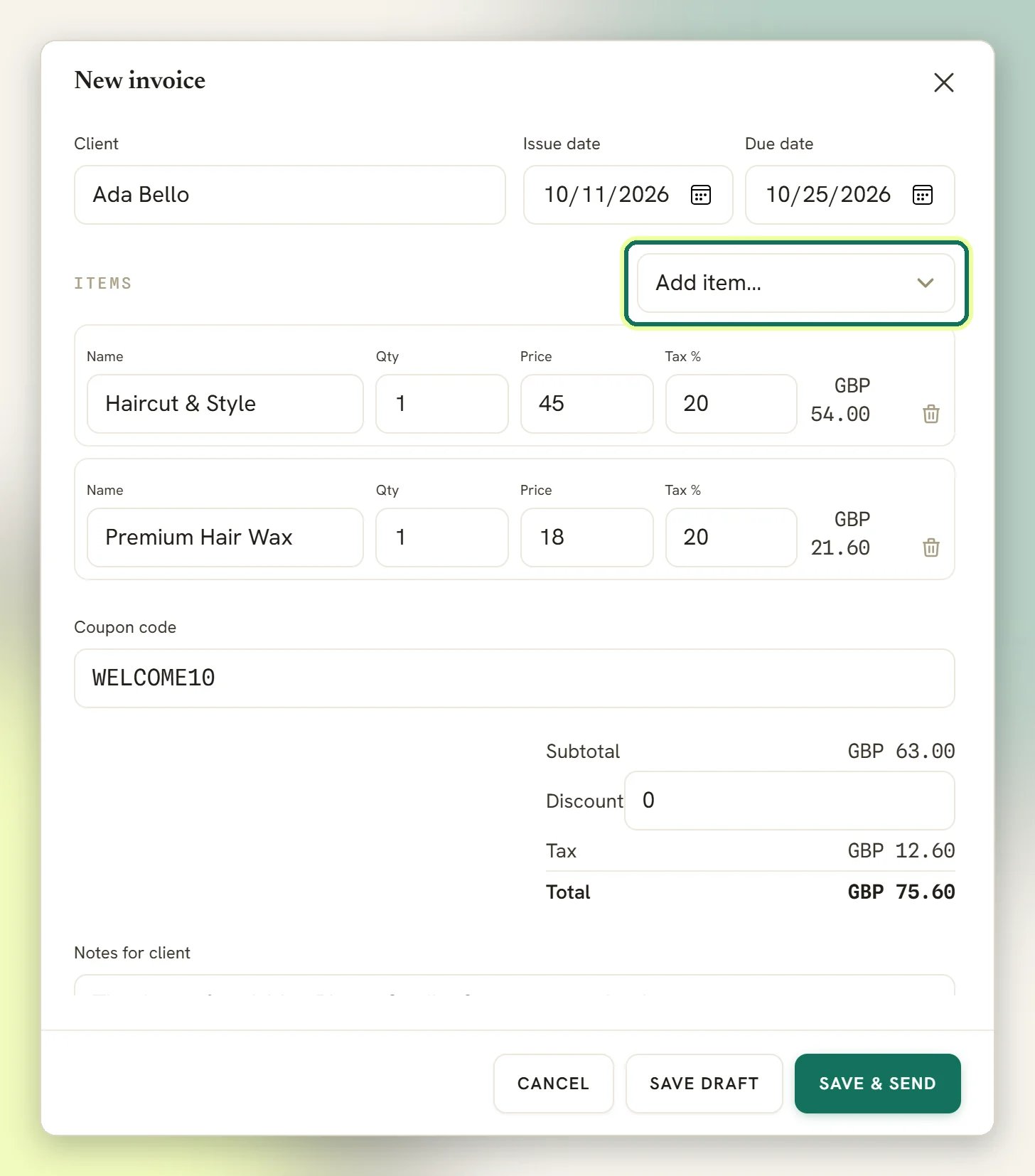
3
Set the due date and notes
Due date and Notes for client start blank. Leave the due date empty and it is worked
out on save from your Default due days; leave the notes empty and your default invoice
notes are used. Both live in Finance settings.Terms and currency are not editable per invoice: terms come from your Finance settings, and
the currency comes from your business details.
4
Apply a coupon (optional)
Enter a Coupon code (optional) to discount the invoice. The discount comes off the
total before tax, and the tax is then worked out on the discounted amount. A percentage
coupon still takes that percentage off the items total (shipping aside). A fixed coupon of 10
takes 10 plus the tax on 10 off the bill. A coupon’s minimum spend is also checked against the
before-tax total. A discount can never take an invoice below zero. See
Coupons.
Send it on WhatsApp
Sending flips the invoice from Draft to Sent, posts the amount to the client’s statement as money they owe you, and mints a pay link. The message goes out on WhatsApp by default, preferring DMLY’s approveddmly_invoice_sent
template. An approved template is what lets the message reach a client outside the 24-hour
window; inside an open window a freeform message still goes through. See
Connect WhatsApp.
Every Sent invoice also gets its own public PDF link: a page that opens with no DMLY
login, so a client can view or download it straight from that WhatsApp message. There is no
copy-link button for it in the invoice list; it travels with the send instead. It is what
fills the template’s pay-link parameter when there is no payment gateway link to offer, so the
message never goes out with a blank link, and, if the client’s WhatsApp window happens to be
open at the moment you send, the invoice PDF itself follows right behind as a second message,
delivered as a document. If you picked an approved invoice template with a document header, the
PDF travels inside that header instead, which also reaches clients outside the 24-hour window,
and no second message is sent. Building a flow of your own around an invoice? The same link is
available to it as {{invoice.pdf_url}}.
A Draft has no such link, matching everything else about a draft: there is nothing
client-facing to open until you send it.
The pay link and the QR code
Open Payment link & QR on an invoice to get everything you need to collect the money.The link
The pay link is the payment provider’s own hosted checkout page. Copy link to paste it
anywhere, or Visit link to open the checkout page yourself. To send it, use Share via
below.
The QR code
The same link as a QR code, generated in your browser from the link itself. Print it, or
show it on screen for a client to scan at the counter.
If you have connected more than one gateway, an invoice uses your Default payment gateway
(Finance → Settings → Gateways → Charge through) while it is still connected, and otherwise
the first one you connected. Worth knowing if payments are landing in an account you did not
expect.
The PDF
Download PDF gives you the invoice asinvoice-<number>.pdf, using the same layout as the
print view. It is branded from your business details: logo, address, email, phone and
registration number, with your workspace name as the business name. Fix anything wrong there
rather than on the invoice.
That’s your own copy, downloaded from inside DMLY. It is different from the public link a
client gets automatically when you send the invoice, covered above. That one needs no login
and works even for someone who has never seen DMLY.
Invoice numbers are issued per workspace and never collide: INV-0001, INV-0002, and so on.
Numbers are zero-padded to four digits, and the prefix is yours to change in
Finance settings.
The statuses
Overdue is applied automatically by a nightly job, not the moment the clock passes
midnight; an invoice paid in the meantime is skipped.
Refunded and Partially refunded are worked out from what you have given back rather
than set by hand, and an invoice only reaches either once it has nothing left to collect.
Refund part of a bill that still has a balance and it keeps reading Partially paid (or
Overdue), because an outstanding balance is the more useful headline; the refund is
recorded on the invoice either way. Void outranks all of them, so a voided invoice reads
Void whatever money moved.
A refund is never treated as a negative payment. It does not reduce what the invoice has
taken, and it does not raise the balance due, so refunding can never reopen an invoice you
have already settled.
The webhook topics for invoices use slightly different names to
these labels (
invoice.created, invoice.partially_paid, invoice.voided). Only relevant
if you are building an integration.Reminders: chase the money automatically
You don’t have to watch due dates yourself. Two ready-made automations in the template library cover the chase:- Invoice payment reminder starts the moment an invoice is sent, then waits until a day before the due date and messages the client: the amount, the due date, and a Pay invoice button carrying the pay link. The part that makes it safe to leave running: when the wait ends it looks at the invoice again, and if the client has already paid (or you voided it), the reminder is skipped, not sent. As the template puts it, it “Stops automatically if the invoice is already paid.”
- Overdue invoice escalation picks up the ones that slip through: it fires on the Invoice overdue trigger, sends the pay link, waits three days, and follows up.
Record a payment yourself
Not every payment comes through a gateway. Record cash, a bank transfer or a card-machine charge against the invoice and it lands in the same ledger as an online payment. The methods available are Cash, Bank transfer, Credit / debit card, Cheque, EFTPOS and Other. A bank transfer the client made from a DMLY message is the exception, and Collect bank transfers in chat covers it: a Paystack transfer records itself, and one sent to your own account is confirmed under Finance → Payments, not recorded here.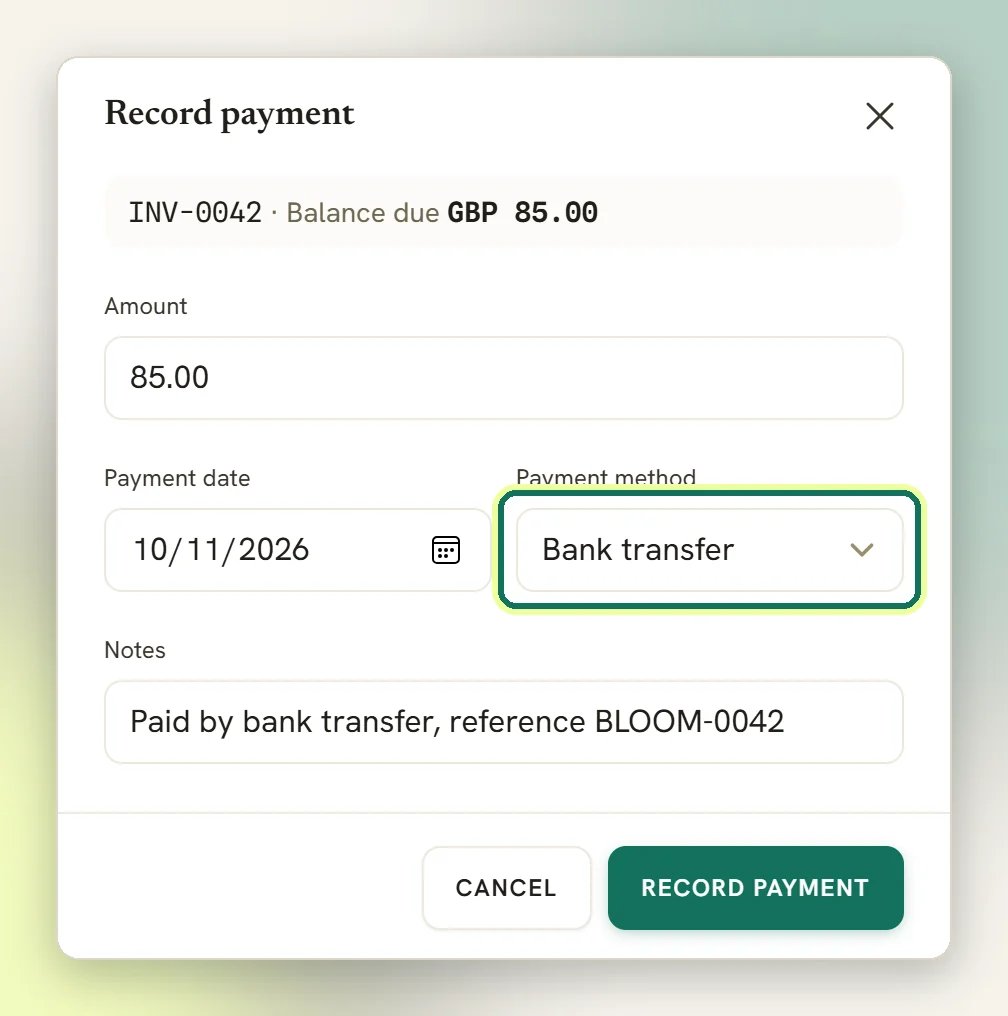
A gateway payment reconciles itself. When your provider confirms a charge, DMLY applies it to
the invoice and moves it to Partially paid or Paid without you touching it; there is
no need to record it a second time.
Voiding an invoice
Voiding cancels an invoice without deleting it. It needs the admin-only Issue refunds permission, as do deleting a draft invoice and cancelling or deleting an order. The Void, Delete and Cancel order items show for every teammate, but anyone without the permission is refused. Two things are worth understanding:- Only the unpaid balance is credited back. Money the client already paid stays recorded against the invoice. Crediting the full total would double-count what you have already received and push their statement balance negative.
- Loyalty points earned on that sale are taken back, so a voided sale does not leave points behind that were never really earned.
Invoices and loyalty points
Loyalty is off until you switch it on under Loyalty in Finance settings. Once it is on, a paid invoice earns the client loyalty points, and a personal coupon is created for them automatically once their balance crosses your redeem threshold. Minting that coupon needs three settings filled in, not just the threshold: a redeem threshold above zero, a discount value above zero, and a coupon code prefix. Leave any one of them blank or at zero and points keep accruing while no coupon is ever created, with nothing to tell you why. If clients are earning points but never receiving rewards, check all three. Appointments are the exception: their points are awarded when the appointment is completed, with no invoice involved. This stops a client earning points for a session they never turned up to.The invoice sent but the client got no WhatsApp message
The invoice sent but the client got no WhatsApp message
The notification is only dropped when two things are true at once:
dmly_invoice_sent is not
approved by Meta, and the client’s 24-hour window is closed. A pending or rejected template
still delivers a freeform message if the client messaged you within the last 24 hours. So check
both: your template status under Connect WhatsApp, and whether the
client has messaged you recently. Also confirm the contact is reachable on WhatsApp at all; a
contact with no WhatsApp identity cannot receive one.There is no pay link on the invoice
There is no pay link on the invoice
A link needs all of: a connected gateway, a contact on the invoice, a balance above zero,
and an invoice that is not voided. A fully paid invoice has no link because there is nothing
left to pay.
The client paid but the invoice still shows as owed
The client paid but the invoice still shows as owed
A gateway payment applies to the invoice only when the provider tells DMLY it succeeded.
Every gateway needs its webhook endpoint set manually in the provider’s own dashboard; DMLY
does not register it for you. If that step was skipped, charges succeed at the provider and
never reach the invoice. See Payments and gateways.
Related
Payments and gateways
Connect Stripe, PayPal, Paystack, Razorpay, MyFatoorah, Mercado Pago or Monnify.
Finance settings
Numbering, default due days, currency, tax and terms.
Orders
Sell stock-tracked products, then generate an invoice from the order.
Subscriptions
Bill clients on a recurring plan from your catalogue.