

ORD-0001, ORD-0002,
and so on.
Two things surprise people, so they come first:
- An order never collects money. It has no pay link. To get paid, generate an invoice from the order and send that. See Invoices.
- The Orders tab is not your online store. If you sell on Shopify or WooCommerce, those orders sync separately and are a different thing entirely. See Store orders below.
Orders and invoices are not the same job
An order moves stock
Confirming an order takes its products off your stock, the ones you track stock on.
Cancelling puts them back. This is the only thing an order does that an invoice can’t.
An invoice moves money
Sending an invoice posts a debit to the client’s statement, and can message it on WhatsApp.
The pay link is minted separately, from Payment link & QR. Stock never enters into it.
An order with no stock-tracked product is perfectly legal: services, plans and custom lines are
all first-class order items, and such an order still does everything else an order does. But if a
sale involves no stock at all (a consultation, a deposit), an invoice on its own is usually
enough.
The lifecycle
1
Build the order
Use Add item to pick from your Products, Services and Plans, or choose Custom item for
a one-off line. Prices come from your catalogue at the moment you build the order. See
Products. The order is saved as Draft.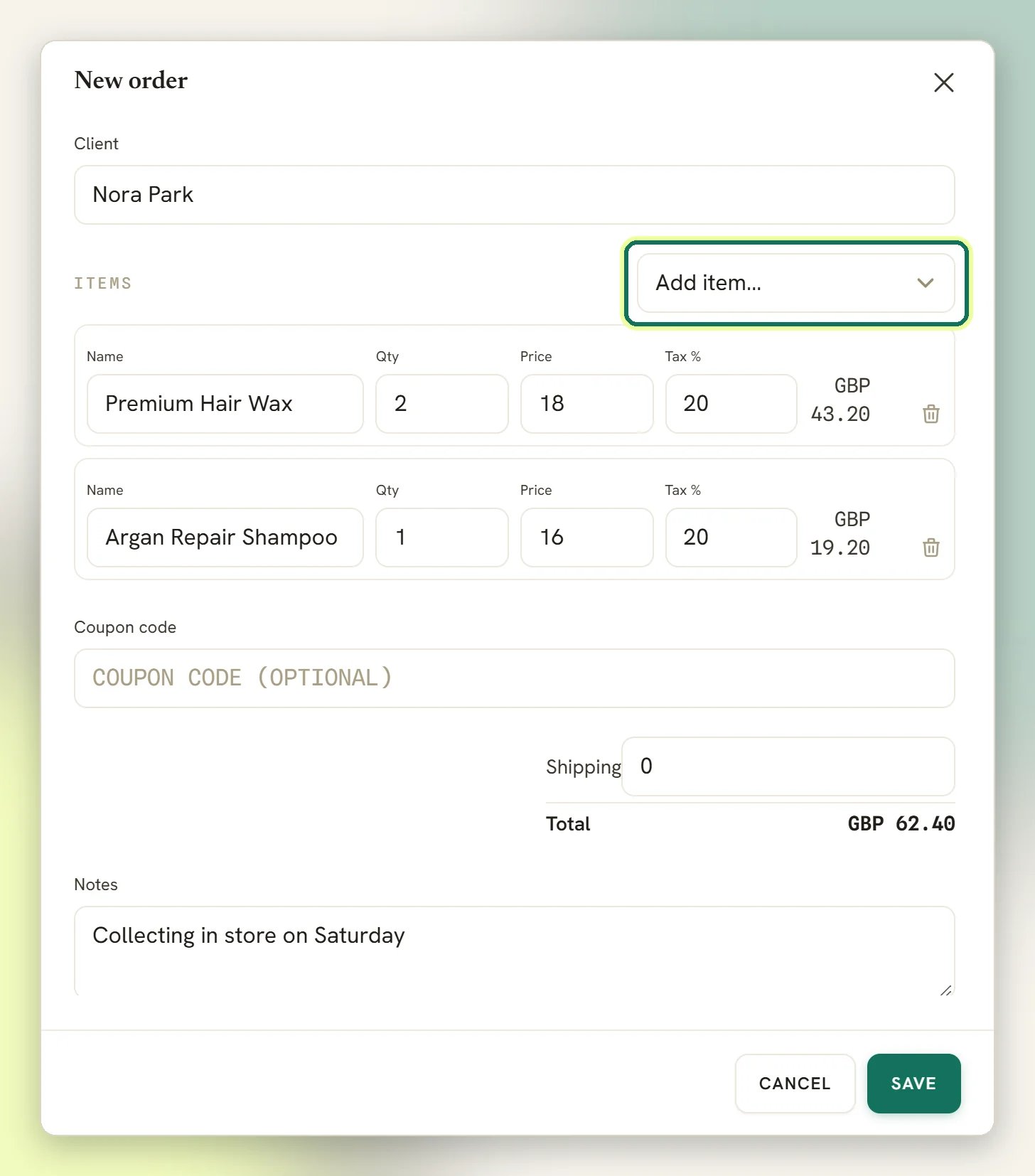
2
Confirm it
Confirming is what commits the stock: for any product you track stock on, the quantity comes
off your count. It happens exactly once, so a double-click or a retry can’t take the stock
twice. The order status becomes Confirmed.The builder also has a Confirm order immediately switch, which confirms the order as you
create it and skips the draft stop.
3
Invoice it
Generate an invoice from the confirmed order. The invoice is linked back to the order, and
from there you send it, share the pay link on WhatsApp, and record what comes in. Everything
about getting paid happens on the invoice page, not here.
4
Cancel it, if the sale falls through
Cancelling sets the status to Cancelled and restores the stock you committed.
Order statuses
Draft → Confirmed → Cancelled are the three statuses your orders move between. Every order starts as Draft.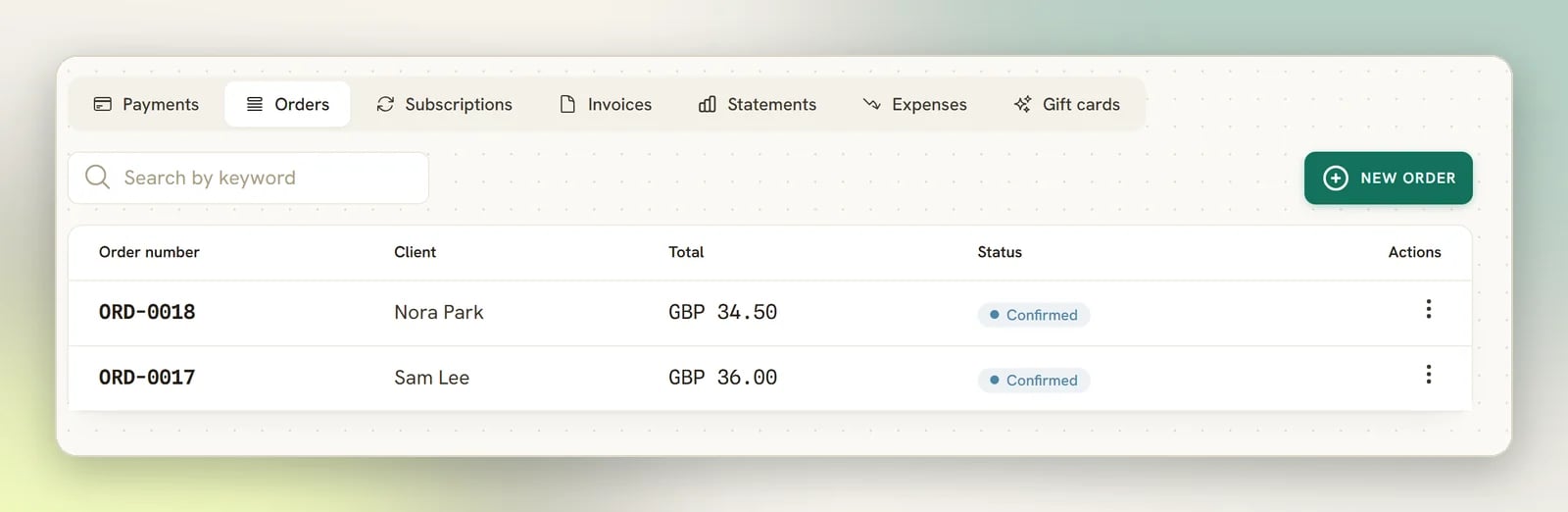
Orders the AI takes
When an AI assistant takes an order in the chat, it builds it here as a draft, with the conversation linked. Its number opens the order’s own page, where you can check each line, the fulfilment details and anything the quote is still missing. Until the quote is complete the list shows Incomplete quote instead of a total. Unlike an order you build yourself, an AI-captured draft isn’t confirmed from the row menu. Confirm or edit it from its own page. Until then no stock is taken and no payment is requested.Store orders
Orders you create in Finance → Orders are internal: you build them, you confirm them, they move your stock. Orders that arrive from a connected e-commerce platform (Shopify, WooCommerce) are a separate record on a separate sync, and they never appear in this list. There is no store-order screen in DMLY at all: the only place synced orders surface is the store’s own tile on the Integrations page, as a count in its Synced data panel and lines in its Recent activity feed. Their job is to feed automations (the Store events triggers, the in-chat order lookup), not to be browsed. Your store’s admin stays the place you manage them. The two order vocabularies also emit different webhooks: store orders are what thestore.*
topics (order created, order paid, checkout abandoned, inventory low) describe, while the
orders on this page emit order.* topics. They look alike and mean different things, which
matters mostly if you’re wiring up automations or webhooks.
Connect Shopify
The connect flow, and what syncs.
Connect WooCommerce
Same, for WooCommerce.
Store automations
What store events can start, and the in-chat order-status bot.
Webhooks
The full topic list, including the
order.* and store.* split.Where to go next
Invoices
Send it, get paid, void it. The other half of every order.
Payments and gateways
Connect a gateway so your invoices can carry a pay link.
Products
The catalogue an order draws from, and where stock tracking is set.
Finance overview
How the six Finance tabs fit together.