

Does this page apply to you?
Most of what follows is about the app-level webhook inside a Meta app, and that only matters if the Meta app is yours. It is yours if you connected with Bring your own WhatsApp Cloud API keys — Complex (30 mins). The app-level webhook is then yours to set, and every check below is something you can do. If you connected with Configure WhatsApp via Embedded Signup — Simple (10 mins), whose button reads Connect a WhatsApp number, the Meta app isn’t yours and its webhook isn’t part of your setup. The two causes that apply to you are registration is not verification and a leftover profile from an old reconnect. If you don’t remember which you used, it’s almost certainly the guided one. It’s the default and it takes ten minutes.Start here: has anything ever arrived?
Open Configurations → Reports, then the Logs tab, select Filters, and set Event to Messages and Status to Success. Every inbound message writes one row here, readingInbound WhatsApp message from ….
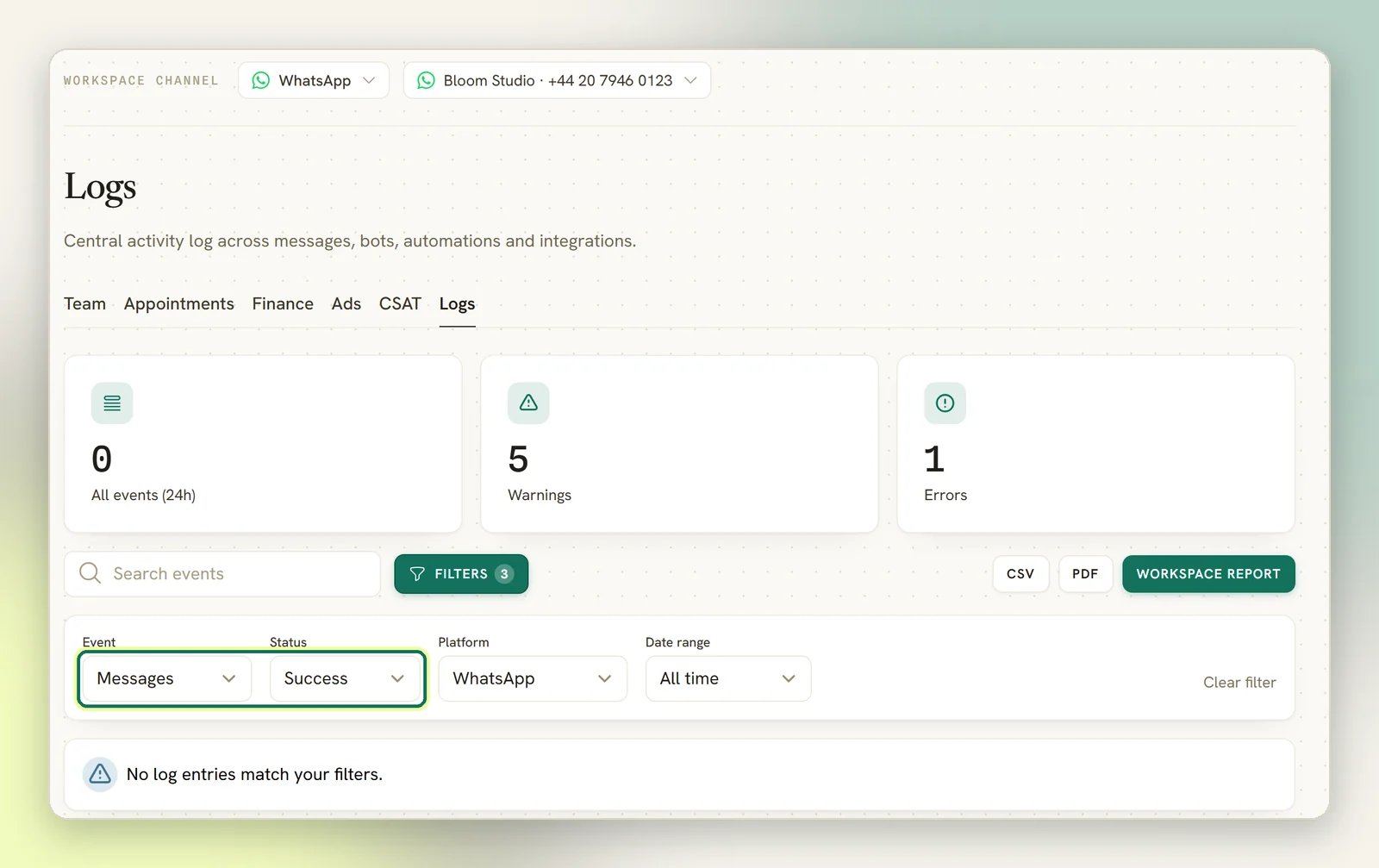
Logs only ever shows the channel you currently have selected, so make sure the WhatsApp number
you’re chasing is the selected one before you read anything into an empty list. See
Reading the Logs page.
That last row is the most valuable thing on this page. An
Inbound WhatsApp webhook dropped
entry proves the connection between Meta and DMLY exists. Its absence, combined with silence,
means the two are never speaking.
The order to check
1
Confirm the number is registered
Open Bot Setup → WhatsApp → Configuration and find the Number registration row. It
reads Registered, Not registered or Business app + Cloud API.Business app + Cloud API means a co-existence number (the WhatsApp Business app and Cloud
API on one number). It is deliberately not registered for Cloud API, because registering it
would disconnect it from the Business app, so there is no Register button. Don’t apply the
advice below to it.If it says Not registered, that is your answer and nothing else matters yet, and the page
tells you as much: “This number isn’t registered for WhatsApp Cloud API yet, so it can’t
send or receive messages. Register it with the 6-digit PIN to go live.”Select Register phone number and enter the six-digit two-step verification PIN for that
number. If Meta rejects it, DMLY says so rather than pretending it worked. The two usual
reasons are a wrong PIN, or the number already being registered to a different Meta app.Read registration is not verification before you decide
this step is fine. It is the single most common false negative.
2
Rule out a leftover profile from an old reconnect
A reconnect done today updates the profile you already have, so it cannot leave a second one
behind. But if this number was reconnected before August 2026, DMLY may still be holding two
profiles and showing you the wrong one. See
a leftover profile from an old reconnect.
3
Confirm the WhatsApp Business Account is subscribed
DMLY subscribes itself to your WhatsApp Business Account when you connect the number. If Meta
rejects that subscription, the number still connects and looks fine, but never receives
anything.If you brought your own keys, DMLY warns you on screen at connect time and names the two
reasons: the token needs the WhatsApp business management permission, and the number must be
registered rather than pending. Fix whichever applies to your token or your number, then
connect the number again.
4
Fix the app-level webhook in Meta
If the number is registered, the account is subscribed, and messages still don’t arrive, you
are at the cause named at the top of this page. Nothing in DMLY is wrong.Open Integrations → WhatsApp → Configuration and find Webhook Settings. Use
Copy URL and Copy Token. The page’s own instruction is to paste the URL “exactly as
shown, with no trailing slash”, and then subscribe the messages field. Copy the URL from
that page rather than typing it: a trailing slash turns it into a per-account URL with an
empty token, which misroutes.
Registration is not verification
This is the trap that costs people the most time. Number verification and Display name status are different things from Number registration. A number can be verified, with an approved display name, showing every green tick you’d expect, and still not be registered for WhatsApp Cloud API. A number in that state can neither send nor receive. So when you look at Bot Setup → WhatsApp → Configuration, read the Number registration row specifically. Do not read Number verification and conclude you’re fine. They are not the same field and they do not imply each other.A leftover profile from an old reconnect
Reconnecting a number, even to a different WhatsApp Business Account, reuses the profile you already have. DMLY matches the physical phone number, so the reconnect swaps the new Phone number ID, WABA ID and token onto that same WhatsApp profile instead of adding a second one. That was not always true. If this number was reconnected before August 2026, a leftover profile from then may still be here: nothing removed it automatically. It appears as a second WhatsApp profile in the channel selector, still pointing at the account you left. Integrations → WhatsApp always shows the most recently connected record. But on Bot Setup → WhatsApp → Configuration it is the channel picker that decides which record you are acting on: Register phone number and Disconnect WhatsApp both target the selected channel’s number, so selecting a stale channel means acting on the stale record. That explains two confusing symptoms:- The channel selector offers two WhatsApp profiles for one number.
- You disconnected the number, but something still looks connected.
Reached DMLY and got dropped
If Logs showsInbound WhatsApp webhook dropped under Messages + Error, Meta is
calling DMLY successfully and DMLY is turning the message away. Open the row and read the reason
it carries. It names the cause exactly.
This row only appears when DMLY could tell which of your numbers the call was for. When DMLY
couldn’t match the call to any connected number at all (a Phone number ID or WABA ID that
matches nothing, or a bad token in the callback URL), there is no account to log against, so
nothing reaches your Logs and it looks exactly like silence. If Logs is empty, check these too.
The call reached the wrong number’s callback. The reason reads:
per-account callback received an event for phone_number_id … — not this account's number (…). Point Meta at the app-level webhook URL instead, which routes each number to its own account
This and the unmatched cases above you can fix yourself. Compare the WABA ID and Phone number ID on Bot Setup →
WhatsApp → Configuration against the WhatsApp Business Account the webhook is coming from, then
re-copy the callback URL with Copy URL under Webhook Settings on
Integrations → WhatsApp → Configuration.
The signature doesn’t match. The reason reads:
invalid signature — the Meta app secret in the WhatsApp service settings does not match the app sending this webhook
The call is signed by a Meta app that isn’t the one DMLY checks it against. Reconnecting the
number does not change that: the connect form only takes the API token, the Phone number ID
and the WABA ID, and none of those affect the signature. Contact support with the log row
rather than reconnecting.
Either way, this is a better place to be than silence. A dropped webhook is a wiring mismatch you
can find. No webhook at all is a setting that doesn’t exist yet.
Next
Reading the Logs page
Where the inbound rows and the dropped-webhook rows live.
WhatsApp limits
The 24-hour window and messaging tiers: why sending fails, rather than receiving.
Account disabled
When the raw error from Meta says the account itself is the problem.
Connect WhatsApp
The two connect paths, and what each one sets up for you.